If MLB.TV is not working with your VPN; the issue is rarely your subscription. In most cases, it’s caused by MLB’s location detection systems flagging your connection. The good news is that in 2026, this problem is still fixable, and often within minutes, if you know what’s going wrong and how to correct it properly.
This walkthrough explains why MLB.TV blocks VPN users, the exact errors you’ll see, and the most effective fixes that real fans used to get back to live games.
Why MLB.TV blocks VPN connections
MLB.TV operates under strict regional broadcast agreements. These contracts require the platform to limit access based on a viewer’s real-world location, particularly in the US, where local and national networks hold exclusive streaming rights. To enforce this, MLB uses multiple layers of location detection, and VPNs often disrupt those signals.
Here’s how that happens in practice:
Multiple users share the same IP address VPN servers route traffic through shared IPs. When dozens or even hundreds of users appear to be streaming MLB games from the same address, it raises red flags. Over time, these high-traffic IPs become easy for MLB to identify and block, even if individual users are legitimate subscribers.
The system reuses and tracks IP ranges over time. Streaming platforms maintain databases of IP addresses associated with VPN services. Once the platform flags a specific IP range, it may instantly block future users connecting through those servers, sometimes before the stream even loads. This is why one VPN server works today but fails tomorrow.
Location signals don’t always match MLB doesn’t rely on IP addresses alone. Browsers, apps, and devices share additional location clues such as GPS data, Wi-Fi networks, system time zones, and cached cookies. If your VPN says you’re in the US, but your device reports something else, MLB may deny access due to the mismatch.
Together, these factors make VPN connections easier to detect, especially during high-traffic games, leading to blackout messages, loading errors, or sudden stream failures.
Common MLB.TV VPN errors you might see
Most users don’t get a clear explanation. Instead, MLB.TV displays generic messages such as:
“This game is not available in your area”
“We are unable to verify your location”
A stream that never loads past the spinning icon
Games are working on mobile data but failing on Wi-Fi
These are all signs that show someone has flagged your VPN connection.
Quick checklist before deeper fixes
Before changing advanced settings, it’s worth trying a few simple steps that resolve most MLB.TV VPN issues.
Disconnect and reconnect your VPN This refreshes your IP address and can remove temporary connection conflicts. In many cases, a quick reconnect assigns a new IP that isn’t blocked.
Switch to a different US server Not all US servers receive the same treatment. If one location is blocked, another often works instantly. Try a few different cities rather than sticking to a single server.
Fully close and reopen the MLB app or browser MLB.TV may cache your previous location. Closing the app or browser completely forces it to recheck your connection and recognise the new VPN server.
If the stream still doesn’t load or shows blackout errors after this, move on to the deeper fixes below.
Proven fixes & workarounds that work in 2026
1. Switch US servers (this solves most cases)
MLB.TV blocks VPN IP addresses individually rather than banning entire VPN services. This means one US server may be restricted while another works without any issues. Switching servers is often the fastest and most effective fix.
What to do
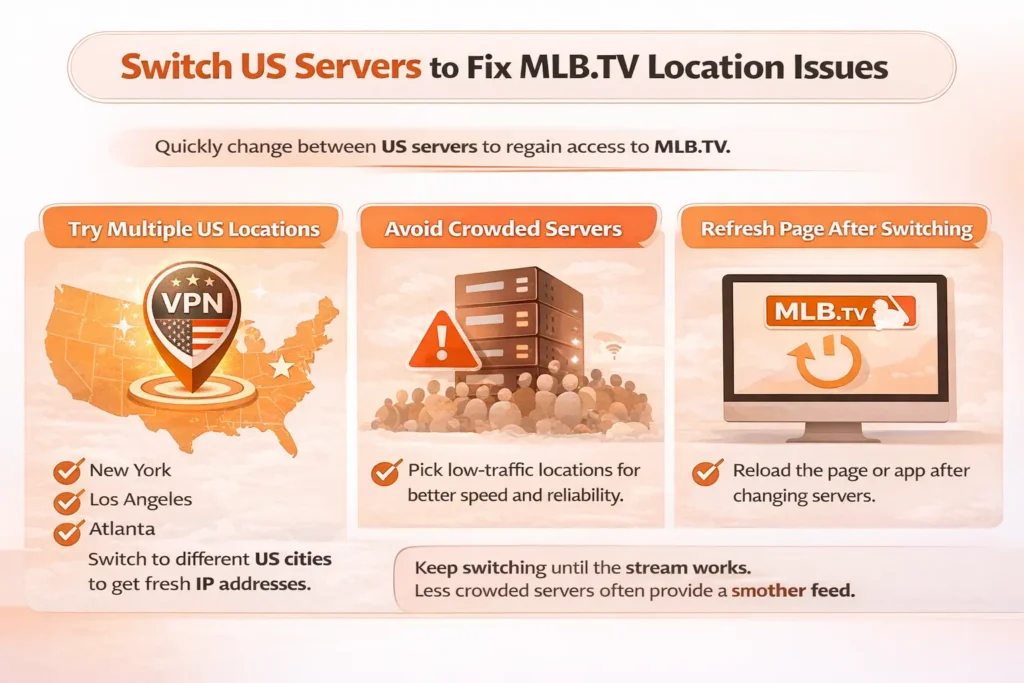
Try multiple US locations Don’t rely on a single server. Changing to a different US city assigns you a new IP address, which may not be flagged by MLB.TV.
Avoid overly popular cities during game time Servers in major hubs are more likely to be crowded and detected. Less busy locations often provide cleaner access and more stable streams.
Refresh the page after reconnecting Once you switch servers, reload the MLB.TV page or restart the app to ensure it recognises the new connection properly.
Switching between US VPN servers can help restore access to MLB.TV by avoiding blocked or overcrowded locations.
If the stream still doesn’t load, repeat this process with another server before moving on to advanced fixes. Many users regain access within one or two attempts.
2. Clear cookies, cache, and saved location data
MLB.TV stores location information locally. Even after switching servers, old data can override your new IP.
On browsers
Clear cookies and cache
Use an incognito/private window
Log out, then log back in
On apps
Clear app cache
Force close the app
Restart your device
3. Disable GPS and location services (mobile users)
Mobile apps can bypass your VPN by using GPS and nearby network data to determine your real location. Even if your VPN is connected to a US server, MLB.TV may still detect where you are through these signals and block the stream.
How to fix it
Turn off location services for the MLB app This prevents the app from accessing GPS data that can override your VPN location.
Disable Wi-Fi scanning and Bluetooth location features These features help apps pinpoint your position using nearby networks and devices, even when GPS is off.
Reconnect to the VPN and relaunch the app After disabling location access, reconnect to a US server, then fully reopen the MLB app so it checks your new connection from scratch.
This is one of the most commonly overlooked fixes, especially for users who find MLB.TV works on the desktop but not on mobile.
4. Change VPN protocol
Not all VPN protocols behave the same way. Some are faster and better suited for streaming, while others are more easily flagged by streaming platforms like MLB.TV. Switching protocols can improve both connection stability and access.
Recommended options
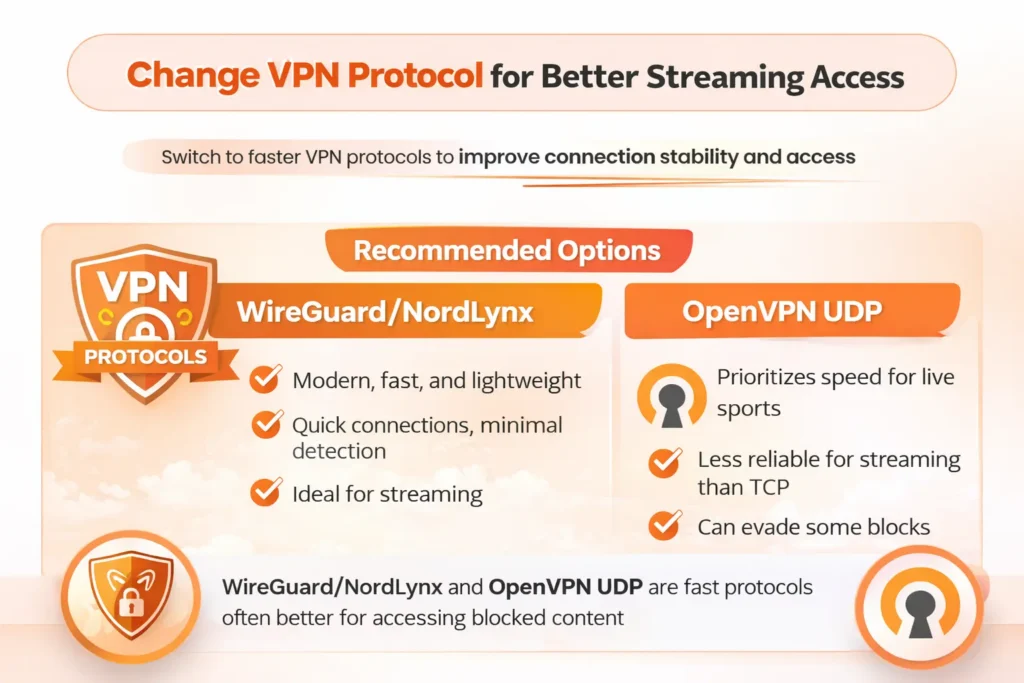
WireGuard / NordLynx These modern protocols are lightweight, fast, and widely used for streaming. They establish connections quickly and are less likely to trigger detection due to their efficient traffic handling.
OpenVPN UDP This option prioritises speed over error correction, making it well-suited for live sports. It’s often more reliable for streaming than TCP-based protocols.
Switching VPN protocols like WireGuard, NordLynx, or OpenVPN UDP can improve streaming speed, stability, and access.
What to avoid
Older or experimental protocols may struggle with speed or compatibility and are more likely to cause connection drops or detection issues. Stick with proven, widely supported options unless troubleshooting requires otherwise.
After switching protocols, reconnect to a US server and reload MLB.TV to check if access has been restored.
5. Flush DNS to remove location conflicts
Even with a VPN connected, your device might still use old DNS records linked to your actual location. This can cause MLB.TV to detect conflicting location data, leading to streams that appear to load but fail when you try to play them.
When this fix helps
The VPN works on one device but not another Different devices may store different DNS records, causing inconsistent results.
You recently changed countries or networks DNS information from a previous location can linger and interfere with streaming access.
Streams load but fail at playback This often points to a DNS mismatch rather than a VPN or account issue.
Extra tip Restarting your router can clear cached network data at the source and resolve stubborn cases where device-level fixes don’t work.
After flushing DNS or restarting your router, reconnect to your VPN and reload MLB.TV to check if access is restored.
6. Try a different browser or device
If MLB.TV works on your phone but not your laptop (or vice versa). The problem is local, not your VPN. Try the following troubleshooting tip to overcome the issue:
Troubleshooting tip
Browser → app If the website isn’t loading streams properly, try the official MLB app instead.
App → browser App-level issues like cached data or GPS access don’t affect browsers in the same way.
Desktop → mobile If one device works and another doesn’t, the problem is local and easier to fix.
This quick comparison helps isolate the source of the issue before making bigger changes.
7. Update everything
Outdated apps and operating systems can trigger compatibility issues.
No, not all VPNs stop working with MLB.TV. The platform mainly targets high-traffic IP addresses, rather than blocking VPN providers entirely. This is why VPN access can feel inconsistent from one day to the next.
Here’s what typically happens:
Some servers stop working overnight If an IP address sees heavy streaming activity, it may get flagged and blocked quickly.
Other servers continue working for weeks Less crowded or freshly rotated IPs often remain usable for much longer.
Free VPNs fail almost instantly These services rely on heavily shared IPs that are already well known to streaming platforms and rarely stay accessible.
In practice, reliable access depends on a VPN’s ability to rotate IP addresses, maintain a wide selection of US servers, and optimise its network specifically for streaming services like MLB.TV.
Are free VPNs worth trying?
In almost all cases, no.
Free VPNs usually:
Reuse overcrowded IPs
Get blocked faster
Struggle with live HD streaming
Introduce security risks
They’re fine for browsing, not live sports.
Is using a VPN with MLB.TV allowed?
VPNs are legal in most countries. However, MLB.TV’s terms of service may restrict location masking. Many fans still use VPNs while travelling to access subscriptions they already pay for.
Surfshark—Best for multiple devices and travellers
Surfshark is a strong option for users who watch MLB.TV across several devices at once. It allows unlimited simultaneous connections, making it ideal for households or frequent travellers.
Why it works with MLB.TV
Reliable US server availability
Unlimited device connections under one account
Good streaming speeds for live baseball
Simple apps for desktop, mobile, and smart TVs
Best for: Users who want flexibility across multiple devices without paying extra.
Private Internet Access (PIA)—Best for advanced users & server control
Private Internet Access offers one of the largest US server networks available, which helps when MLB blocks specific IP ranges. It also gives users more control over encryption and connection settings.
Why it works with MLB.TV
Massive US server coverage
Frequent IP availability reduces detection issues
Strong performance on desktop browsers
Customisable settings for experienced users
Best for: Power users who don’t mind tweaking settings for consistent access.
Final thoughts
When MLB.TV isn’t working with a VPN; it’s frustrating, but rarely permanent. In 2026, the issue usually comes down to IP detection, cached location data, or device settings rather than a full block.
With the right fixes and a streaming-friendly VPN, most users are back to watching live baseball in minutes. Borders shouldn’t decide whether you see first pitch, and with the right setup, they don’t have to.
MLB.TV VPN FAQs
1. Does MLB.TV work with a VPN?
Yes, MLB.TV can work with a VPN, but not all VPNs are supported. MLB blocks many shared IP addresses, so success depends on using a provider with regularly refreshed US servers.
2. Why does MLB.TV block VPN connections?
MLB enforces regional broadcast agreements. VPN traffic is often flagged because multiple users share the same IP address, triggering location checks.
3. What VPN location should I use for MLB.TV?
A US server is required. If one location fails, switching to another US city often restores access immediately.
4. Is using a VPN with MLB.TV legal?
VPNs are legal in most countries. However, MLB.TV’s terms may restrict location masking. Many users rely on VPNs while travelling to access subscriptions they already pay for.
5. Can a free VPN work with MLB.TV?
Free VPNs rarely work. They use overcrowded IPs that are quickly blocked, and often can’t handle live sports streaming speeds.
6. Why does MLB.TV still show blackouts with a VPN?
Cached location data, GPS settings, or a blocked IP can cause blackout messages. Clearing cookies, disabling location services, or changing servers usually fixes this.
7. Does MLB.TV block VPNs on mobile apps?
Yes. Mobile apps can also use GPS data. Disabling location services for the app is often necessary when using a VPN.
8. Can I watch MLB.TV on a smart TV with a VPN?
Yes, but you may need a VPN-enabled router or a streaming device that supports VPN apps, such as Android TV or Fire TV.
9. Will a VPN slow down MLB live streams?
A high-quality VPN causes minimal speed loss. Poor-quality services often lead to buffering and lower resolution.
10. What’s the safest way to use a VPN with MLB.TV?
Use a trusted premium VPN, connect to a US server, clear stored location data, and avoid unofficial streaming sites.
#Fix MLB.TV VPN issues#MLB blackout workaround#MLB streaming with VPN#MLB.TV VPN not working#Watch MLB abroad