Step-by-Step Guide: Why is Screen Mirroring Not Working on Fire Stick?
Editor's Choice
#1 Pick
Editor's Choice
 EXPRESS VPN
$2.79/month
Save 20% today!
Blazing Fast
3,000+
214
8
Step by Step Instructions
Step 01
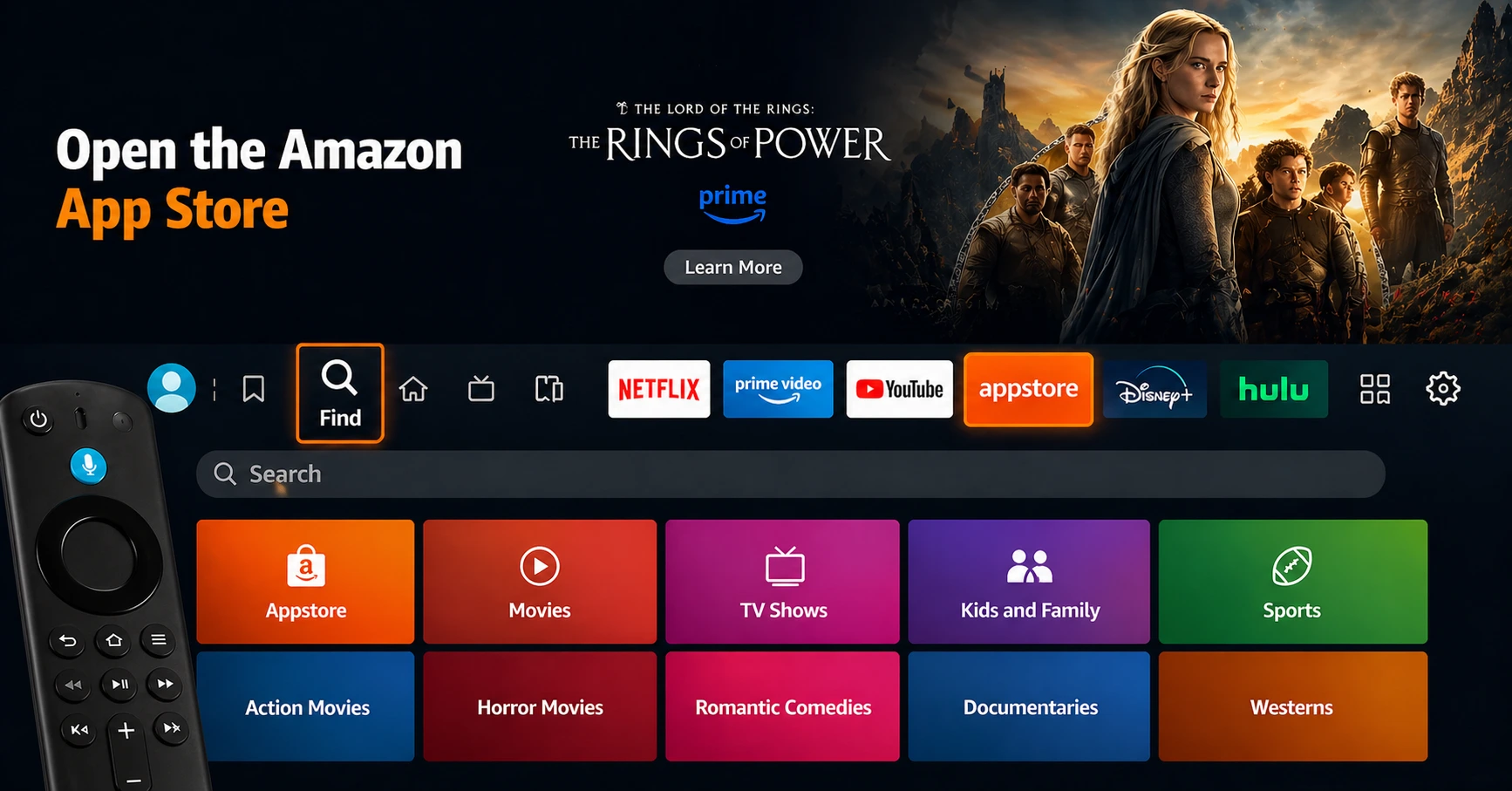
Open the Amazon App Store
From your Firestick home screen, navigate to the “Find” or search icon and open the Amazon App Store.
Step 02
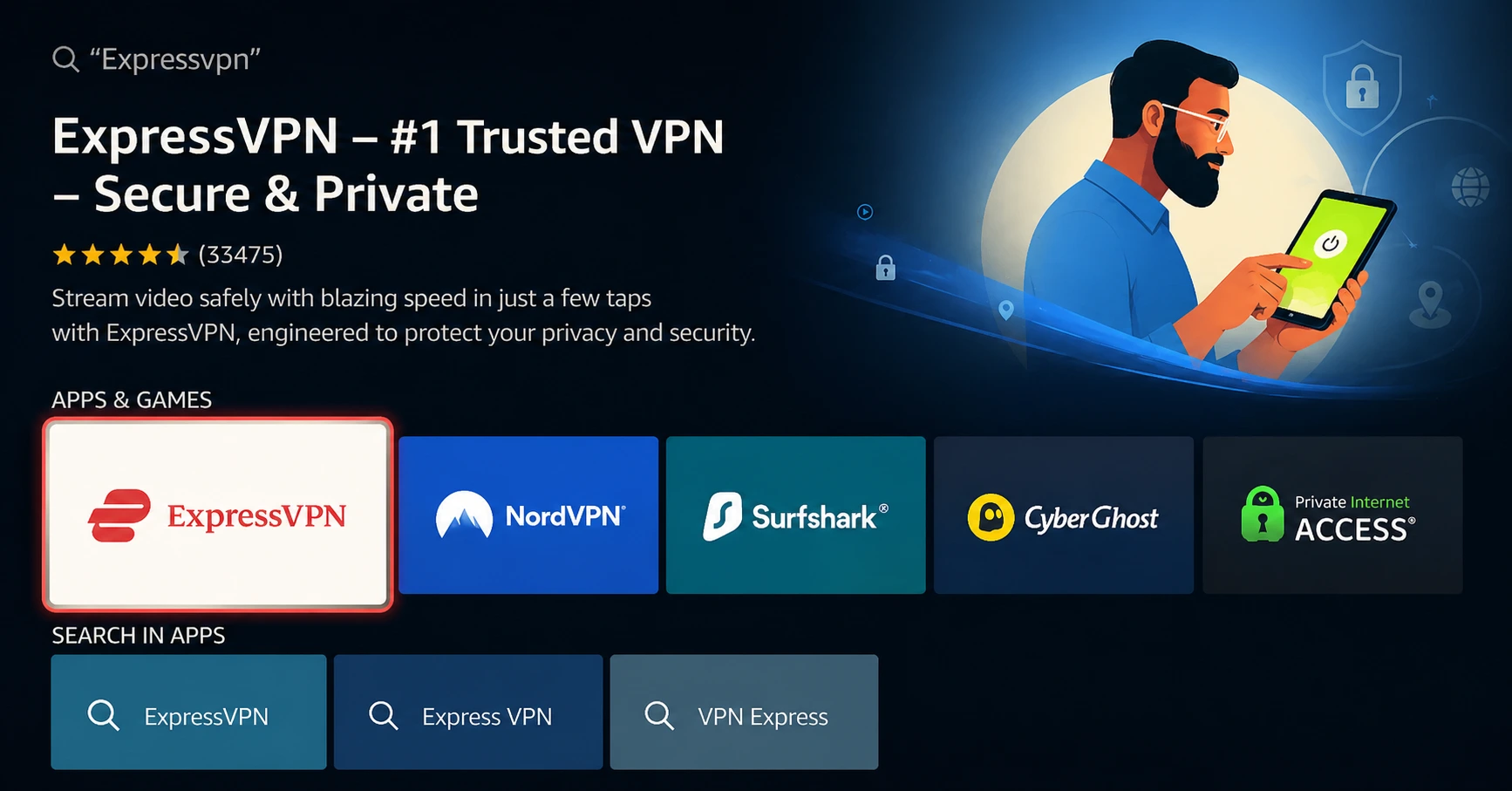
Search for ExpressVPN
Type “ExpressVPN” in the search bar using your remote. Select the official ExpressVPN app from the results.
Step 03
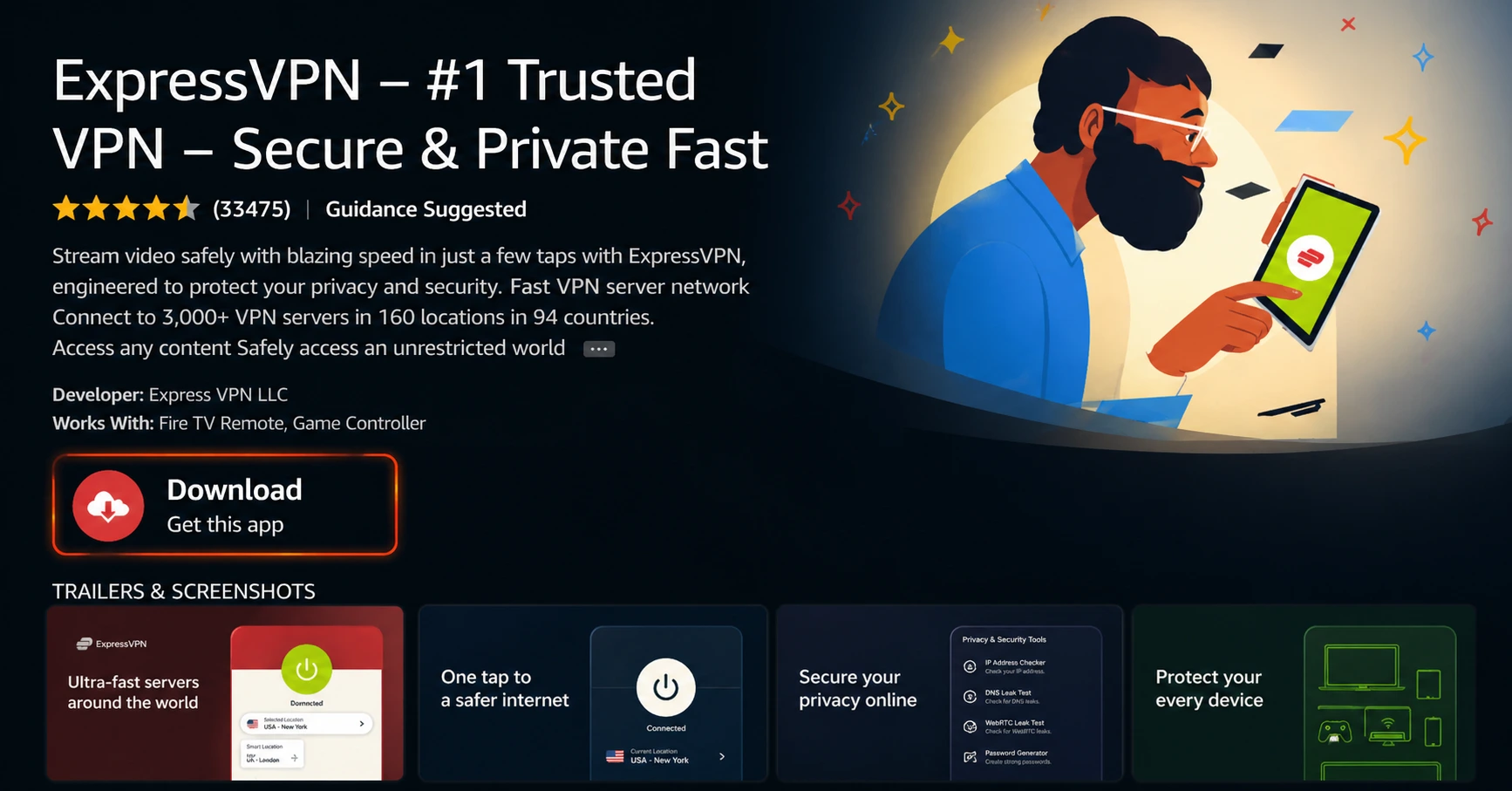
Download & Install the App
Click on the “Download” or “Get” button to install the app on your Firestick. Wait for the installation to complete.
Step 04
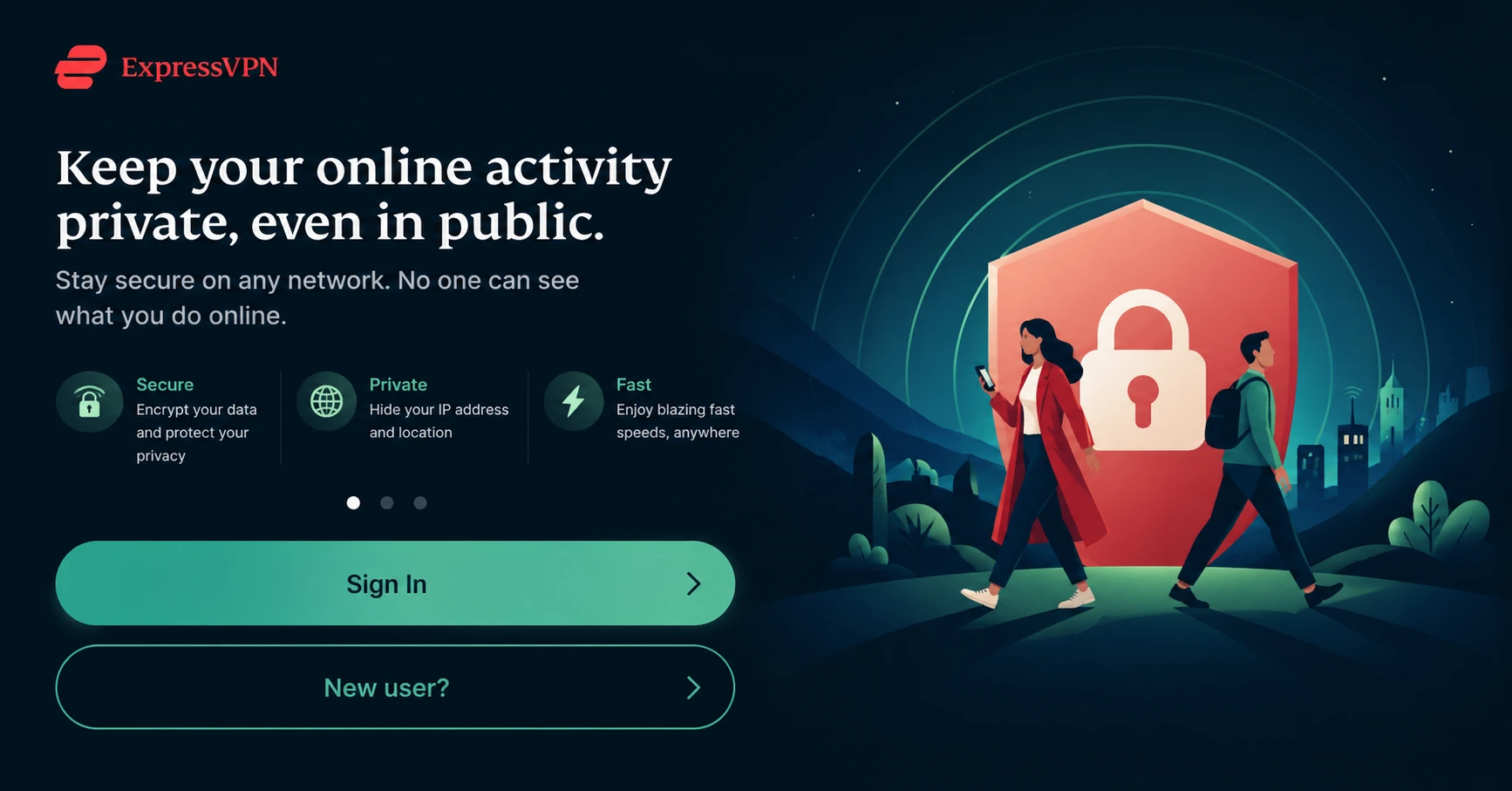
Sign In & Connect
Open the app, sign in with your ExpressVPN account, and tap the power button to connect to a server.
Why is Screen Mirroring Not Working on Fire Stick?
Fix mirroring issues fast by checking Wi-Fi or verifying device compatibility. Use this guide to find out why and fix it fast.
Step 01
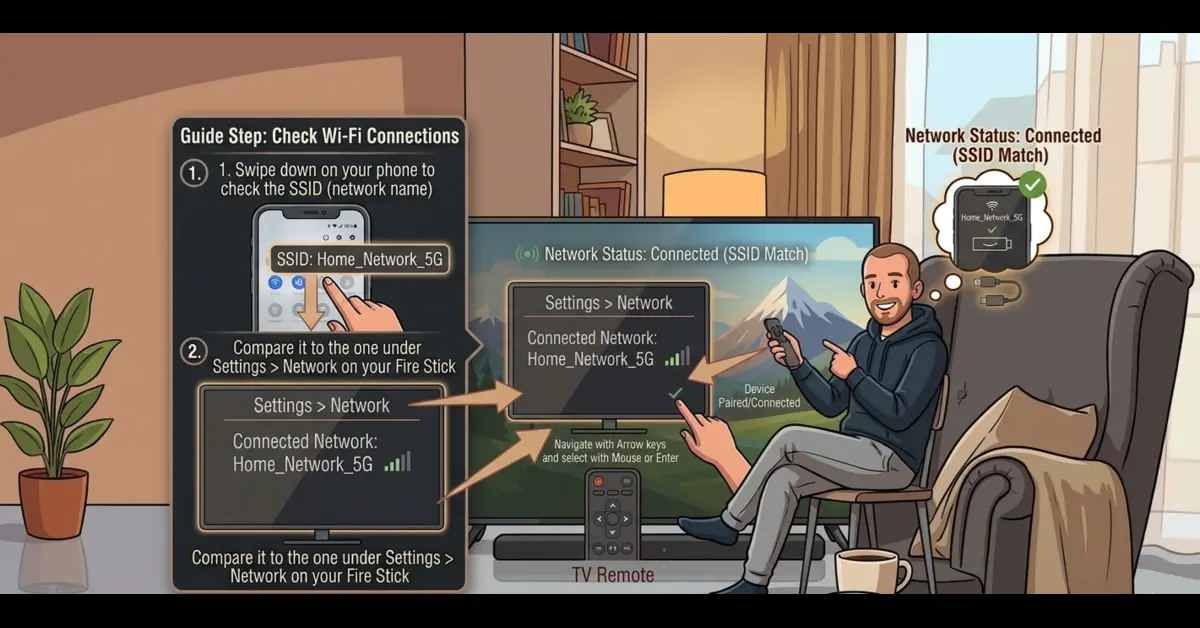
Check Wi-Fi Connections
-
Swipe down on your phone to check the SSID (network name) and compare it to the one under Settings > Network on your Fire Stick.
Step 02
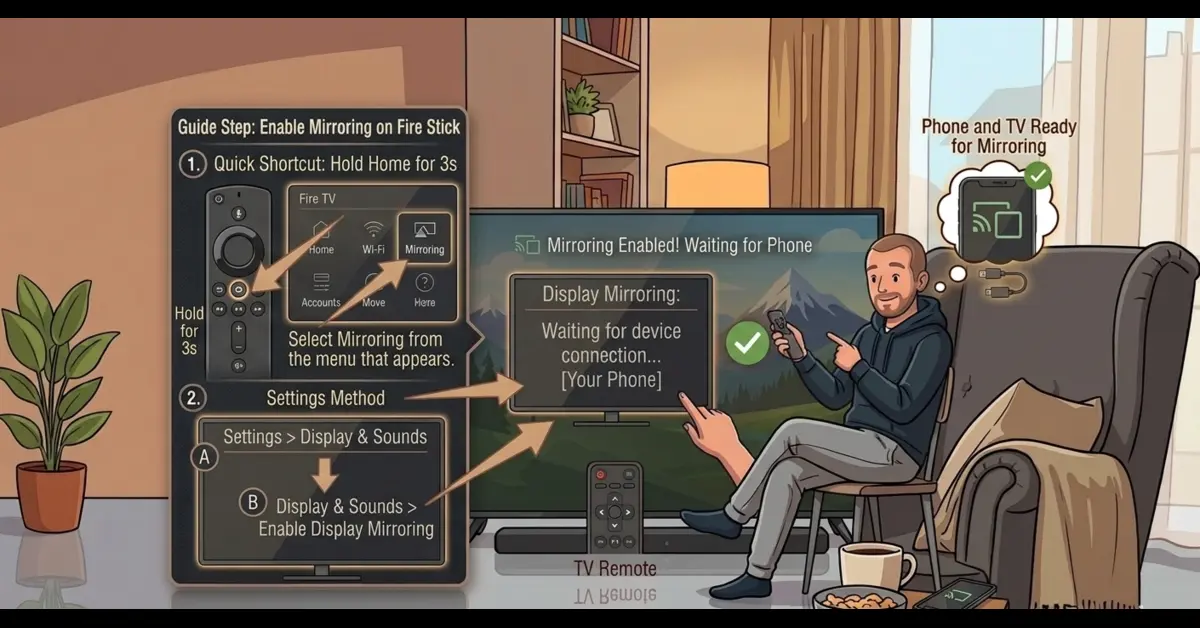
Enable Mirroring on Fire Stick
-
Press and hold the Home button on your Fire TV remote for 3 seconds. Select Mirroring from the menu that appears.
-
Navigate to Settings > Display & Sounds > Enable Display Mirroring.
Get EXPRESS VPN — 20% Off
Best VPN for Fire Stick streaming. Save 20% today!
Step 03
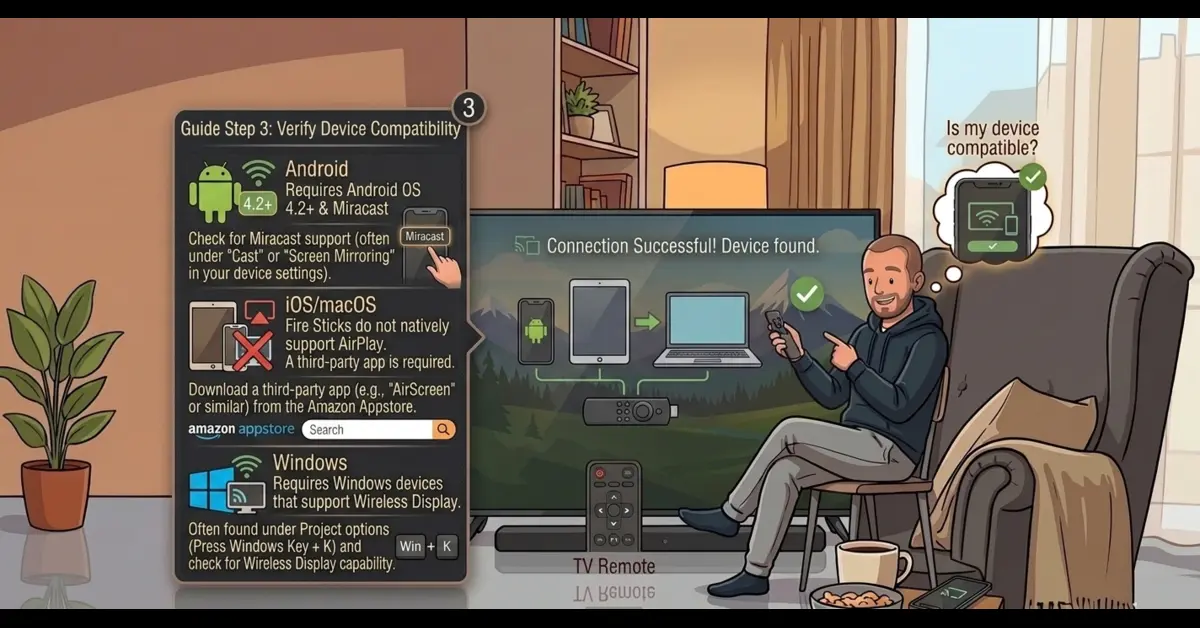
Verify Device Compatibility
-
Requires Android OS 4.2 or higher and Miracast support.
-
Fire Sticks do not natively support AirPlay. You must download a third-party app like AirScreen from the Amazon Appstore to mirror an iPhone or Mac.
-
Requires Windows devices that support Wireless Display (WiDi/Miracast).
Step 04
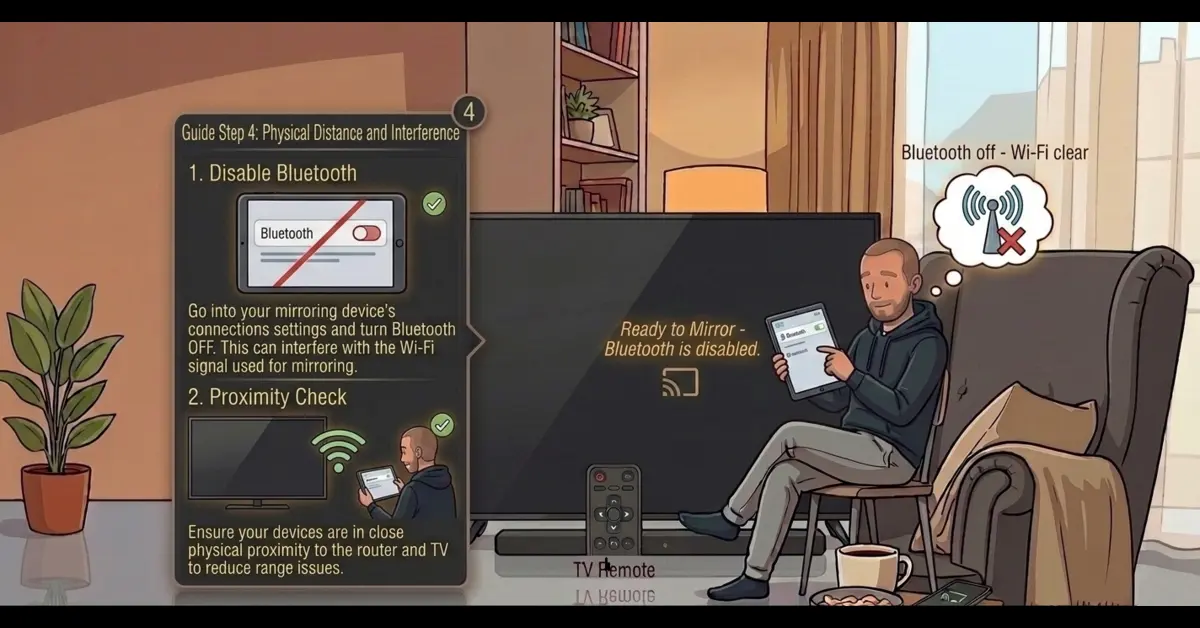
Physical Distance and Interference
-
Turn off Bluetooth on your mirroring device, as it can sometimes interfere with the Wi-Fi signal used for mirroring.
Get EXPRESS VPN — 20% Off
Best VPN for Fire Stick streaming. Save 20% today!
Step 05
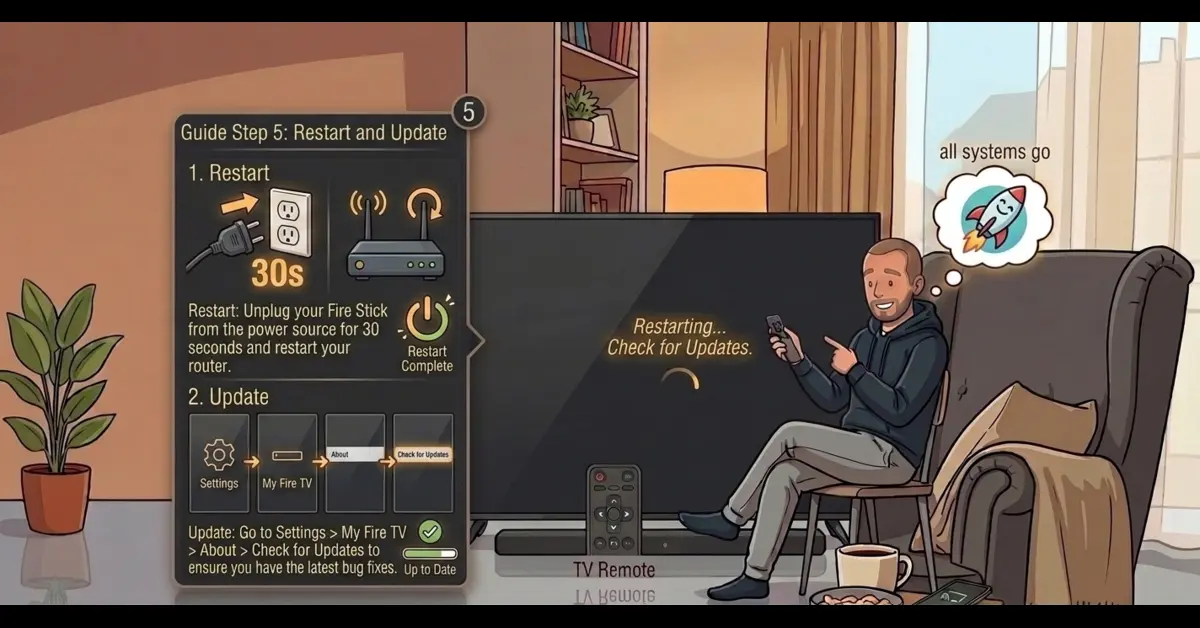
Restart and Update
-
Unplug your Fire Stick from the power source for 30 seconds and restart your router.
-
Go to Settings > My Fire TV > About > Check for Updates to ensure you have the latest bug fixes.
Quick Comparison
Side-by-side comparison of top Fire Stick VPNs
 NordVPN
 IPVanish
Frequently Asked Questions
Does a VPN interfere with screen mirroring?
Yes, VPNs encrypt your connection and hide your device from the local network. This prevents your Firestick and phone from "seeing" each other to establish a link.
Should I disable my VPN before mirroring?
Most users must disable their VPN on both the Firestick and the source device. This restores local network visibility, allowing the two devices to connect successfully.
Can I use Split Tunneling to mirror while on a VPN?
Some VPNs allow Split Tunneling, letting specific apps bypass the VPN. Excluding your "Cast" or "Mirroring" system apps may allow you to stay protected while sharing your screen.
Why does my screen go black when mirroring with a VPN?
This often happens due to HDCP (copy protection) or network routing issues caused by the VPN tunnel. Turning off the VPN usually resolves this black screen immediately.
Do I need a VPN to mirror local files?
No, a VPN is not needed for mirroring local photos or videos. Since the data stays on your local Wi-Fi, using a VPN only adds unnecessary connection hurdles.
Will my Firestick appear in the "Cast" list if my VPN is on?
Probably not. VPNs often block local network discovery (mDNS). If your Firestick doesn't appear in your phone's list, checking your VPN settings is the first step.