How Do I Enable Dolby Atmos on Firestick? A Step by Step Guide
Editor's Choice
#1 Pick
Editor's Choice
 Proton VPN
$3.99/month
Save 20%
Blazing Fast
14,999+
214
7
Step by Step Instructions
Step 01
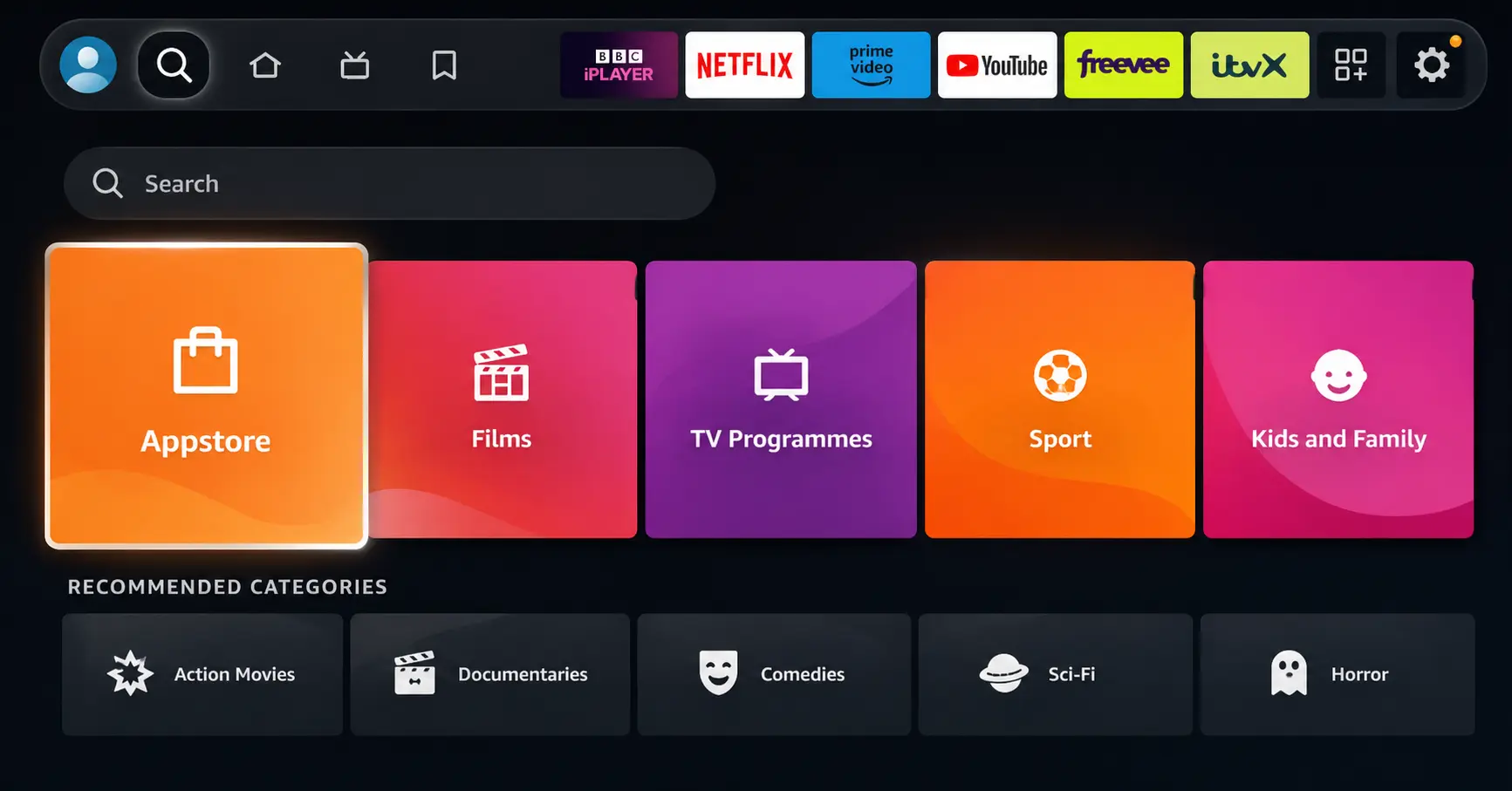
Open Search on Fire TV
Go to the Find (Search) option from your Fire TV home screen.
Step 02
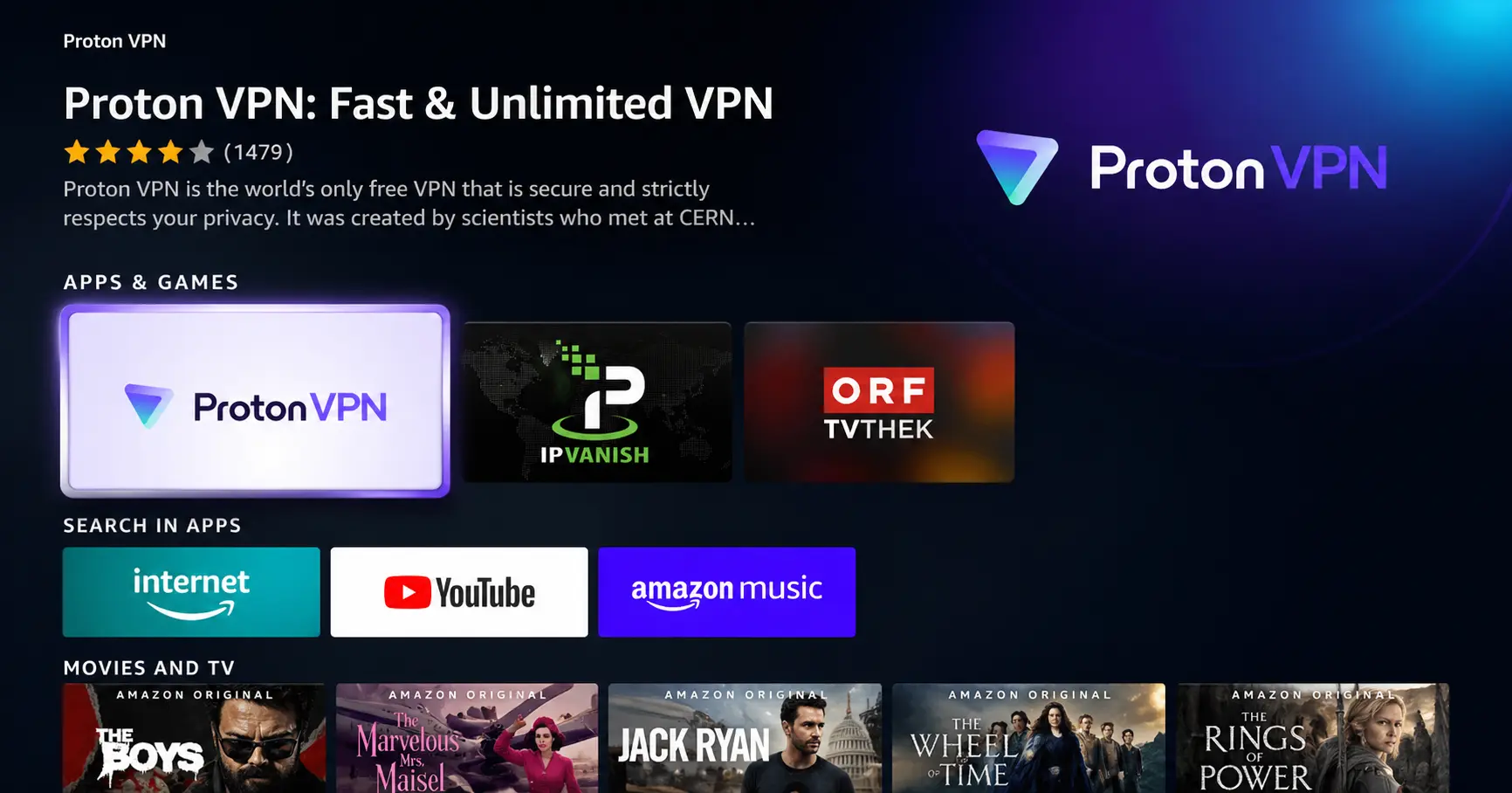
Search for ProtonVPN
Type ProtonVPN using your remote and select the app from the results.
Step 03
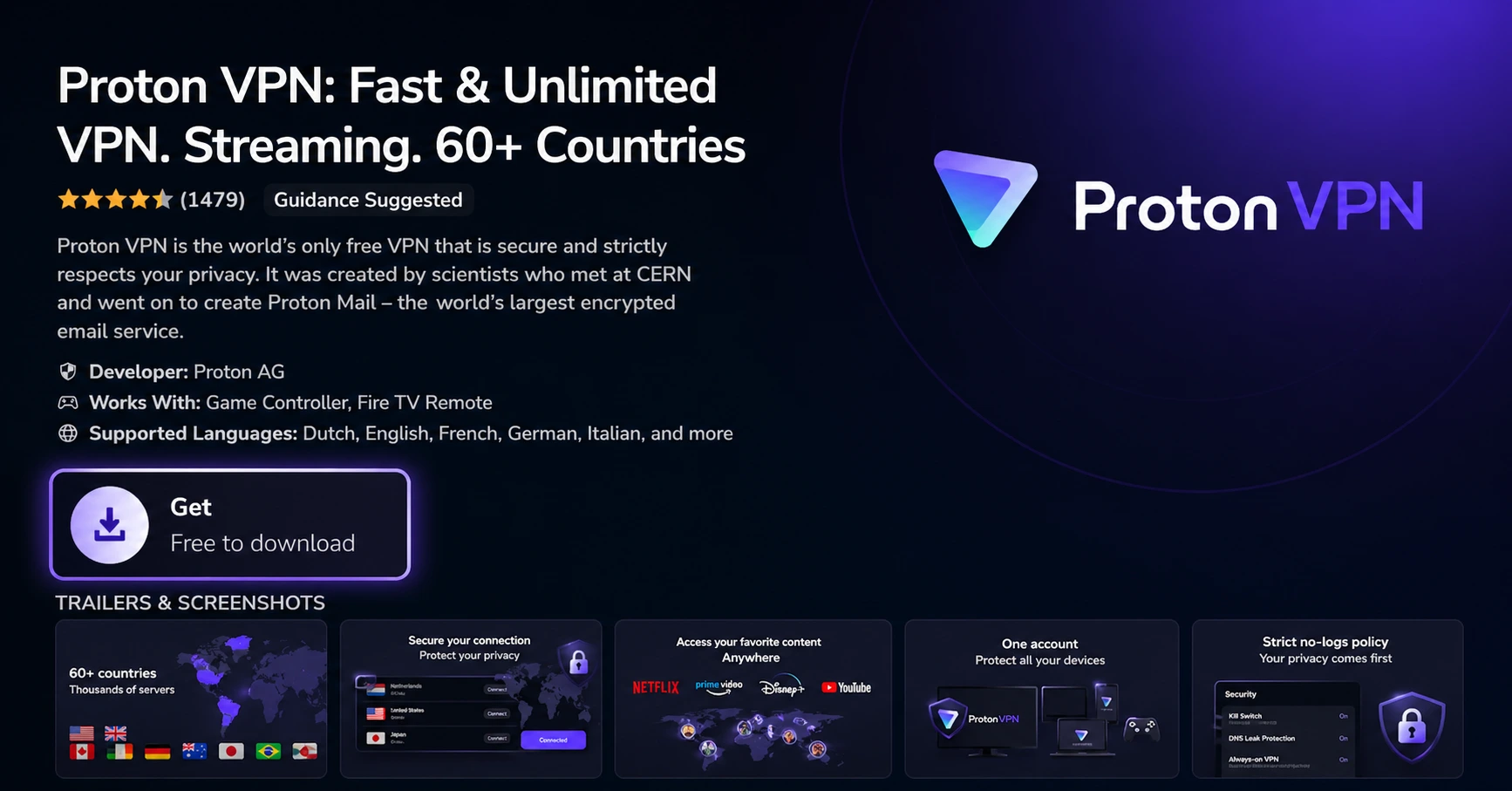
Install the App
Click on Get or Download to install ProtonVPN on your Fire TV.
Step 04
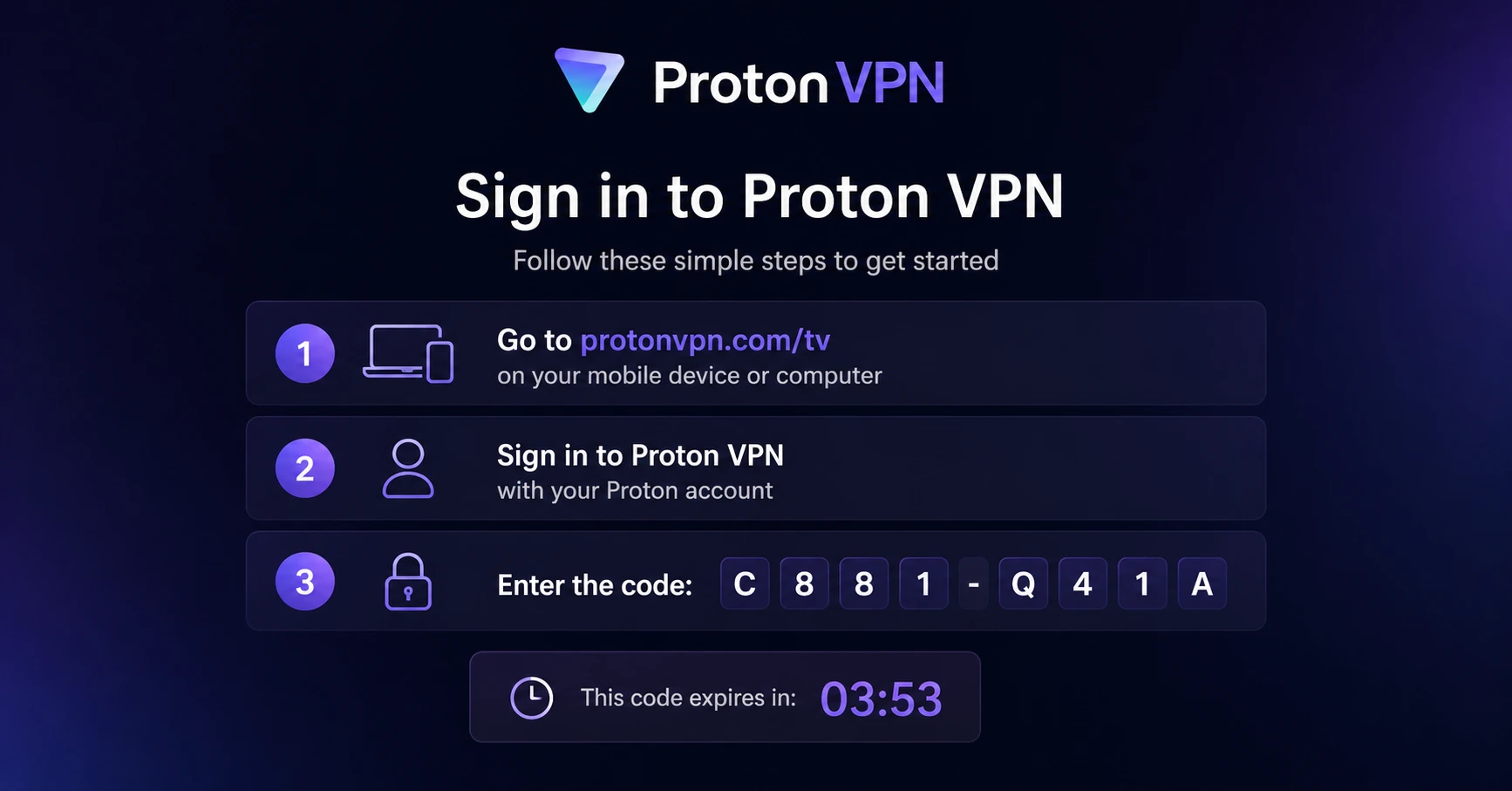
Sign In & Connect
Open the app, sign in using your Proton account (QR or code method), and connect to a server.
How Do I Enable Dolby Atmos on Firestick?
A quick guide to getting Dolby Atmos up and running on your Firestick.
Step 01
Check If Your Firestick Supports Dolby Atmos
-
Go to Settings, select Display and Sounds, then Audio
-
Click Audio Video Diagnostics to confirm Dolby Atmos is supported on your device
-
Make sure your Firestick is connected via HDMI as optical cables do not support Dolby Atmos
-
Dolby Atmos is supported on Fire TV Stick 4K, Fire TV Stick 4K Max, and Fire TV Cube second generation or newer only
Step 02
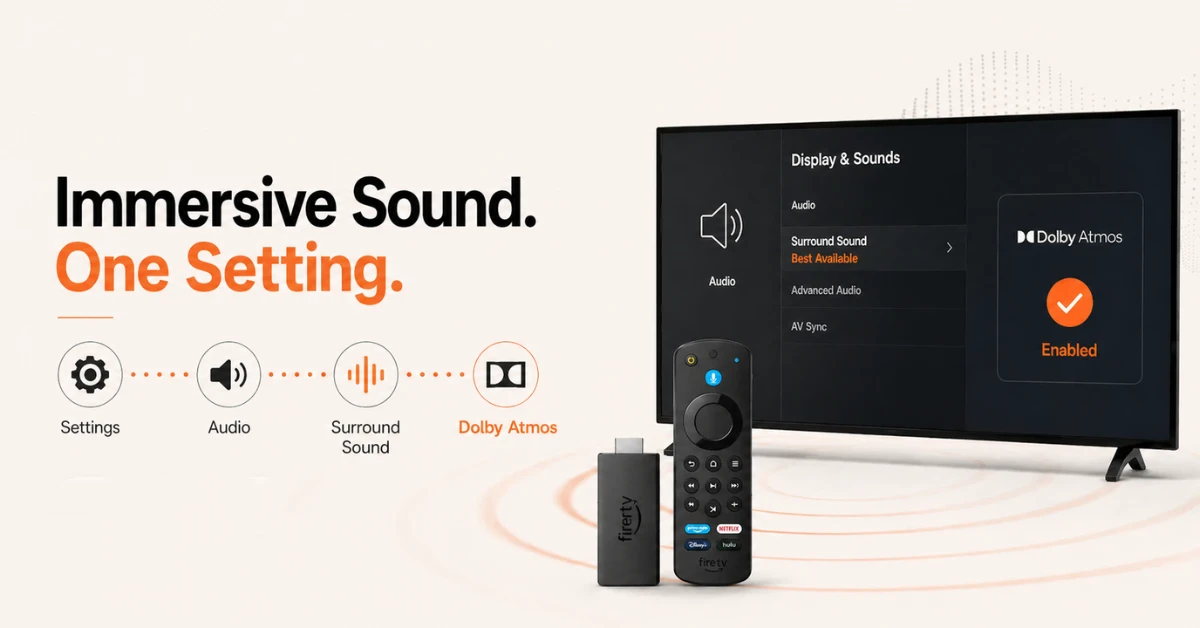
Enable Dolby Atmos in Firestick Settings
-
Go to Settings from your Firestick home screen and select Display and Sounds
-
Select Audio, then Surround Sound, and choose Best Available
-
If you see a Dolby Atmos option listed, select it and click Enable to turn it on
Get Proton VPN — 20% Off
Step 03
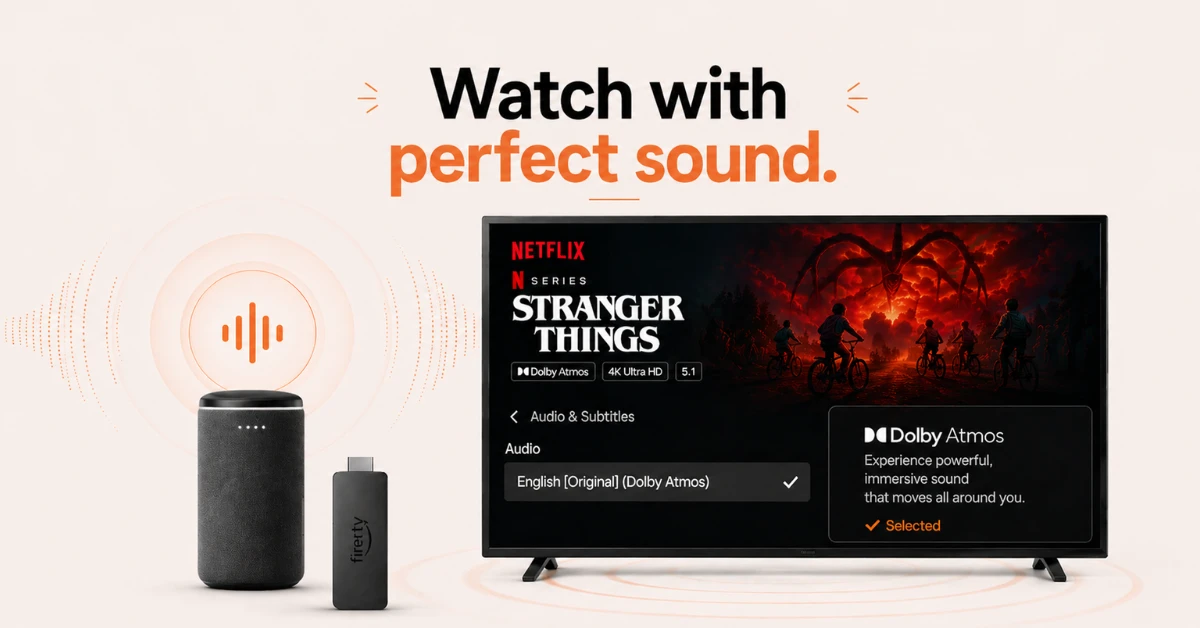
Check Your Streaming App Settings
-
Open your streaming app and go into its audio settings
-
Make sure the audio track is set to Dolby Atmos as some apps require this to be selected manually
-
Dolby Atmos content is only available on certain subscription tiers so check your plan
Step 04
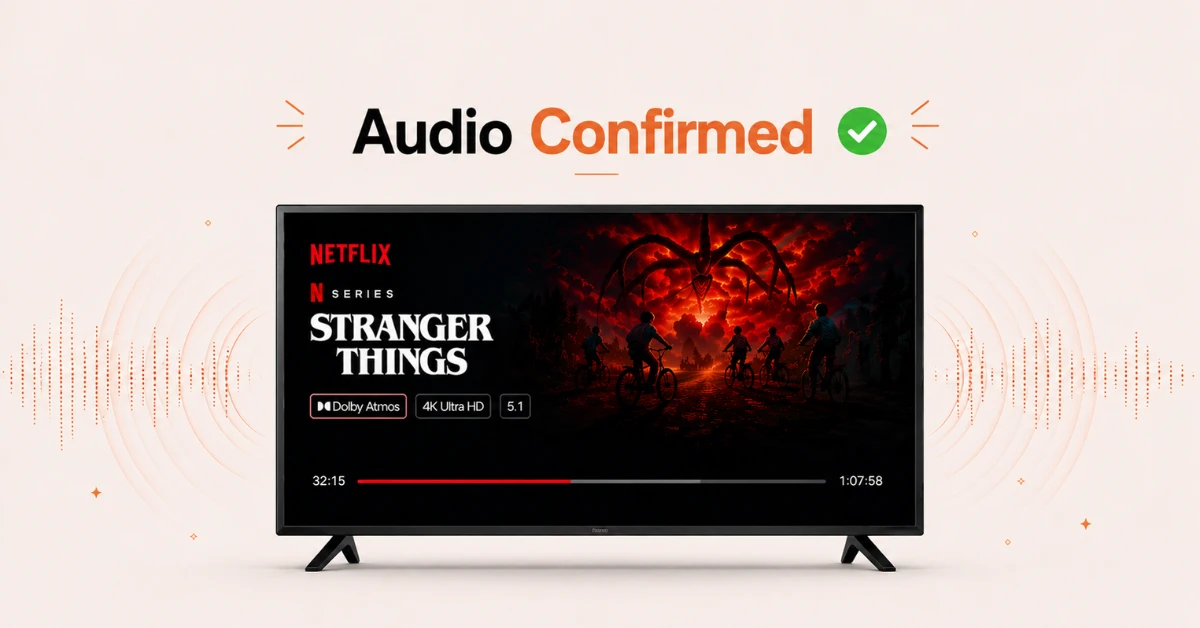
Verify That Dolby Atmos Is Working Correctly
-
Play any Dolby Atmos supported title and look for the Dolby Atmos badge on screen
-
If you have an AV receiver, check its display to confirm it is decoding Dolby Atmos audio
-
If Atmos is not showing, go back to Settings, select Display and Sounds, then Audio
-
Confirm Surround Sound is set to Best Available or Dolby Atmos and retest playback
Quick Comparison
Side-by-side comparison of top Fire Stick VPNs
| VPN | Price | Servers | Speed | Devices | Rating | Actions |
|---|---|---|---|---|---|---|
|
Proton VPN
|
$3.99/mo | 14,999+ | Blazing Fast | 7 | 4.8 | Get Deal |
 EXPRESS VPN
|
$2.79/mo | 3,000+ | Blazing Fast | 8 | 5 | Get Deal |
 NordVPN
|
$4.39/mo | 6,998+ | Blazing Fast | 8 | 4.8 | Get Deal |
|
|
$1.88/mo | 3,200+ | Blazing Fast | 8 | 4.7 | Get Deal |
 Pure VPN
|
$3.55/mo | — | Blazing Fast | 6 | 4 | Get Deal |
Frequently Asked Questions
How do I enable Dolby Atmos on Fire Stick?
Go to Settings, select Display and Sounds, then Audio, and set Surround Sound to Best Available. If a dedicated Dolby Atmos option appears, select it and click Enable to turn it on.
Do I need to enable Dolby Atmos separately in each streaming app on Fire Stick?
Yes, some streaming apps require you to manually select the Dolby Atmos audio track within the app settings. Even if Dolby Atmos is enabled on your Fire Stick, the app must also be set to output Atmos for it to work.
Where do I find Dolby Atmos settings on Fire TV Stick?
Fire TV Stick Dolby Atmos settings are found under Settings, then Display and Sounds, then Audio. From here you can adjust Surround Sound, enable Dolby Atmos, and use Audio Video Diagnostics to check what your device supports.
Should I use Best Available or Dolby Digital Plus on Fire TV?
Best Available is the recommended setting for most users as it automatically selects the best format your setup supports. Dolby Digital Plus is a good manual choice if Best Available causes audio issues with your specific TV or soundbar.
How do I fix Dolby Atmos not working on Fire Stick?
Go to Settings, select Display and Sounds, then Audio, and confirm Surround Sound is set to Best Available or Dolby Atmos. Also check within your streaming app that the audio track is manually set to Dolby Atmos as some apps do not select it automatically.
How do I get Dolby Atmos from Fire Stick through a soundbar?
Connect your Fire Stick to your TV via HDMI and connect your soundbar to the TV using an HDMI ARC or eARC port. Make sure your soundbar supports Dolby Atmos and set Surround Sound to Best Available in your Fire Stick audio settings.
Why is there no sound when Dolby Digital Plus is selected on Fire Stick?
Not all TVs and soundbars are compatible with Dolby Digital Plus on Fire Stick, which can cause no sound when this format is selected. If this happens, switch the audio setting to Stereo or PCM as a temporary fix until you check your device's compatibility.
Does Prime Video require a specific plan for Dolby Atmos on Fire Stick?
Yes, Dolby Atmos content on Prime Video is available on select titles and requires a standard Prime Video subscription. Make sure you are streaming in the highest quality setting as lower quality streams may not carry the Dolby Atmos audio track.