Why Is Alexa Not Responding on My Firestick? A Complete Guide
Editor's Choice
#1 Pick
Editor's Choice
 NordVPN
$4.39/month
Save 20%
Blazing Fast
6,998+
214
8
Step by Step Instructions
Step 01
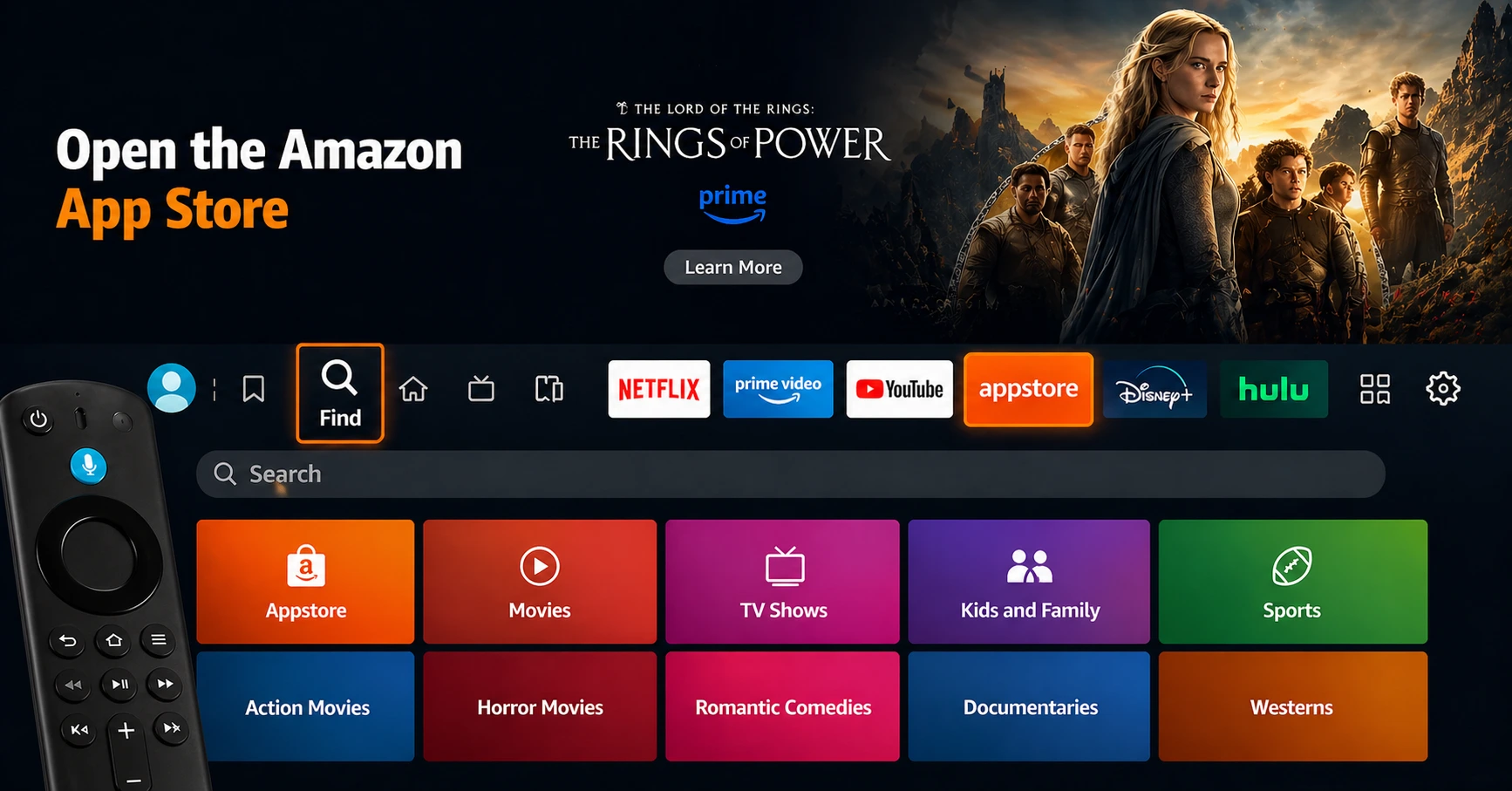
Go to Search on Fire TV
On your Fire TV home screen, select the Search (Find) option at the top.
Step 02
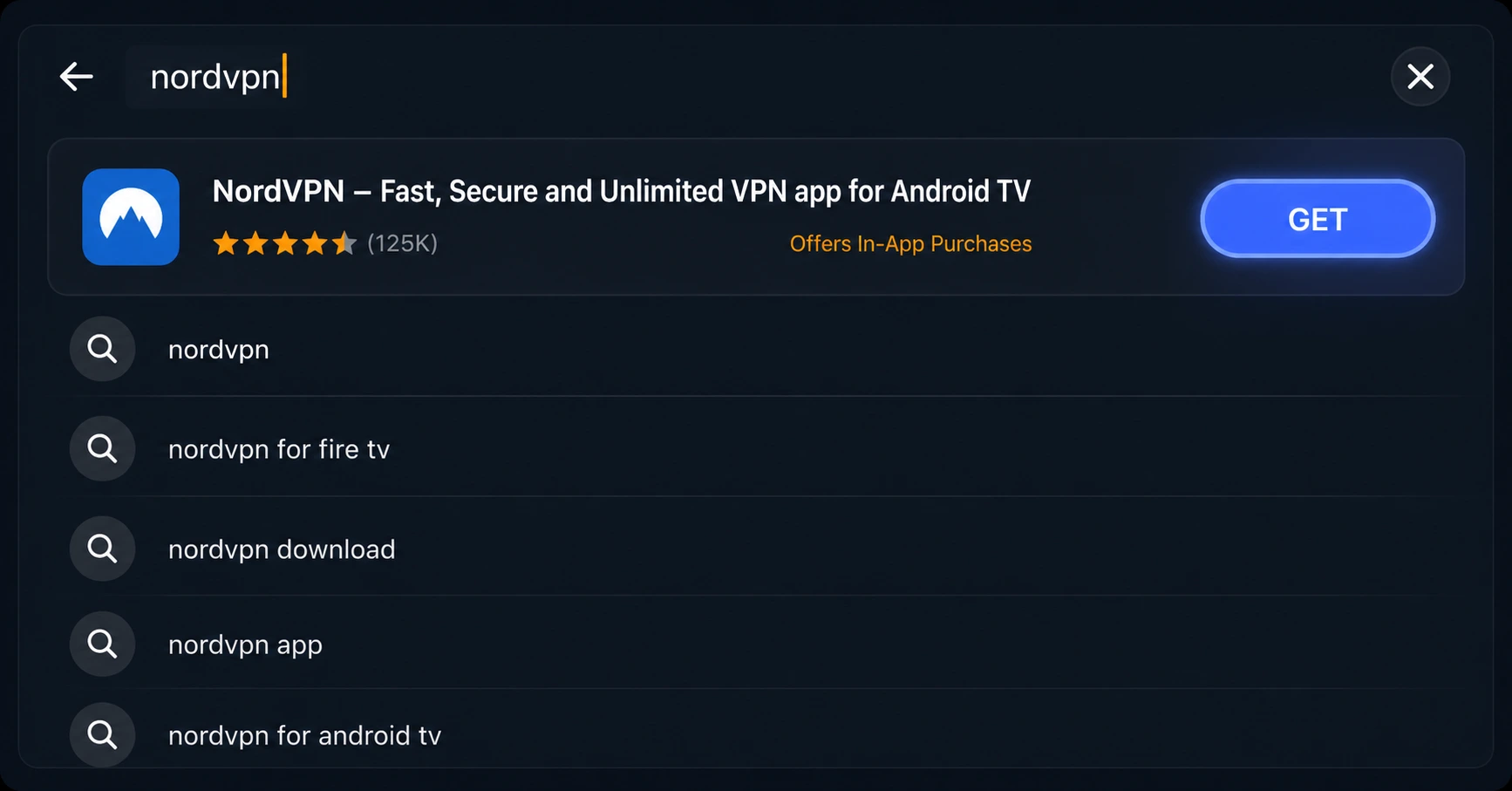
Type “NordVPN”
Use your remote to type NordVPN and choose the app when it appears in the results.
Step 03
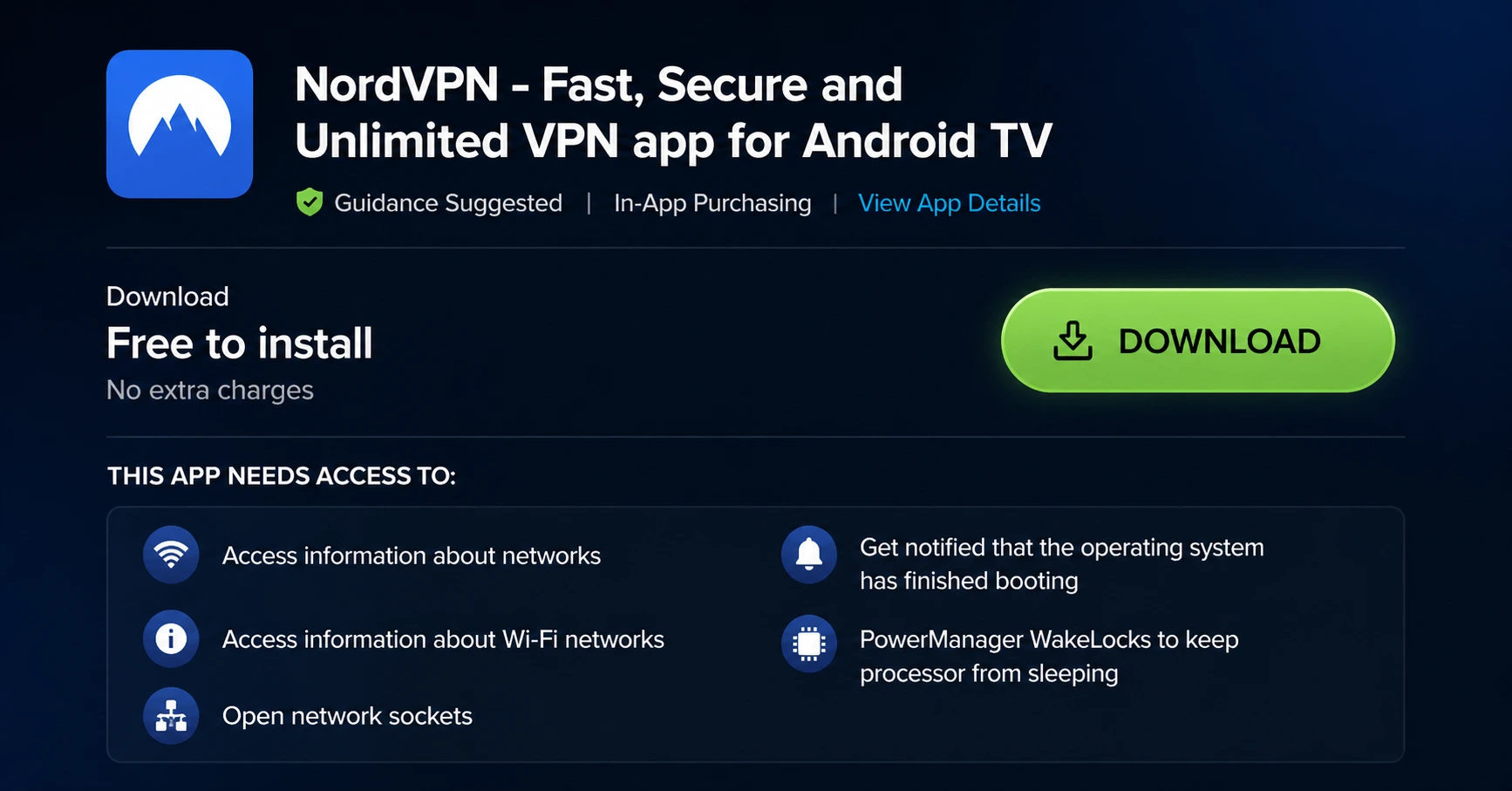
Install the App
Click on Get or Download to install NordVPN on your Fire TV.
Step 04
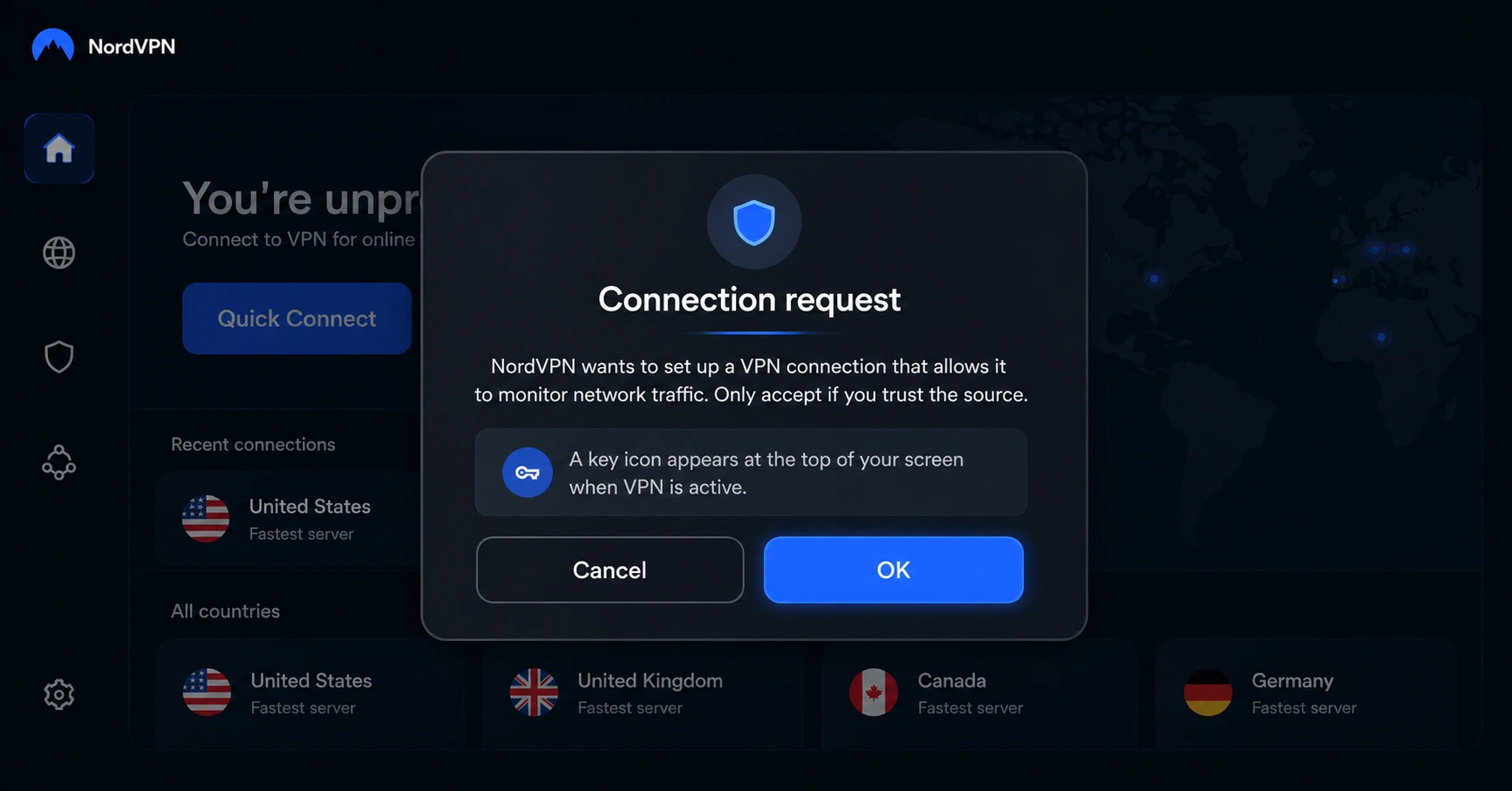
Log In & Connect
Open the app, sign in to your account, and press the connect button to start using the VPN.
Why Is Alexa Not Responding on My Firestick?
A complete fix guide to get Alexa responding again on your Firestick
Step 01
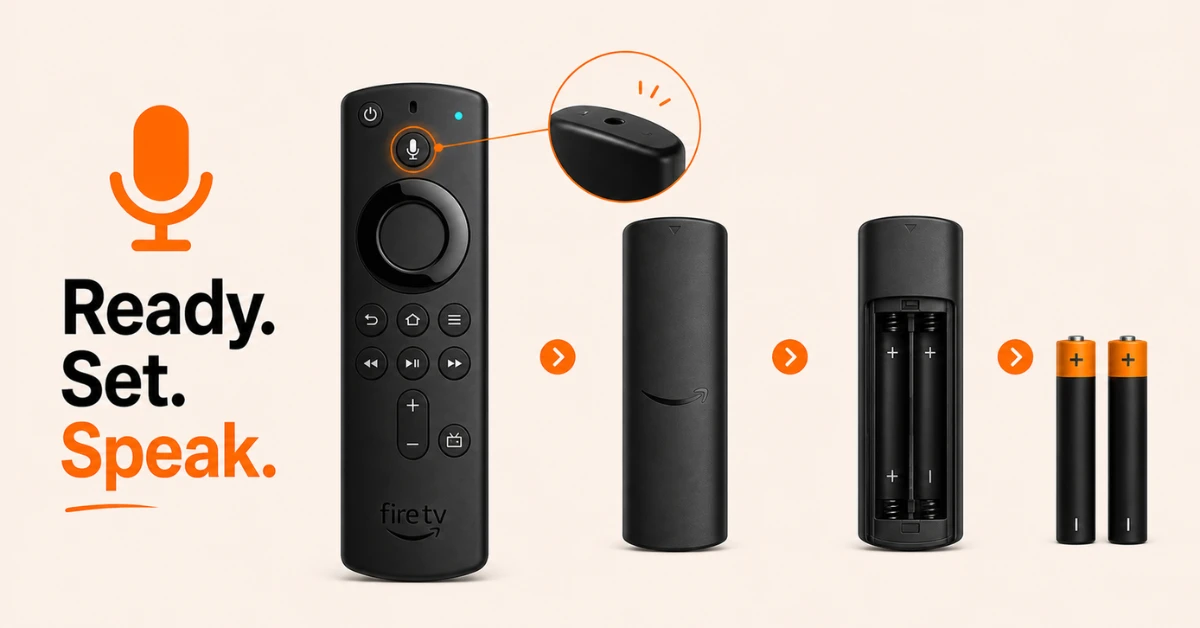
Check Your Remote and Replace the Batteries
-
Press and hold the microphone button on your remote and check if an Alexa listening bar appears on screen
-
If nothing appears, inspect the microphone at the top of the remote for dust or debris and clean gently with a dry cloth
-
Open the back cover, remove the batteries, and replace them with fresh ones.
-
If navigation buttons work but voice does not, weak batteries are almost always the cause
Step 02
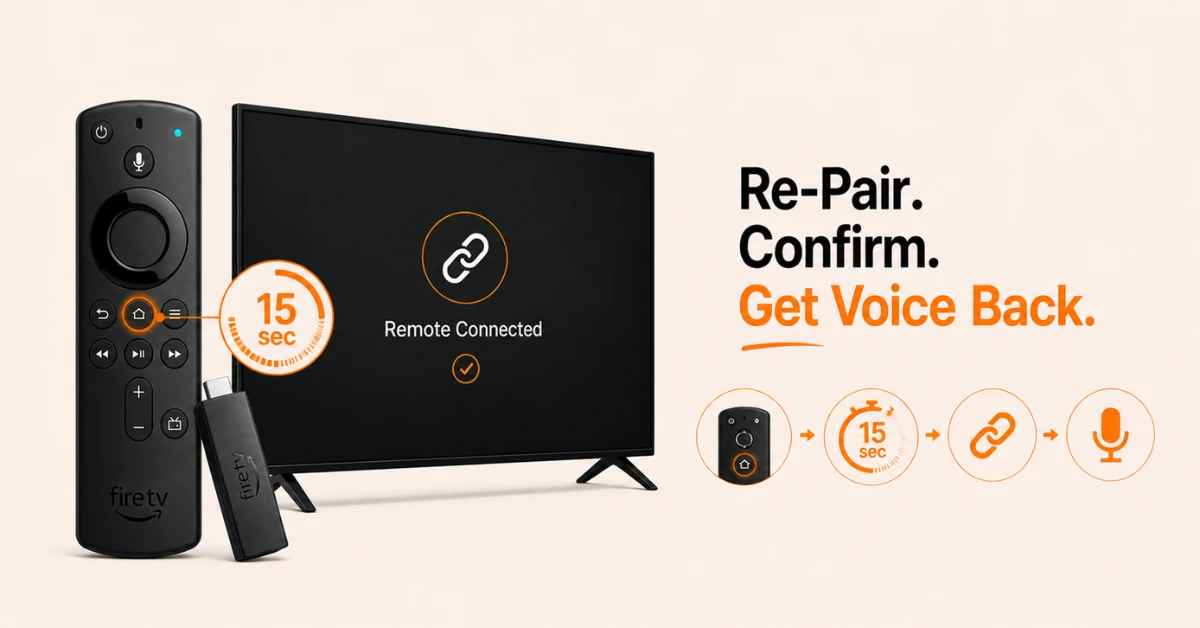
Re-Pair the Remote and Check Voice Settings
-
Bring the remote close to your Firestick and press and hold the Home button for 10 to 15 seconds
-
Wait for the on-screen pairing confirmation before testing the voice button again
-
Go to Settings, select Alexa or Alexa and Voice and confirm that Alexa is turned on
-
The go to Settings again, Preferences, then Privacy Settings and make sure the microphone is not disabled
Get NordVPN — 20% Off
Step 03
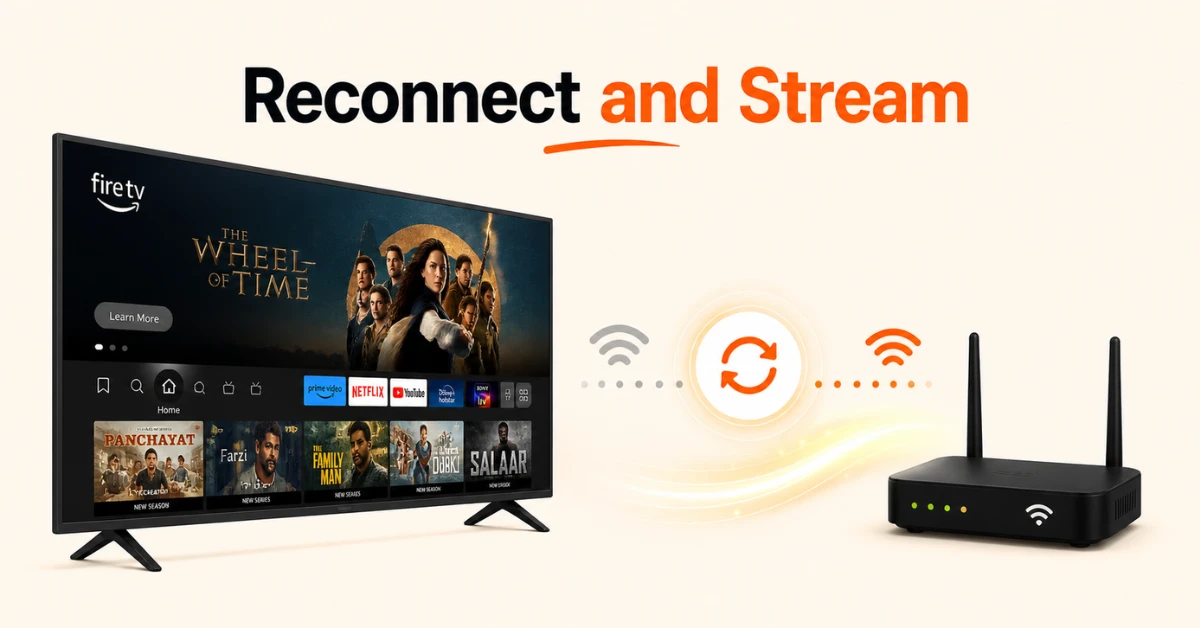
Check Your Wi-Fi and Restart Your Firestick
-
Go to Settings, select Network and confirm your Firestick is connected with a strong signal
-
If the connection looks weak, restart your router and reconnect your Firestick to Wi-Fi
-
Go to Settings, select My Fire TV and click Restart to clear any temporary glitches
-
If that does not help, unplug the Firestick from power and the HDMI port, wait 30 seconds and plug it back in
Step 04
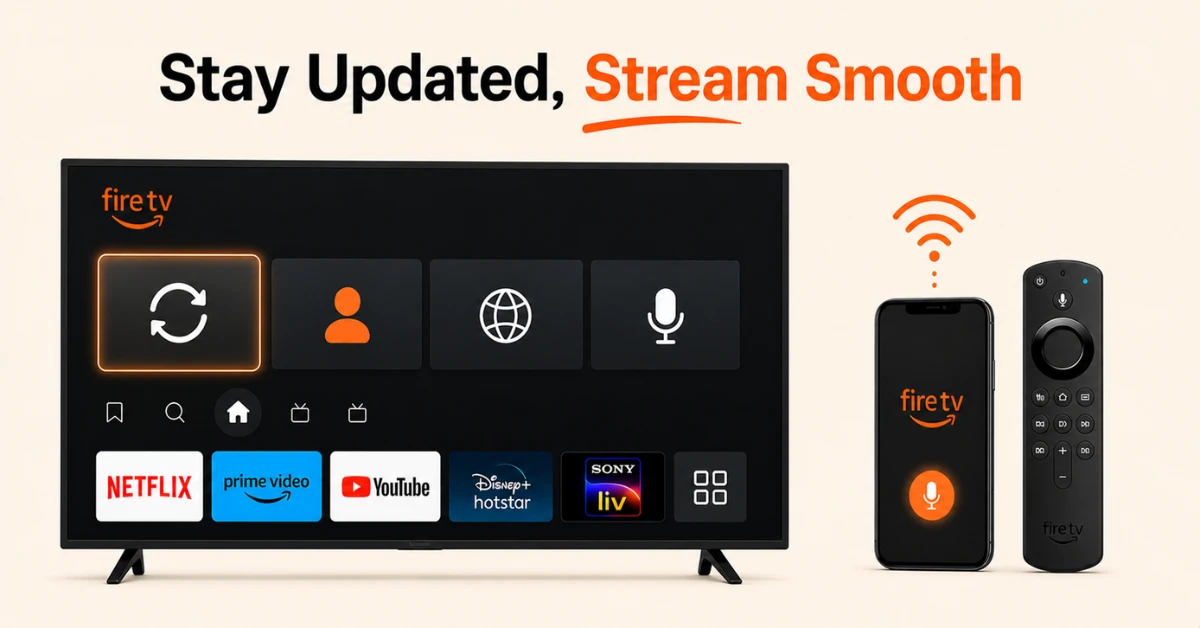
Update Software and Check Account Settings
-
Go to Settings, select My Fire TV, then About and click Check for Updates
-
Go to Settings, select Account and Profile Settings and confirm the Firestick is registered to the correct Amazon account
-
Go to Settings, then Preferences, then Language, and make sure language and region match your location
Quick Comparison
Side-by-side comparison of top Fire Stick VPNs
| VPN | Price | Servers | Speed | Devices | Rating | Actions |
|---|---|---|---|---|---|---|
|
NordVPN
|
$4.39/mo | 6,998+ | Blazing Fast | 8 | 4.8 | Get Deal |
|
|
$1.88/mo | 3,200+ | Blazing Fast | 8 | 4.7 | Get Deal |
 Proton VPN
|
$3.99/mo | 14,999+ | Blazing Fast | 7 | 4.8 | Get Deal |
 EXPRESS VPN
|
$2.79/mo | 3,000+ | Blazing Fast | 8 | 5 | Get Deal |
 Pure VPN
|
$3.55/mo | — | Blazing Fast | 6 | 4 | Get Deal |
 PrivadoVPN
|
$1.99/mo | — | Blazing Fast | 5 | 4 | Get Deal |
Frequently Asked Questions
How do I fix Alexa not responding on my Fire Stick?
Start by replacing the remote batteries and checking that Alexa is enabled under Settings. If that does not work, check your Wi-Fi connection and restart your Firestick to clear any temporary glitches.
Can a software update fix Alexa not responding on Fire TV Stick?
Yes, outdated Fire OS can cause Alexa to stop responding on Fire TV Stick. Go to Settings, select My Fire TV, then About, and click Check for Updates to install the latest software.
Why is the voice remote mic not working on Fire Stick?
The microphone opening on the remote may be blocked by dust or debris, or the batteries may be too weak to power the mic properly. Clean the microphone opening with a dry cloth and replace the batteries to resolve most mic issues on Fire Stick.
How do I fix Alexa voice on Fire TV?
Go to Settings, select Alexa or Alexa and Voice, and confirm Alexa is turned on. Also check Privacy Settings to make sure the microphone has not been disabled, as both settings need to be active for Alexa voice to work on Fire TV.
How do I enable voice control on Fire TV?
Go to Settings, select Alexa or Alexa and Voice, and make sure Alexa is switched on. Then go to Preferences, select Privacy Settings, and confirm the microphone is enabled for voice control to work properly.
How do I pair my remote again with Fire TV?
Bring the remote close to your Firestick, press and hold the Home button for 10 to 15 seconds, and wait for the on-screen pairing confirmation. Once paired, test the voice button to check if Alexa is responding again.
How do I check if the microphone button is working on my Fire TV remote?
Press and hold the microphone button and look for the Alexa listening bar on your TV screen. If the bar does not appear and navigation buttons still work, the microphone button or the remote itself may be faulty.
Can restarting Fire TV Stick fix voice issues?
Yes, restarting your Fire TV Stick clears temporary software glitches that can prevent Alexa from responding. Go to Settings, select My Fire TV, and click Restart, then test the voice button once the device has fully rebooted.
How do I check which version of Fire OS is installed on my Firestick?
Go to Settings, select My Fire TV, then About, and look for the Fire OS version listed on that page. If an update is available, click Install Update to get the latest version and resolve any Alexa related issues.