How to Fix Firestick Frozen Screen: Easy Steps
Editor's Choice
#1 Pick
Editor's Choice
 EXPRESS VPN
$2.79/month
Save 20%
Blazing Fast
3,000+
214
8
Step by Step Instructions
Step 01
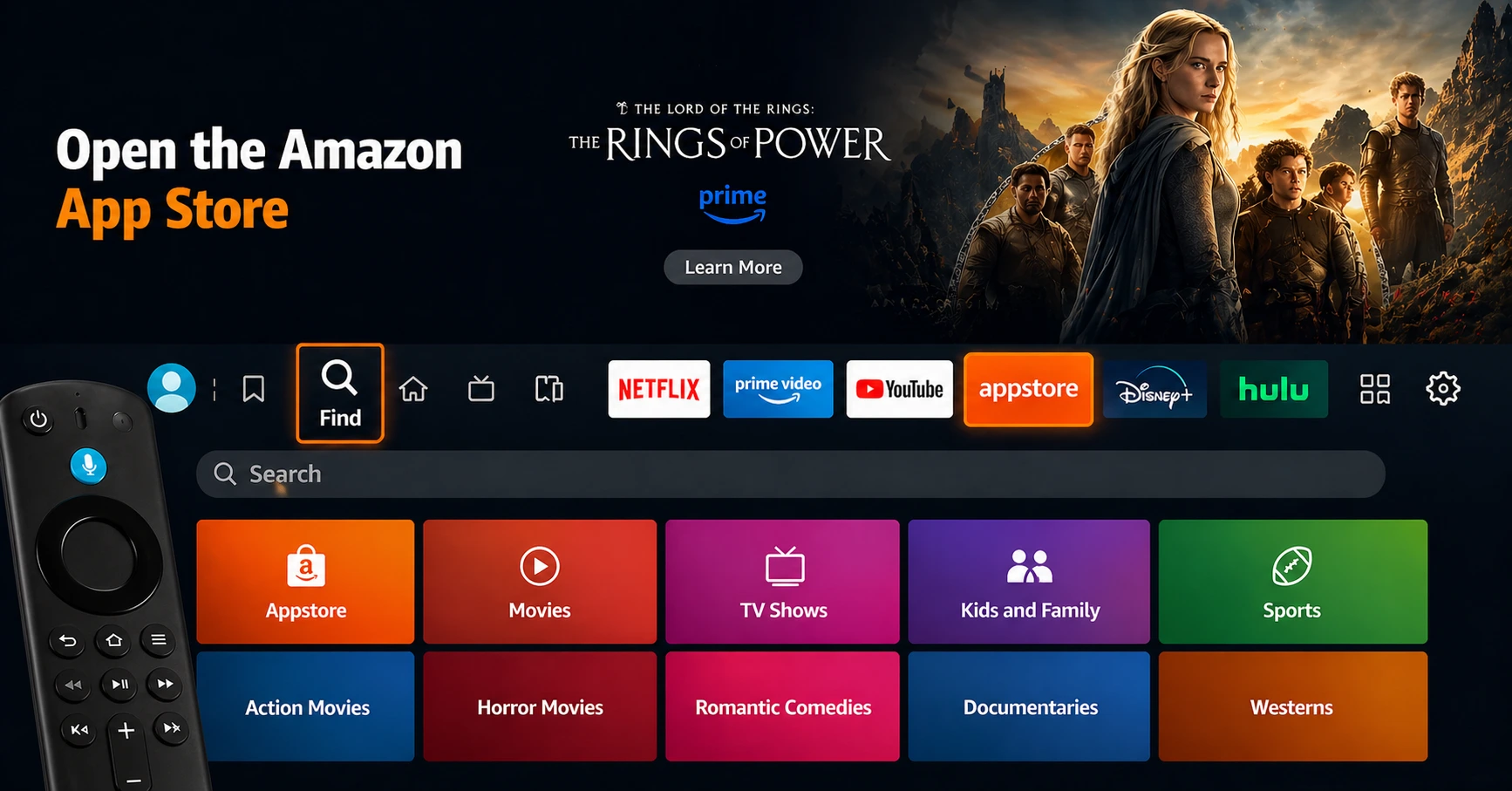
Open the Amazon App Store
From your Firestick home screen, navigate to the “Find” or search icon and open the Amazon App Store.
Step 02
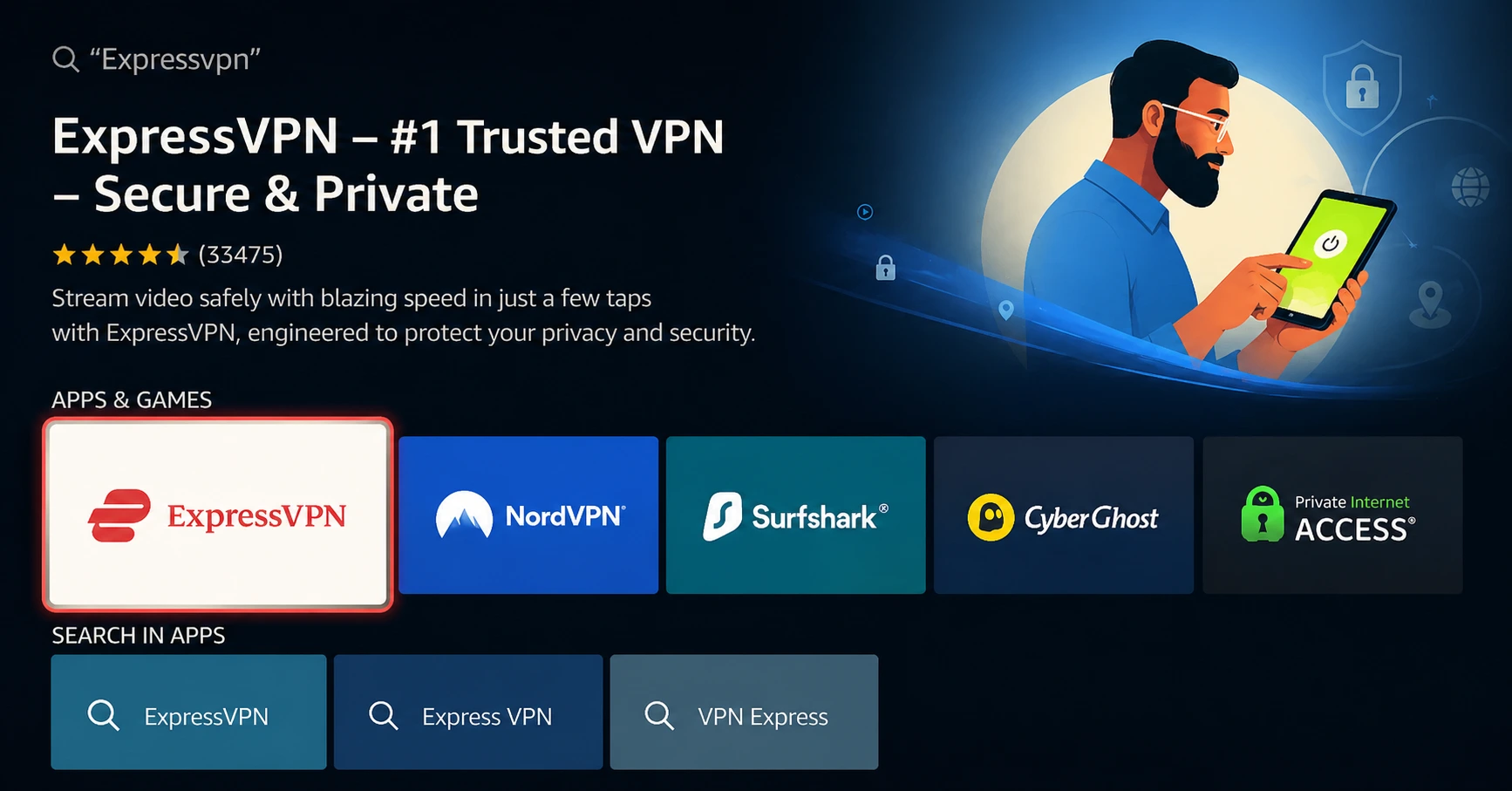
Search for ExpressVPN
Type “ExpressVPN” in the search bar using your remote. Select the official ExpressVPN app from the results.
Step 03
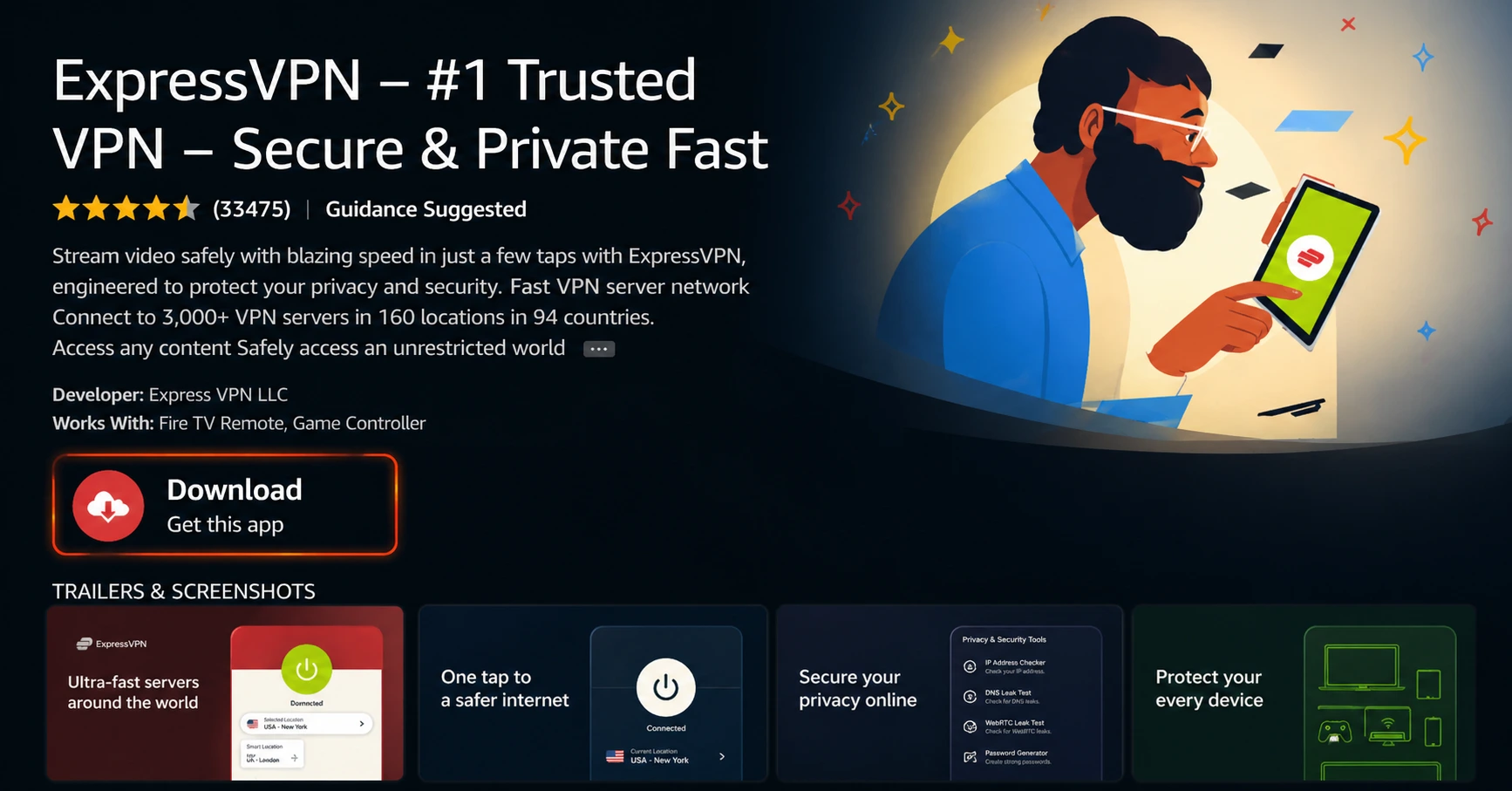
Download & Install the App
Click on the “Download” or “Get” button to install the app on your Firestick. Wait for the installation to complete.
Step 04
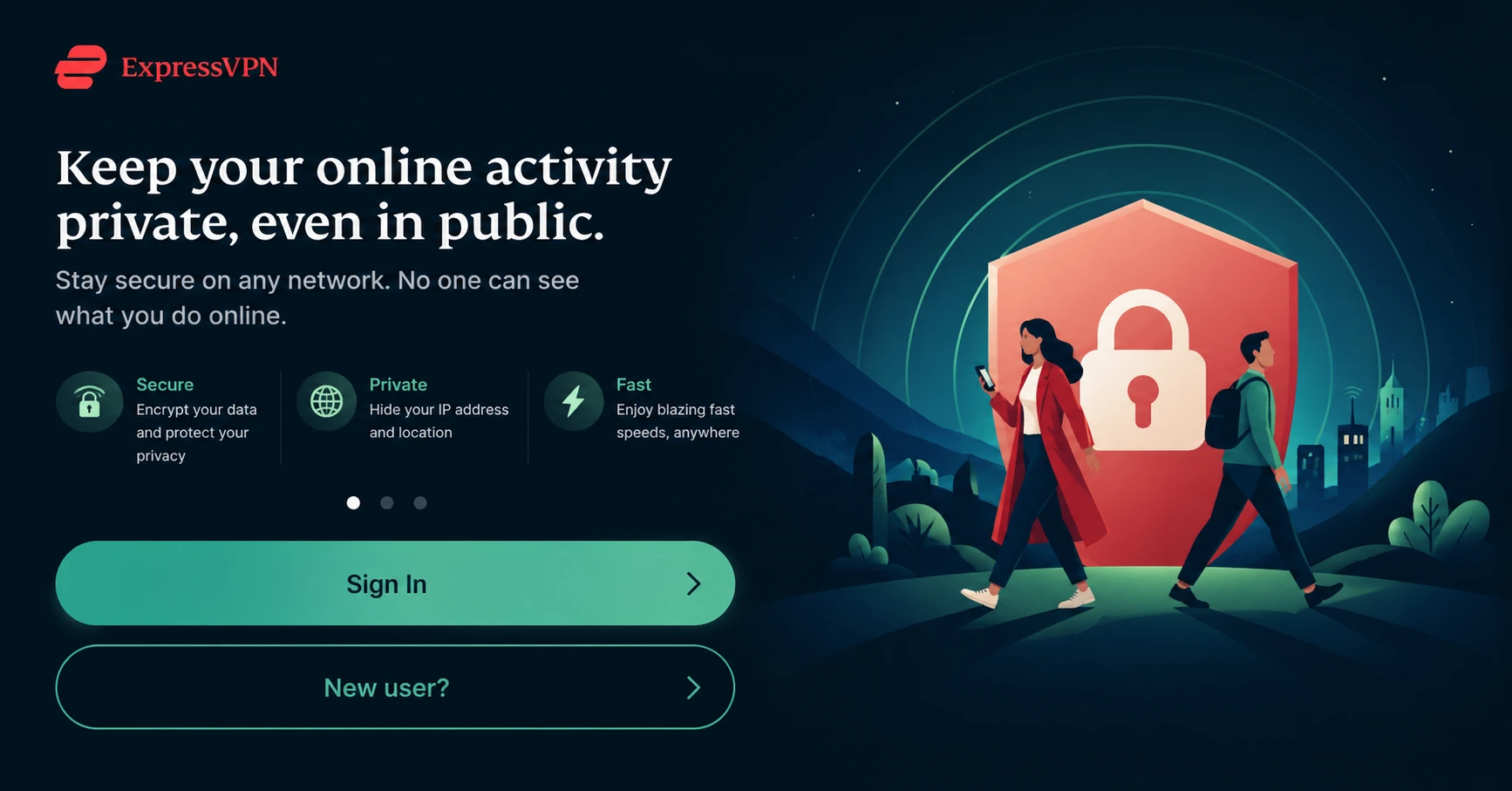
Sign In & Connect
Open the app, sign in with your ExpressVPN account, and tap the power button to connect to a server.
How Do I Fix Firestick Frozen Screen?
Follow the step-by-step process to unfreeze your Firestick in minutes.
Step 01
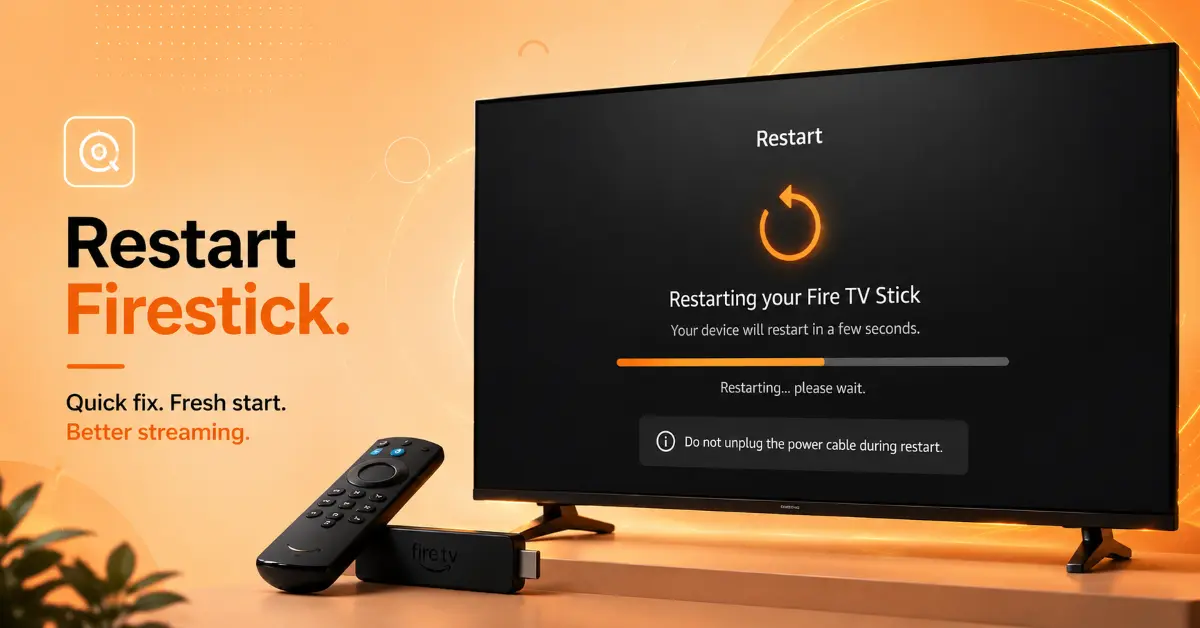
Restart Your Firestick
-
Unplug the Firestick from its power source
-
Wait at least 30 seconds before reconnecting it
-
Plug the device back in and let it boot up completely
-
Check whether the frozen screen issue has been resolved
Step 02
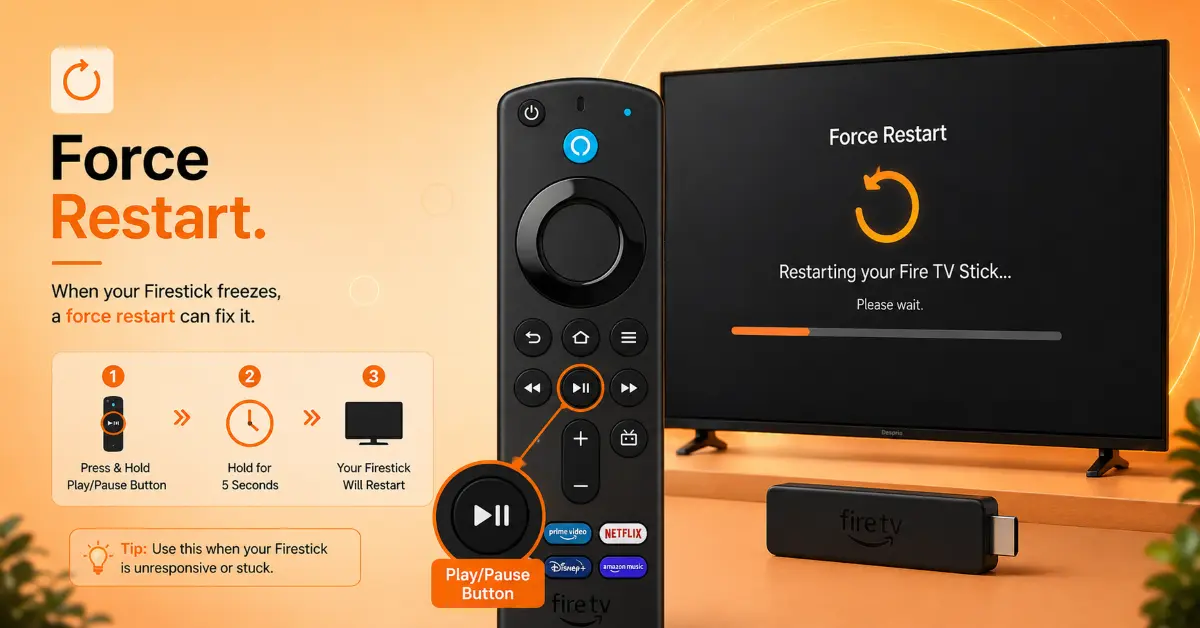
Use the Remote Restart Shortcut
-
Press and hold the Select and Play/Pause buttons together
-
Keep holding for about 5 seconds
-
Wait for the Firestick to restart automatically
-
Test whether the freezing issue is resolved
Get EXPRESS VPN — 20% Off
Step 03
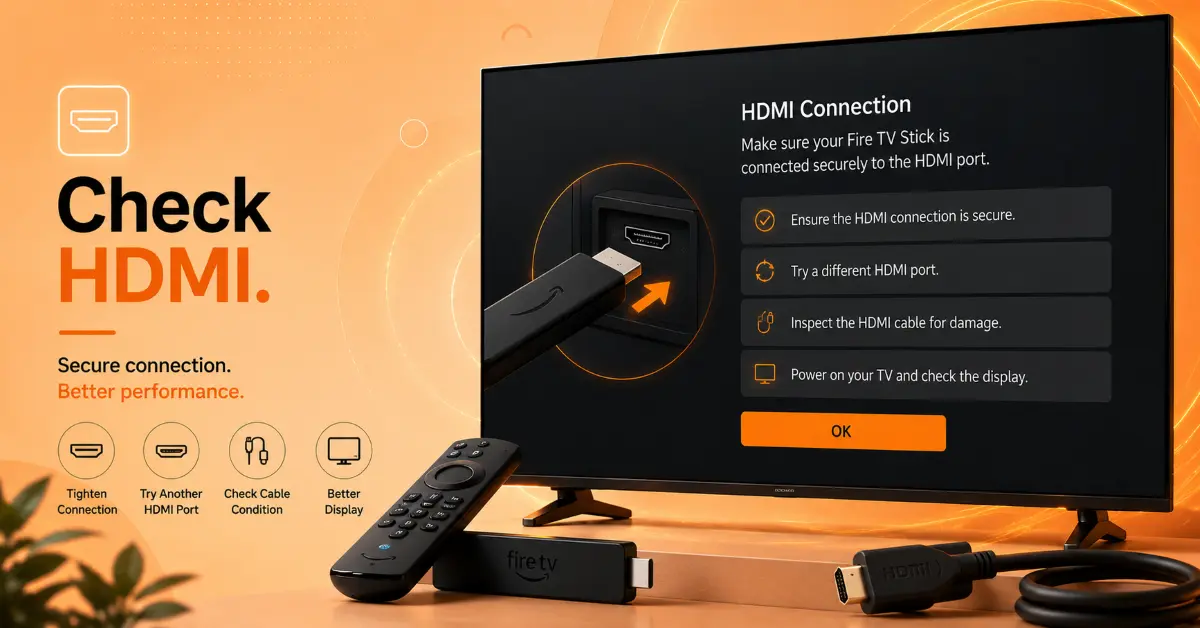
Inspect HDMI Connections
-
Remove the Firestick from the TV's HDMI port
-
Check for any loose or damaged connections
-
Reconnect the Firestick securely or try another HDMI port
-
Turn on the TV and verify that the display responds properly
Step 04
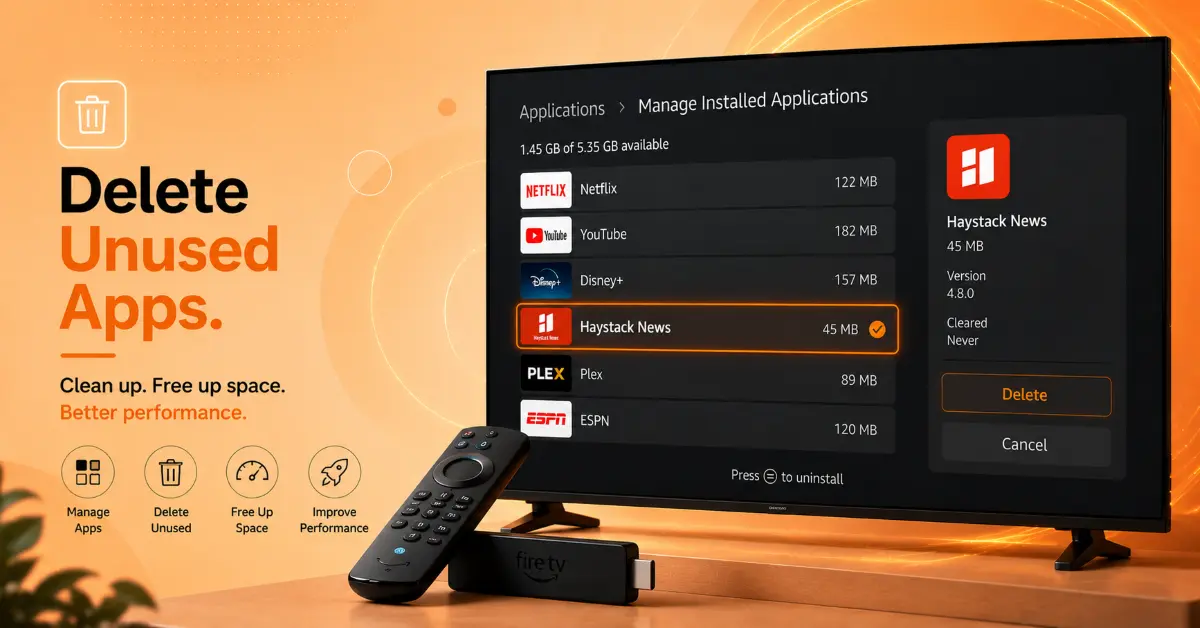
Remove Unnecessary Apps
-
Open Settings and select Applications
-
Choose Manage Installed Applications
-
Select apps you no longer use and uninstall them
-
Restart the Firestick to free up system resources
Get EXPRESS VPN — 20% Off
Step 05
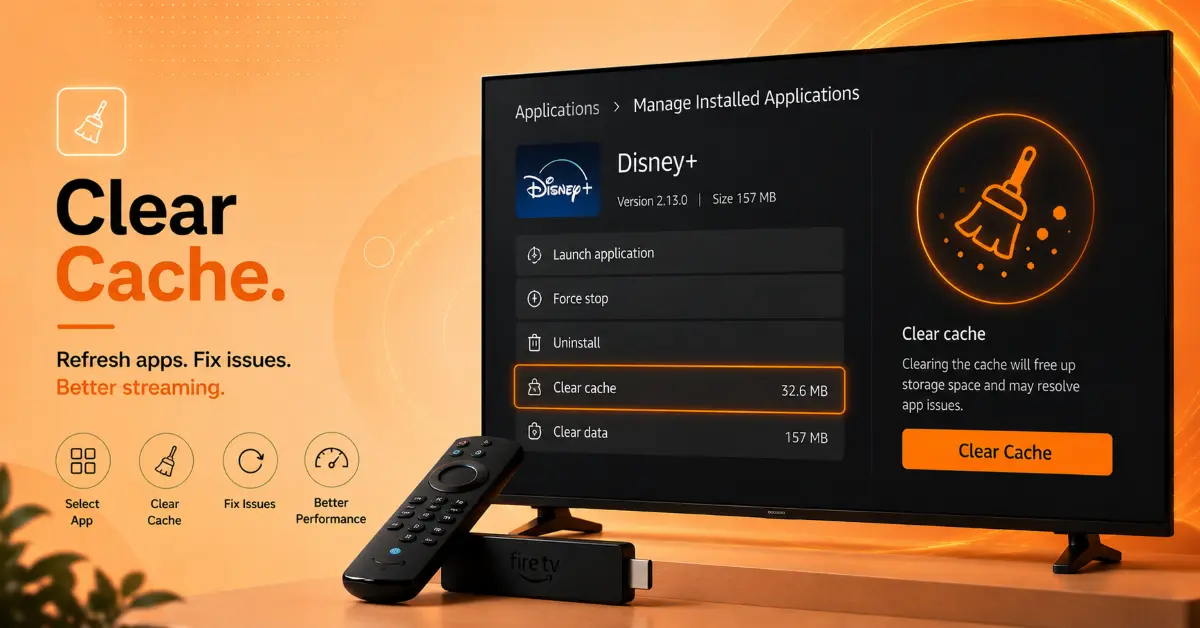
Clear App Cache
-
Go to Settings and open Applications
-
Select the app causing performance issues
-
Choose Clear Cache from the app settings
-
Relaunch the app and check if the freezing stops
Step 06
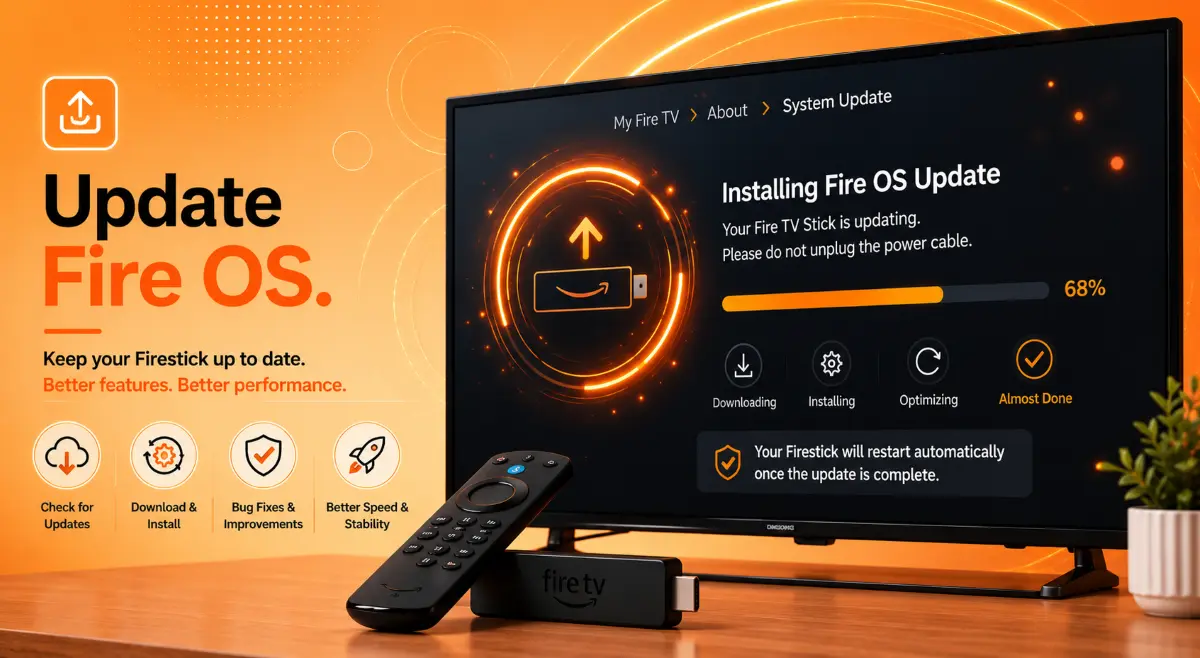
Install Updates
-
Navigate to Settings and select My Fire TV
-
Open About and choose Check for Updates
-
Download and install any available software updates
-
Restart the Firestick after the update is complete
Get EXPRESS VPN — 20% Off
Step 07
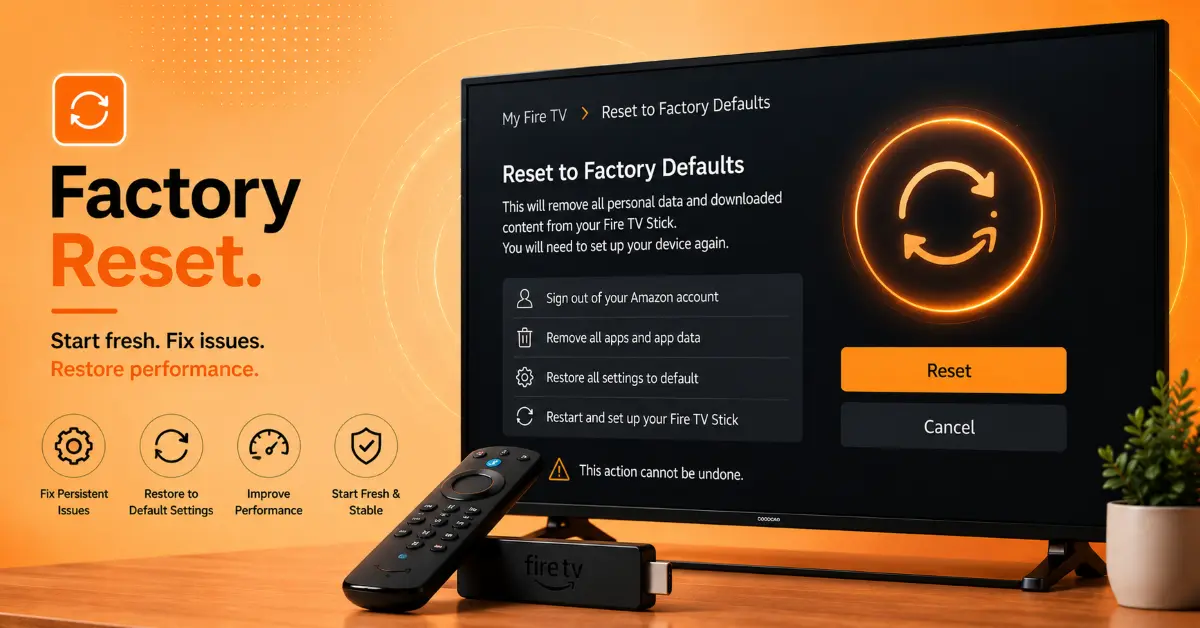
Factory Reset the Firestick
-
Open Settings and go to My Fire TV
-
Select Reset to Factory Defaults
-
Confirm the reset when prompted
-
Set up the Firestick again once the reset is finished
Quick Comparison
Side-by-side comparison of top Fire Stick VPNs
| VPN | Price | Servers | Speed | Devices | Rating | Actions |
|---|---|---|---|---|---|---|
|
EXPRESS VPN
|
$2.79/mo | 3,000+ | Blazing Fast | 8 | 5 | Get Deal |
 NordVPN
|
$4.39/mo | 6,998+ | Blazing Fast | 8 | 4.8 | Get Deal |
|
|
$1.88/mo | 3,200+ | Blazing Fast | 8 | 4.7 | Get Deal |
 Proton VPN
|
$3.99/mo | 14,999+ | Blazing Fast | 7 | 4.8 | Get Deal |
 IPVanish
|
$2.49/mo | 3,100+ | Blazing Fast | 6 | 4 | Get Deal |
Frequently Asked Questions
Why is my Firestick frozen and not responding?
There can be multiple reasons for this, including software glitches, low storage space, outdated firmware, overheating, or app-related issue.
How do I unfreeze Firestick without unplugging it?
You can unfreeze Firestick by pressing and holding the "Select" and "Play/Pause" button on the remote for about 5 seconds.
What should I do if my Fire TV frozen screen stays stuck on the home page?
You can try various troubleshooting tips, including restarting the device, checking HDMI connections, clear app cache, or updating Fire OS.
Can low storage cause a Firestick frozen screen?
Yes, it may be one among the causes. Delete unused apps and clear app cache can help you in unfreezing the Firestick screen.
How do I fix a Firestick frozen on the Amazon logo?
Restart the device, verify the power adapter is working, and ensure the Firestick is connected directly to a wall outlet instead of a TV USB port.
Will clearing cache help unfreeze Firestick?
Yes clearing cache removes temporary files that can cause apps to malfunction, helping unfreeze firestick screen.
When should I factory reset a Firestick?
If none of the troubleshooting tip work, try factory reset, which will restore your Firestick to default settings and eliminate persistent software issues.