How to Use Xbox Cloud Gaming on Firestick ? Easy Guide
Editor's Choice
#1 Pick
Editor's Choice
 Surfshark
$1.88/month
Save 20%
Blazing Fast
3,200+
214
8
Step by Step Instructions
Step 01
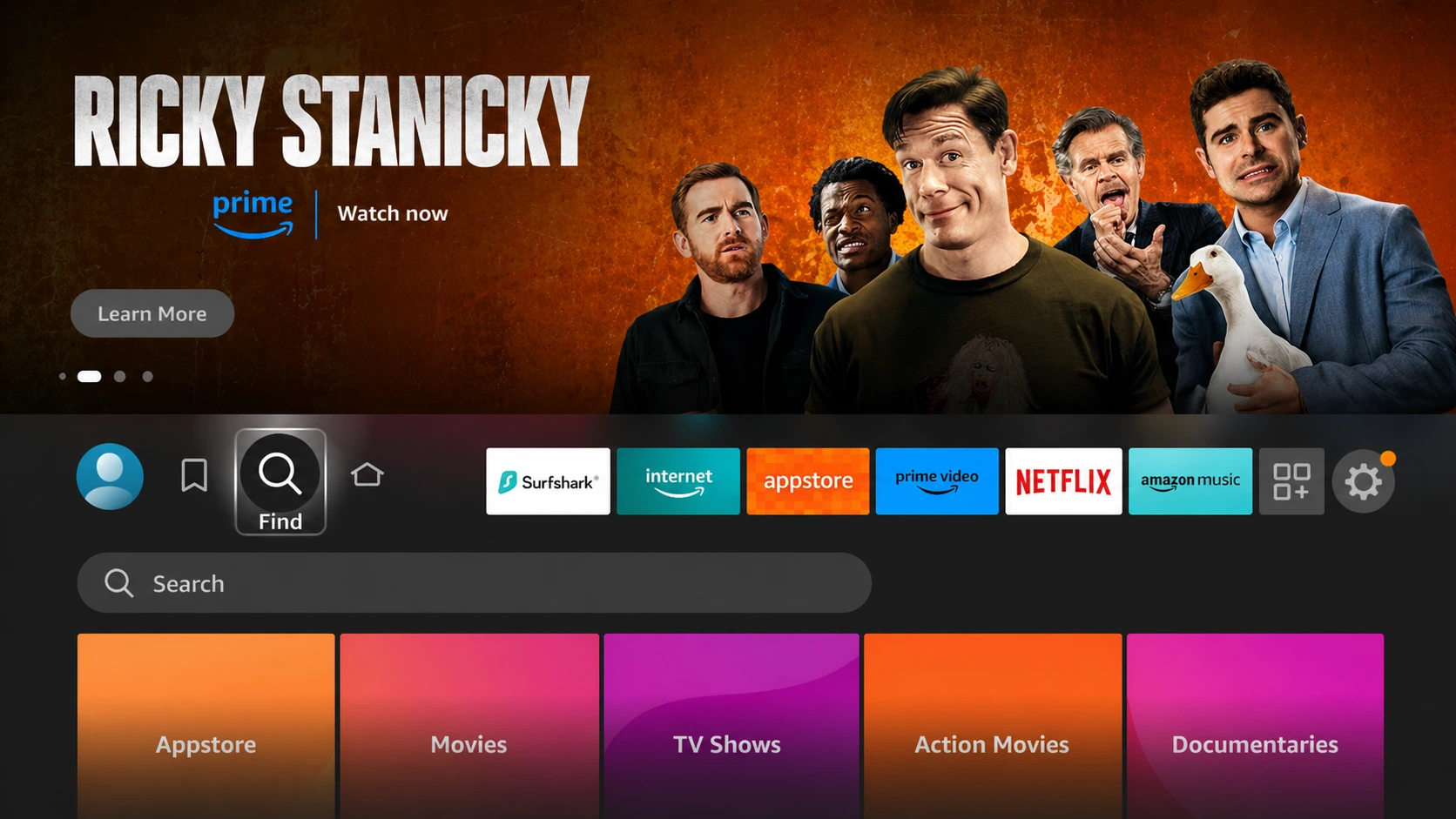
Open Search on Fire TV
From your Fire TV home screen, go to the Find (Search) option.
Step 02
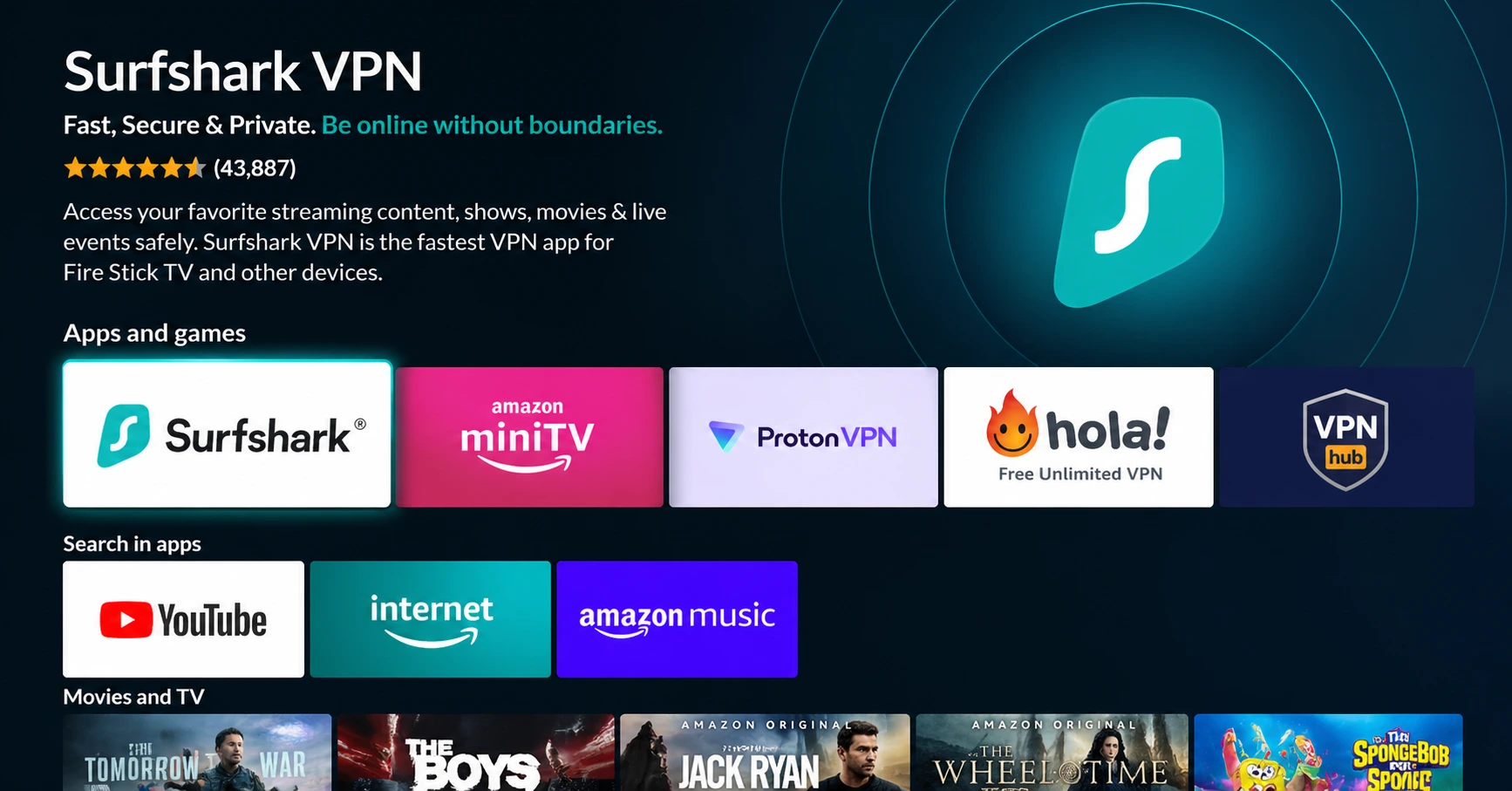
Search for Surfshark
Type Surfshark using your remote and select the app from the results.
Step 03
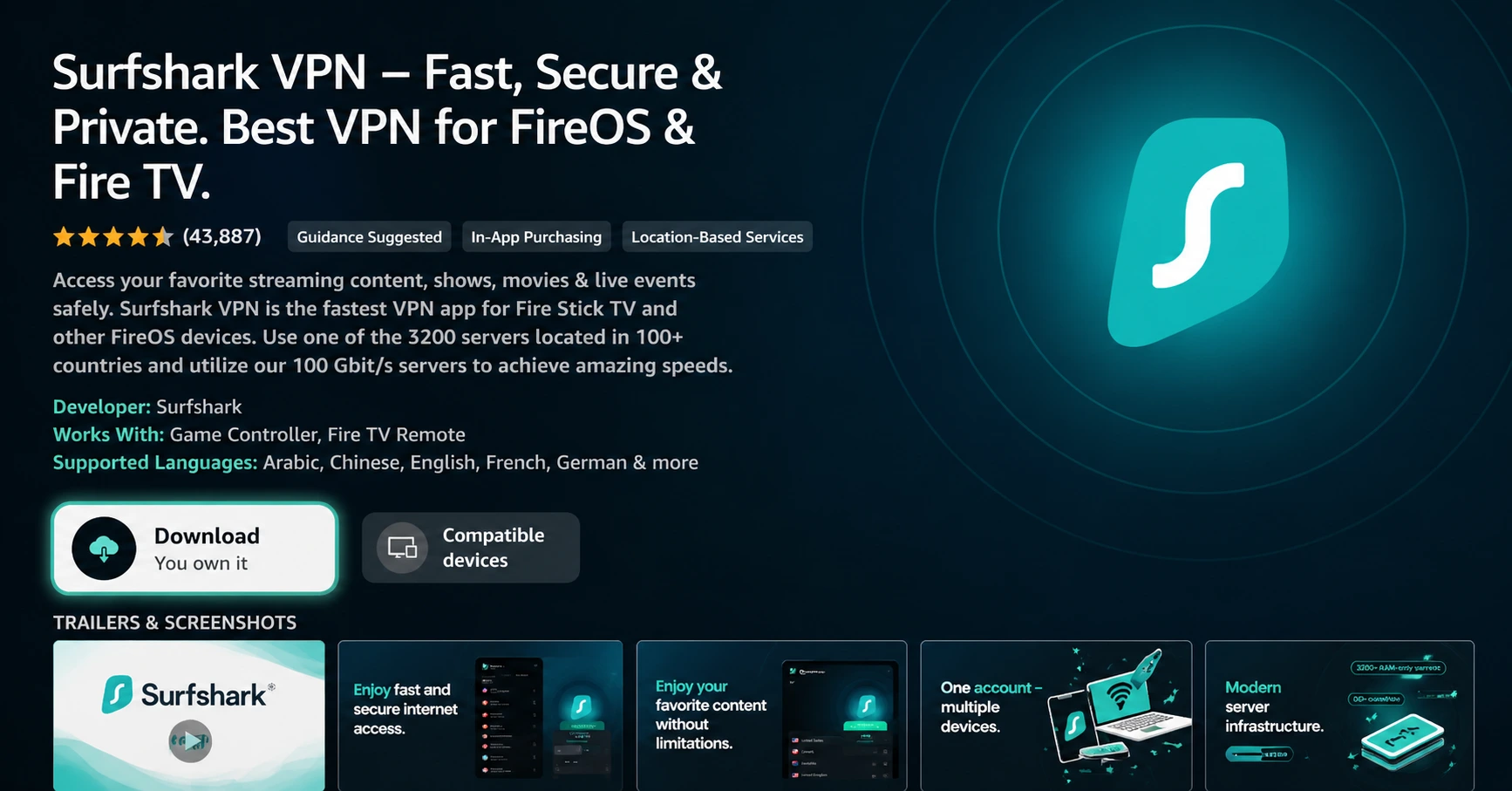
Install the App
Click on Download or Get to install Surfshark on your device.
Step 04
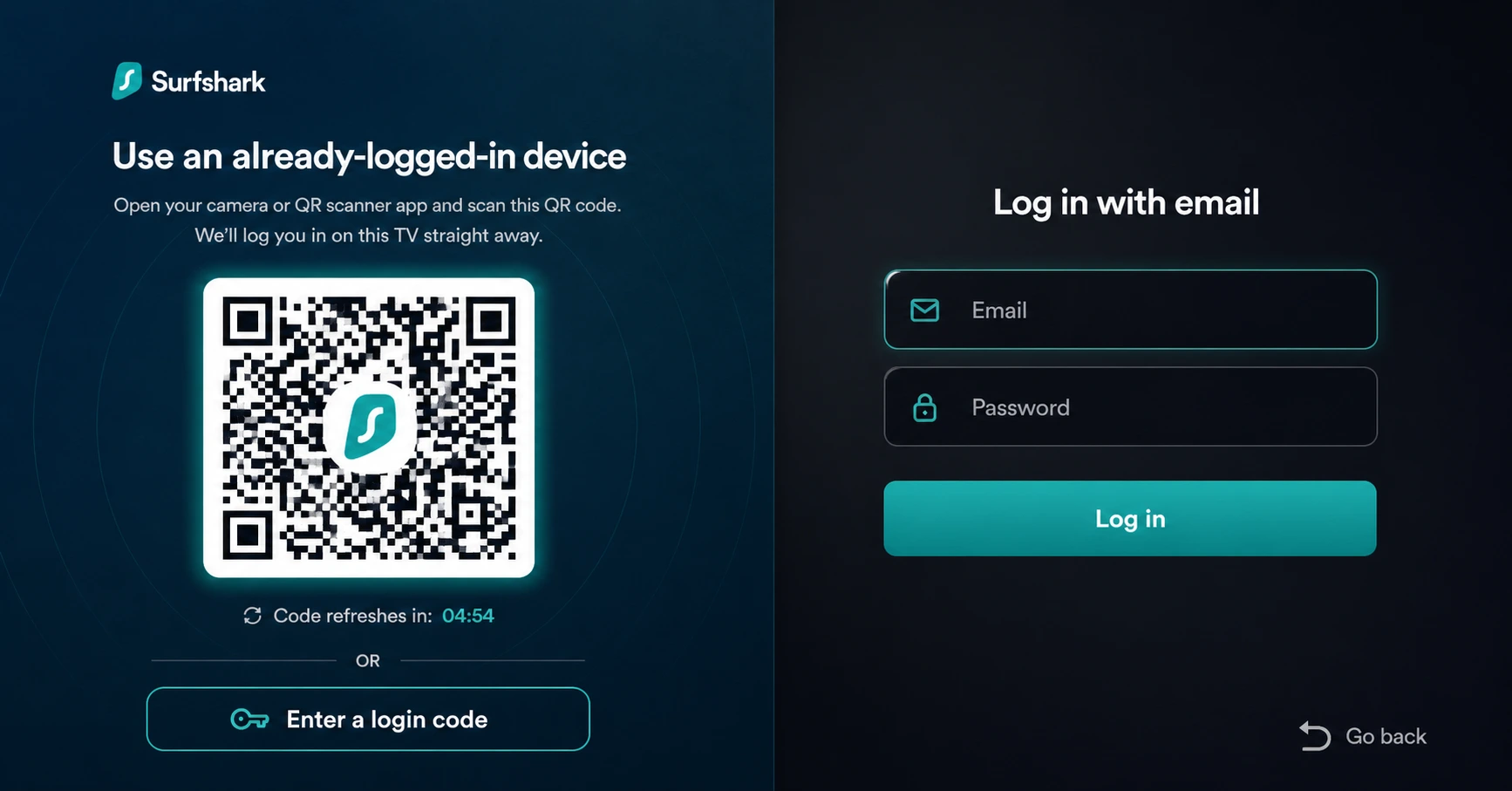
Sign In & Start VPN
Open the app, log in to your account, and connect to a server to start using the VPN.
How to Use Xbox Cloud Gaming on Firestick ?
Everything you need to set up and start playing Xbox games on your Firestick
Step 01
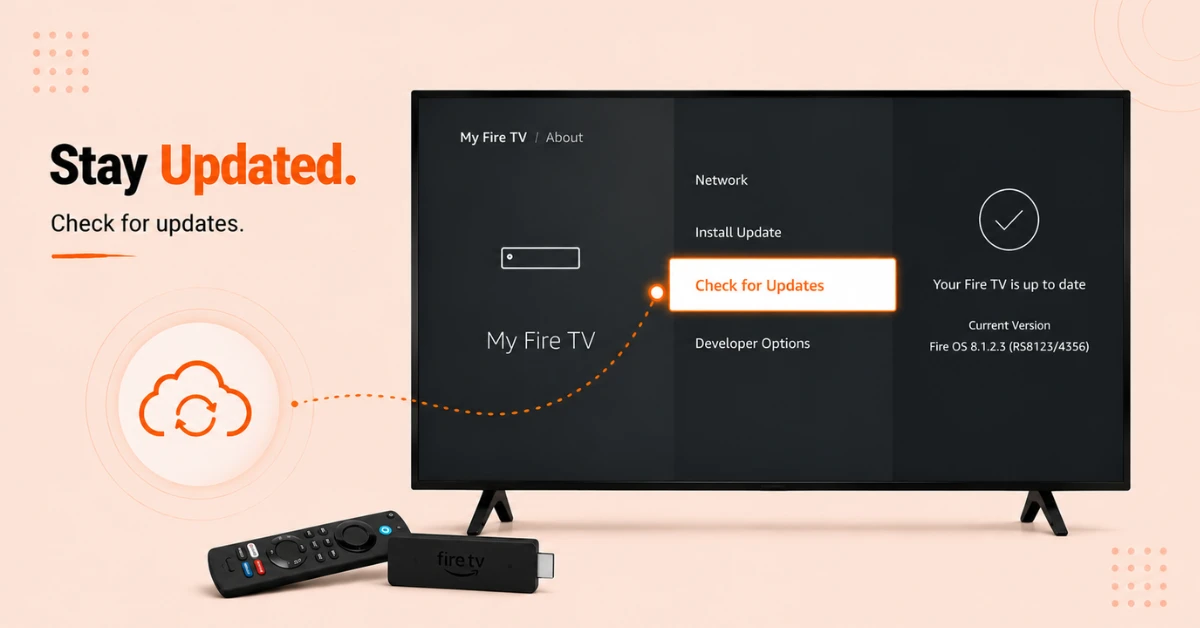
Check Your Firestick is Compatible and Up to Date
-
Compatible models are Fire TV Stick 4K Max, Fire TV Stick 4K 2nd Gen, and Fire TV Cube 3rd Gen
-
Go to Settings, select My Fire TV, then About, and click Check for Updates
-
Make sure your Fire TV software is fully updated before proceeding
Step 02
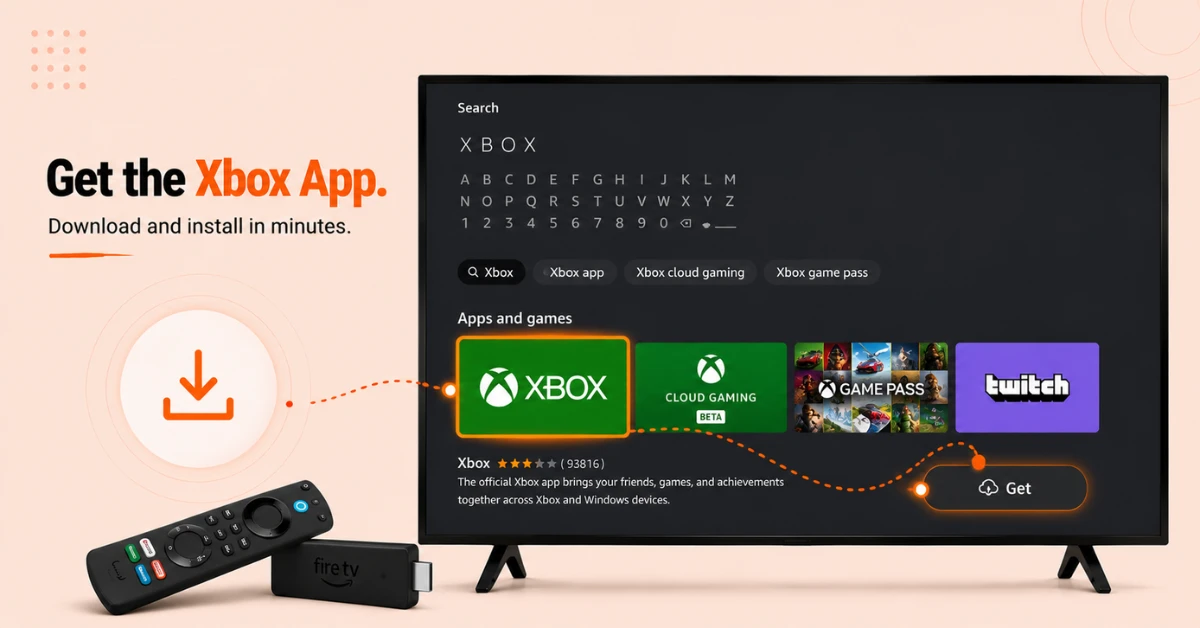
Download the Xbox App
-
From the Firestick home screen, go to Find and select Search
-
Type Xbox and select Xbox or Xbox Cloud Gaming from the results
-
Click Get to download and install the official Xbox app on your Firestick
Get Surfshark — 20% Off
Step 03
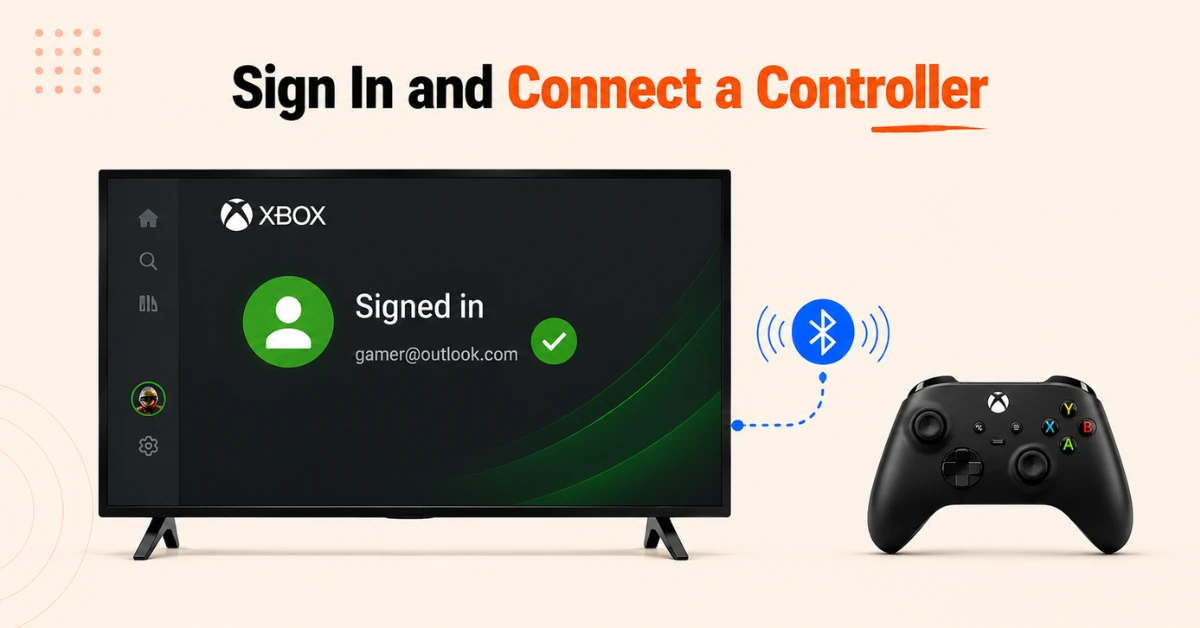
Sign In and Connect a Controller
-
Open the Xbox app and sign in with your Microsoft account
-
If you do not have one, create a free account at microsoft.com before signing in
-
Connect a compatible Bluetooth controller such as an Xbox Wireless Controller, PS5 DualSense, or DualShock 4
-
Go to Settings, then Remotes and Bluetooth Devices, then Game Controllers, and select Add New Game Controller to pair it
Step 04
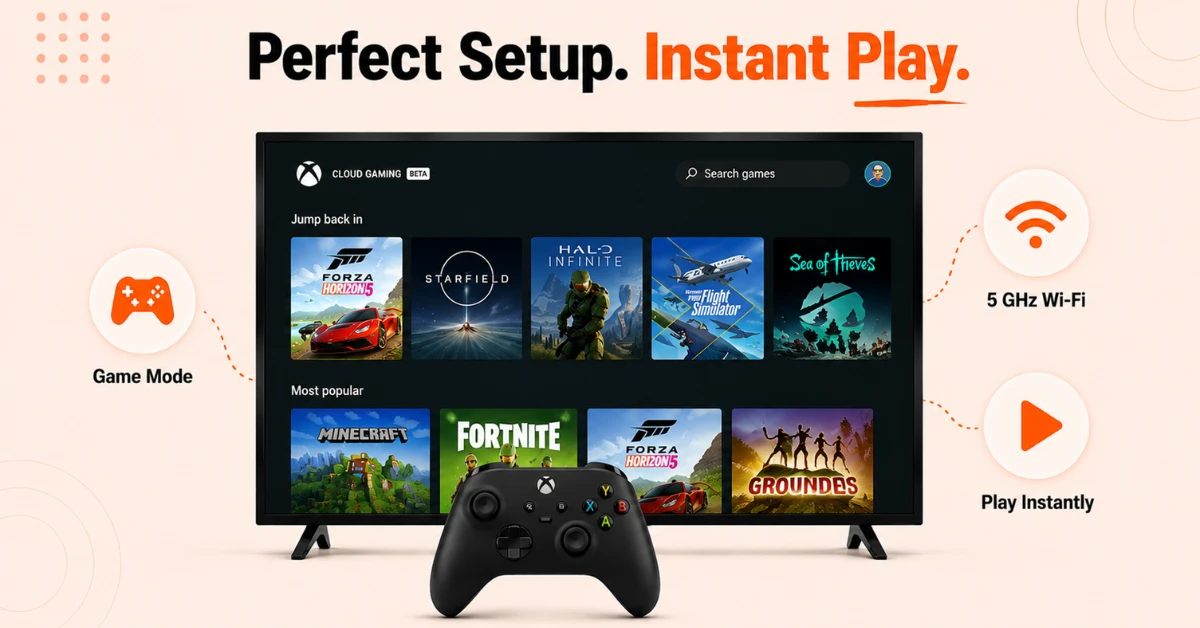
Optimise Your Setup and Start Playing
-
On your TV, go to picture or display settings and enable Game Mode for the best low latency experience
-
For the best performance connect your Firestick to a 5 GHz Wi-Fi network rather than 2.4 GHz
-
Once everything is set up, browse the Xbox Cloud Gaming library, select a game, and click Play to start streaming
Quick Comparison
Side-by-side comparison of top Fire Stick VPNs
| VPN | Price | Servers | Speed | Devices | Rating | Actions |
|---|---|---|---|---|---|---|
|
|
$1.88/mo | 3,200+ | Blazing Fast | 8 | 4.7 | Get Deal |
 EXPRESS VPN
|
$2.79/mo | 3,000+ | Blazing Fast | 8 | 5 | Get Deal |
 Proton VPN
|
$3.99/mo | 14,999+ | Blazing Fast | 7 | 4.8 | Get Deal |
 NordVPN
|
$4.39/mo | 6,998+ | Blazing Fast | 8 | 4.8 | Get Deal |
 Pure VPN
|
$3.55/mo | — | Blazing Fast | 6 | 4 | Get Deal |
 PrivadoVPN
|
$1.99/mo | — | Blazing Fast | 5 | 4 | Get Deal |
Frequently Asked Questions
Is Xbox Cloud Gaming free on Firestick?
Xbox Cloud Gaming on Firestick requires an Xbox Game Pass Ultimate subscription to access most games. However some titles like Fortnite are available to play for free without any subscription through the Xbox app.
Do I need an Xbox console to use the Xbox app on Firestick?
No, you do not need an Xbox console to use the Xbox app on Firestick. All games are streamed from Microsoft's cloud servers directly to your Firestick so your device only needs to handle the display and controller input.
Can I use Xbox Cloud Gaming on Firestick without an Xbox console?
Yes, Xbox Cloud Gaming on Firestick works entirely without a console. Microsoft's servers handle all the game processing and stream it directly to your Firestick so you only need a compatible device, a controller, and a stable internet connection.
Why is the Xbox app not showing up on my Firestick?
If the Xbox app is not appearing in your Amazon App Store, your Firestick model may not be compatible with Xbox Cloud Gaming. Check that your Fire OS is fully updated under Settings, then My Fire TV, then About, and try searching again.
Does the Xbox app on Firestick let me play games I have already purchased?
Yes, Xbox Cloud Gaming now allows you to stream games you have previously purchased through your Microsoft account in addition to the Game Pass library. This means your existing Xbox game library is accessible on your Firestick.
Can I try Xbox Game Pass on Fire TV before subscribing?
es, Microsoft occasionally offers free trials for new Game Pass subscribers. You can also play Fortnite for free through the Xbox app on Fire TV without any subscription to test the cloud gaming experience before committing to a plan.
Why is my cloud gaming on Firestick lagging or buffering?
Lag during cloud gaming on Firestick is almost always caused by a weak or unstable internet connection. Go to Settings, then Network Settings, and check your signal strength. Switching to a 5 GHz Wi-Fi connection or moving your router closer to your Firestick usually resolves the issue.