How to Fix Firestick Not Recognizing HDMI? Easy Guide
Editor's Choice
#1 Pick
Editor's Choice
 EXPRESS VPN
$2.79/month
Save 20%
Blazing Fast
3,000+
214
8
Step by Step Instructions
Step 01
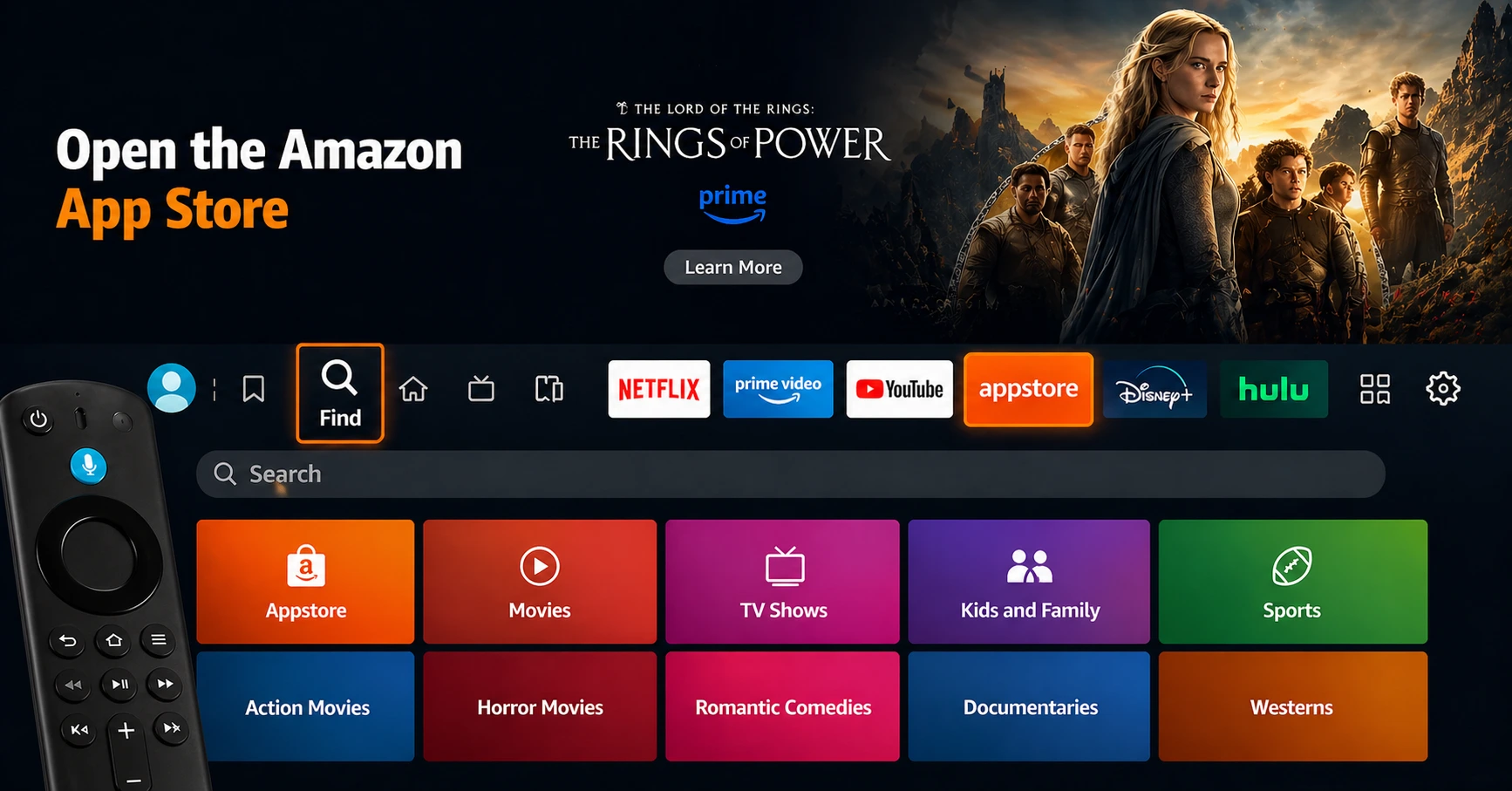
Open the Amazon App Store
From your Firestick home screen, navigate to the “Find” or search icon and open the Amazon App Store.
Step 02
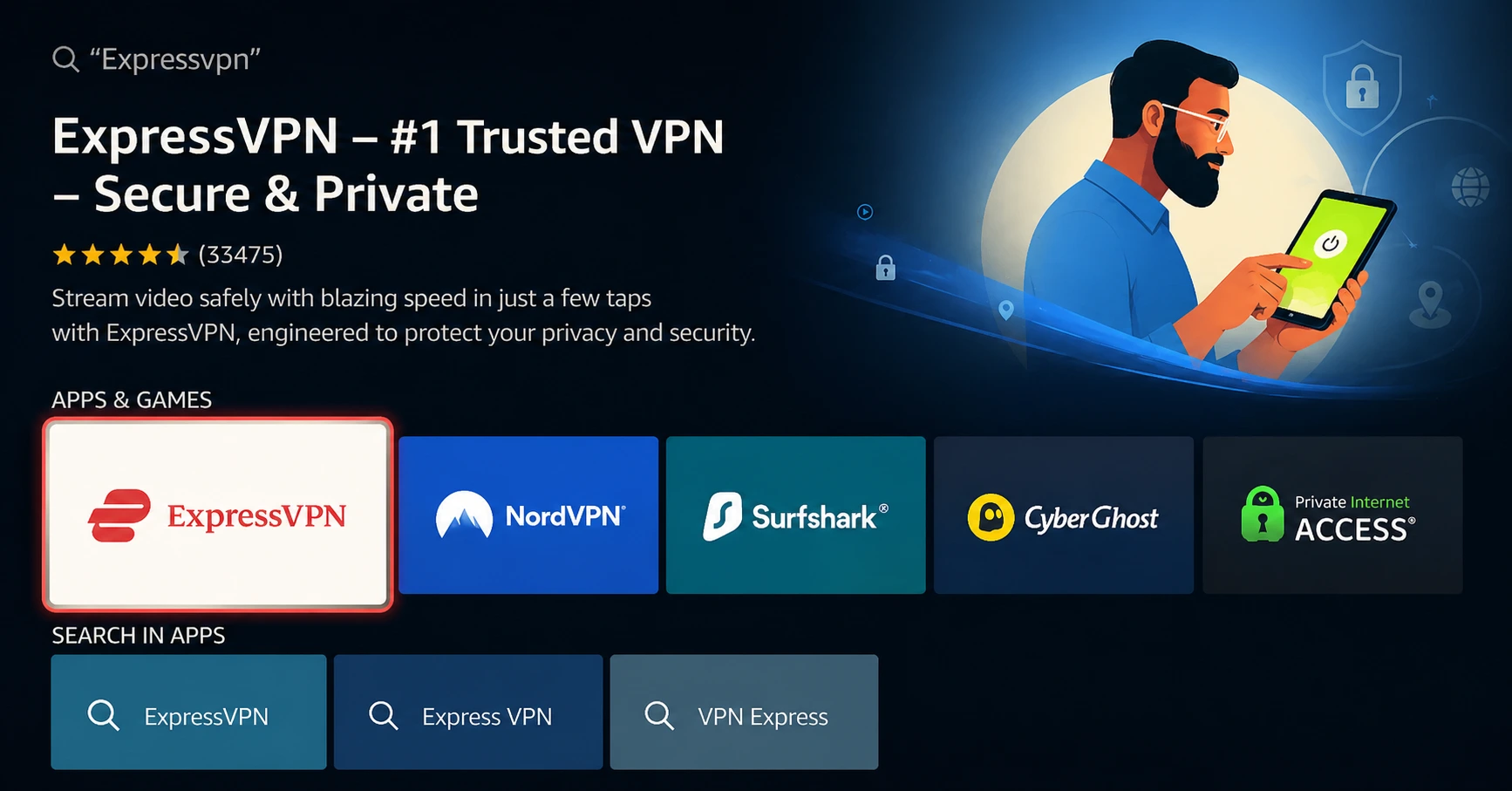
Search for ExpressVPN
Type “ExpressVPN” in the search bar using your remote. Select the official ExpressVPN app from the results.
Step 03
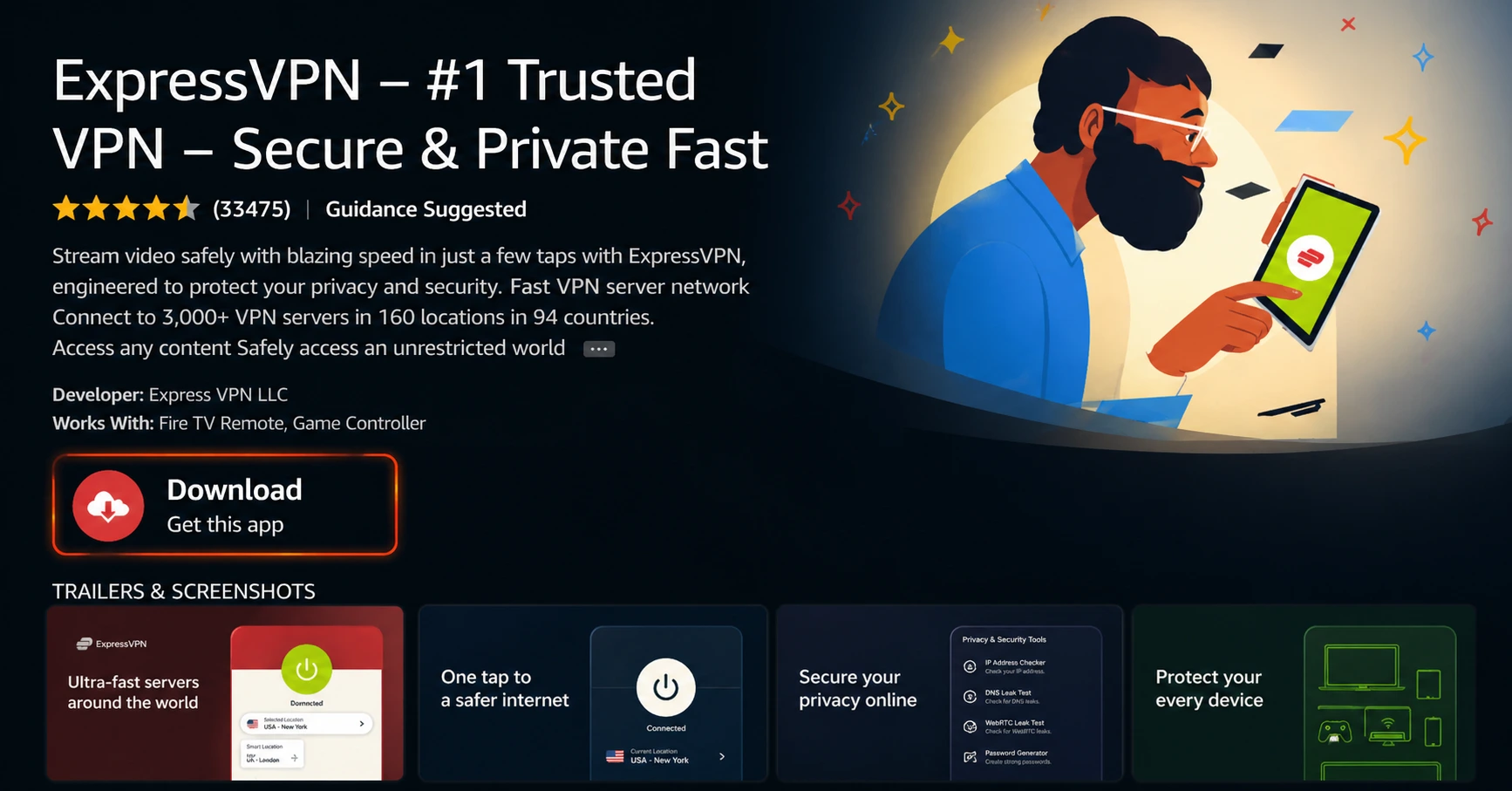
Download & Install the App
Click on the “Download” or “Get” button to install the app on your Firestick. Wait for the installation to complete.
Step 04
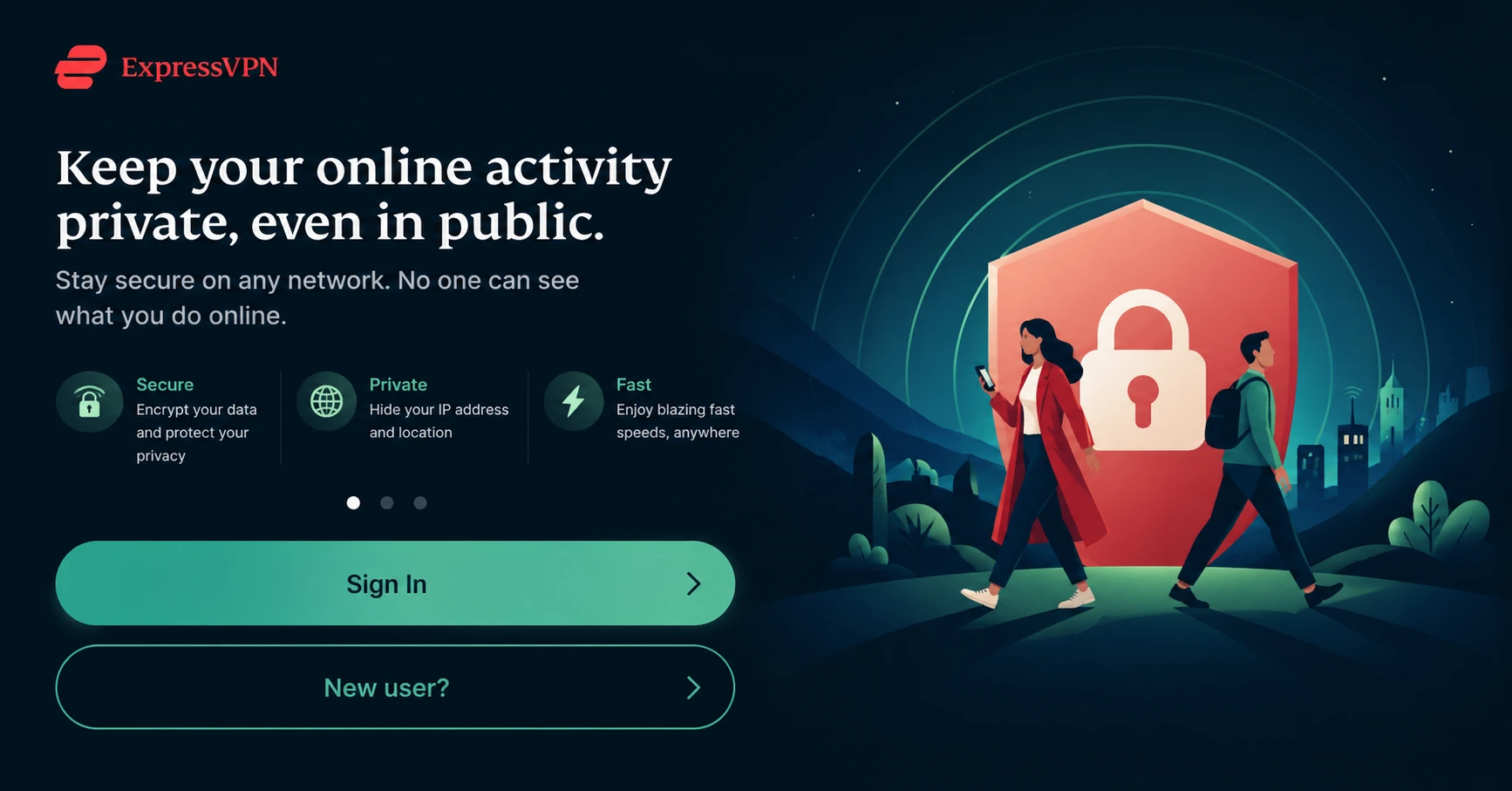
Sign In & Connect
Open the app, sign in with your ExpressVPN account, and tap the power button to connect to a server.
How to Fix Firestick Not Recognizing HDMI?
Simple steps to get your Firestick showing on your TV again
Step 01
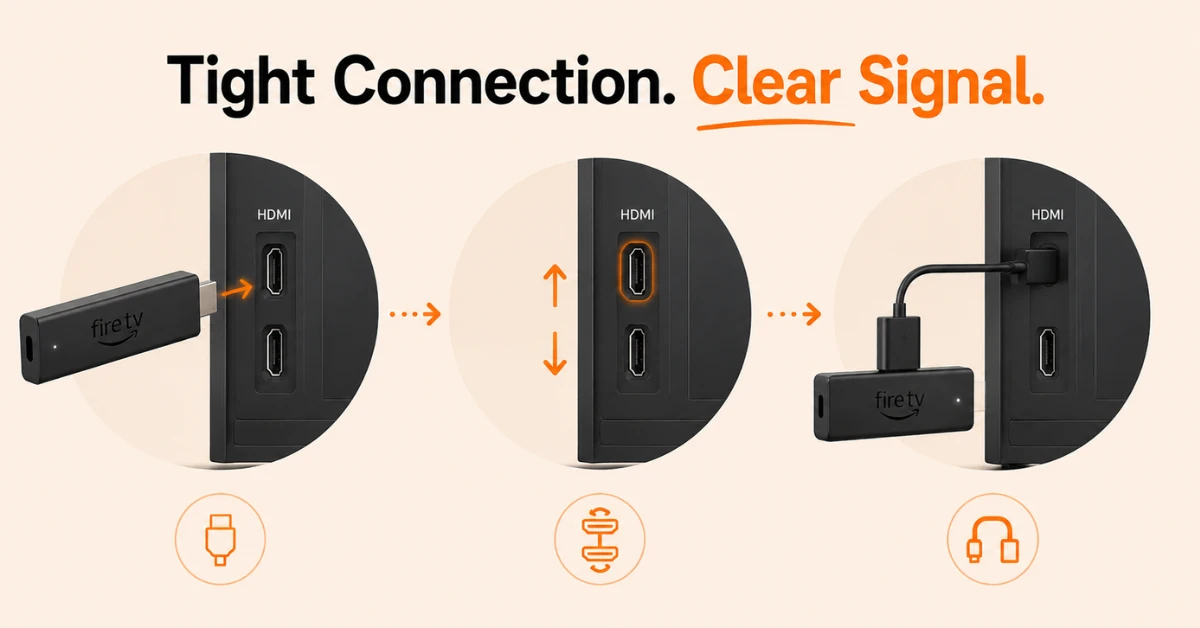
Check the HDMI Connection
-
Pull the Firestick out of the TV and push it back in firmly so it sits tight
-
Try a different HDMI port on your TV as most TVs have two or more
-
If your box came with an HDMI extender cable, use that instead of plugging in directly
Step 02
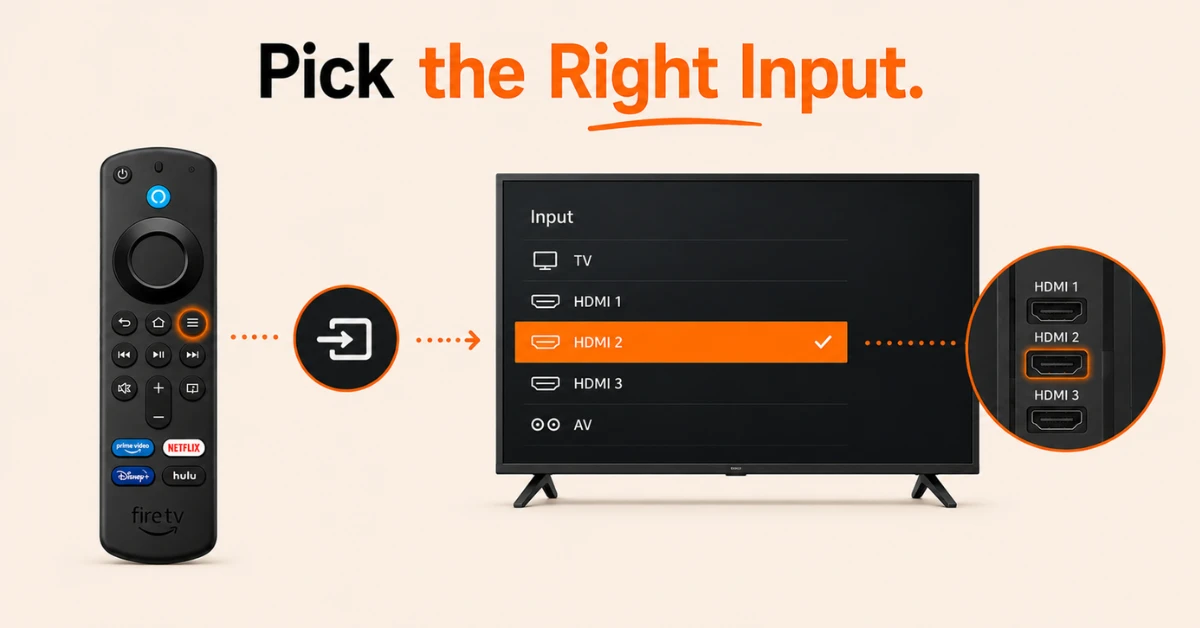
Set Your TV to the Right Input
-
Press the Source or Input button on your TV remote and not the Firestick remote
-
Look for the HDMI port your Firestick is plugged into as it may say HDMI 1, HDMI 2, or similar
-
Check the label next to the port on your TV so you pick the correct one
Get EXPRESS VPN — 20% Off
Step 03
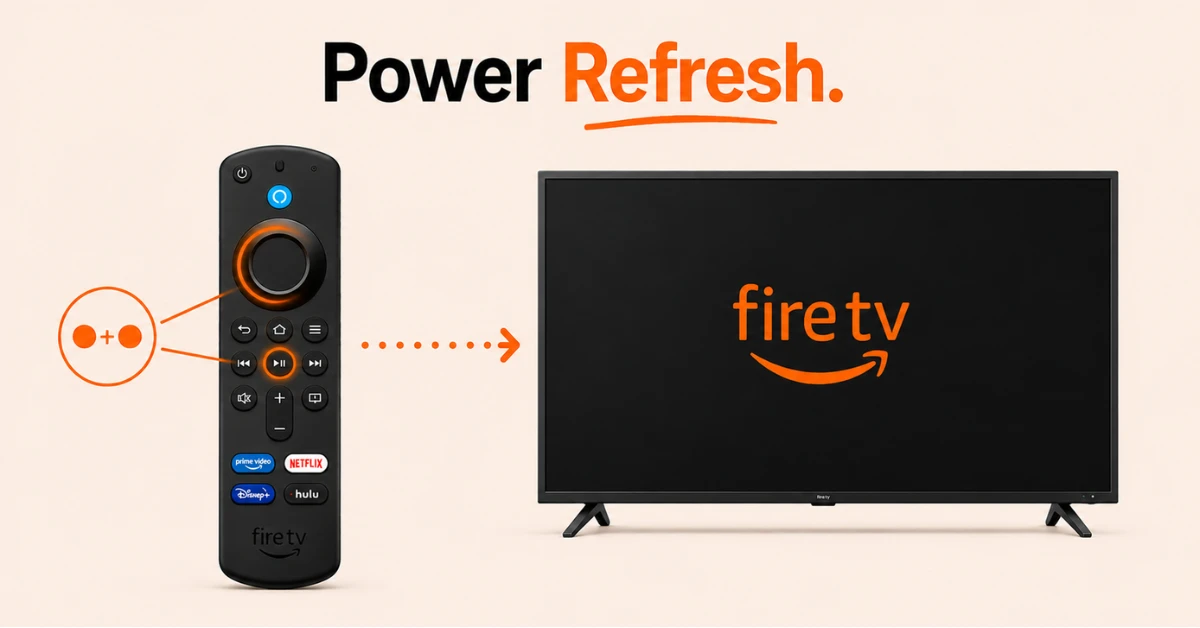
Restart the Firestick
-
Hold the Select button and the Play/Pause button on your Firestick remote at the same time
-
Keep holding until the screen goes off and the device restarts on its own
-
Wait for the Amazon Fire TV logo to appear as this means the HDMI connection is working
Step 04
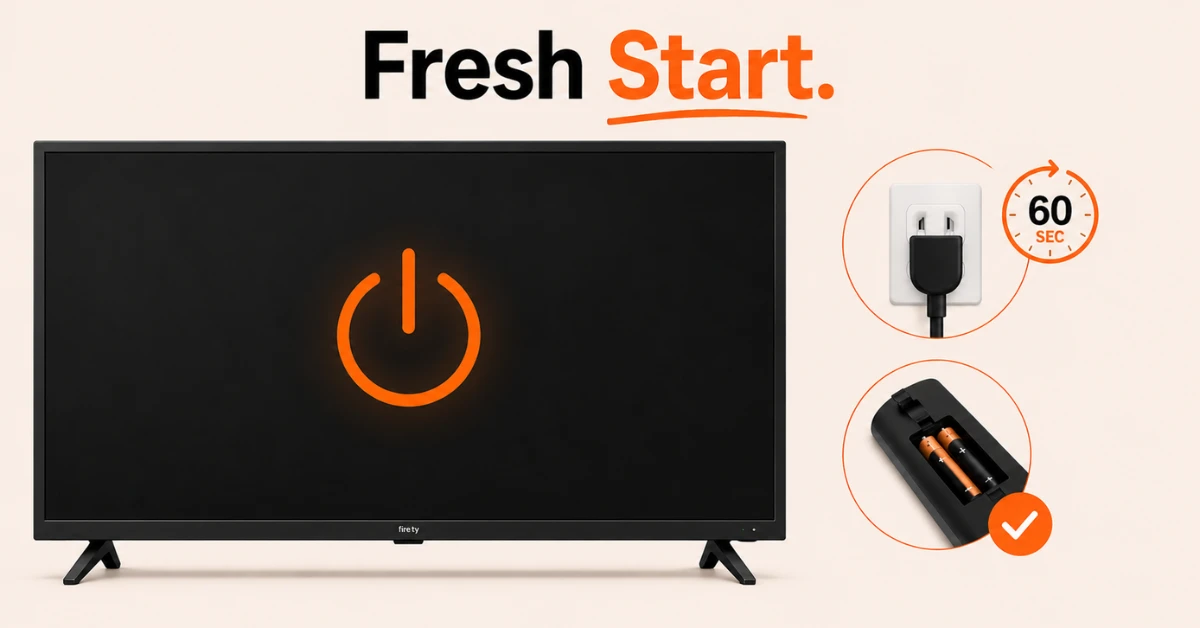
Power Cycle Both Devices
-
Unplug the Firestick from the power source and take out the remote batteries
-
Turn off your TV and unplug it from the wall
-
Wait 60 seconds then plug everything back in and turn on your TV first before the Firestick
Get EXPRESS VPN — 20% Off
Step 05
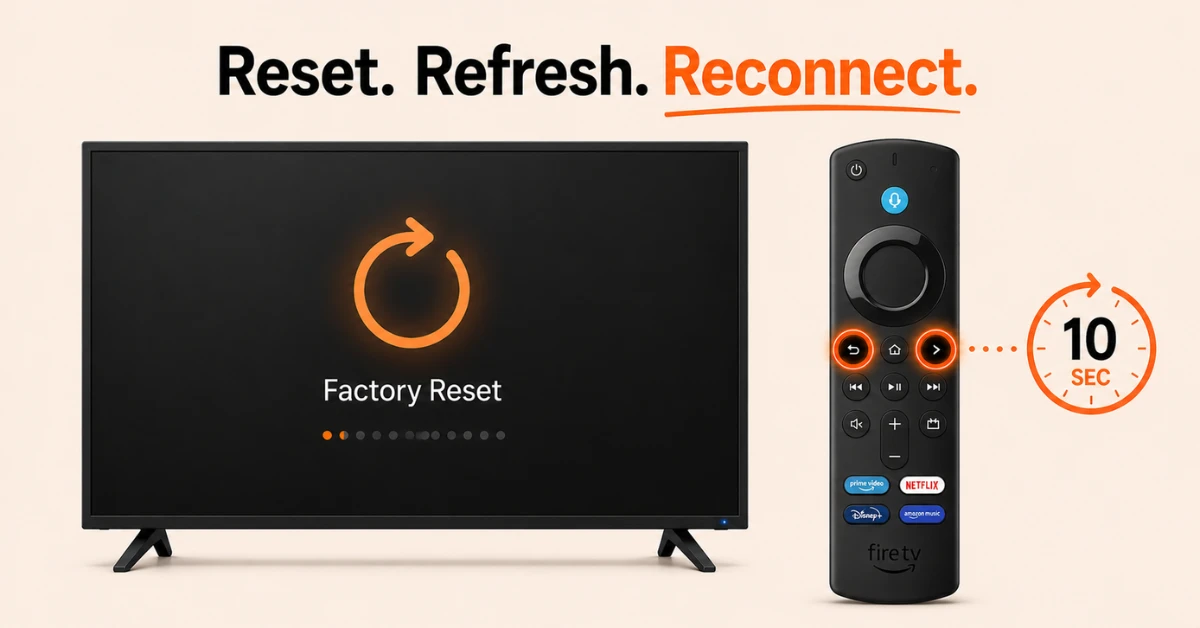
Factory Reset the Firestick
-
Hold the Right button and the Back button on your Firestick remote at the same time for 10 seconds
-
Follow the on-screen steps to reset as this will wipe all saved data and settings
-
Sign back into your Amazon account to set it up again once the TV recognises the device
Quick Comparison
Side-by-side comparison of top Fire Stick VPNs
| VPN | Price | Servers | Speed | Devices | Rating | Actions |
|---|---|---|---|---|---|---|
|
EXPRESS VPN
|
$2.79/mo | 3,000+ | Blazing Fast | 8 | 5 | Get Deal |
 NordVPN
|
$4.39/mo | 6,998+ | Blazing Fast | 8 | 4.8 | Get Deal |
|
|
$1.88/mo | 3,200+ | Blazing Fast | 8 | 4.7 | Get Deal |
 Proton VPN
|
$3.99/mo | 14,999+ | Blazing Fast | 7 | 4.8 | Get Deal |
 IPVanish
|
$2.49/mo | 3,100+ | Blazing Fast | 6 | 4 | Get Deal |
 Pure VPN
|
$3.55/mo | — | Blazing Fast | 6 | 4 | Get Deal |
Frequently Asked Questions
Why is my Firestick not showing on HDMI?
If your Firestick is not showing on HDMI, check that your TV input is switched to the correct HDMI channel. Also make sure the Firestick is receiving power by confirming the power cable and adapter are properly connected.
How do I fix Fire TV HDMI no signal?
Unplug the Firestick from both the HDMI port and power outlet, wait 30 seconds, and plug everything back in. If the no signal message persists, try a different HDMI port on your TV or test the Firestick on a different TV to rule out a hardware issue.
Why does Fire TV show no signal on HDMI only sometimes?
An intermittent no signal issue on Fire TV is usually caused by a loose HDMI connection or an overheating Firestick. Make sure the HDMI connection is secure and ensure the Firestick has adequate ventilation to prevent overheating.
Can a bad HDMI cable cause Fire TV no signal?
Yes, a damaged or low quality HDMI cable can cause a no signal error on Fire TV. Try replacing the HDMI cable or connecting the Firestick directly to the TV port without any extension cable to see if that resolves the issue.
Can a faulty HDMI port cause Firestick not to be recognized?
Yes, a damaged or incompatible HDMI port can prevent your Firestick from being recognized. Try plugging the Firestick into a different HDMI port on your TV to rule out a faulty port as the cause.
How do I fix a Firestick HDMI issue if none of the basic steps work?
If basic troubleshooting does not resolve the HDMI issue, try performing a factory reset on your Firestick under Settings, then My Fire TV, then Reset to Factory Defaults. If the problem continues after a reset the Firestick hardware itself may need to be replaced.