How to Set Up Picture-in-Picture Camera View on Firestick?
Editor's Choice
#1 Pick
Editor's Choice
 EXPRESS VPN
$2.79/month
Save 20%
Blazing Fast
3,000+
214
8
Step by Step Instructions
Step 01

Open the Amazon App Store
From your Firestick home screen, navigate to the “Find” or search icon and open the Amazon App Store.
Step 02
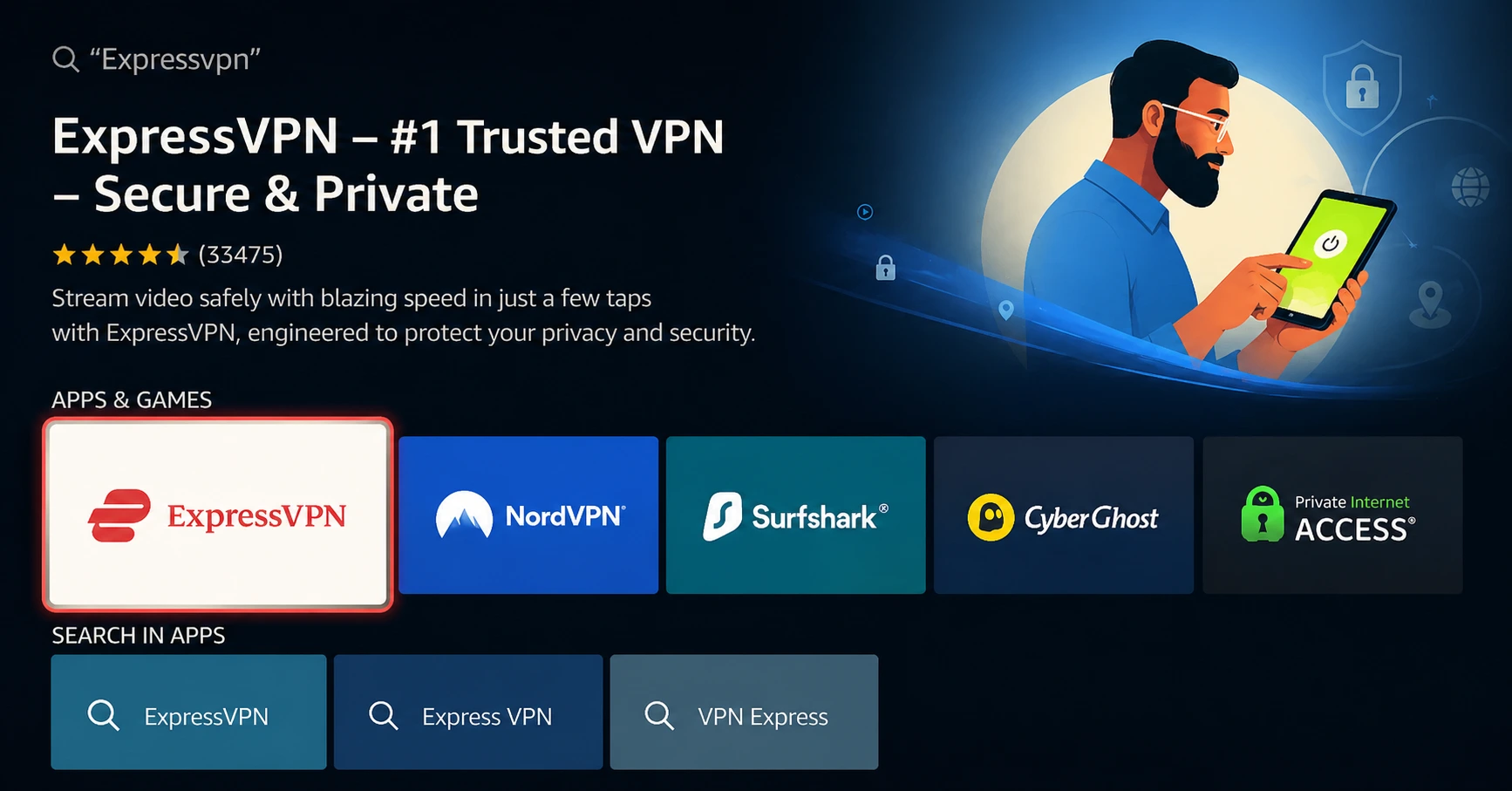
Search for ExpressVPN
Type “ExpressVPN” in the search bar using your remote. Select the official ExpressVPN app from the results.
Step 03
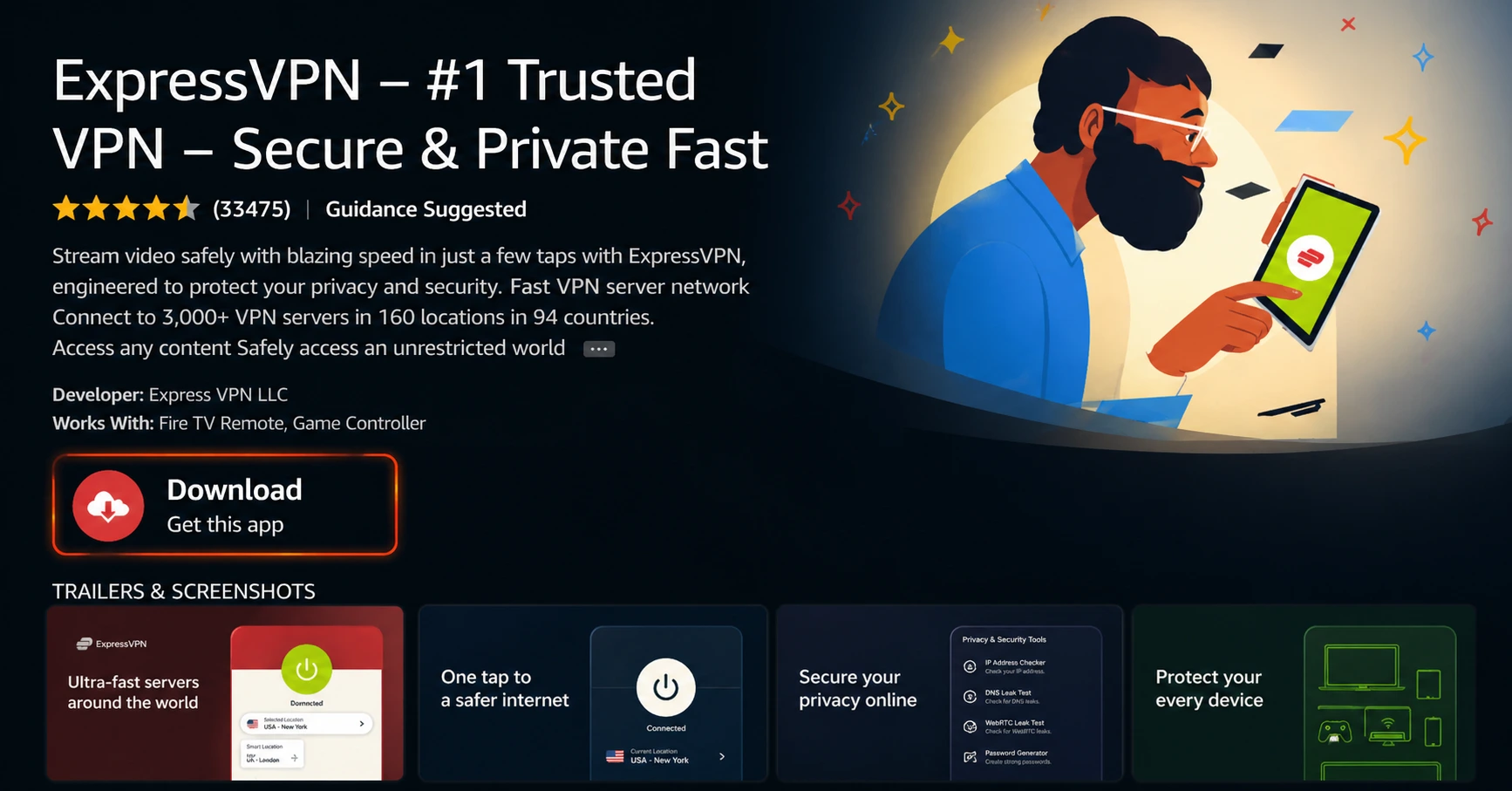
Download & Install the App
Click on the “Download” or “Get” button to install the app on your Firestick. Wait for the installation to complete.
Step 04
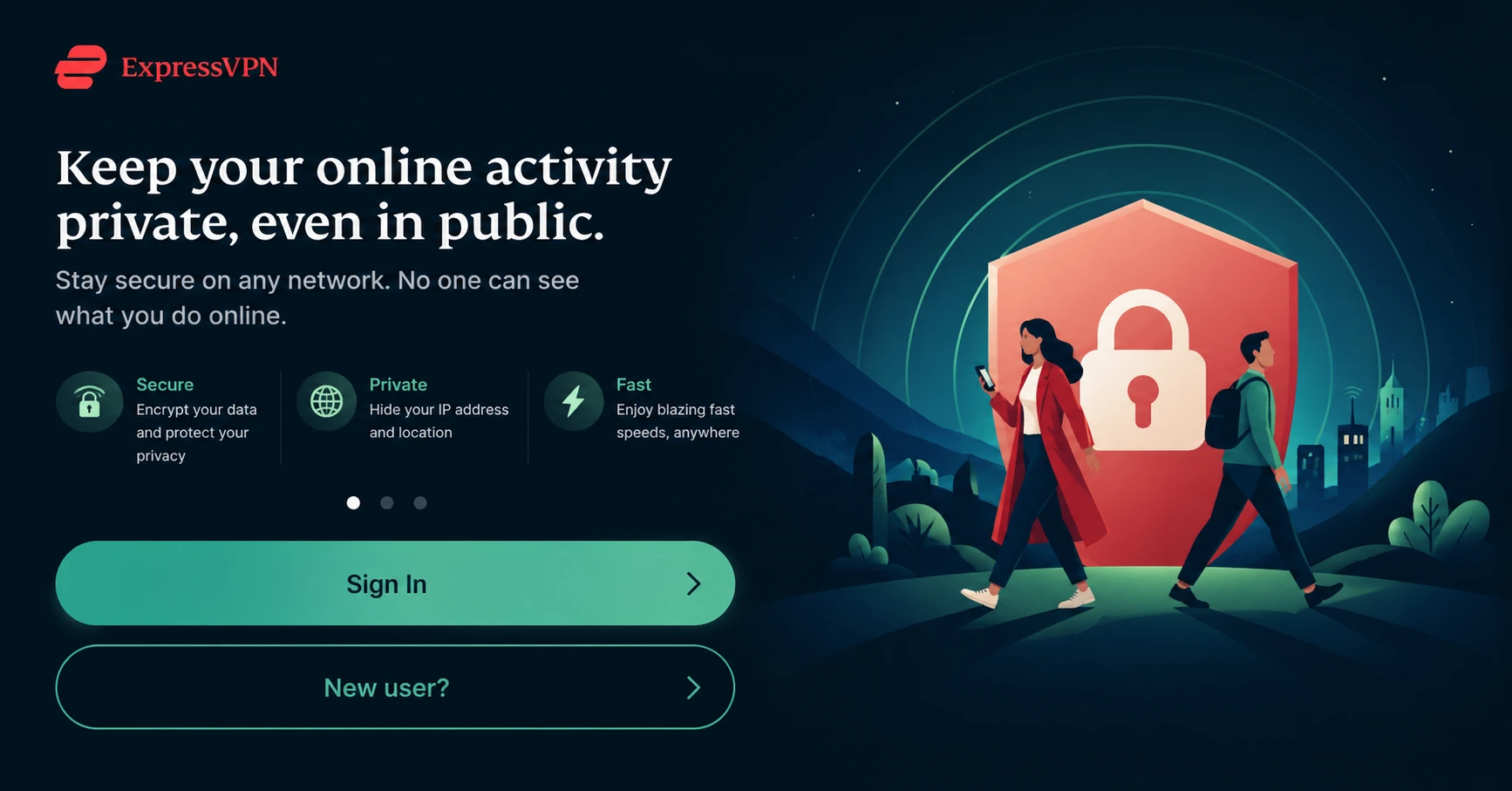
Sign In & Connect
Open the app, sign in with your ExpressVPN account, and tap the power button to connect to a server.
How to Set Up Picture-in-Picture Camera View on Firestick?
Set your security camera live on your TV without interrupting what you watch
Step 01
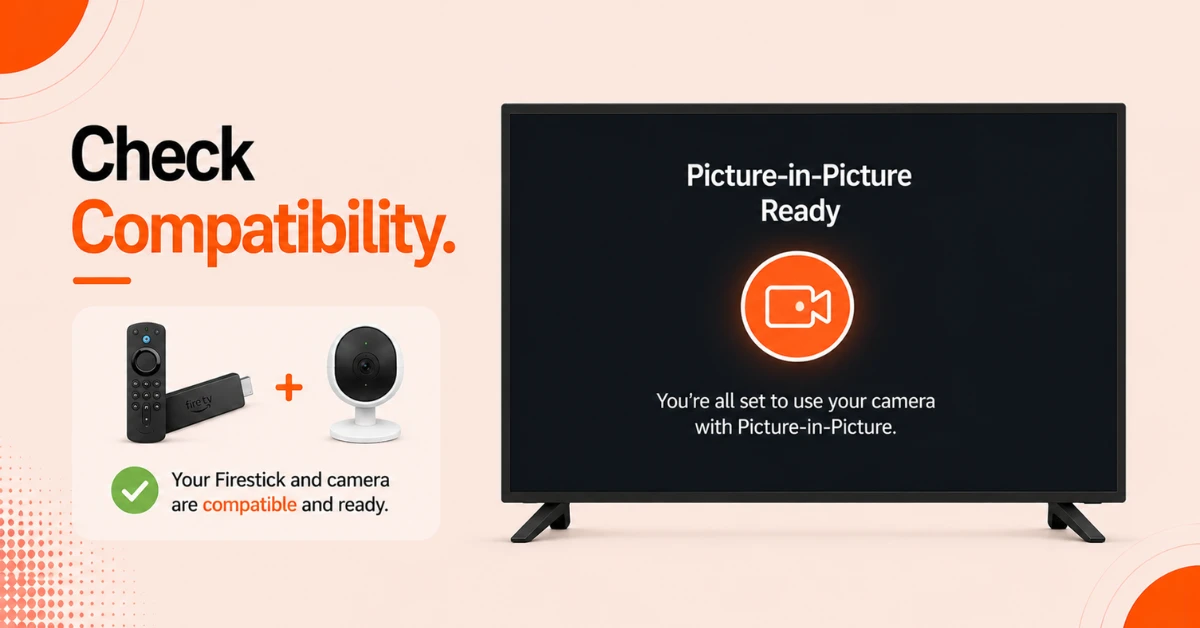
Check Compatibility
-
Confirm your Firestick model supports PIP. Compatible devices include Firestick 4K Max, Fire TV Cube, and Fire TV Omni Series
-
Make sure your camera brand supports Alexa
-
Connect both your Firestick and camera to the same Wi-Fi network
Step 02
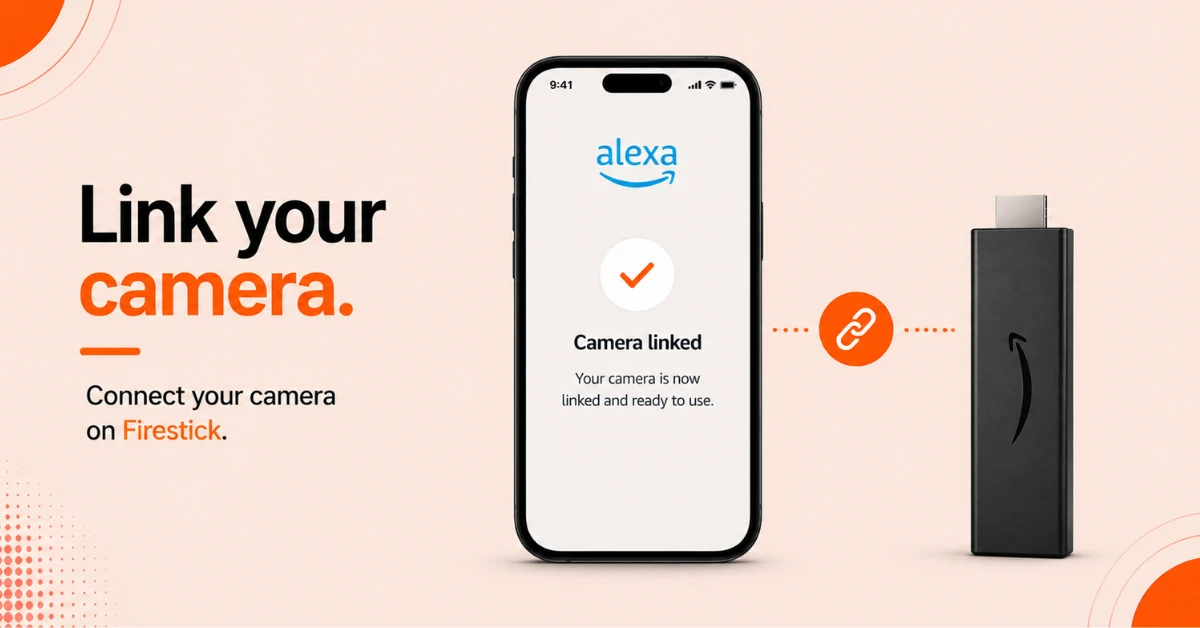
Link Your Camera in the Alexa App
-
Open the Alexa app on your phone and tap More
-
Select Add a Device, then Camera, then choose your camera brand
-
Follow the on-screen steps and sign in to your camera account to complete the link
Get EXPRESS VPN — 20% Off
Step 03
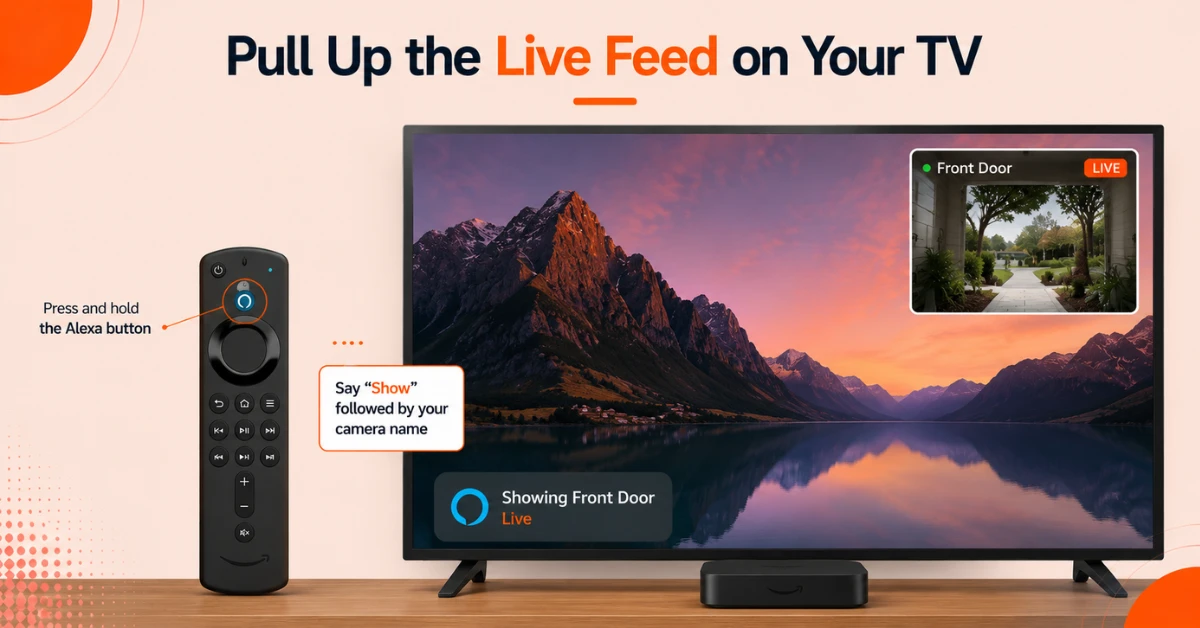
Pull Up the Live Feed on Your TV
-
Press and hold the Alexa button on your Fire TV remote
-
Say "Show" followed by your camera name
-
A live camera window will appear in the corner of your screen instantly
Step 04
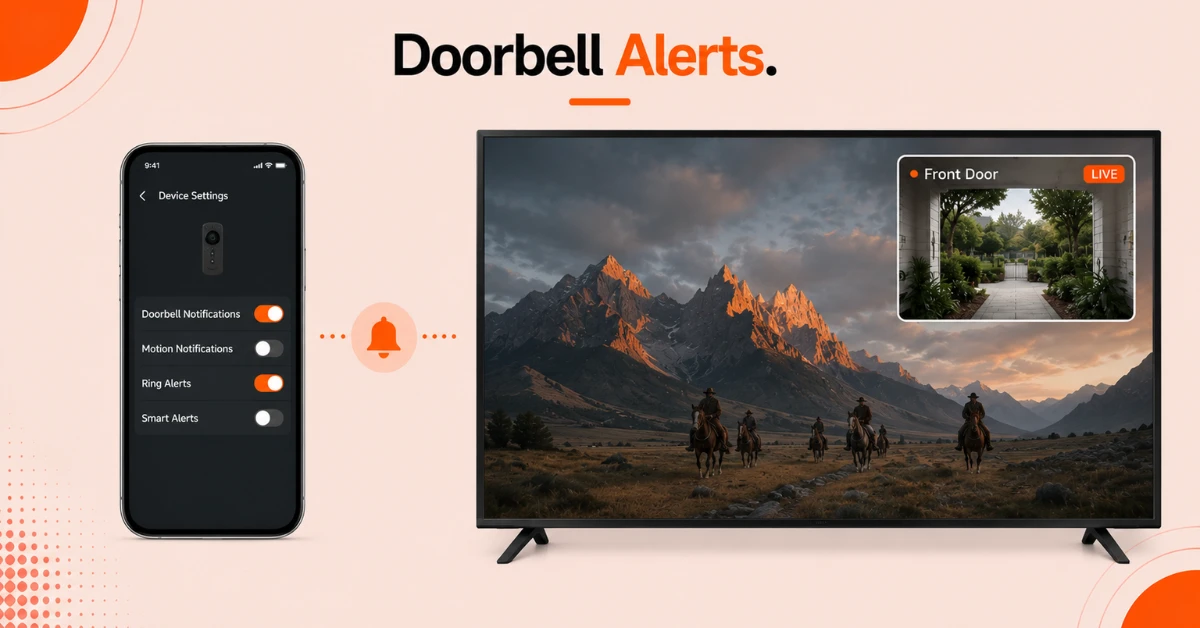
Enable Auto Pop-Up for Ring Doorbell
-
Open the Alexa app and go to your Ring device settings
-
Make sure doorbell notifications are turned on
-
Your camera feed will now automatically appear on screen whenever someone rings your door
Quick Comparison
Side-by-side comparison of top Fire Stick VPNs
| VPN | Price | Servers | Speed | Devices | Rating | Actions |
|---|---|---|---|---|---|---|
|
EXPRESS VPN
|
$2.79/mo | 3,000+ | Blazing Fast | 8 | 5 | Get Deal |
 NordVPN
|
$4.39/mo | 6,998+ | Blazing Fast | 8 | 4.8 | Get Deal |
 Proton VPN
|
$3.99/mo | 14,999+ | Blazing Fast | 7 | 4.8 | Get Deal |
|
|
$1.88/mo | 3,200+ | Blazing Fast | 8 | 4.7 | Get Deal |
 IPVanish
|
$2.49/mo | 3,100+ | Blazing Fast | 6 | 4 | Get Deal |
 Pure VPN
|
$3.55/mo | — | Blazing Fast | 6 | 4 | Get Deal |
Frequently Asked Questions
Can I watch my security camera live while streaming on Firestick?
Yes, the picture-in-picture window sits as a small overlay in the corner so you can monitor your camera without stopping your show.
Does every Firestick support picture-in-picture camera view?
No, only select models support this feature including Firestick 4K Max, Fire TV Cube, Fire TV Omni Series, and Fire TV 4-Series. Check your model under Settings before starting setup.
Can I use picture-in-picture on Firestick as a baby monitor?
Yes, any Alexa-compatible indoor camera can be set up as a baby monitor. Link it through the Alexa app and call it up by name using your voice remote anytime.
Can I make the camera view go full screen on Fire TV?
Yes, say "Alexa, show" followed by your camera name to switch to full screen. Say "Alexa, hide" followed by the camera name to close the feed completely.
How many cameras can I view at once on Fire TV?
Fire TV displays one camera feed at a time. You can switch between cameras by asking Alexa to show a different device by name.
How do I connect my Ring camera to Firestick?
Open the Alexa app, go to More, select Add a Device, choose Camera, then select Ring. Once linked your Ring camera will work automatically with your Firestick.
Can I turn off automatic picture-in-picture pop-ups on Fire TV?
Yes, go to your camera device settings in the Alexa app and turn off notifications. This will stop automatic pop-ups from appearing on your screen.