Best FireStick Settings to Change Right Away
Editor's Choice
#1 Pick
Editor's Choice
 EXPRESS VPN
$2.79/month
Save 20%
Blazing Fast
3,000+
214
8
Step by Step Instructions
Step 01

Open the Amazon App Store
From your Firestick home screen, navigate to the “Find” or search icon and open the Amazon App Store.
Step 02
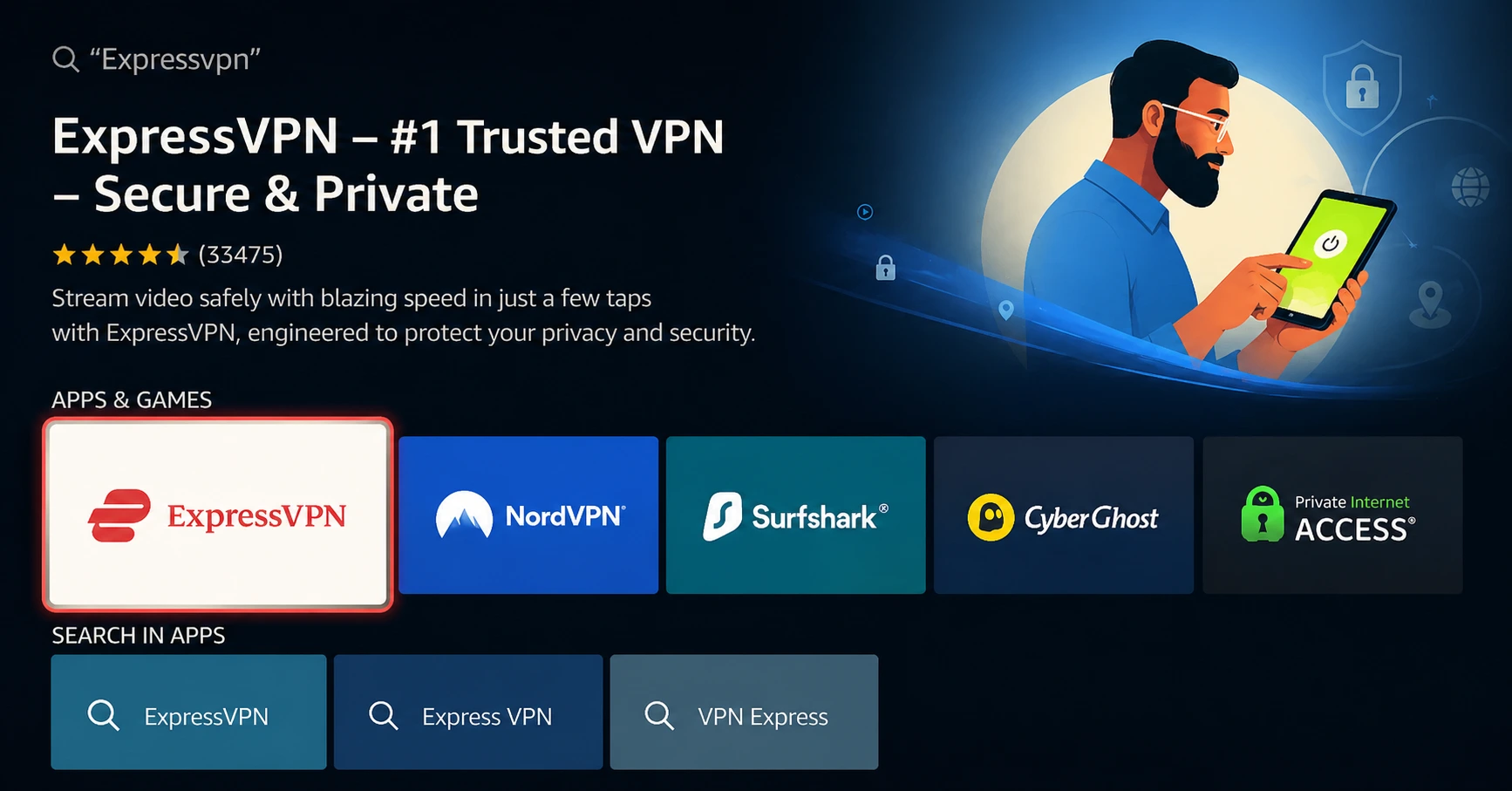
Search for ExpressVPN
Type “ExpressVPN” in the search bar using your remote. Select the official ExpressVPN app from the results.
Step 03
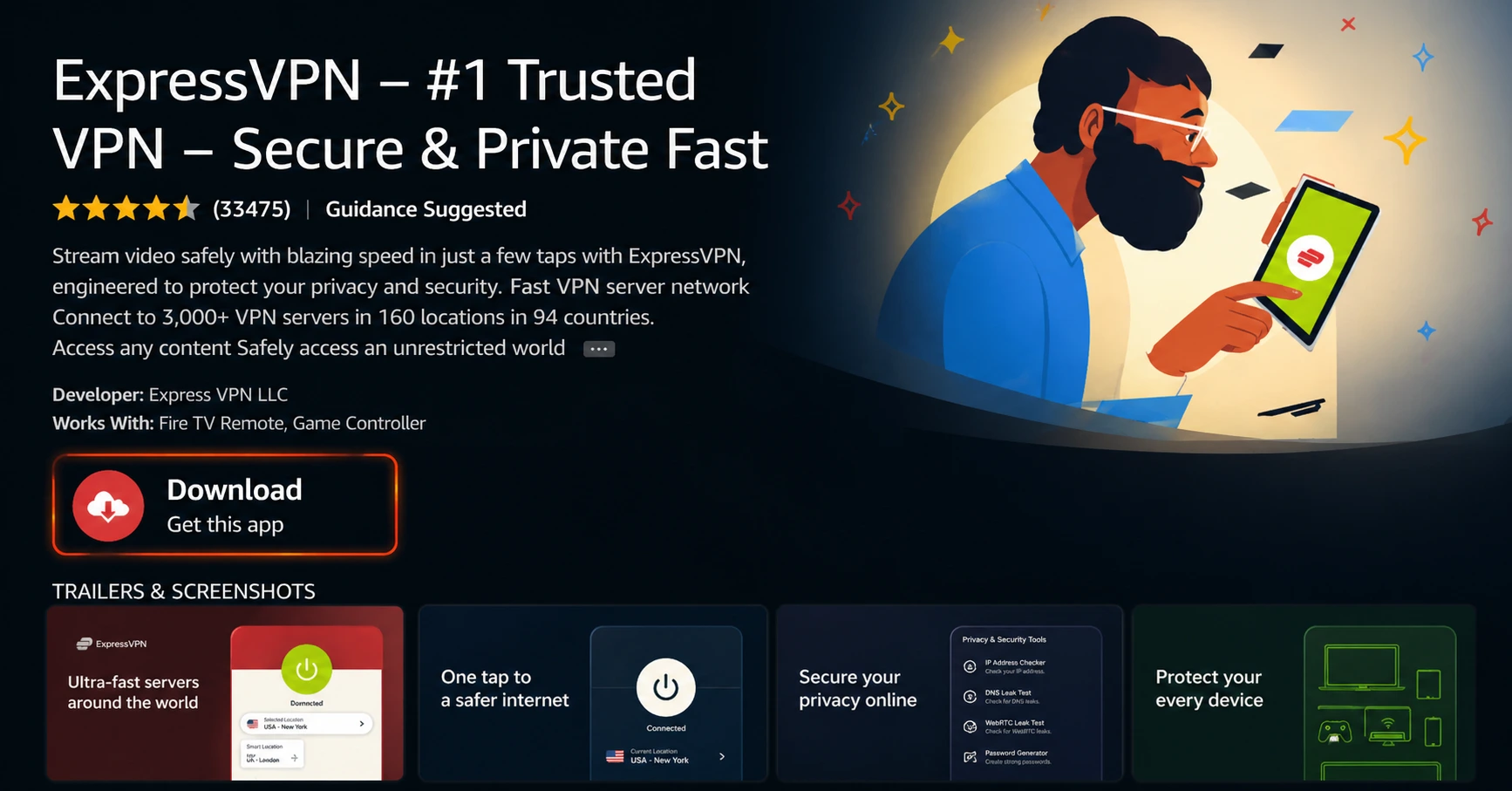
Download & Install the App
Click on the “Download” or “Get” button to install the app on your Firestick. Wait for the installation to complete.
Step 04
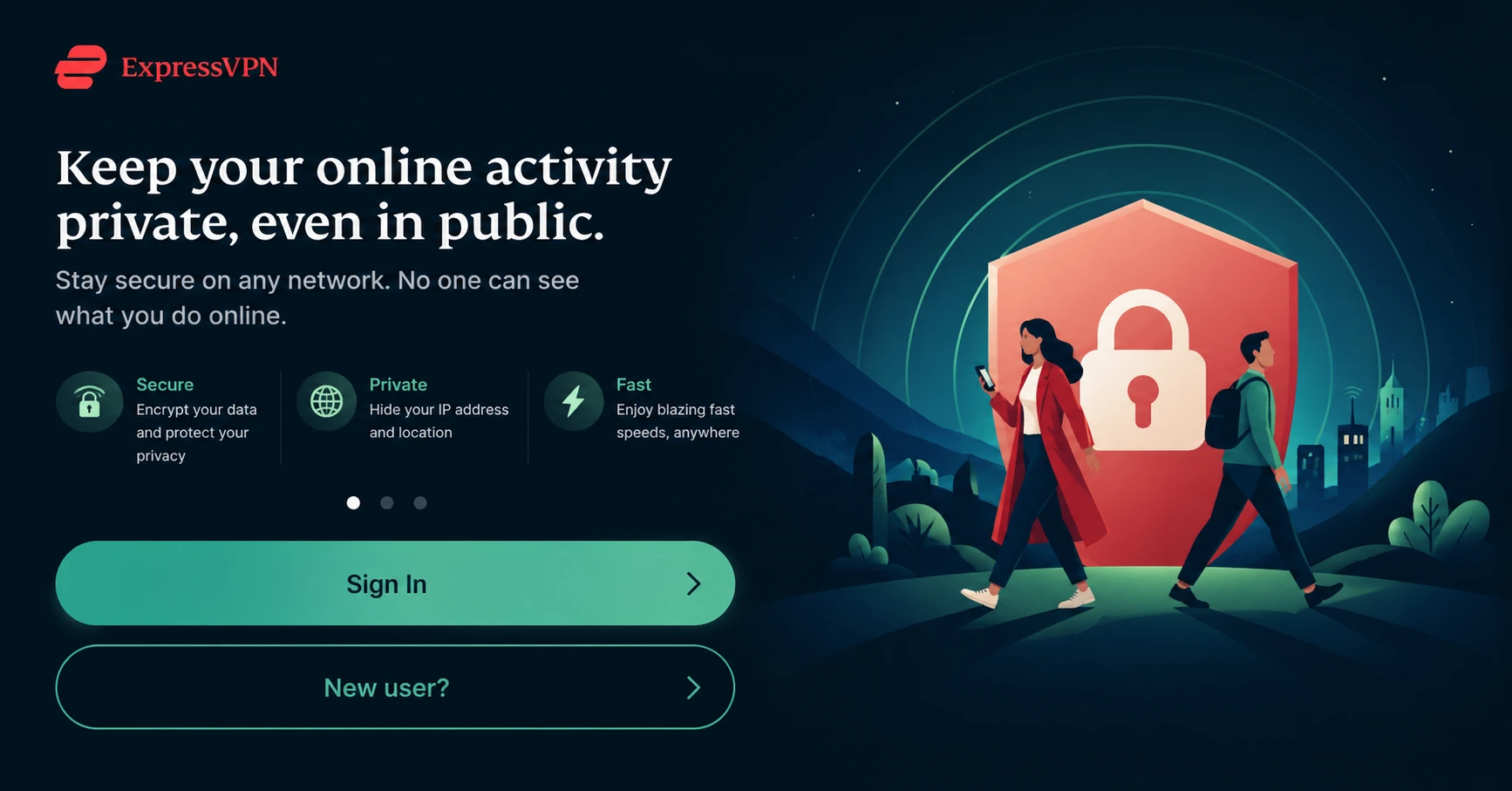
Sign In & Connect
Open the app, sign in with your ExpressVPN account, and tap the power button to connect to a server.
Best FireStick Settings to Change Right Away
A simple guide with best FireStick settings worth adjusting for better performance and privacy
Step 01
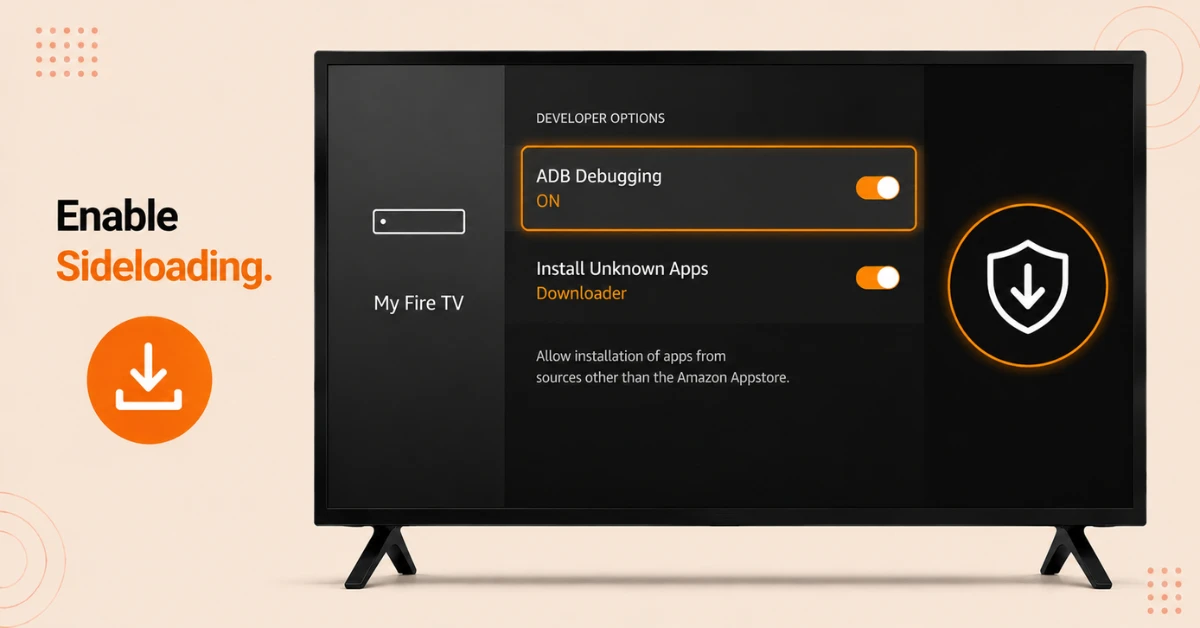
Unlock Sideloading Capability
-
Open Settings, then select My Fire TV, then Developer Options
-
Turn on ADB Debugging if you plan to connect your Firestick to a computer
-
Select Install Unknown Apps from the list shown
-
Turn this on for Downloader, since this lets you sideload apps not found in the official store
Step 02
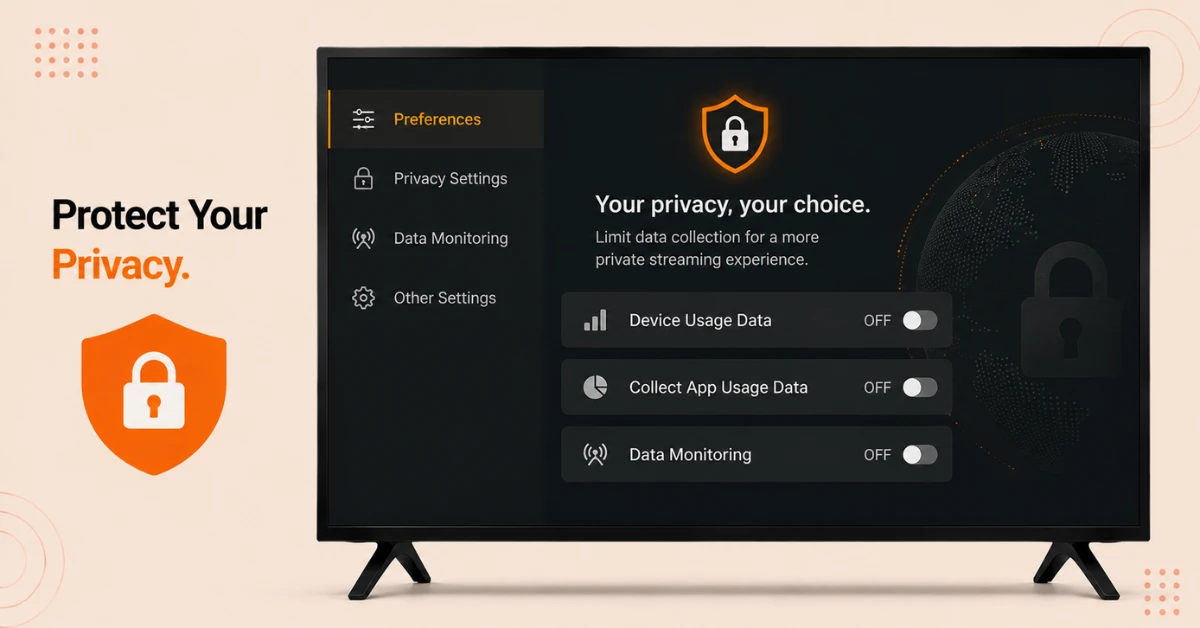
Lock Down Your Privacy
-
Go to Settings, then Preferences, then Privacy Settings
-
Switch off Device Usage Data
-
Switch off Collect App Usage Data as well
-
Head back to Preferences and select Data Monitoring, making sure it's turned off too
Get EXPRESS VPN — 20% Off
Step 03
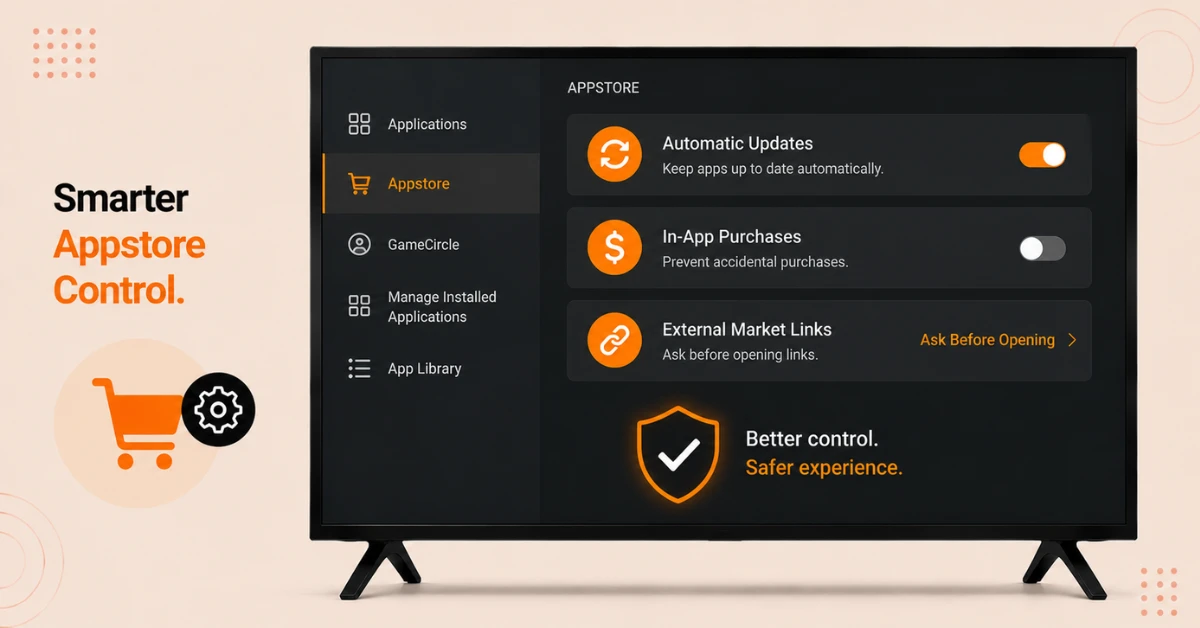
Clean Up Appstore Behaviour
-
Go to Settings, then Applications, then Appstore
-
Keep Automatic Updates on so Amazon Store apps stay current
-
Switch In-App Purchases off to avoid accidental charges
-
Set External Market Links to Ask Before Opening
Step 04
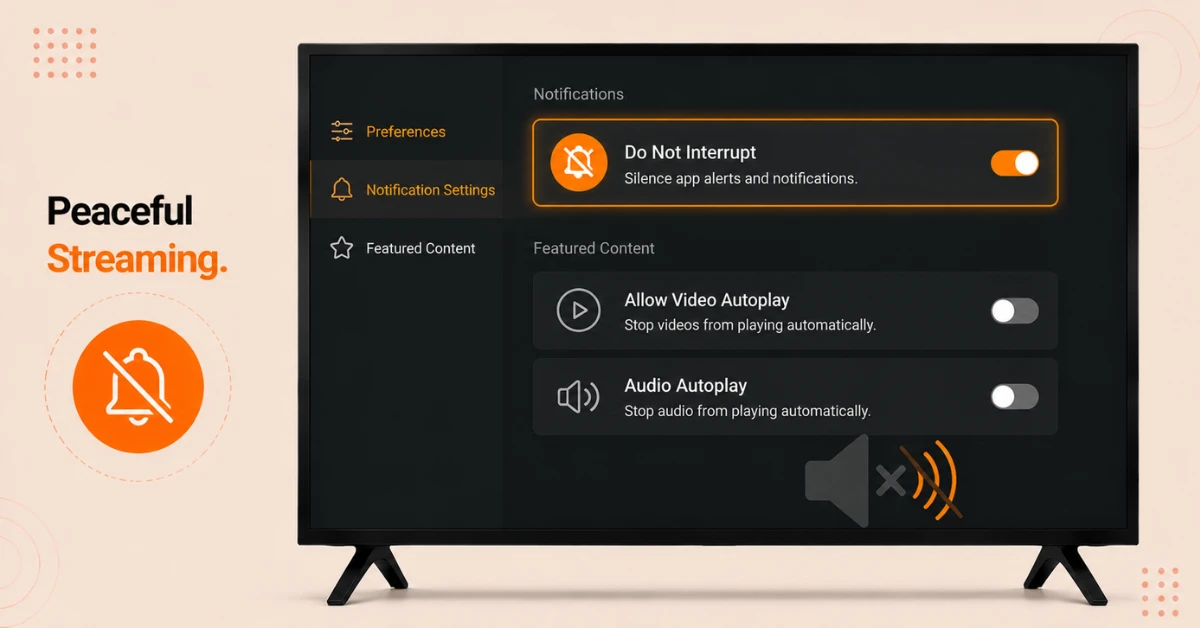
Quiet Down Notifications and Autoplay
-
Go to Settings, then Preferences, then Notification Settings
-
Turn on Do Not Interrupt to silence app alerts altogether
-
Head back to Preferences and open Featured Content
-
Switch off both Allow Video Autoplay and Audio Autoplay
Quick Comparison
Side-by-side comparison of top Fire Stick VPNs
| VPN | Price | Servers | Speed | Devices | Rating | Actions |
|---|---|---|---|---|---|---|
|
EXPRESS VPN
|
$2.79/mo | 3,000+ | Blazing Fast | 8 | 5 | Get Deal |
 Proton VPN
|
$3.99/mo | 14,999+ | Blazing Fast | 7 | 4.8 | Get Deal |
 NordVPN
|
$4.39/mo | 6,998+ | Blazing Fast | 8 | 4.8 | Get Deal |
|
|
$1.88/mo | 3,200+ | Blazing Fast | 8 | 4.7 | Get Deal |
 IPVanish
|
$2.49/mo | 3,100+ | Blazing Fast | 6 | 4 | Get Deal |
 Pure VPN
|
$3.55/mo | — | Blazing Fast | 6 | 4 | Get Deal |
Frequently Asked Questions
What are the best Firestick settings to change right after setup?
The most important ones to start with are disabling data monitoring under Privacy Settings, turning off video and audio autoplay, and adjusting your display resolution to Auto. These three alone noticeably improve both privacy and day to day comfort using the device.
Which Firestick settings has to change to improve privacy the most?
Turning off Device Usage Data, Collect App Usage Data, and Data Monitoring under Privacy Settings has the biggest impact on limiting what Amazon collects about your viewing habits. These are turned on by default, so they need to be manually switched off.
Do I need to change Firestick settings every time I install a new app?
No, settings like Install Unknown Apps and Automatic Updates only need to be configured once. They'll continue applying to new apps going forward without requiring repeated adjustments.
Does a Fire TV settings guide help with sideloading apps not on the Appstore?
Yes, enabling ADB Debugging and Install Unknown Apps under Developer Options is the essential first step before sideloading anything. Without turning these on, apps like Downloader won't be able to install files from outside the official store.
Why does a Fire TV settings guide recommend turning on Automatic Updates?
Keeping Automatic Updates on ensures apps downloaded from the Amazon Store stay current without you needing to manually check for new versions. This only applies to official store apps though, not anything sideloaded separately.
Does it help to optimize Firestick settings if my device feels slow?
Disabling autoplay previews and unnecessary notifications can reduce some background activity, though persistent slowness is often tied to hardware limitations on older devices. If basic setting changes don't help, checking for software updates or considering a factory reset is the next step.
Will optimizing Firestick settings fix audio and video sync issues?
Enabling Match Original Frame Rate can help with judder related sync issues tied to frame rate mismatches, though persistent audio delay is often linked to your TV or soundbar settings instead. If problems continue after adjusting Firestick's own settings, checking your audio output device is worth doing next.