How Do I Fix No Sound on Firestick? Easy Troubleshooting Guide
Editor's Choice
#1 Pick
Editor's Choice
 Proton VPN
$3.99/month
Save 20%
Blazing Fast
14,999+
214
7
Step by Step Instructions
Step 01
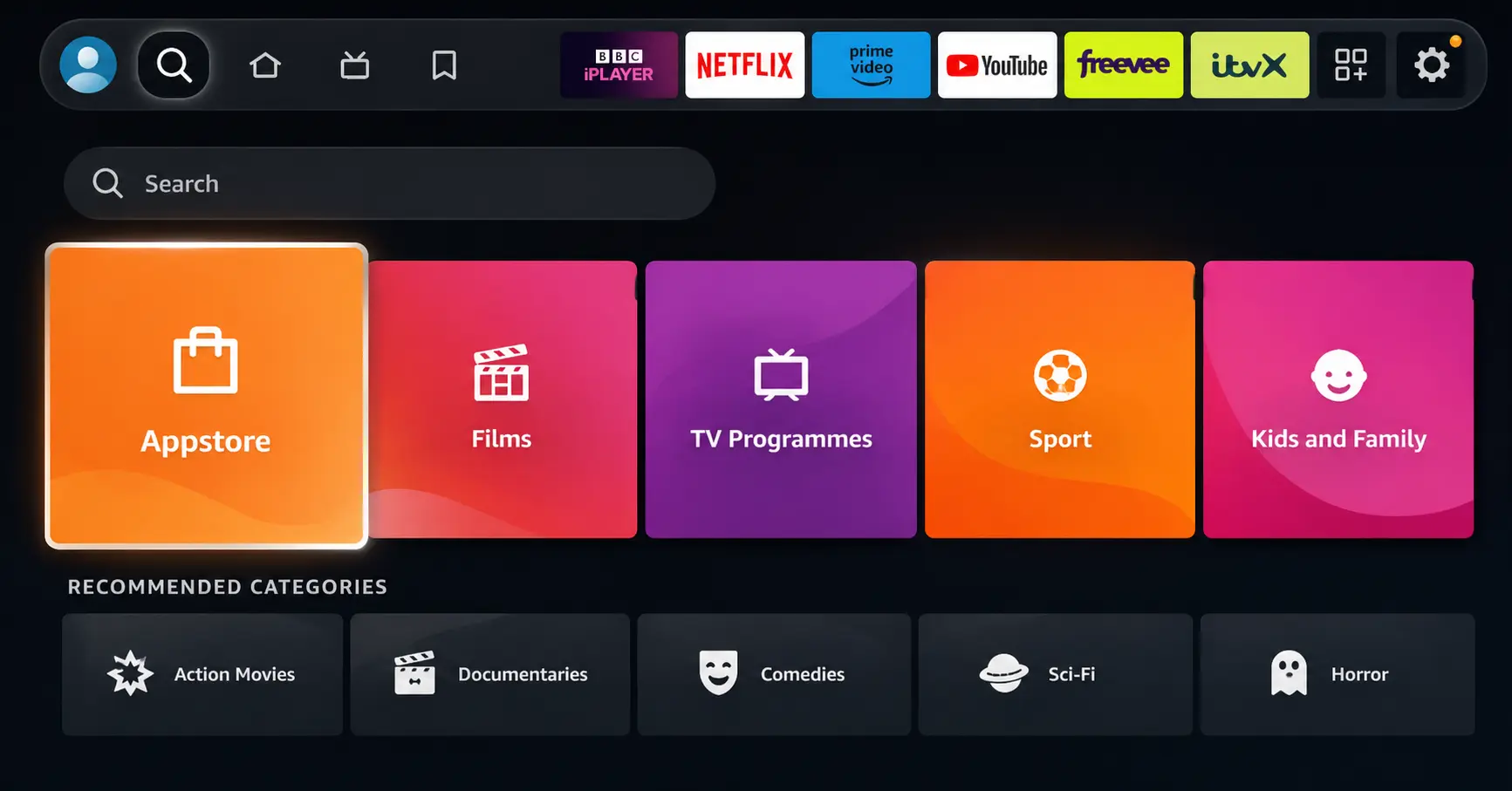
Open Search on Fire TV
Go to the Find (Search) option from your Fire TV home screen.
Step 02
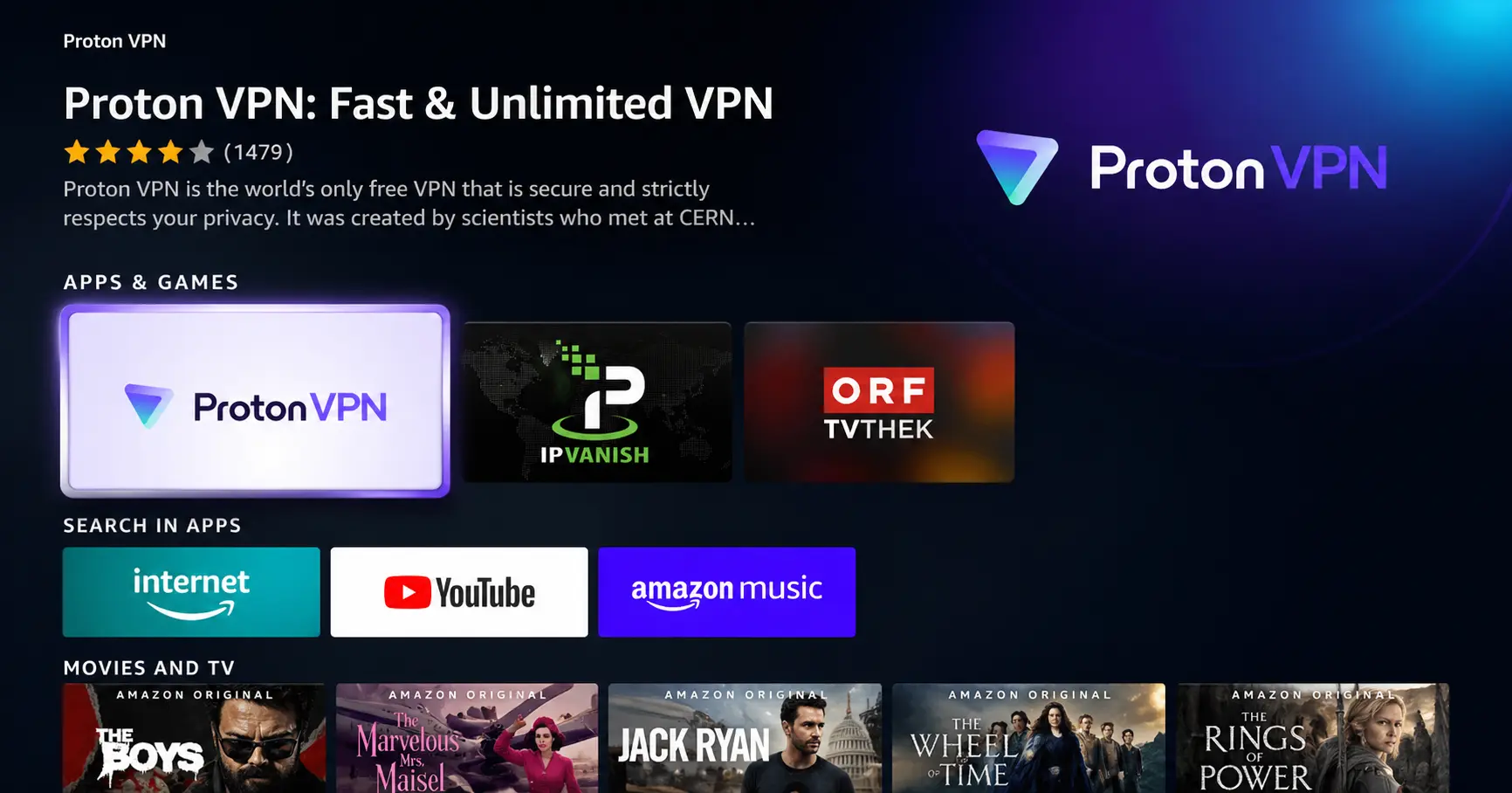
Search for ProtonVPN
Type ProtonVPN using your remote and select the app from the results.
Step 03
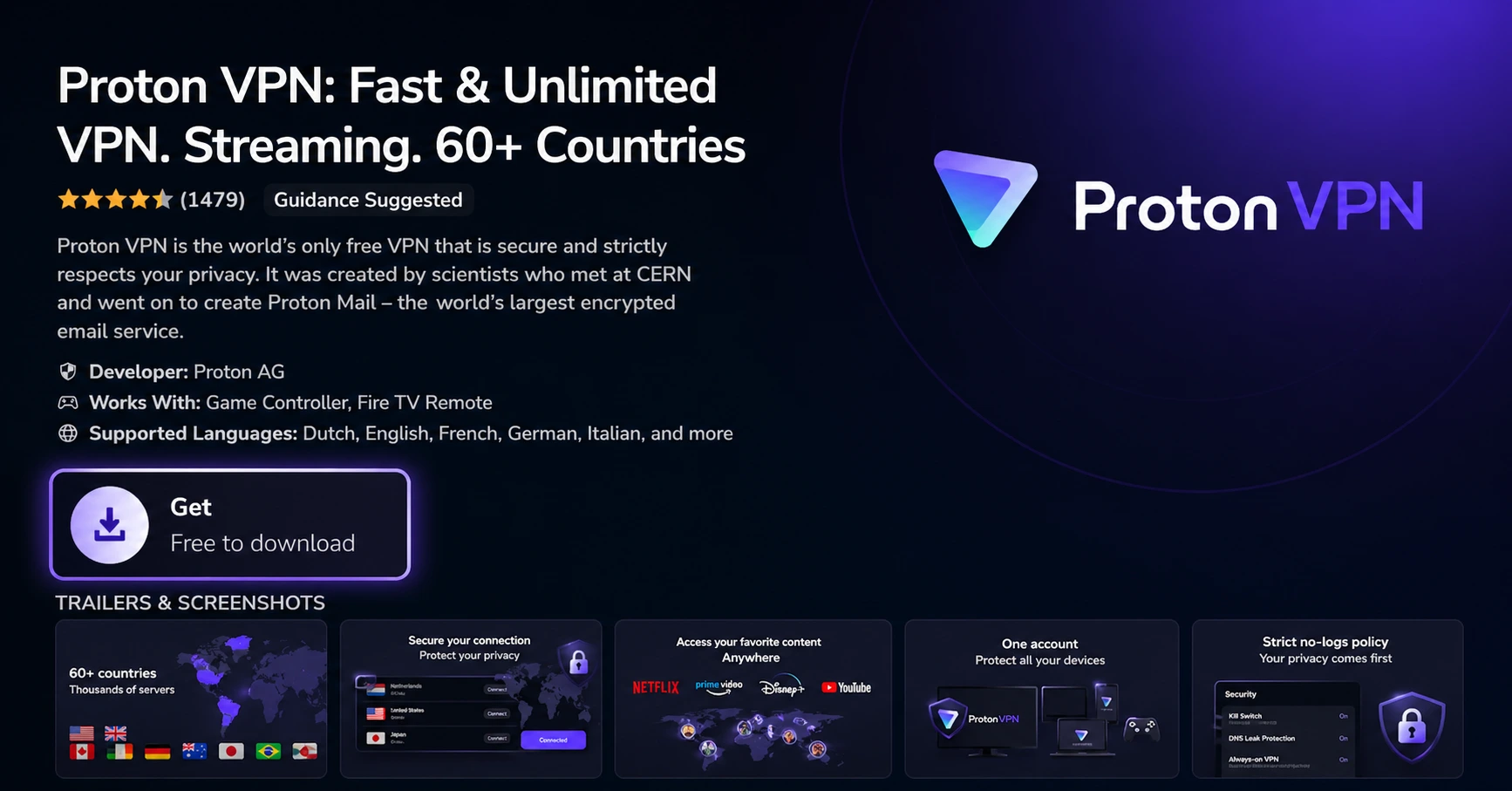
Install the App
Click on Get or Download to install ProtonVPN on your Fire TV.
Step 04
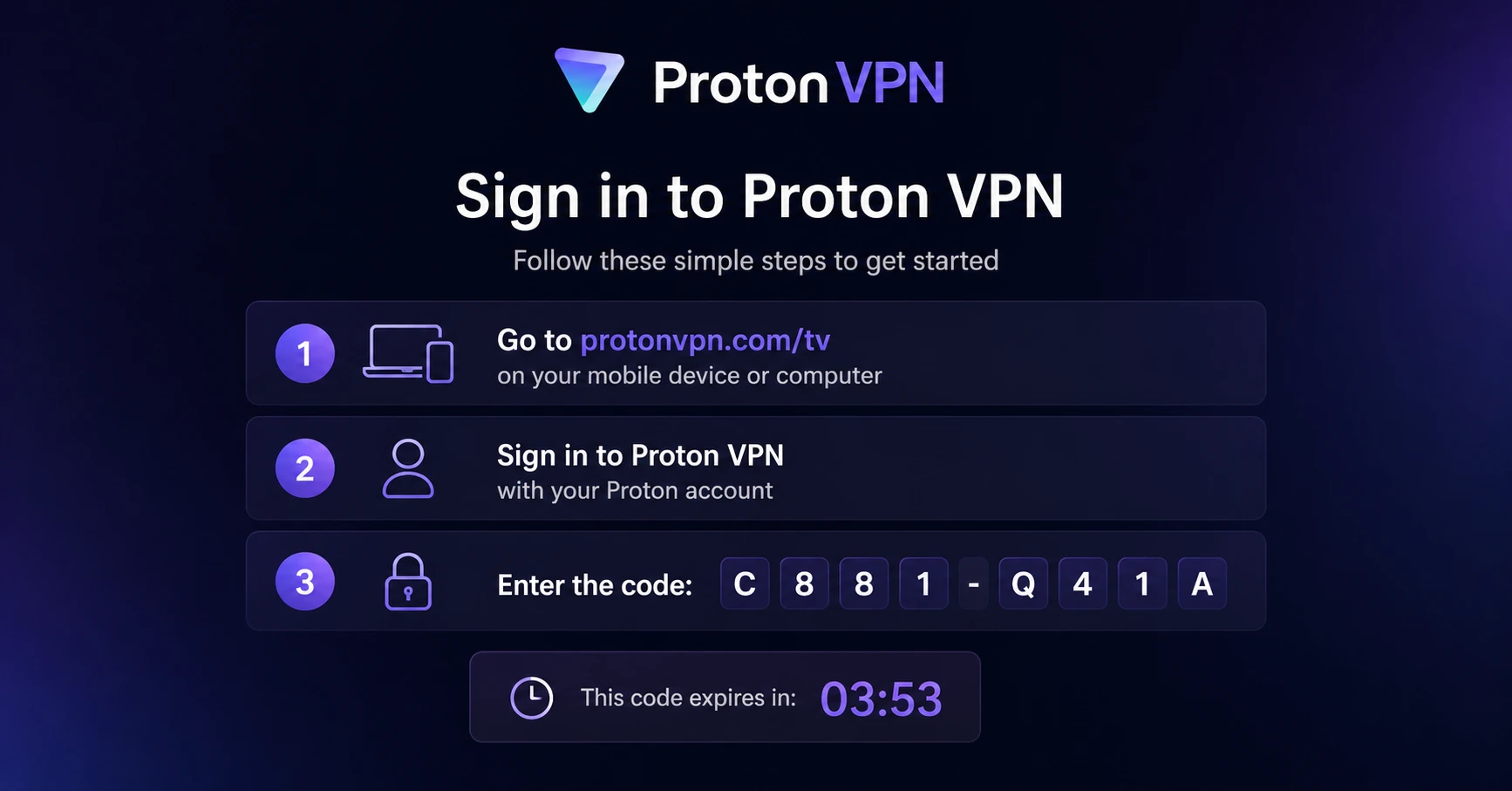
Sign In & Connect
Open the app, sign in using your Proton account (QR or code method), and connect to a server.
How Do I Fix No Sound on Firestick?
Easy fixes to get your firestick audio back up and running in minutes
Step 01
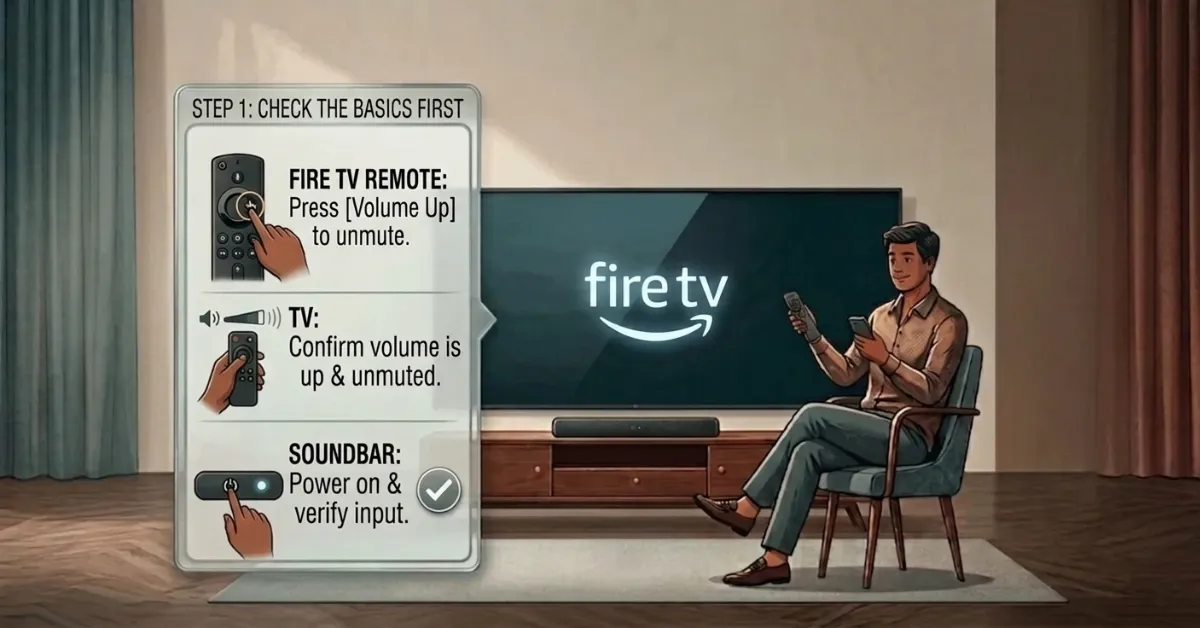
Check the Basics First
-
Press the volume up button on your Firestick remote a few times to rule out accidental muting.
-
Check that your TV is not muted and the volume is turned up.
-
If using an external soundbar or speaker, make sure it is powered on
Step 02
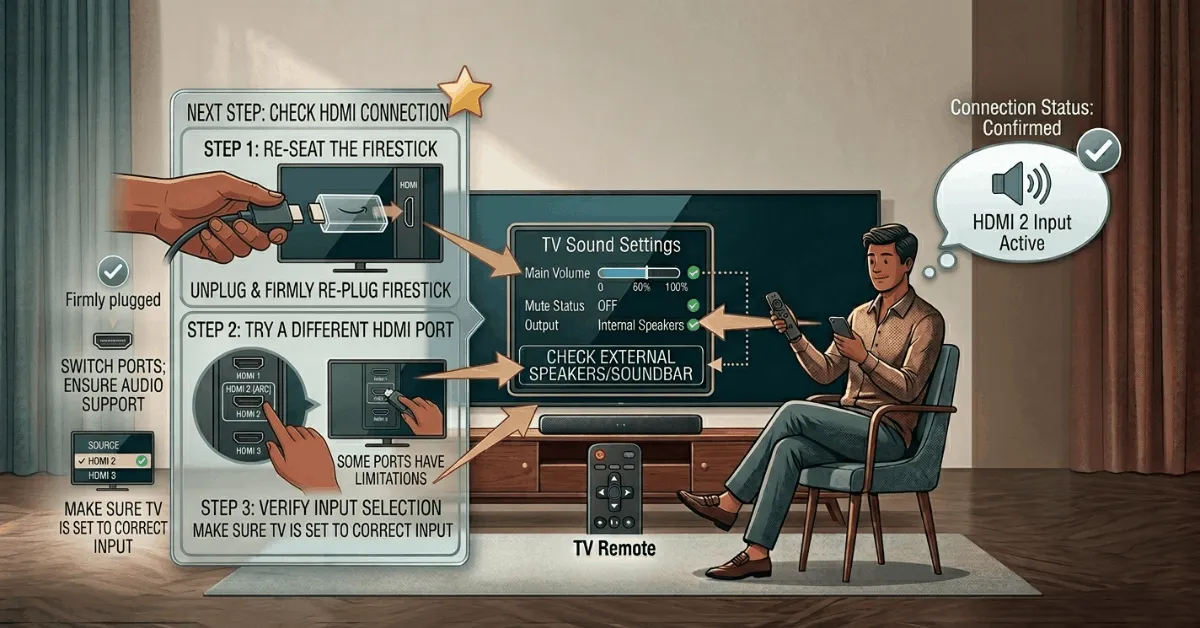
Check Your HDMI Connection
-
Unplug the Firestick from the HDMI port and firmly plug it back in.
-
Try switching to a different HDMI port
-
Make sure you are connected to the correct HDMI input on your TV by checking the source selection.
Get Proton VPN — 20% Off
Step 03
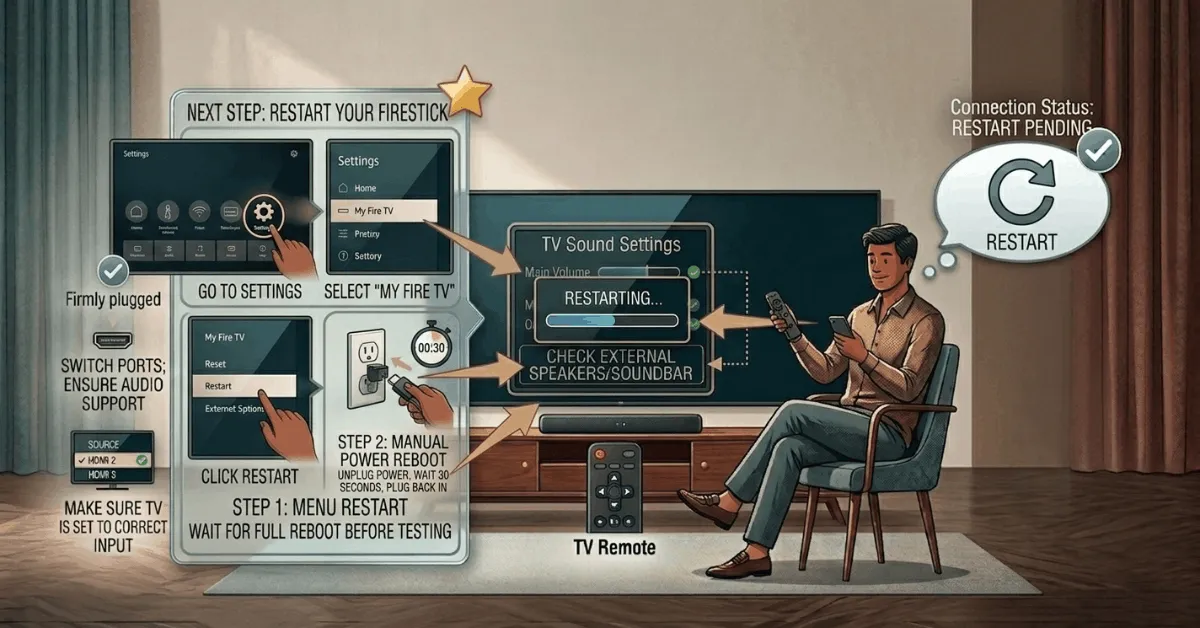
Restart Your Firestick
-
Go to Settings, select My Fire TV, and click Restart.
-
Wait for the device to fully reboot before testing the sound.
-
If that does not work, unplug the Firestick from its power source, wait 30 seconds, and plug it back in.
Step 04
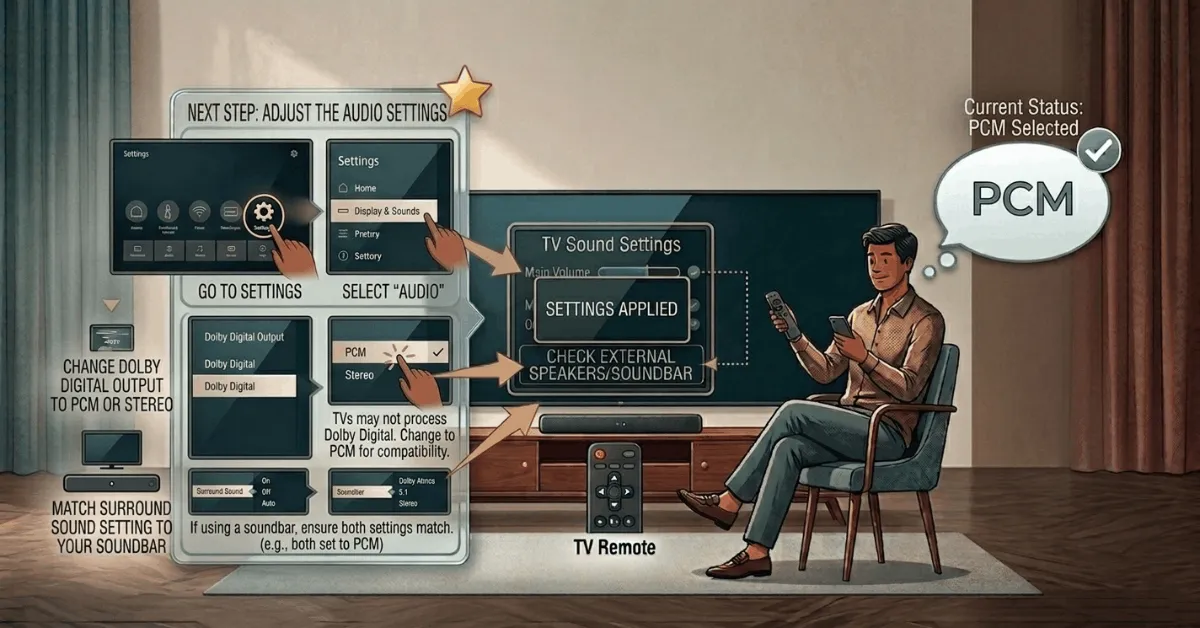
Adjust the Audio Settings
-
Go to Settings, select Display and Sounds, then Audio.
-
Change the Dolby Digital Output setting to PCM or Stereo as some TVs cannot process Dolby Digital.
-
If using a soundbar, make sure the Surround Sound setting matches your soundbar's audio format.
Get Proton VPN — 20% Off
Step 05
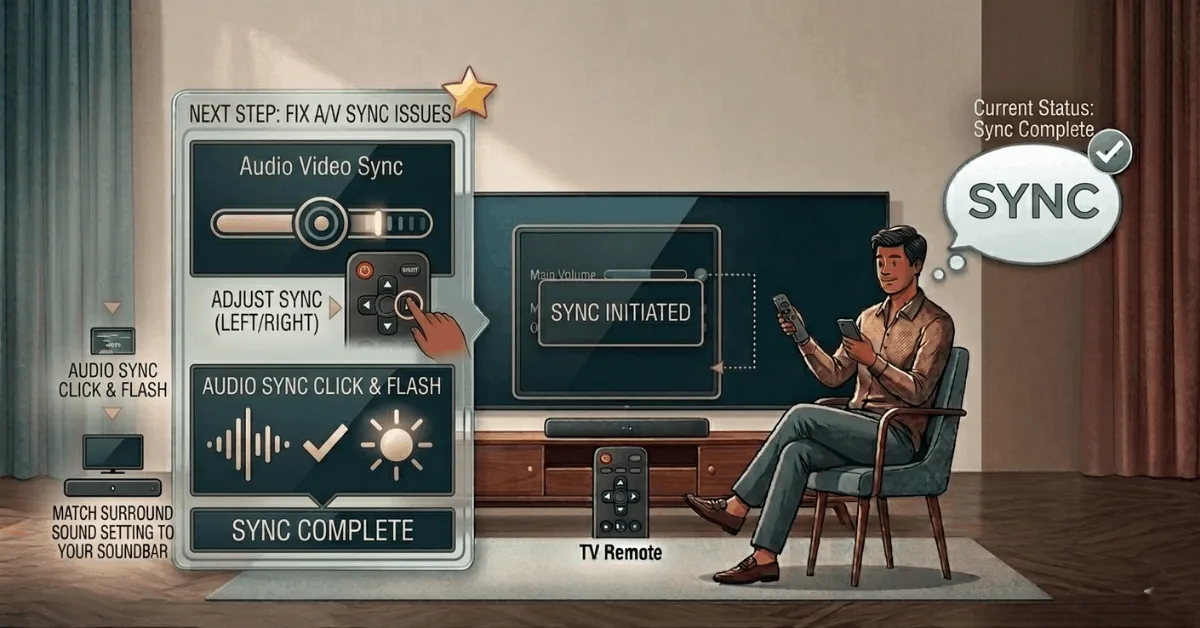
Fix Audio and Video Sync Issues
-
Go to Settings, select Display and Sounds, then Audio Video Sync.
-
Use your remote's left and right buttons to adjust the sync until the click and flash on screen match simultaneously.
-
Once the audio and video are in sync, exit the settings and test with any content.
Step 06
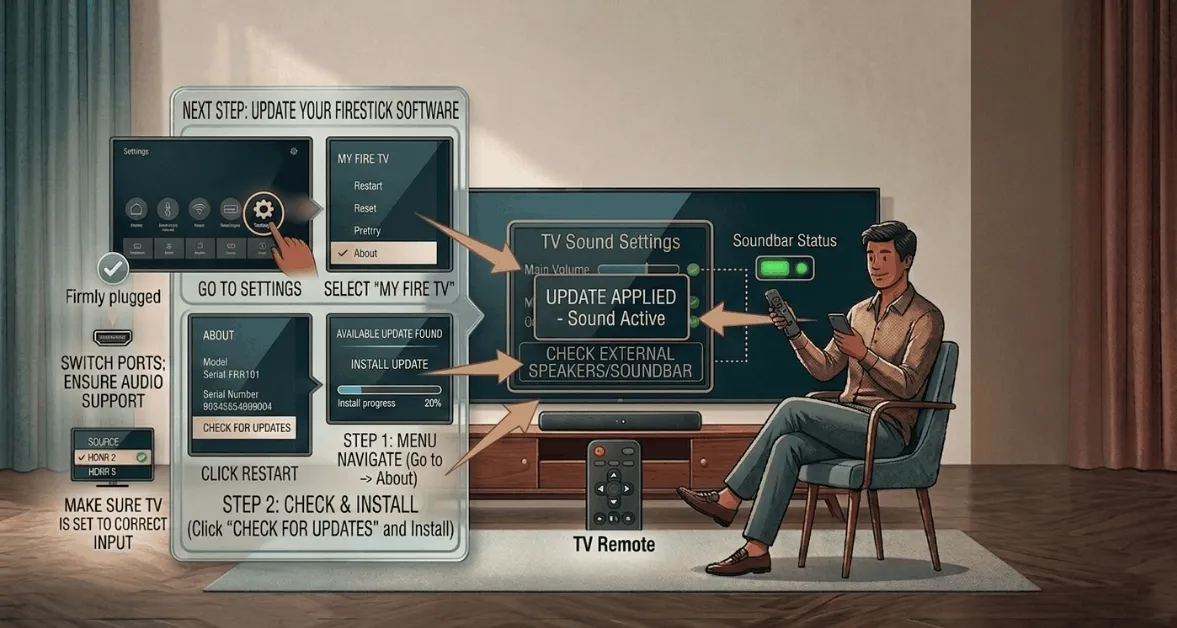
Update Your Firestick Software
-
Go to Settings, select My Fire TV, then About.
-
Click Check for Updates and install any available updates.
-
Once done, restart your Firestick and check if the sound is working.
Quick Comparison
Side-by-side comparison of top Fire Stick VPNs
| VPN | Price | Servers | Speed | Devices | Rating | Actions |
|---|---|---|---|---|---|---|
|
Proton VPN
|
$3.99/mo | 14,999+ | Blazing Fast | 7 | 4.8 | Get Deal |
 NordVPN
|
$4.39/mo | 6,998+ | Blazing Fast | 8 | 4.8 | Get Deal |
|
|
$1.88/mo | 3,200+ | Blazing Fast | 8 | 4.7 | Get Deal |
 EXPRESS VPN
|
$2.79/mo | 3,000+ | Blazing Fast | 8 | 5 | Get Deal |
 IPVanish
|
$2.49/mo | 3,100+ | Blazing Fast | 6 | 4 | Get Deal |
Frequently Asked Questions
Why does my Fire Stick suddenly have no sound?
This is usually caused by an incorrect audio setting, a loose HDMI cable, or a software glitch on your Firestick. Restarting your device and checking your audio output settings resolves the issue in most cases.
Is Fire Stick no sound a common problem?
Yes, Fire Stick no sound is one of the most common issues users face and is almost always caused by a setting or connection issue rather than a hardware fault. Following a few simple troubleshooting steps usually resolves it quickly.
Why is audio not working on my Fire Stick after an update?
A software update can sometimes reset your audio settings on Fire Stick. Go to Settings, select Display and Sounds, then Audio, and recheck your Dolby Digital and Surround Sound settings to restore audio after an update.
Where do I find sound settings on Fire TV Stick?
Fire TV Stick sound settings are found under Settings, then Display and Sounds, then Audio. From here you can adjust Dolby Digital Output, Surround Sound, and Audio Video Sync.
Should I use Dolby Digital or PCM on my Fire Stick?
Use Dolby Digital Plus on Fire Stick if your TV or soundbar supports it for the best audio quality. If your TV does not support it, switch to PCM as it is the most compatible audio format and works with all devices.
How do I restart my Fire Stick to fix sound without the remote?
Unplug your Firestick from its power source, wait 30 seconds, and plug it back in to perform a manual restart. This is just as effective as restarting through the settings menu and can resolve most audio glitches.
Not all HDMI ports support audio on Fire Stick?
That is correct, some HDMI ports on monitors and older TVs only support video output and cannot carry audio signals from Fire Stick. Always connect your Fire Stick to a standard HDMI port on your TV rather than a monitor for full audio support.
Why does my Fire Stick volume not respond to my TV remote?
This usually happens when HDMI CEC is not enabled on your TV, which prevents the Fire Stick and TV from communicating volume controls. Enable HDMI CEC in your TV settings so your TV remote can adjust Fire Stick volume properly.
Why is my external audio output device not working with Fire TV?
Make sure your soundbar or speaker is powered on, set to the correct input, and properly connected to your TV or Fire TV. If it is a Bluetooth device, go to Settings, select Controllers and Bluetooth Devices, and confirm it is listed as the active connected device.