How Do I Set Up Alexa Routines With Firestick? Simple Setup Guide
Editor's Choice
#1 Pick
Editor's Choice
 Surfshark
$1.88/month
Save 20%
Blazing Fast
3,200+
214
8
Step by Step Instructions
Step 01
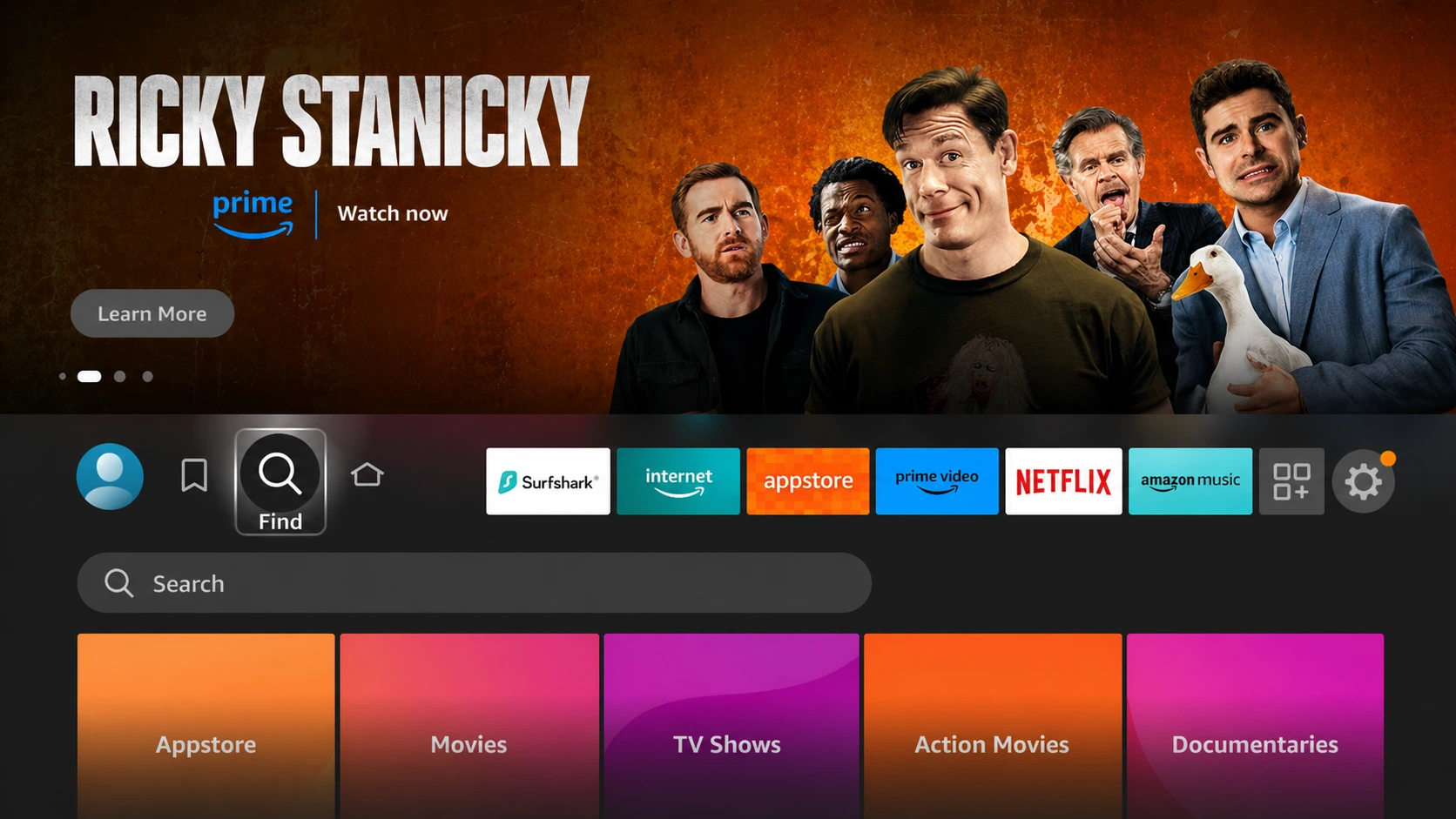
Open Search on Fire TV
From your Fire TV home screen, go to the Find (Search) option.
Step 02
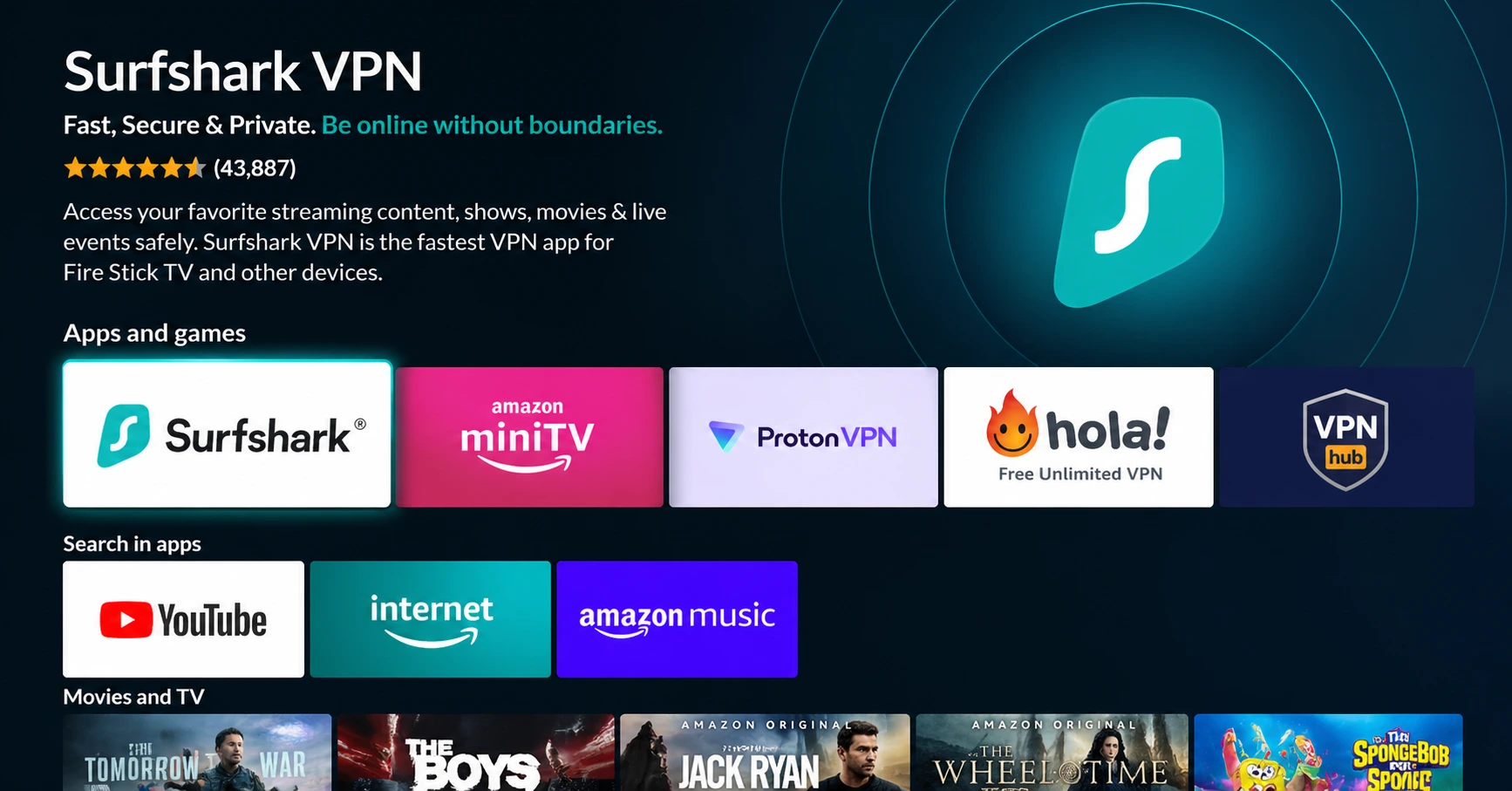
Search for Surfshark
Type Surfshark using your remote and select the app from the results.
Step 03
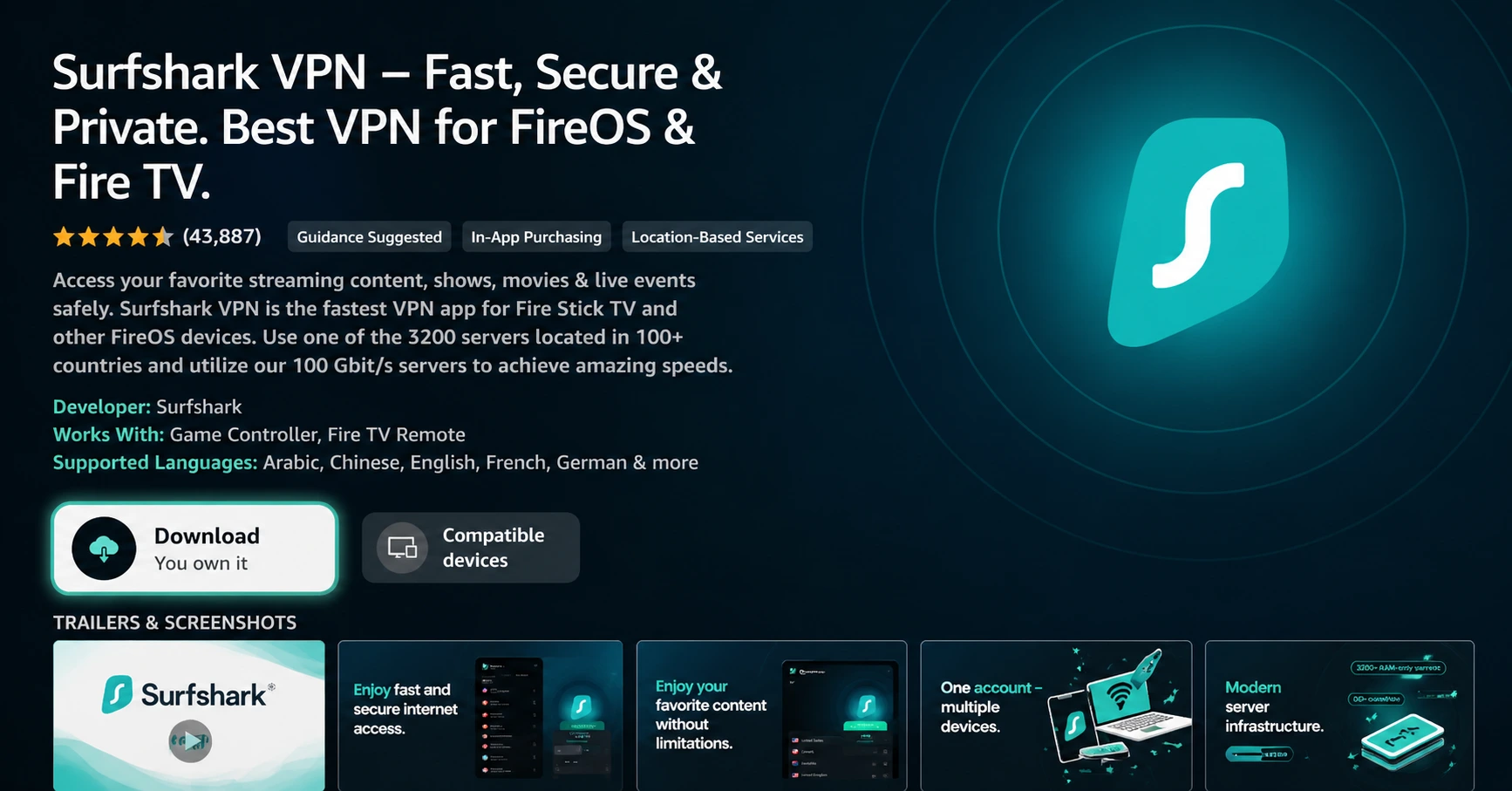
Install the App
Click on Download or Get to install Surfshark on your device.
Step 04
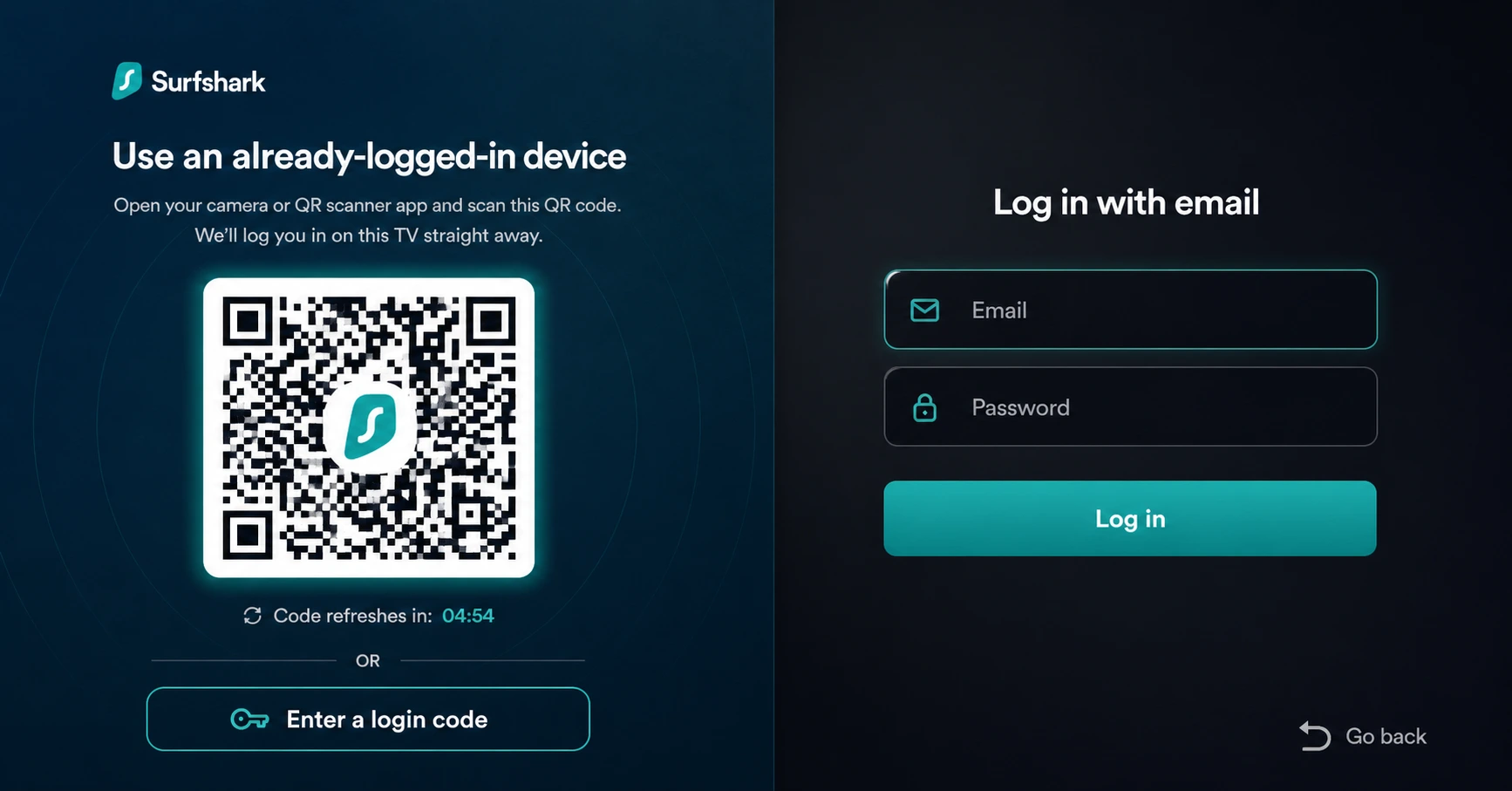
Sign In & Start VPN
Open the app, log in to your account, and connect to a server to start using the VPN.
How Do I Set Up Alexa Routines With Firestick?
A simple guide to automating your Firestick with Alexa Routines
Step 01
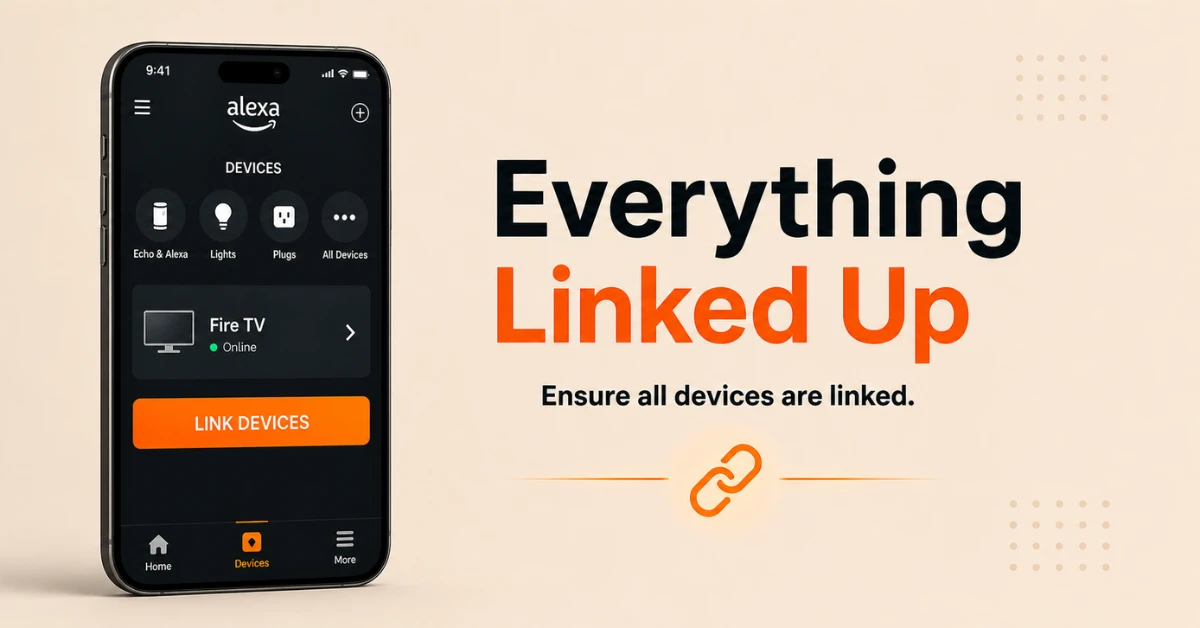
Ensure Your Firestick Is Linked to Alexa
-
Open the Alexa app, tap More, go to Settings, then TV and Video, then Fire TV
-
Select your Firestick from the list and tap Link Devices to connect it to your Alexa account
-
Make sure both your Firestick and Alexa device are on the same Amazon account and Wi-Fi network
Step 02
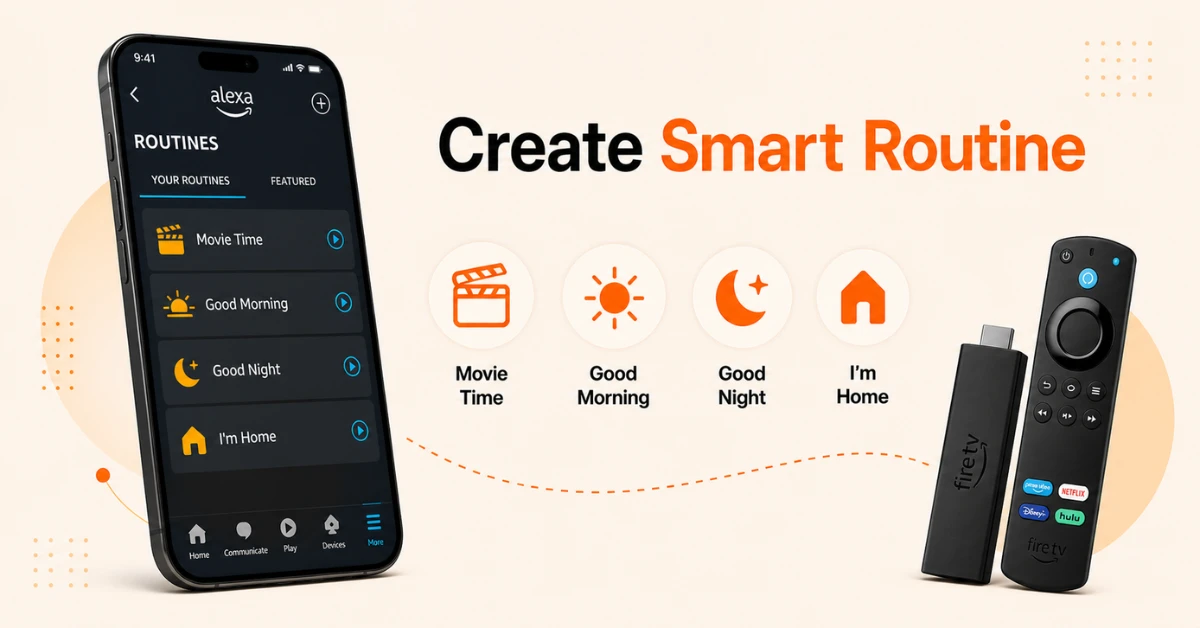
Open the Routines Section in the Alexa App
-
In the Alexa app, tap More at the bottom right and select Routines
-
Tap the plus icon at the top right to create a new routine
-
Give your routine a name so it is easy to find and manage later
Get Surfshark — 20% Off
Step 03
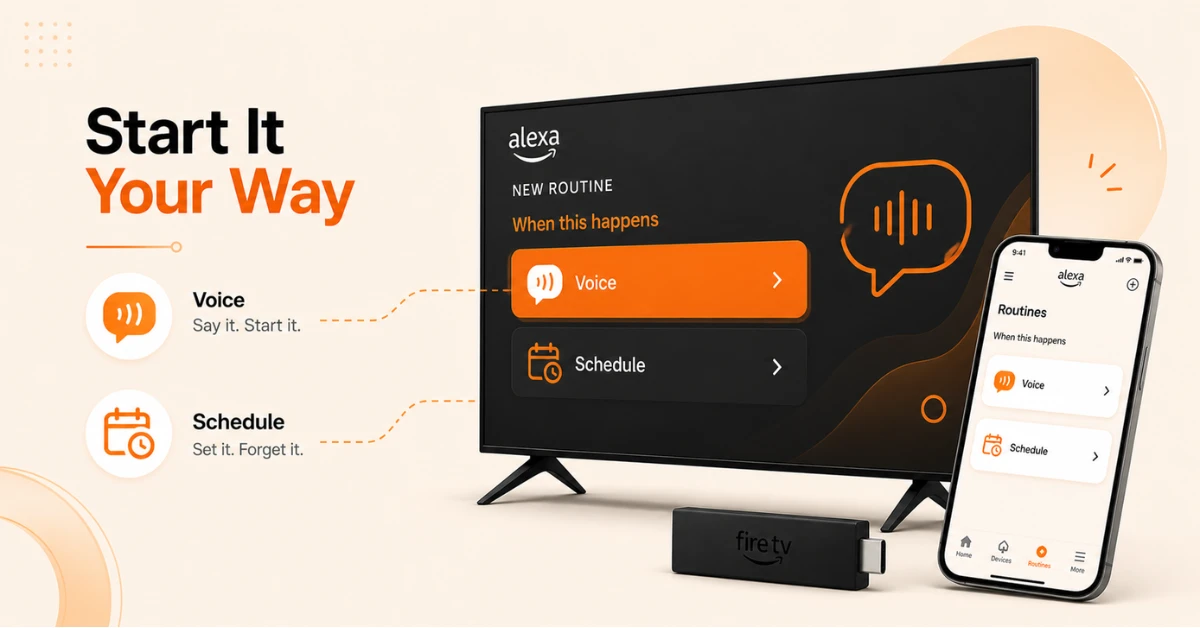
Set a Trigger for Your Routine
-
Tap "When This Happens" and choose how you want the routine to start
-
Select "Voice" and type a custom phrase such as "Alexa, start movie night" or "Alexa, I am back" to trigger it
-
Or select "Schedule" and set a specific time so the routine runs automatically without voice command
-
Tap Next once your trigger is set to move to the actions section
Step 04
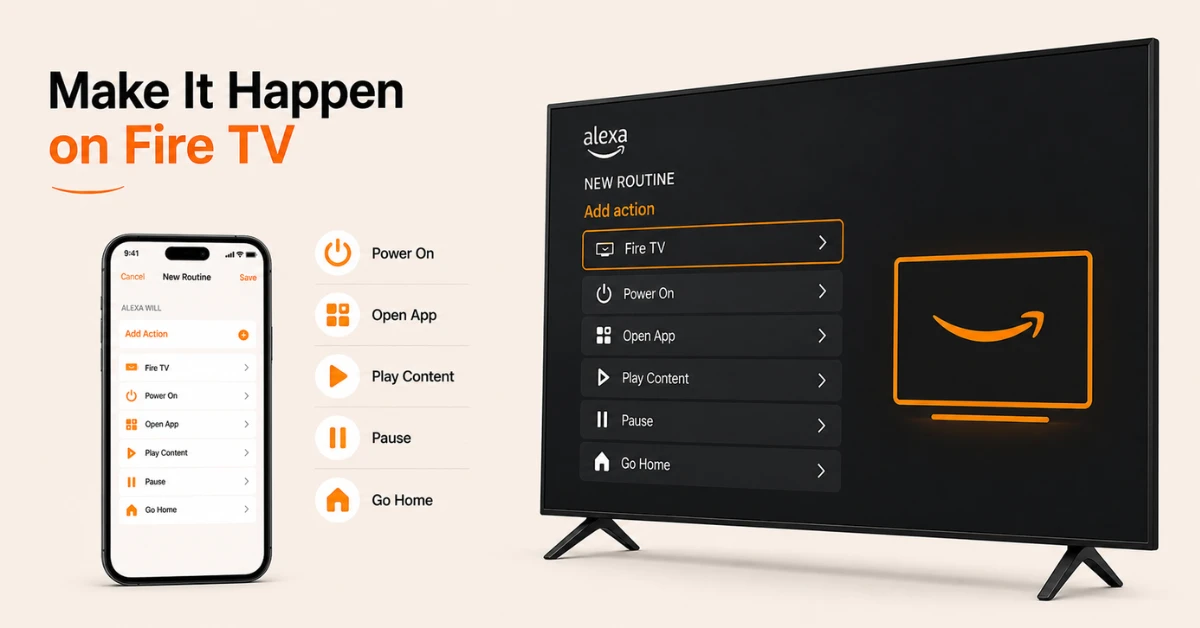
Add Your Fire TV Actions and Save
-
Tap "Add Action", scroll down and select Fire TV from the list
-
Choose your Firestick from the device list and select what you want such as Power On, Open App, Play Content, Pause, or Go Home
-
Tap Add Action again if you want to layer in other actions such as dimming your lights or adjusting your thermostat
-
Once all actions are added and arranged in order, tap Save to activate your routine and test it with your trigger phrase
Quick Comparison
Side-by-side comparison of top Fire Stick VPNs
| VPN | Price | Servers | Speed | Devices | Rating | Actions |
|---|---|---|---|---|---|---|
|
|
$1.88/mo | 3,200+ | Blazing Fast | 8 | 4.7 | Get Deal |
 EXPRESS VPN
|
$2.79/mo | 3,000+ | Blazing Fast | 8 | 5 | Get Deal |
 NordVPN
|
$4.39/mo | 6,998+ | Blazing Fast | 8 | 4.8 | Get Deal |
 IPVanish
|
$2.49/mo | 3,100+ | Blazing Fast | 6 | 4 | Get Deal |
 Proton VPN
|
$3.99/mo | 14,999+ | Blazing Fast | 7 | 4.8 | Get Deal |
 PrivadoVPN
|
$1.99/mo | — | Blazing Fast | 5 | 4 | Get Deal |
Frequently Asked Questions
What can I automate using Alexa Routines with Fire Stick?
You can automate actions like powering your TV on or off, opening a specific app, playing content, pausing playback, and navigating home. You can also combine these with smart home actions like dimming lights all in one routine.
Do Alexa Routines for Fire TV work on all Firestick models?
Most Fire TV actions in Alexa Routines work on all Firestick models. However, TV power on and off through routines requires your TV to support HDMI CEC, which may not be available on all models.
How do I add Fire TV to an Alexa Routine?
In the Alexa app, open your routine, tap Add Action, scroll down and select Fire TV, then choose your device and the action you want. You can add multiple Fire TV actions within the same routine.
Why is my Fire TV not showing up in the Alexa app to link?
Make sure your Fire TV and Alexa device are both signed into the same Amazon account and connected to the same Wi-Fi network. If it still does not appear, restart both devices and try linking again from the TV and Video section.
Can I create a routine that opens a specific app and starts playing content on Fire TV?
Yes, you can add two actions within the same routine — one to open the app and another to play specific content. Type the play command in the format "Play [title] on [app name]" in the content action field.
Can I schedule Alexa automations for Fire TV Stick without a voice trigger?
Yes, when setting up a routine you can select Schedule instead of Voice as the trigger. This lets your Fire TV Stick automation run at a specific time every day without any voice command needed.
Why is my Fire TV routine not working?
The most common reasons are that your Fire TV is not properly linked in the Alexa app or your TV does not support HDMI CEC for power actions. Go to Settings, then TV and Video in the Alexa app, and confirm your Fire TV is connected and online.
Where do I find the TV and Video section in the Alexa app?
Open the Alexa app, tap More at the bottom right, go to Settings, and scroll down to find TV and Video. This is where you link your Fire TV, manage connected devices, and access Fire TV settings.
Can Alexa Routines control playback on Fire TV?
Yes, Alexa Routines can pause, resume, and play specific content on Fire TV as part of an automated sequence. This is useful for routines like pausing your show when you leave the room and resuming when you return.