How to Change Amazon Account on Firestick: Simple Fix
Editor's Choice
#1 Pick
Editor's Choice
 NordVPN
$4.39/month
Blazing Fast
6,998+
214
8
Step by Step Instructions
Step 01

Go to Search on Fire TV
On your Fire TV home screen, select the Search (Find) option at the top.
Step 02
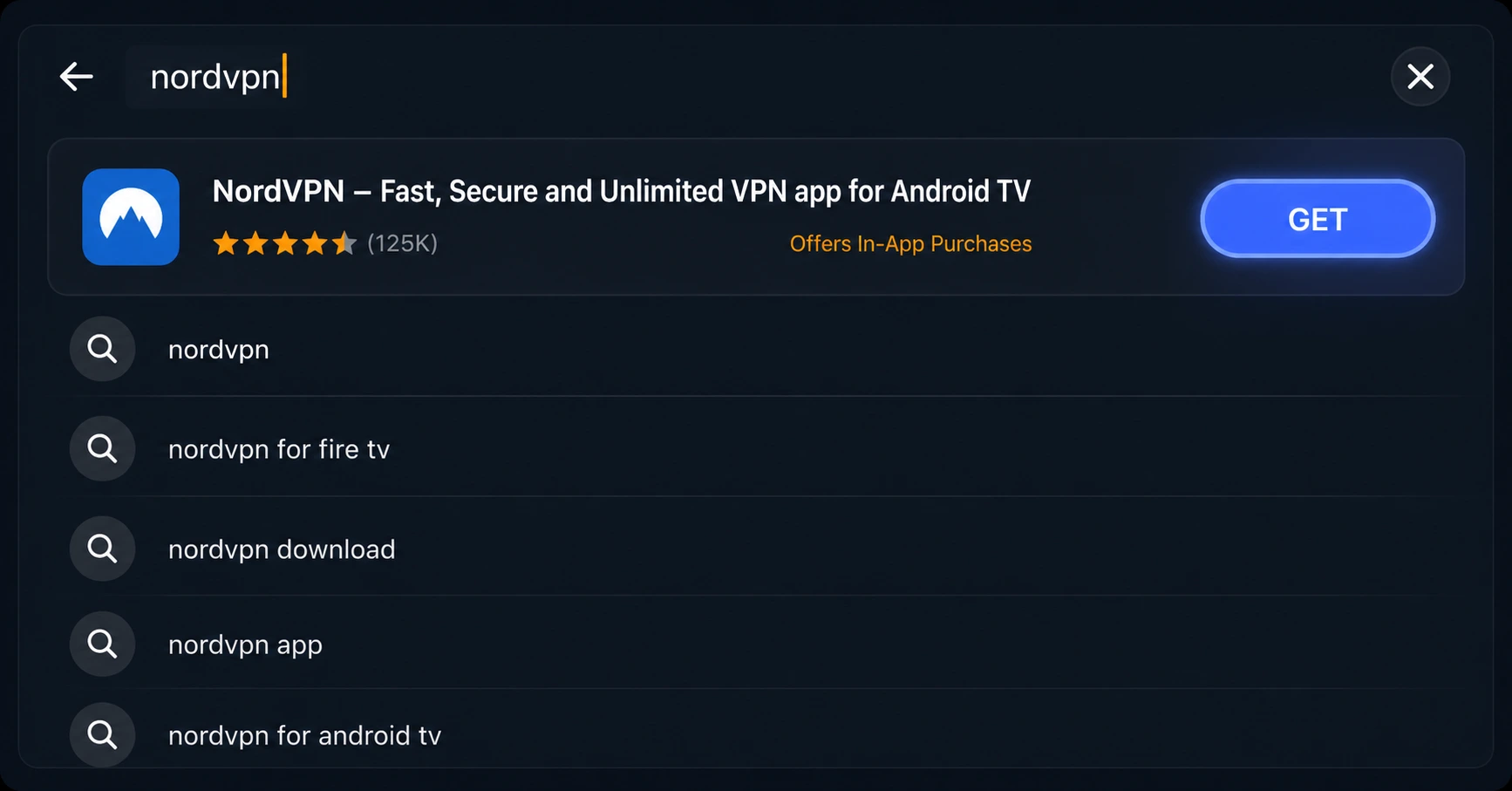
Type “NordVPN”
Use your remote to type NordVPN and choose the app when it appears in the results.
Step 03
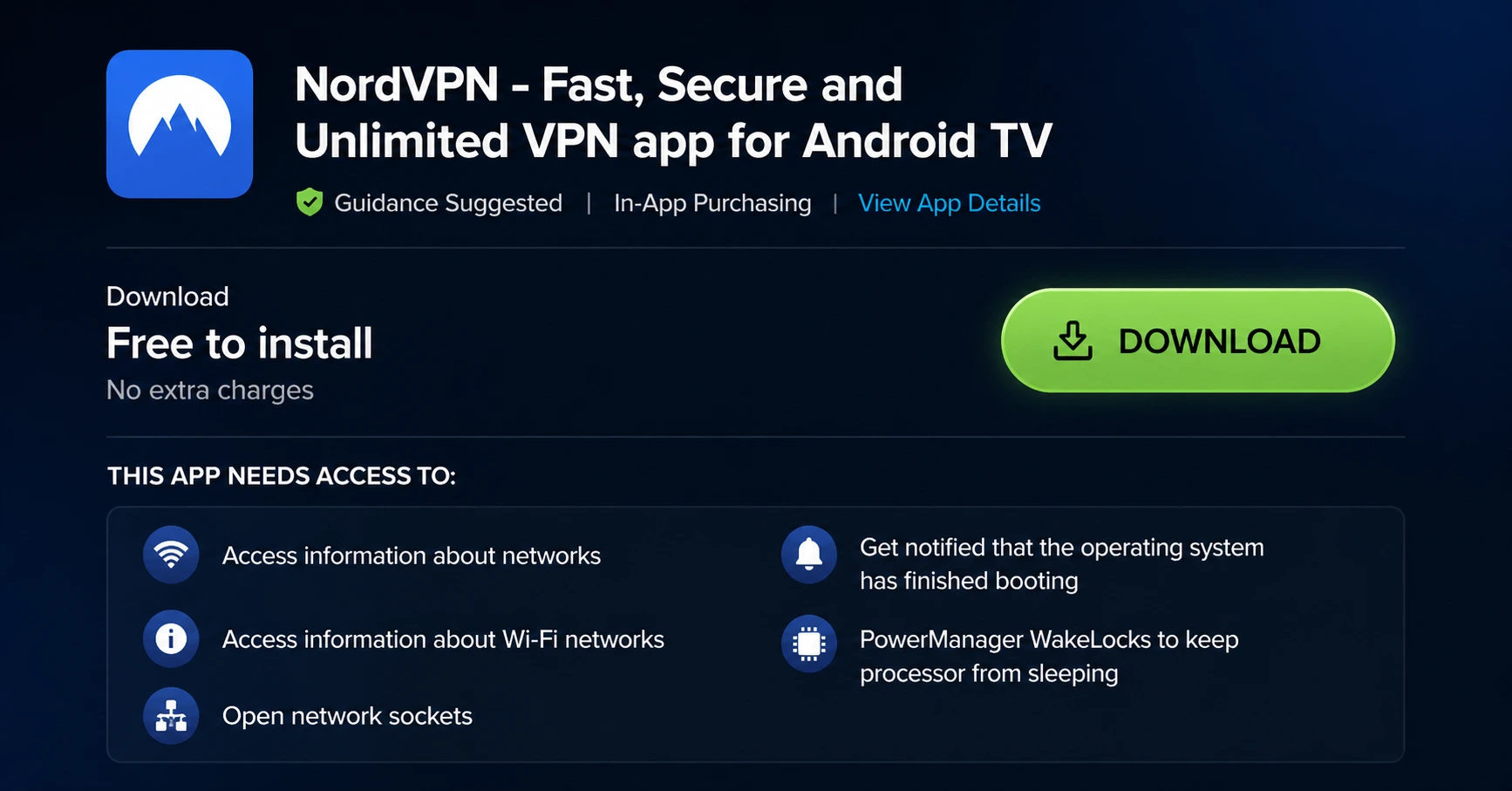
Install the App
Click on Get or Download to install NordVPN on your Fire TV.
Step 04
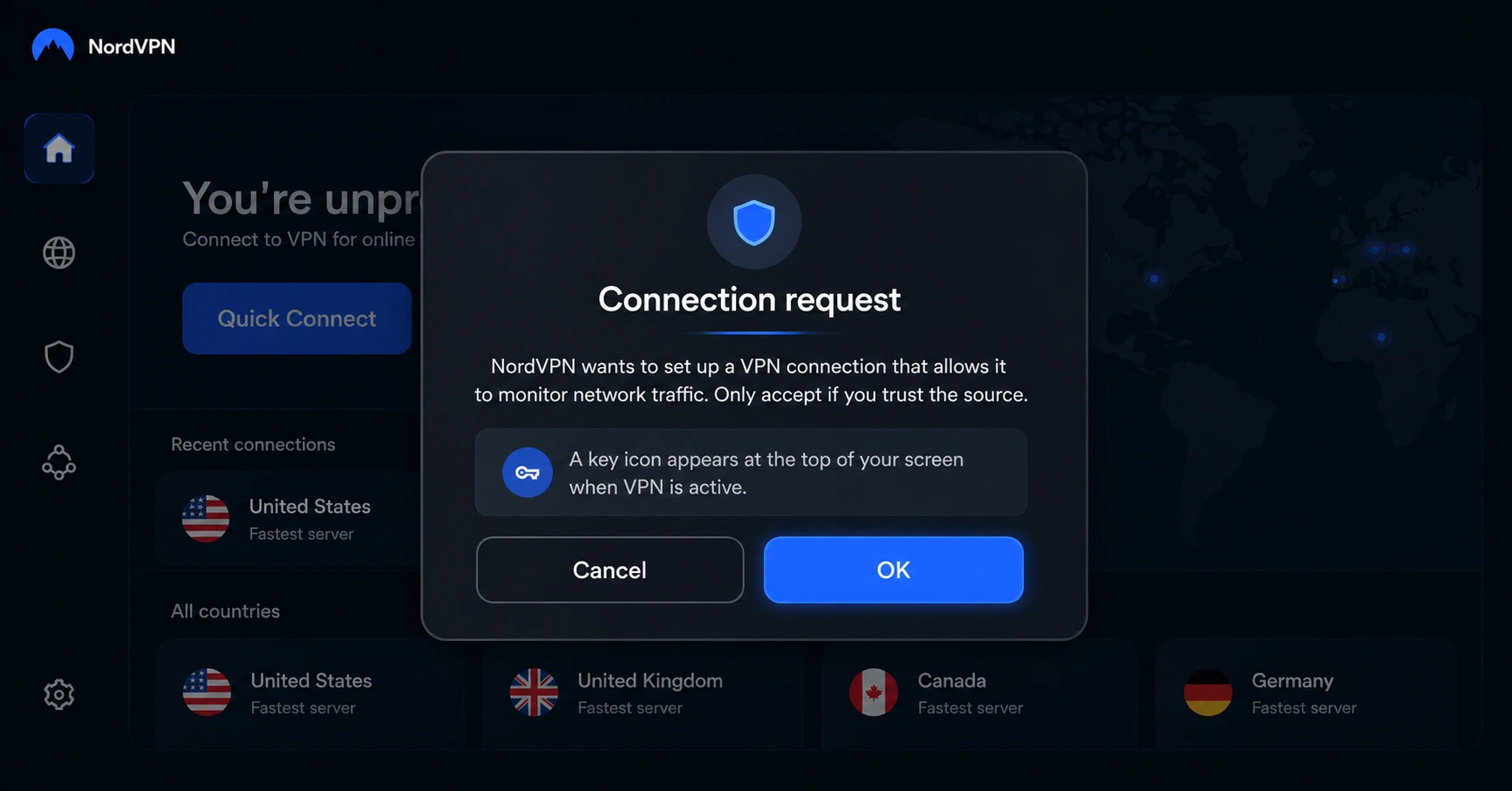
Log In & Connect
Open the app, sign in to your account, and press the connect button to start using the VPN.
How Do I Change My Amazon Account on Firestick?
Sign out of your current account, sign in with a new one, and enjoy uninterrupted streaming.
Step 01
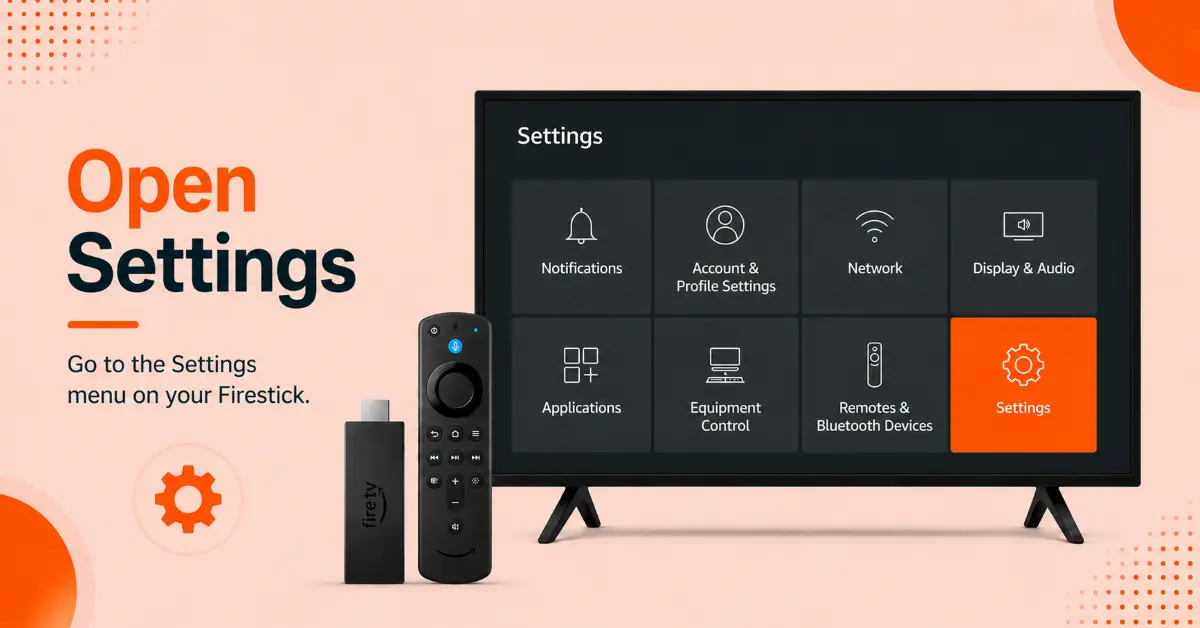
Open the Firestick Settings Menu
-
Turn on your Firestick and wait for the home screen to load
-
Navigate to the menu bar at the top of the screen
-
Scroll to the right and select Settings
-
Press the Select button on your Fire TV remote
-
Review the available settings options before proceeding
Step 02
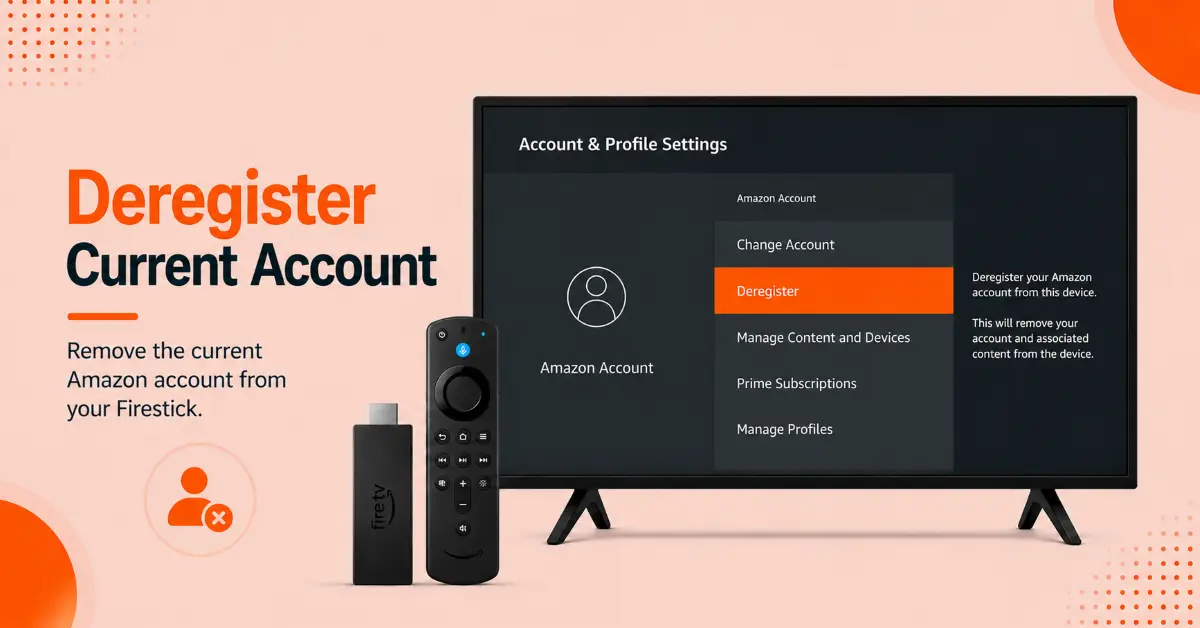
Deregister the Current Amazon Account
-
In the Settings menu, select Account & Profile Settings
-
Choose Amazon Account from the available options
-
Select Deregister to remove the currently linked Amazon account
-
Confirm your choice when the confirmation message appears
-
Wait for the Firestick to complete the deregistration process
Get NordVPN
Step 03
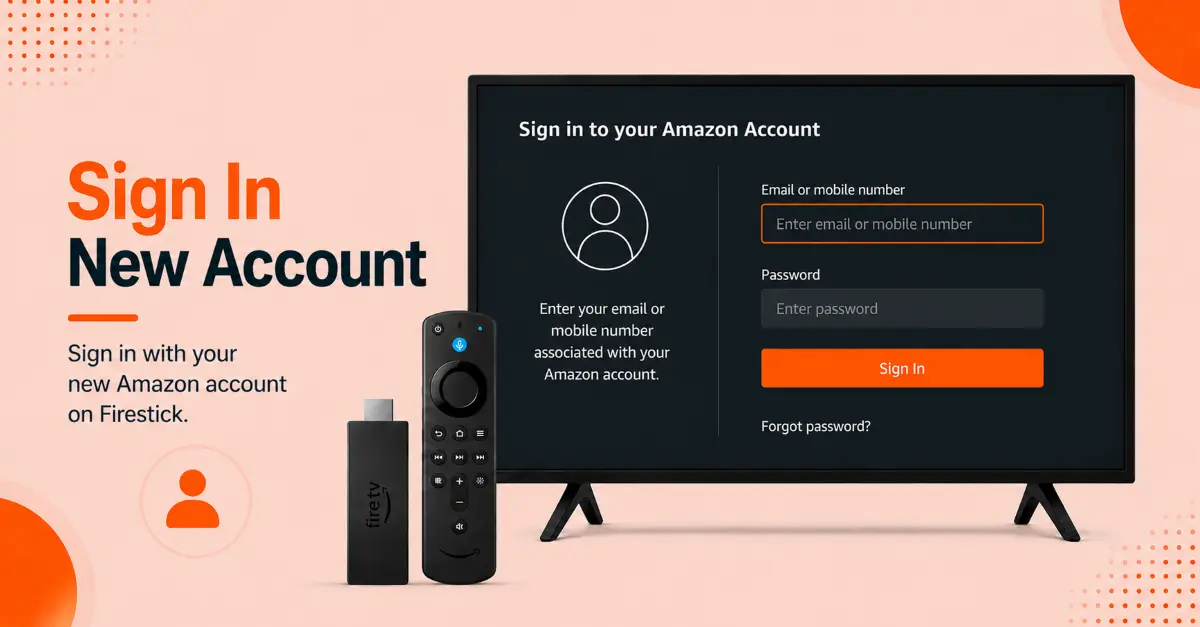
Sign In With a New Amazon Account
-
After deregistration, you'll be prompted to register the device again
-
Select Register on the screen
-
Enter the email address or phone number associated with the new Amazon account
-
Type the account password and select Sign In
-
Wait for Amazon to verify your credentials and connect the account
Step 04
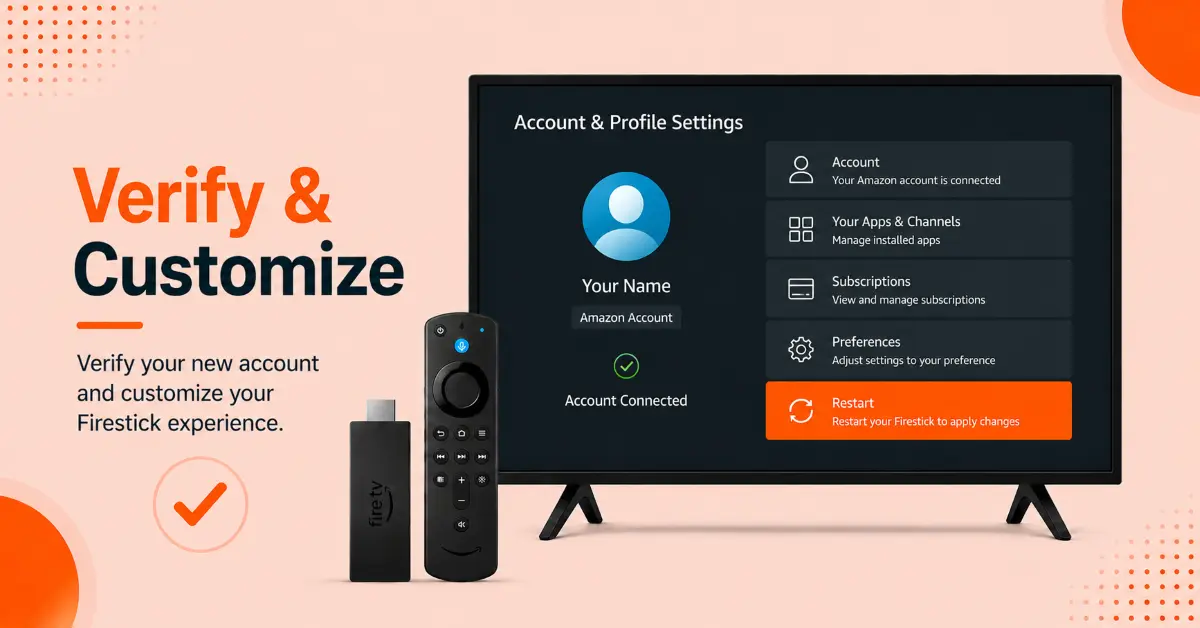
Verify the Account and Customize Your Firestick
-
Return to the Firestick home screen after signing in
-
Open Account & Profile Settings to confirm the new account is linked
-
Check your apps, subscriptions, and content library availability
-
Download or reinstall any apps associated with the new account if needed
-
Restart the Firestick to ensure all account changes are fully applied
Quick Comparison
Side-by-side comparison of top Fire Stick VPNs
| VPN | Price | Servers | Speed | Devices | Rating | Actions |
|---|---|---|---|---|---|---|
|
NordVPN
|
$4.39/mo | 6,998+ | Blazing Fast | 8 | 4.8 | Get Deal |
 EXPRESS VPN
|
$2.79/mo | 3,000+ | Blazing Fast | 8 | 5 | Get Deal |
|
|
$1.88/mo | 3,200+ | Blazing Fast | 8 | 4.7 | Get Deal |
 Proton VPN
|
$3.99/mo | 14,999+ | Blazing Fast | 7 | 4.8 | Get Deal |
 PureDome
|
$12.95/mo | — | Slow | 4 | 4.5 | Get Deal |
Frequently Asked Questions
How do I change the registered Amazon account on a Fire TV Stick?
Open Settings, select Account & Profile Settings, choose Amazon Account, click Deregister, and register the device with your preferred Amazon account.
Do I need my Amazon password to change accounts on Fire Stick?
Yes, you will need the login credentials for the new Amazon account you want to use on your Fire Stick.
Why can't I change my Amazon account on my Firestick?
If you are not able to change your account, check internet connection, restart the device, and ensure you have the correct account credentials before trying again.
Can multiple Amazon accounts be used on one Fire TV Stick?
A Firestick can only be register to one Amazon account at a time. To use a different account, you will need to deregister the current one first.
Does changing the Amazon account on Firestick affect Prime Video?
Yes, changing the Amazon account will switch the associate Prime video profile, subscriptions, watchlists, and purchased content linked to that account.
How long does it take to change an Amazon account on a Fire TV Stick?
The process usually take just a few minutes, depending on your internet connection and how quickly you can enter the new credentials.
Will I lose my apps when I change the Amazon account on Firestick?
Apps already installed on your Firestick may remain, but access to certain purchased apps and subscriptions may be restricted.