How to Enable Subtitles on Firestick? Step by Step Guide
Editor's Choice
#1 Pick
Editor's Choice
 Proton VPN
$3.99/month
Save 20%
Blazing Fast
14,999+
214
7
Step by Step Instructions
Step 01
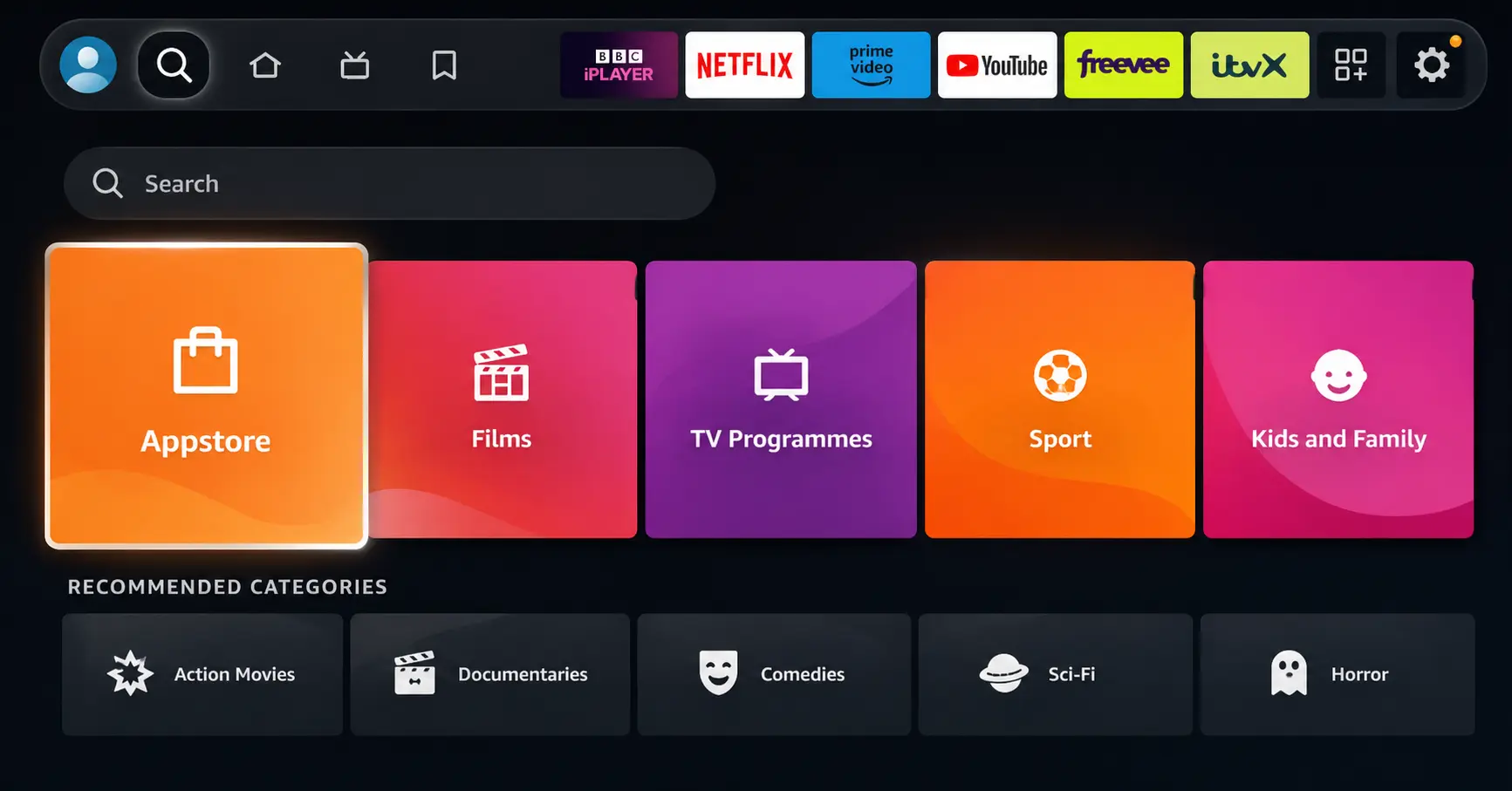
Open Search on Fire TV
Go to the Find (Search) option from your Fire TV home screen.
Step 02
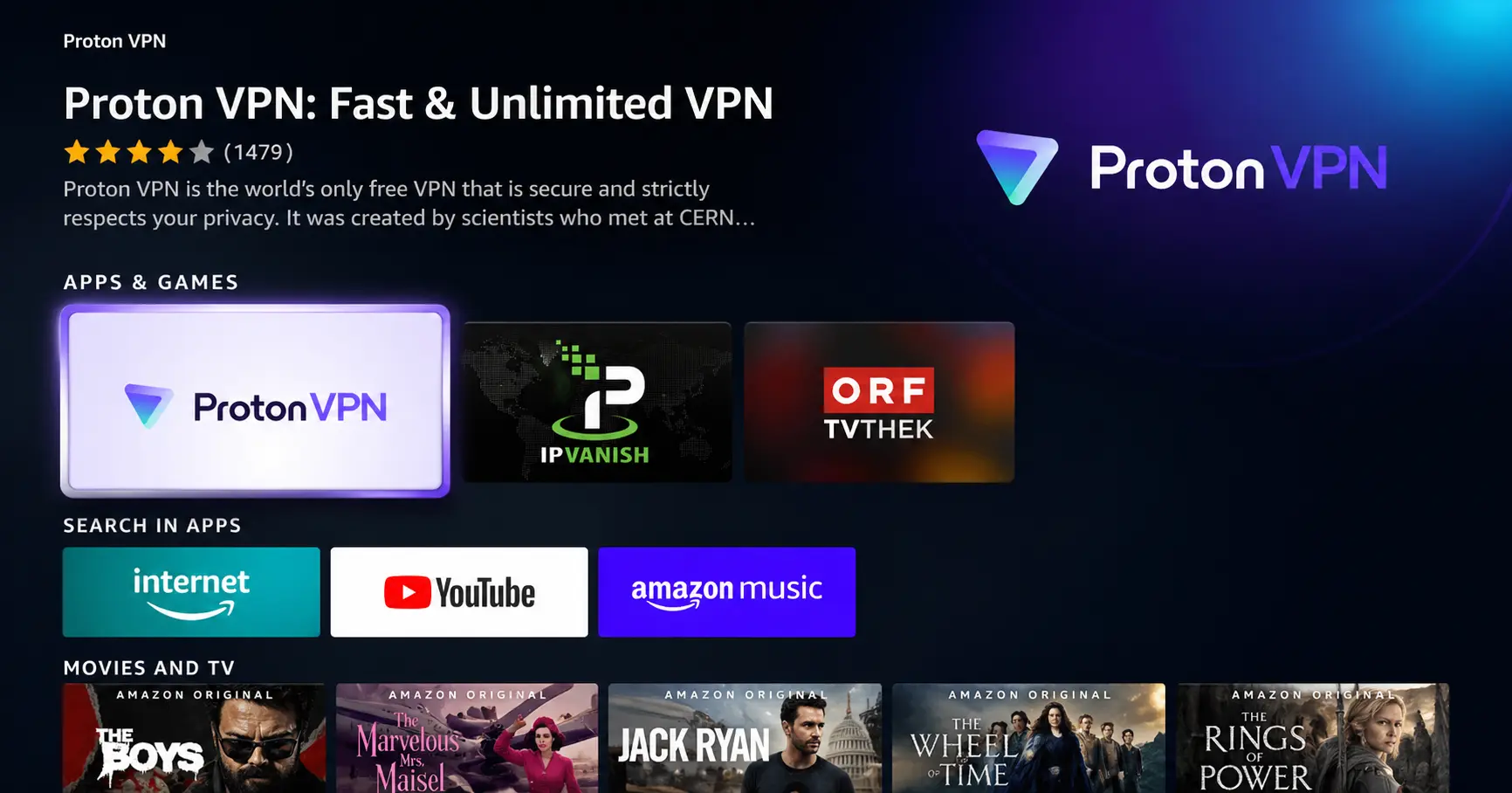
Search for ProtonVPN
Type ProtonVPN using your remote and select the app from the results.
Step 03
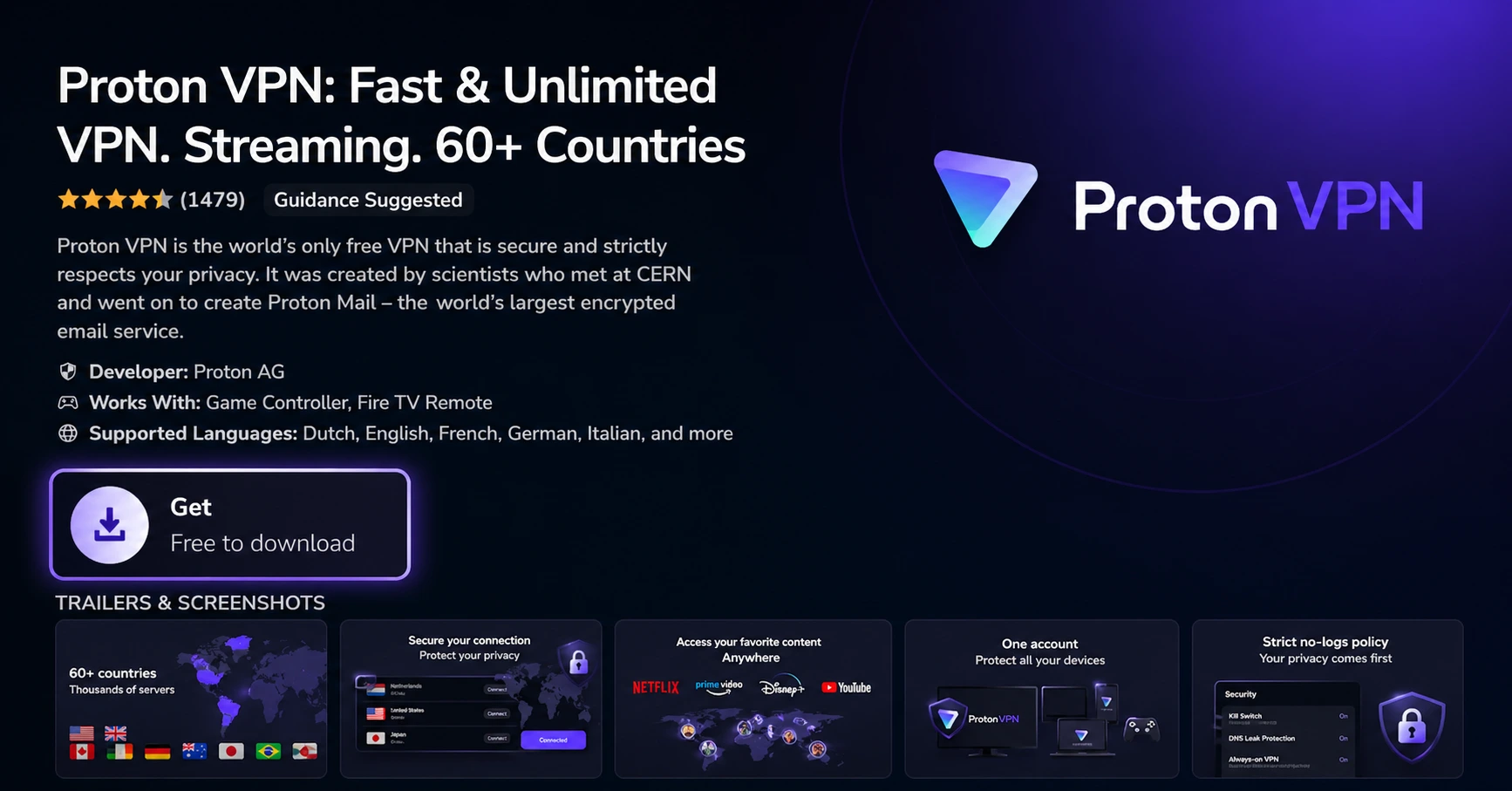
Install the App
Click on Get or Download to install ProtonVPN on your Fire TV.
Step 04
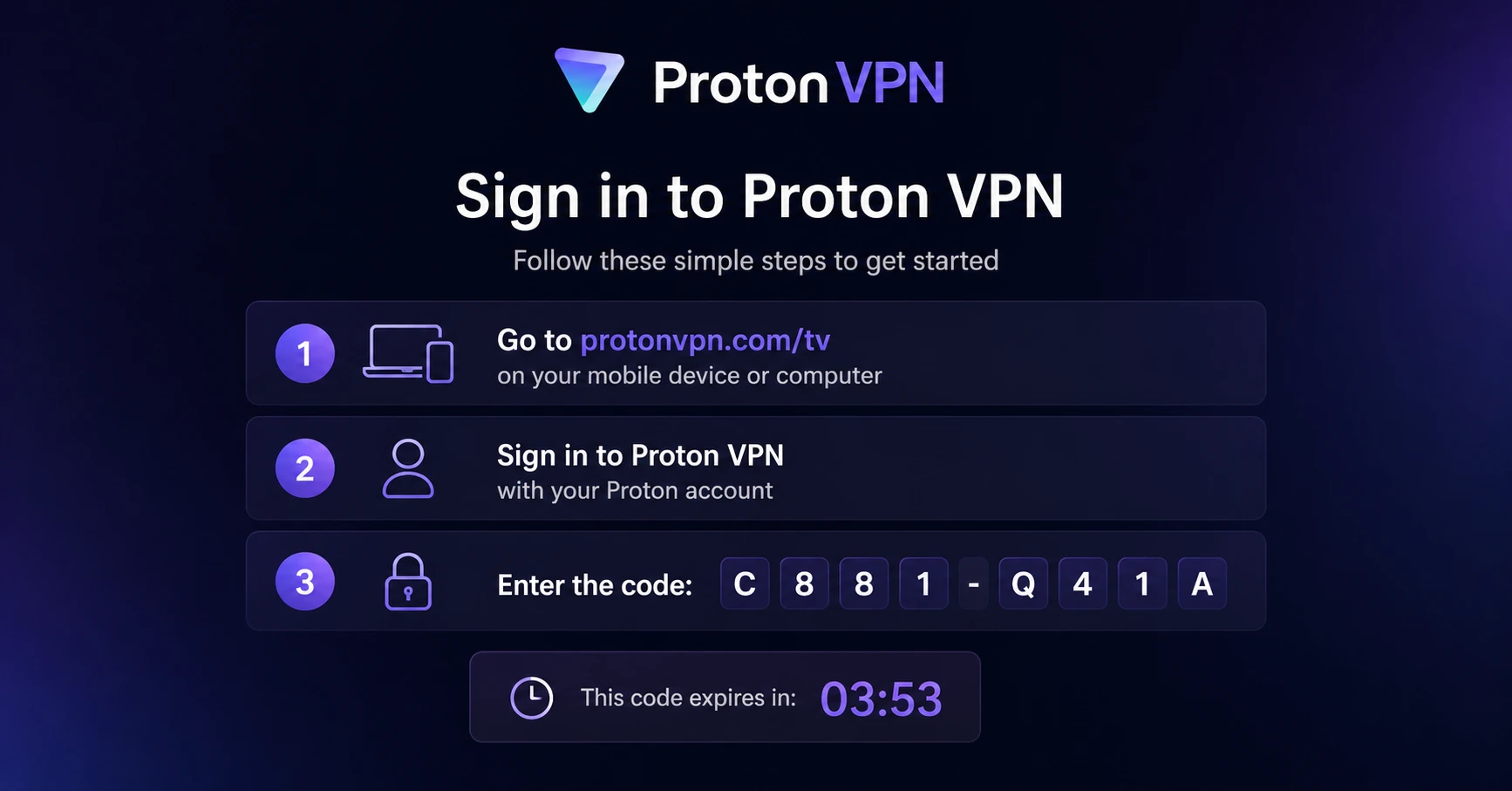
Sign In & Connect
Open the app, sign in using your Proton account (QR or code method), and connect to a server.
How to Enable Subtitles on Firestick ?
A simple guide to turning on and customising subtitles on your Firestick
Step 01
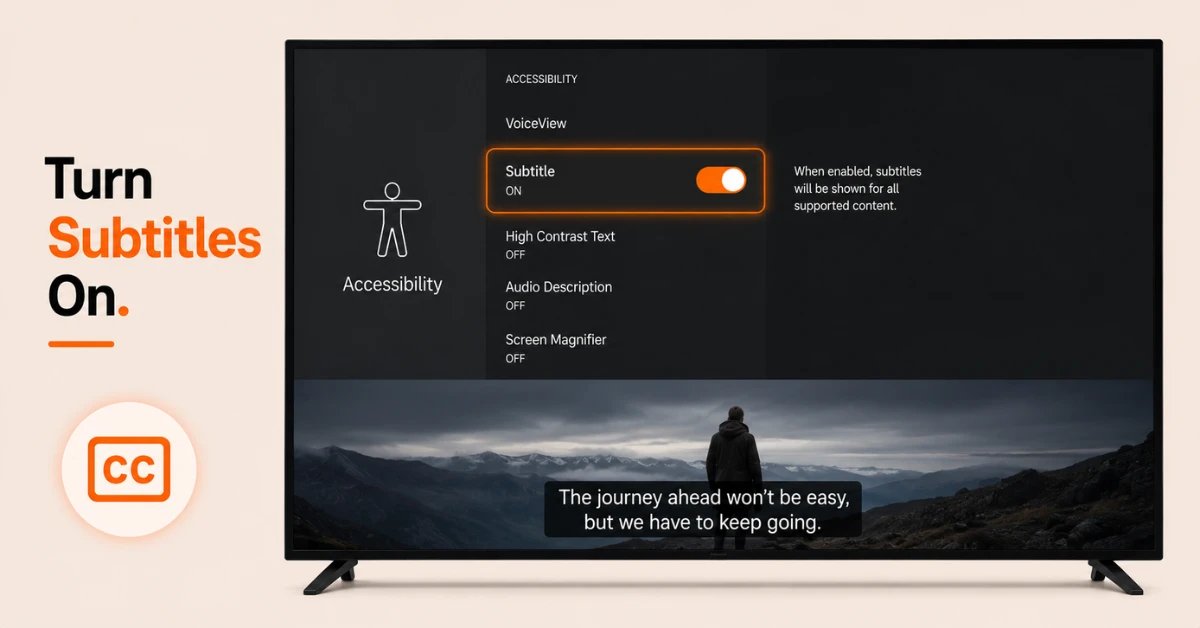
Enable Subtitles Through Accessibility Settings
-
From the Firestick home screen, go to Settings and scroll down to Accessibility
-
Select Subtitle and click on it again on the next page to turn subtitles on
-
This enables subtitles globally across all supported apps on your Firestick
Step 02
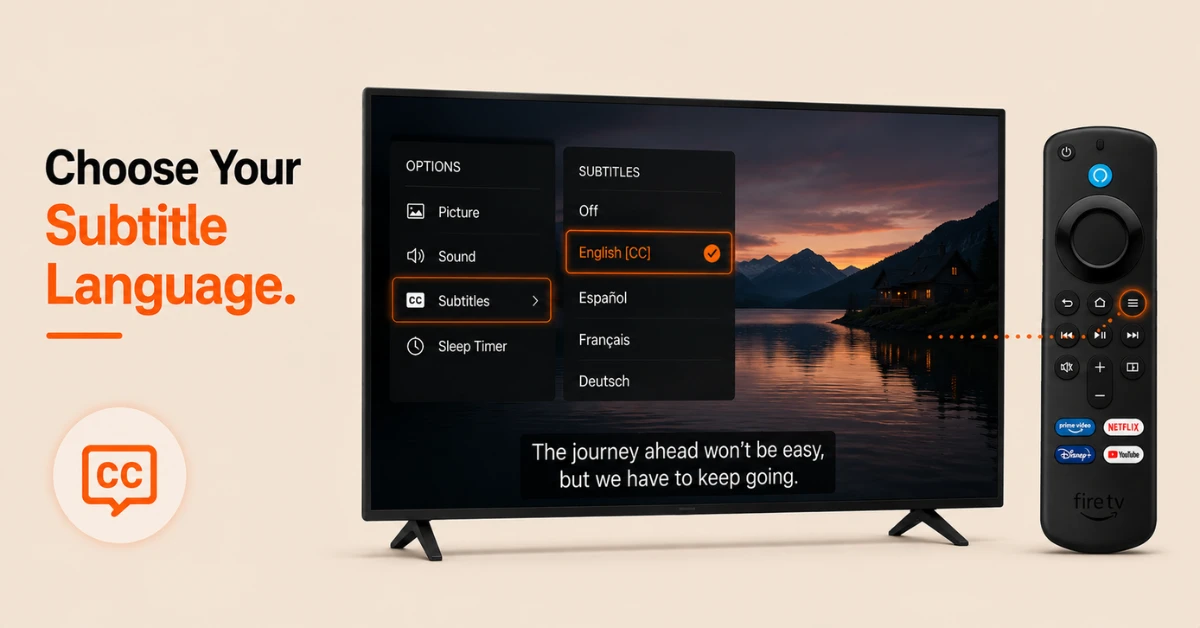
Enable Subtitles During Playback
-
While watching any content, press the Menu button on your remote
-
Select Subtitles from the options that appear on screen
-
Choose your preferred language and press the Menu button again to return to playback
Get Proton VPN — 20% Off
Step 03
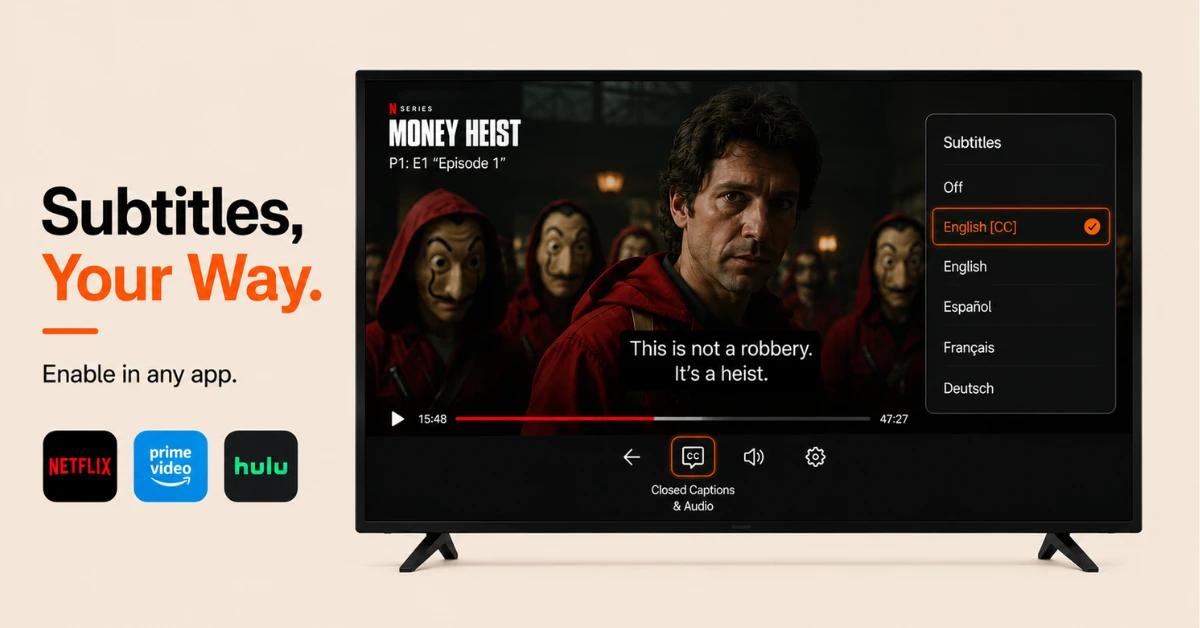
Customise Your Subtitle Appearance
-
Go to Settings, select Accessibility, then Subtitle
-
Select Text to adjust the size, colour, opacity, font, and edge style of your subtitles
-
Select Text Background or Window Background to further customise how subtitles appear on screen
Step 04
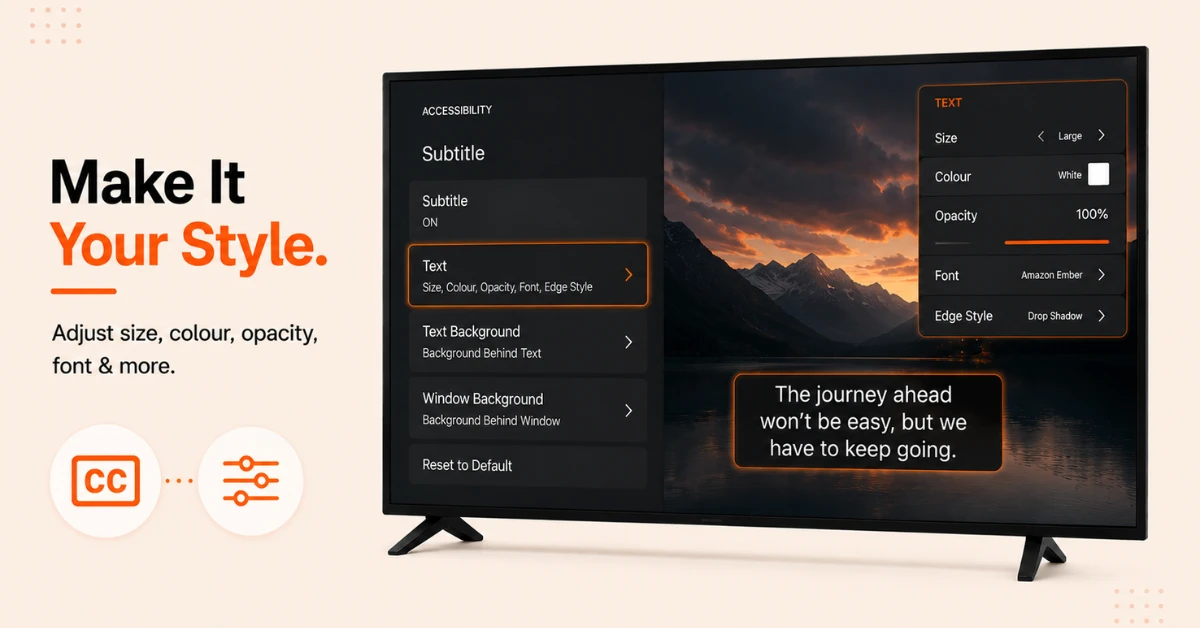
Enable Subtitles Within Streaming Apps
-
Some apps like Netflix, Prime Video, and Hulu manage subtitles independently within their own settings
-
During playback, press the Down button on your remote and select the Closed Captions and Audio icon
-
Choose your preferred subtitle language from the available options to enable them within that specific app
Quick Comparison
Side-by-side comparison of top Fire Stick VPNs
| VPN | Price | Servers | Speed | Devices | Rating | Actions |
|---|---|---|---|---|---|---|
|
Proton VPN
|
$3.99/mo | 14,999+ | Blazing Fast | 7 | 4.8 | Get Deal |
 EXPRESS VPN
|
$2.79/mo | 3,000+ | Blazing Fast | 8 | 5 | Get Deal |
 NordVPN
|
$4.39/mo | 6,998+ | Blazing Fast | 8 | 4.8 | Get Deal |
|
|
$1.88/mo | 3,200+ | Blazing Fast | 8 | 4.7 | Get Deal |
 Pure VPN
|
$3.55/mo | — | Blazing Fast | 6 | 4 | Get Deal |
 PrivadoVPN
|
$1.99/mo | — | Blazing Fast | 5 | 4 | Get Deal |
Frequently Asked Questions
Can I enable subtitles on Firestick for all apps at once?
Yes, enabling subtitles through Settings then Accessibility then Subtitle turns them on globally across all supported apps on your Firestick. Some third party apps manage subtitles independently so you may need to enable them separately within those apps.
Why are subtitles not showing on my Firestick?
If subtitles are not showing, check that they are enabled under Settings, then Accessibility, then Subtitle. Also check the subtitle settings within the specific streaming app you are using as some apps require subtitles to be turned on independently.
How do I enable subtitles on Fire Stick for a specific language?
Press the Menu button during playback and select Subtitles. A list of available languages will appear and you can select your preferred one. The available languages depend on the content you are watching and the streaming app you are using.
Can I change the size of subtitles on Fire Stick?
Yes, go to Settings, select Accessibility, then Subtitle, then Text, and choose Size to adjust the subtitle text size. You can also change the colour, font, opacity, and edge style to suit your preference.
How do I turn off subtitles on Fire Stick?
Go to Settings, select Accessibility, then Subtitle, and click on Subtitle again to turn them off. You can also turn them off during playback by pressing the Menu button and selecting Off under the Subtitles option.
Can I enable subtitles on Fire TV Stick using voice commands?
Yes, you can press the microphone button on your Firestick remote and say something like "Turn on subtitles" and Alexa will attempt to enable them for the content you are currently watching on supported apps.
Can I enable subtitles on Firestick for live TV?
Subtitle availability on live TV depends on the streaming service and the channel you are watching. Most major live TV apps on Firestick support closed captions which can be enabled during playback through the Closed Captions and Audio icon or the Menu button on your remote.