How to Fix Disney Plus Not Working on Firestick? (Step-by-Step)
Editor's Choice
#1 Pick
Editor's Choice
 EXPRESS VPN
$2.79/month
Save 20%
Blazing Fast
3,000+
214
8
Step by Step Instructions
Step 01

Open the Amazon App Store
From your Firestick home screen, navigate to the “Find” or search icon and open the Amazon App Store.
Step 02
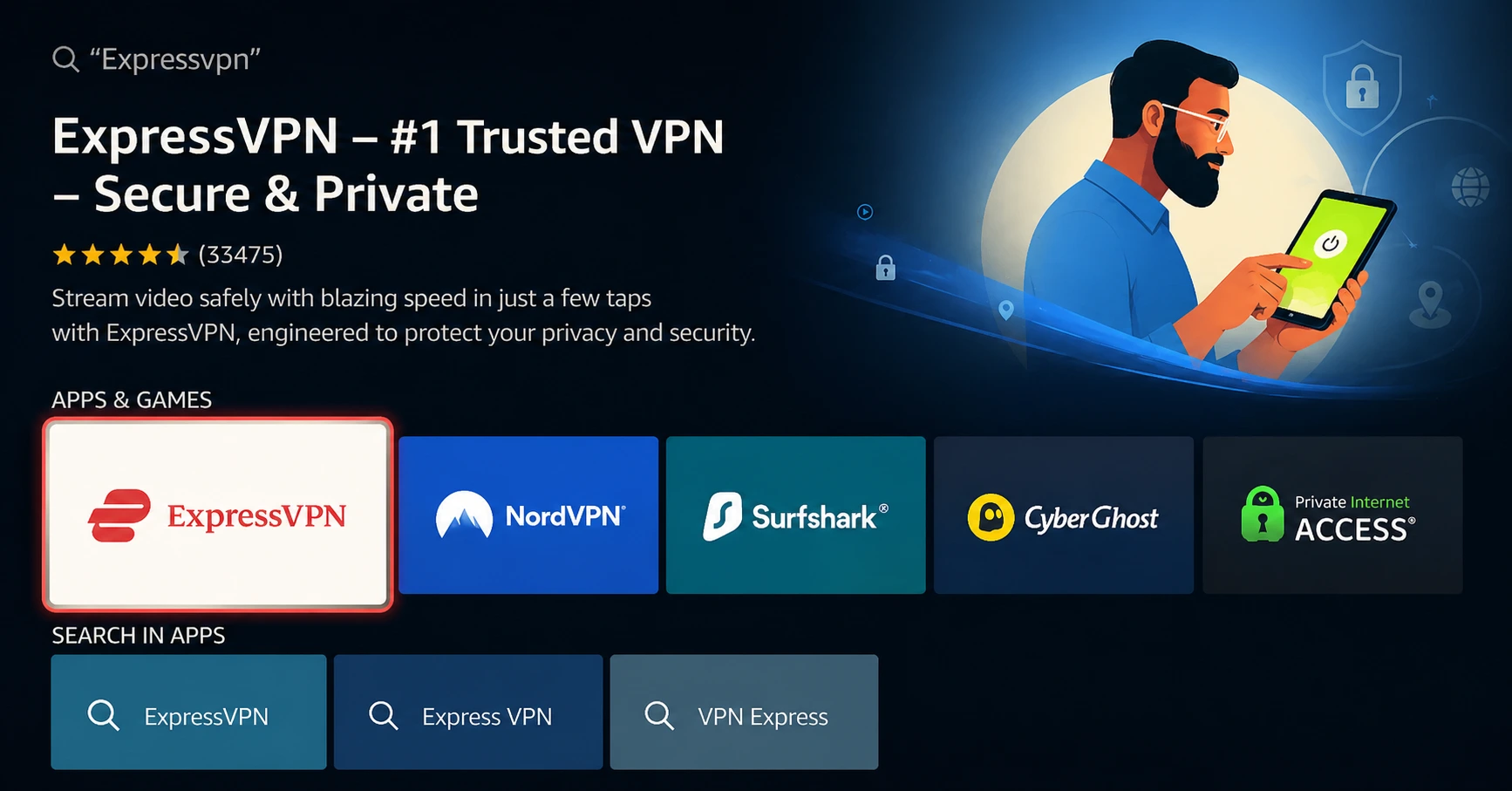
Search for ExpressVPN
Type “ExpressVPN” in the search bar using your remote. Select the official ExpressVPN app from the results.
Step 03
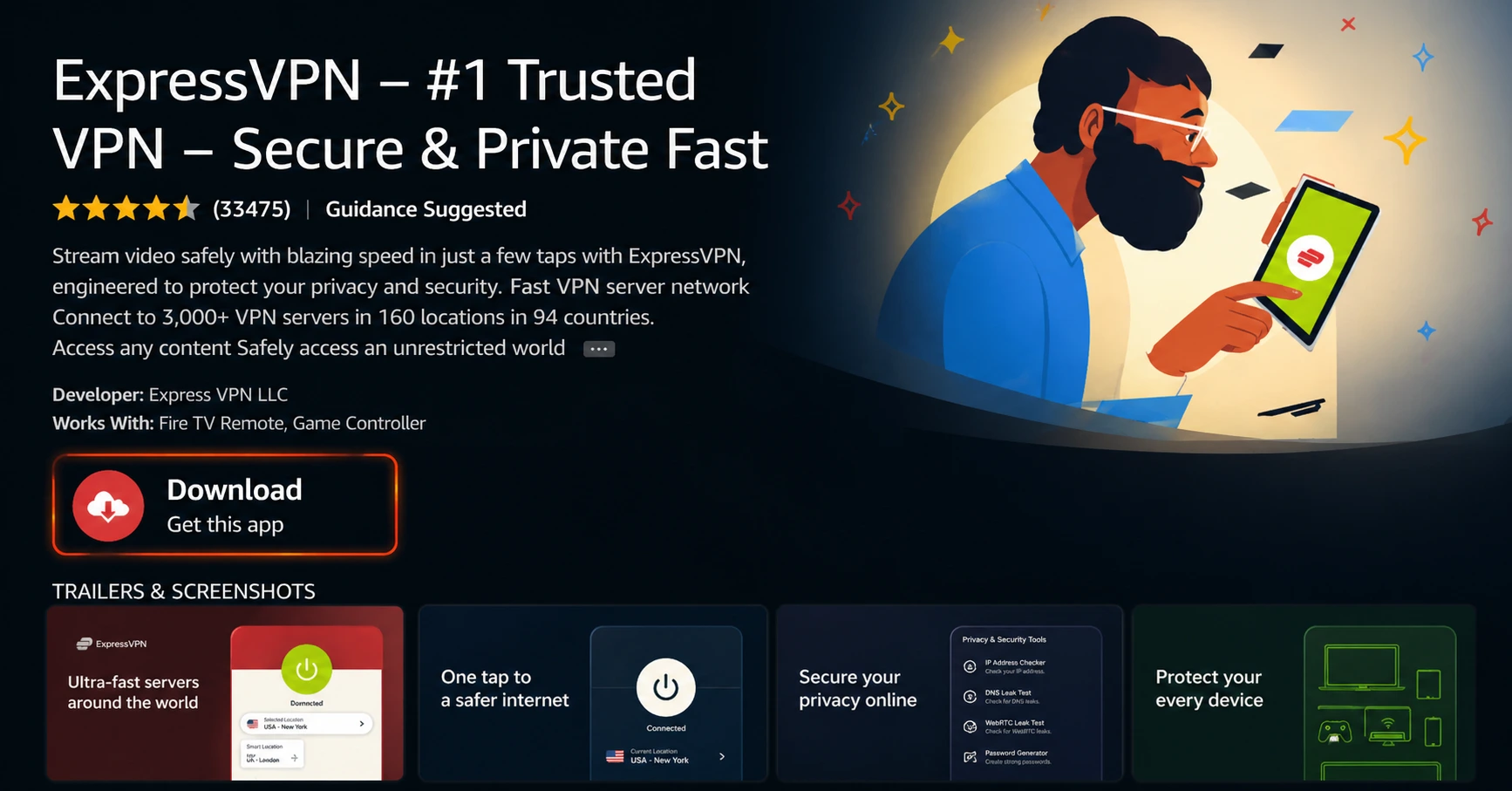
Download & Install the App
Click on the “Download” or “Get” button to install the app on your Firestick. Wait for the installation to complete.
Step 04
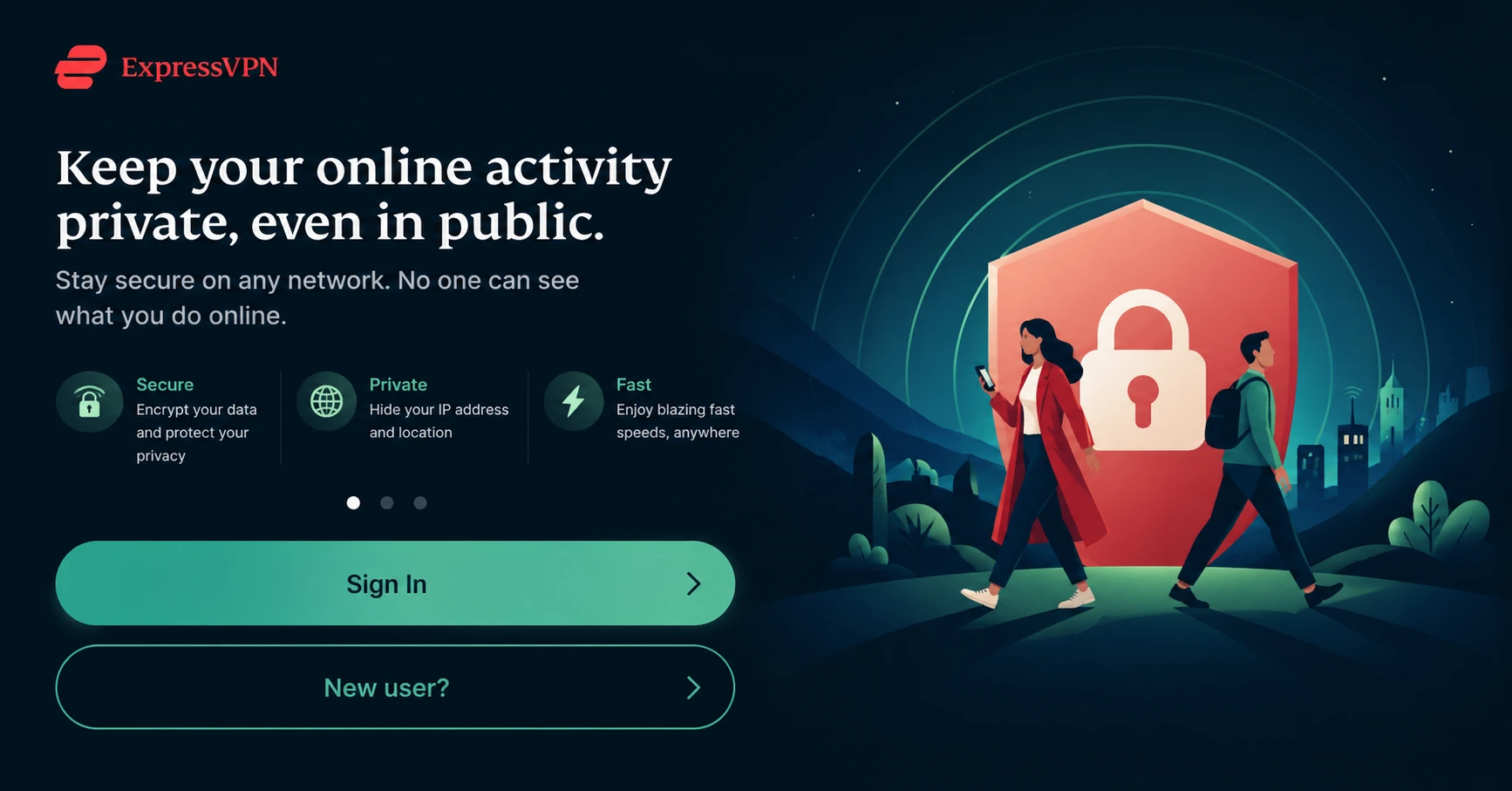
Sign In & Connect
Open the app, sign in with your ExpressVPN account, and tap the power button to connect to a server.
How to Fix Disney Plus Not Working on Firestick? (Step-by-Step)
Step by step fixes for Disney+ Fire TV not loading. Takes about 5 minutes.
Step 01
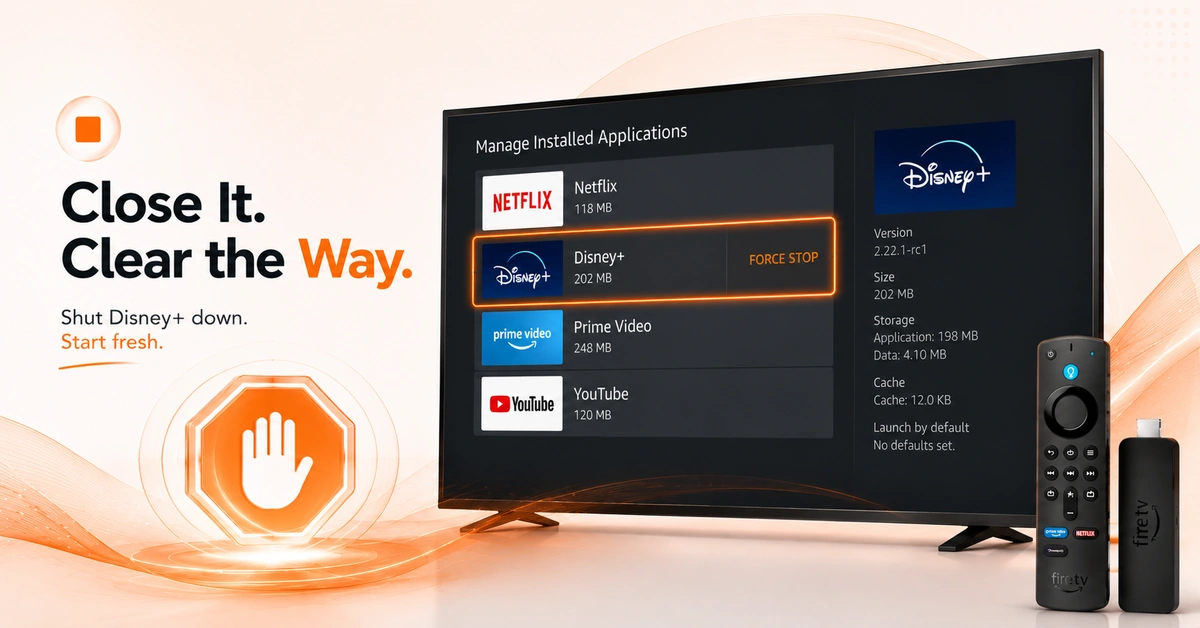
Stop the App Completely Before Fixing It
-
Force Stop Disney+ on Firestick
-
Go to Settings > Applications > Manage Installed Applications now.
-
Locate Disney+ in the list and select Force Stop.
-
Relaunch the Disney+ app and check if it loads.
Step 02
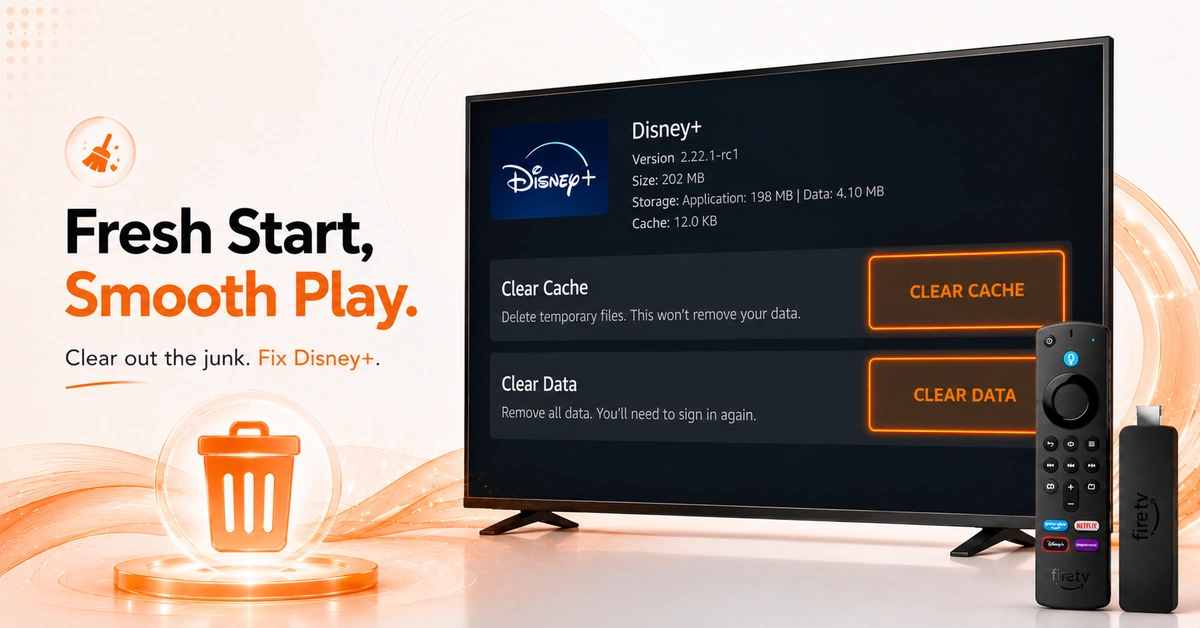
Clear Disney+ Cache and Data
-
Wipe Corrupted Data Causing Disney Plus to Fail
-
Reopen Disney+ inside Manage Installed Applications on your Firestick.
-
Tap Clear Cache to delete all stored temporary data.
-
Select Clear Data and relaunch Disney+ to verify the fix.
Get EXPRESS VPN — 20% Off
Step 03
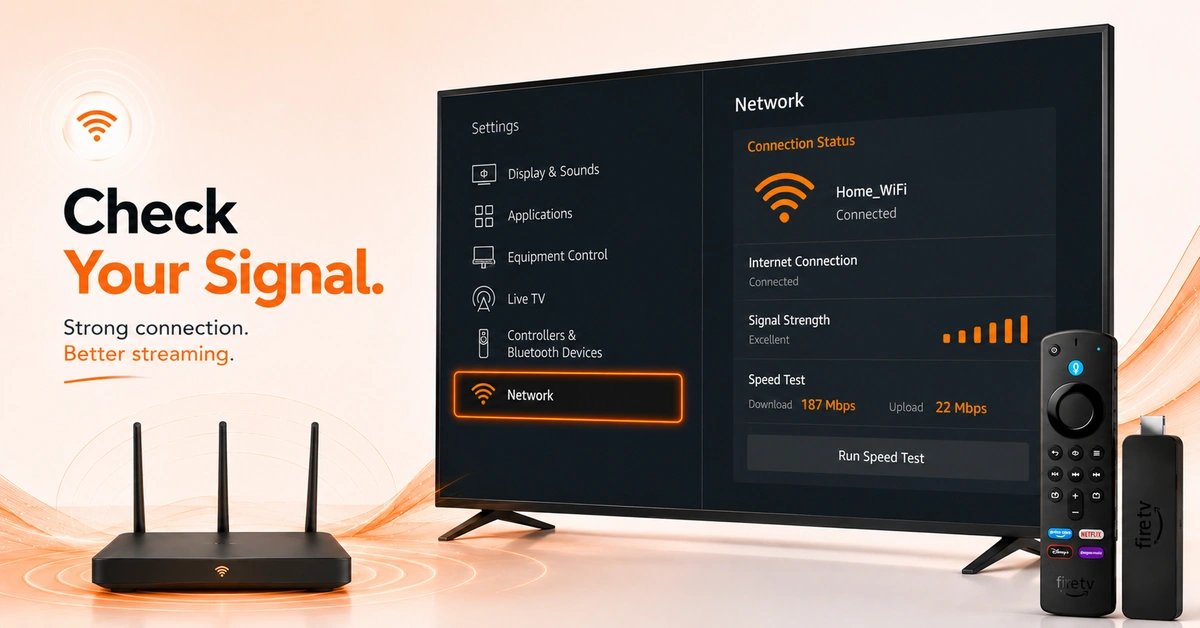
Verify Your Internet Connection
-
Navigate to Settings > Network and check your Wi-Fi status.
-
Confirm your connection speed meets Disney+ streaming requirements today.
-
Restart your router if the signal appears weak or slow.
Step 04
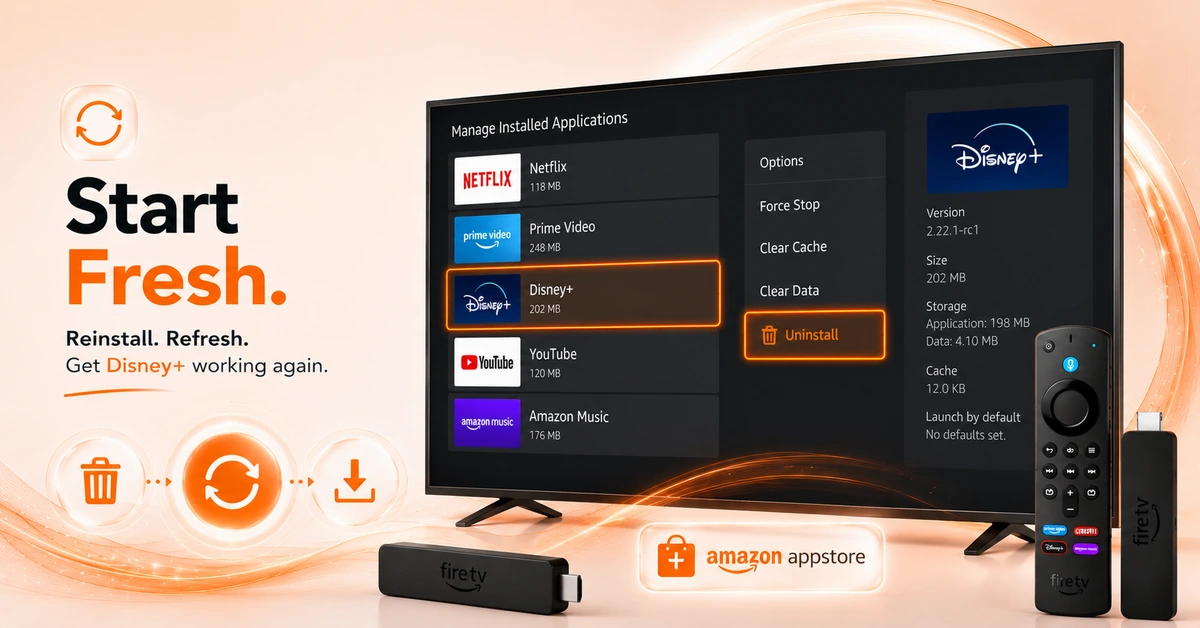
Reinstall Disney+ on Firestick
-
A Clean Install Fixes What Nothing Else Can
-
Open Manage Installed Applications and find the Disney+ app.
-
Tap Uninstall and confirm full removal from your Firestick.
-
Reinstall Disney+ fresh from the Amazon App Store now.
Quick Comparison
Side-by-side comparison of top Fire Stick VPNs
| VPN | Price | Servers | Speed | Devices | Rating | Actions |
|---|---|---|---|---|---|---|
|
EXPRESS VPN
|
$2.79/mo | 3,000+ | Blazing Fast | 8 | 5 | Get Deal |
|
|
$1.88/mo | 3,200+ | Blazing Fast | 8 | 4.7 | Get Deal |
 Proton VPN
|
$3.99/mo | 14,999+ | Blazing Fast | 7 | 4.8 | Get Deal |
 NordVPN
|
$4.39/mo | 6,998+ | Blazing Fast | 8 | 4.8 | Get Deal |
 IPVanish
|
$2.49/mo | 3,100+ | Blazing Fast | 6 | 4 | Get Deal |
 Private Internet Access
|
$11.95/mo | 35,000+ | Blazing Fast | 8 | 4 | Get Deal |
 PrivadoVPN
|
$1.99/mo | — | Blazing Fast | 5 | 4 | Get Deal |
Frequently Asked Questions
Why is Disney Plus not working on Firestick today?
Disney Plus not working on Firestick is most often caused by cached data corruption, weak internet, or a pending app update. Force stopping and clearing Disney+'s cache resolves most issues immediately. If the error persists, a full reinstall is your most reliable fix.
How do I fix Disney Plus on Firestick quickly?
To fix Disney Plus on Firestick, go to Settings > Applications > Manage Installed Applications > Disney+ > Clear Cache. Restart your Firestick immediately after. Reinstall Disney+ from the App Store if the issue doesn't resolve after restarting the device.
Why is Disney+ Fire TV not loading at startup?
A Disney Plus Firestick error is usually triggered by cache buildup, an incompatible app version, or ISP connectivity issues. Clearing cache and data resolves most error codes instantly. For specific errors like Error 83, a full reinstall is typically the required fix.
Does clearing cache fix Disney Plus not working on Firestick?
Yes, clearing cache is the most effective first step for Disney Plus not working on Firestick. Go to Manage Installed Applications > Disney+ > Clear Cache. Follow with Clear Data if the initial cache clear does not fully restore normal app function.
Why does Disney+ keep buffering on Firestick?
Disney+ buffering on Firestick is caused by slow internet or ISP throttling during high-traffic hours. Disney+ requires 25Mbps for 4K and 5Mbps for HD streaming. Using Surfshark bypasses ISP throttling and delivers buffer-free Disney+ playback on your Firestick.
Why does Disney+ show Error 83 on Firestick?
Error 83 on Disney+ signals a device compatibility or app data issue specific to Firestick. Clear Disney+'s cache and data from Manage Installed Applications as the first step. If Error 83 persists after that, a full uninstall and reinstall from the App Store is required.
Can a VPN fix Disney Plus not working on Firestick?
Yes, Surfshark can fix Disney Plus not working on Firestick caused by ISP throttling or regional content restrictions. It routes your connection through a faster, unrestricted server for significantly improved load times. Surfshark's Fire TV app installs in minutes directly from the App Store.