How to Fix Firestick HDMI Handshake Issues: Simple Solutions
Editor's Choice
#1 Pick
Editor's Choice
 NordVPN
$4.39/month
Save 20%
Blazing Fast
6,998+
214
8
Step by Step Instructions
Step 01

Go to Search on Fire TV
On your Fire TV home screen, select the Search (Find) option at the top.
Step 02
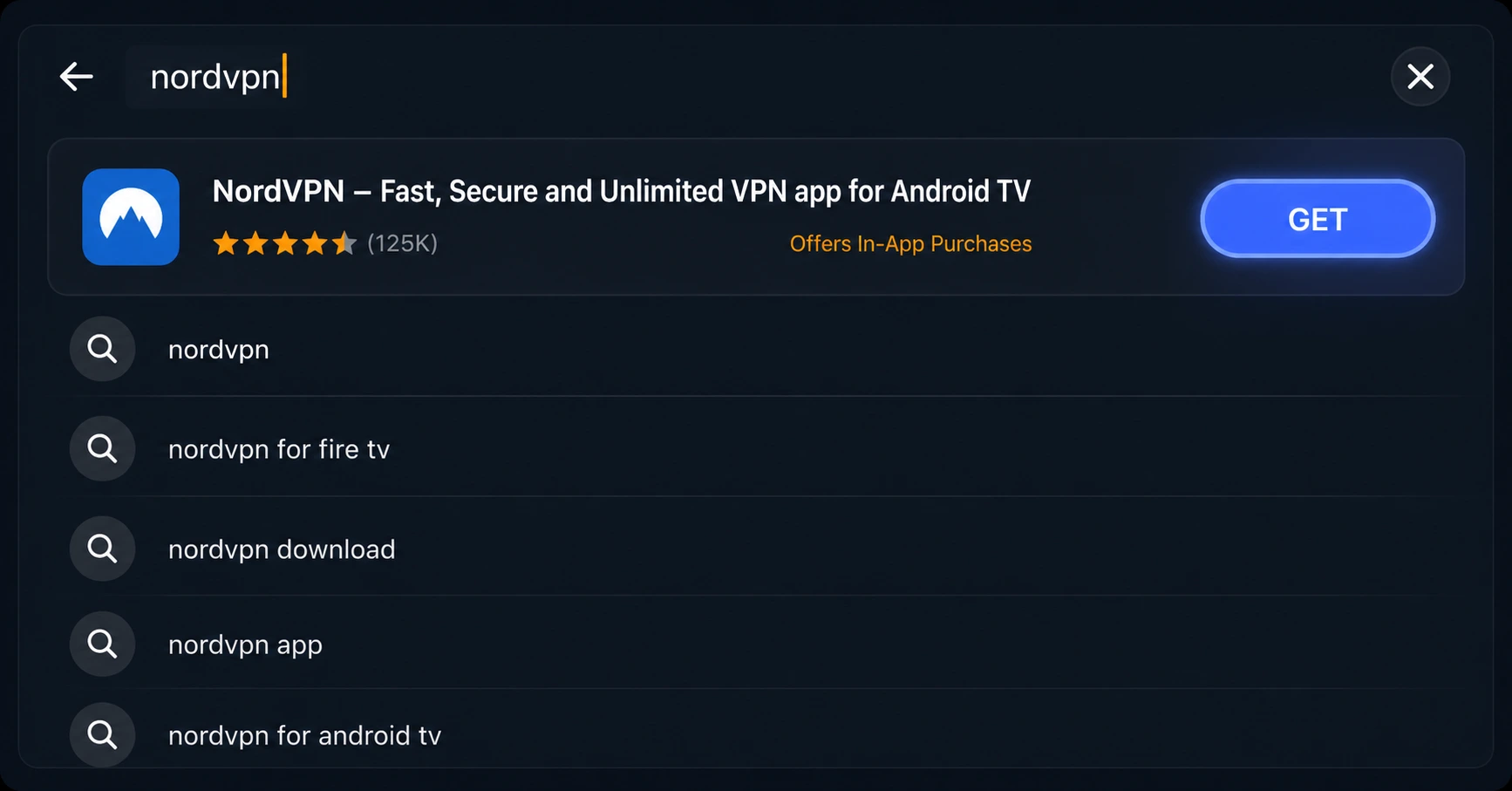
Type “NordVPN”
Use your remote to type NordVPN and choose the app when it appears in the results.
Step 03
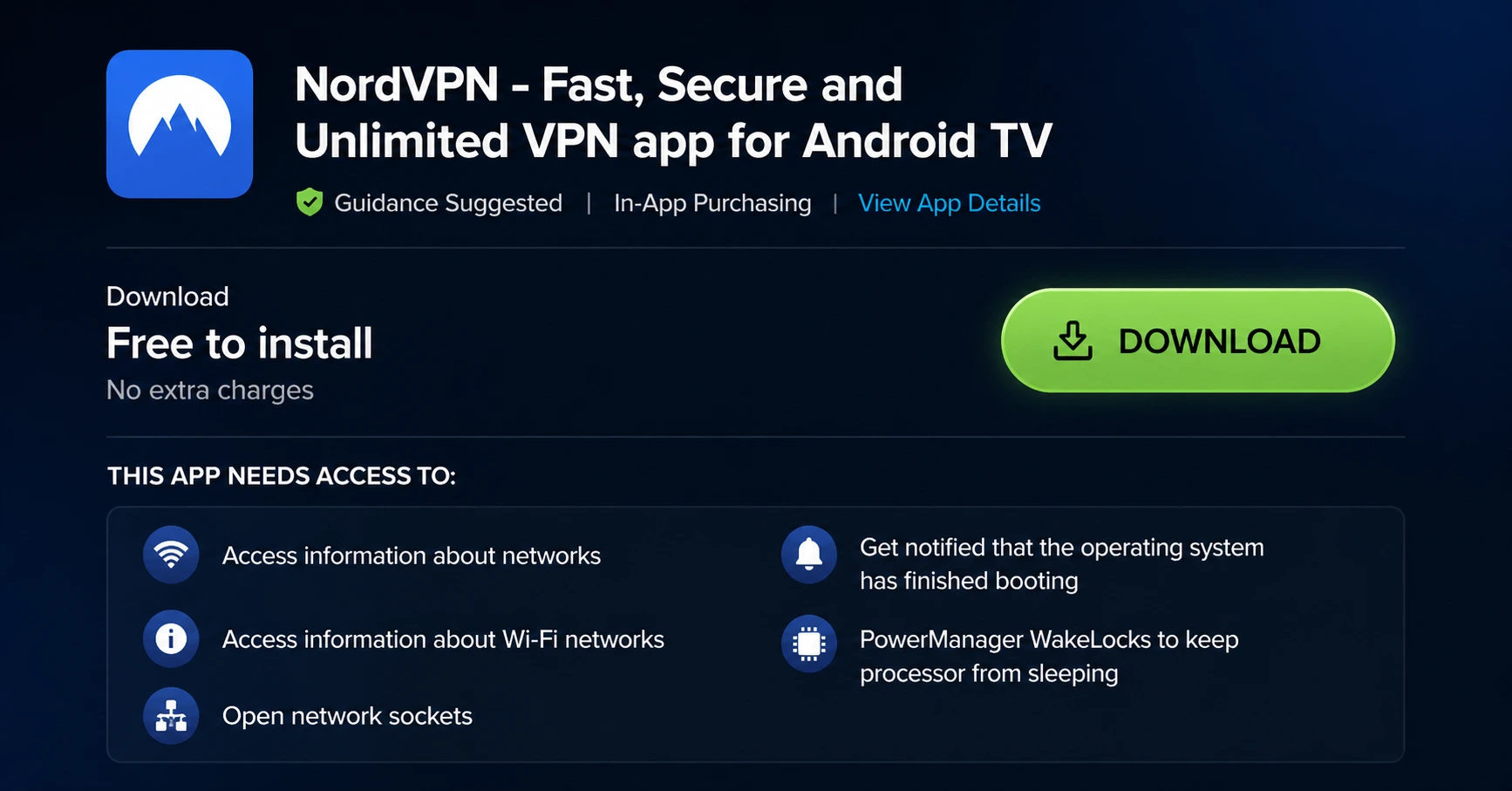
Install the App
Click on Get or Download to install NordVPN on your Fire TV.
Step 04
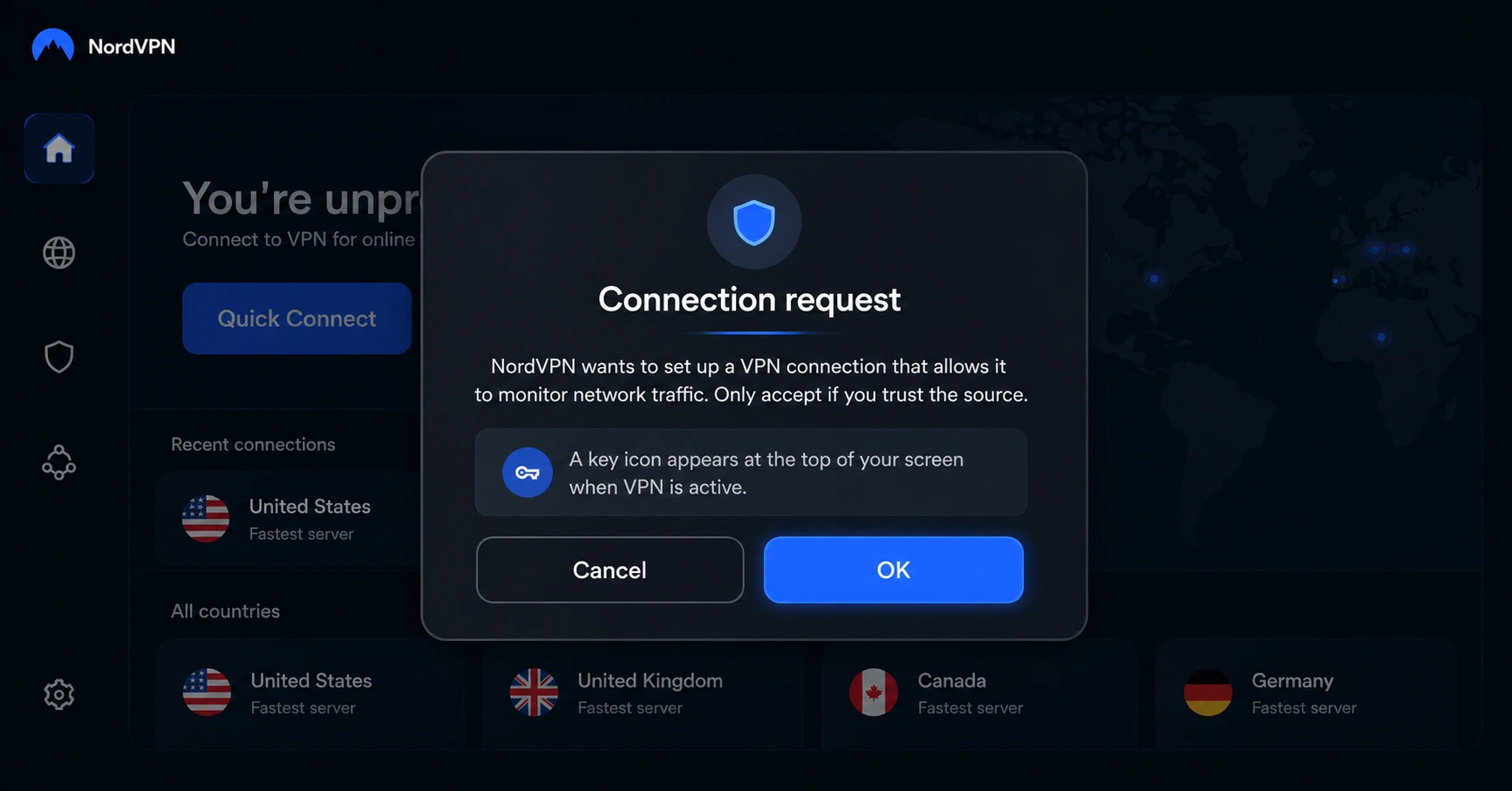
Log In & Connect
Open the app, sign in to your account, and press the connect button to start using the VPN.
How Do I Fix Firestick HDMI Handshake Issues?
Simple troubleshooting steps to restore a stable video and audio connection quickly.
Step 01
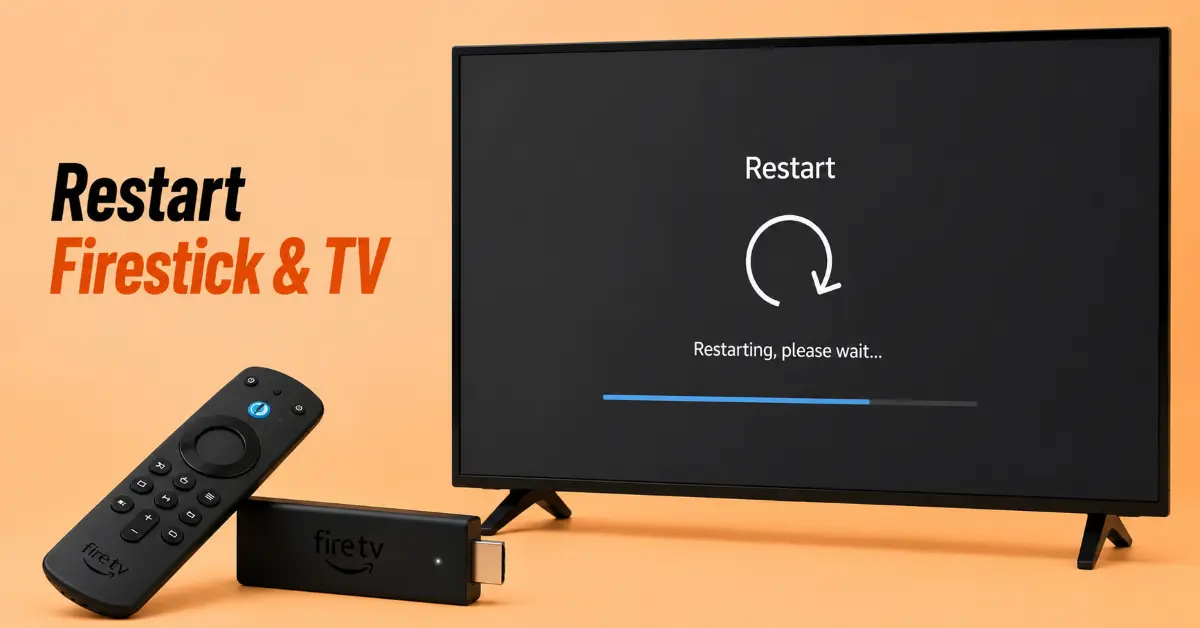
Restart Your Firestick and TV
-
Shut off your TV and unplug your Firestick from the HDMI port
-
Take out both devices from power source for around 60 seconds
-
Connect everything again and switch on your TV
-
Check if the problem is sorted out as the Firestick boots
Step 02
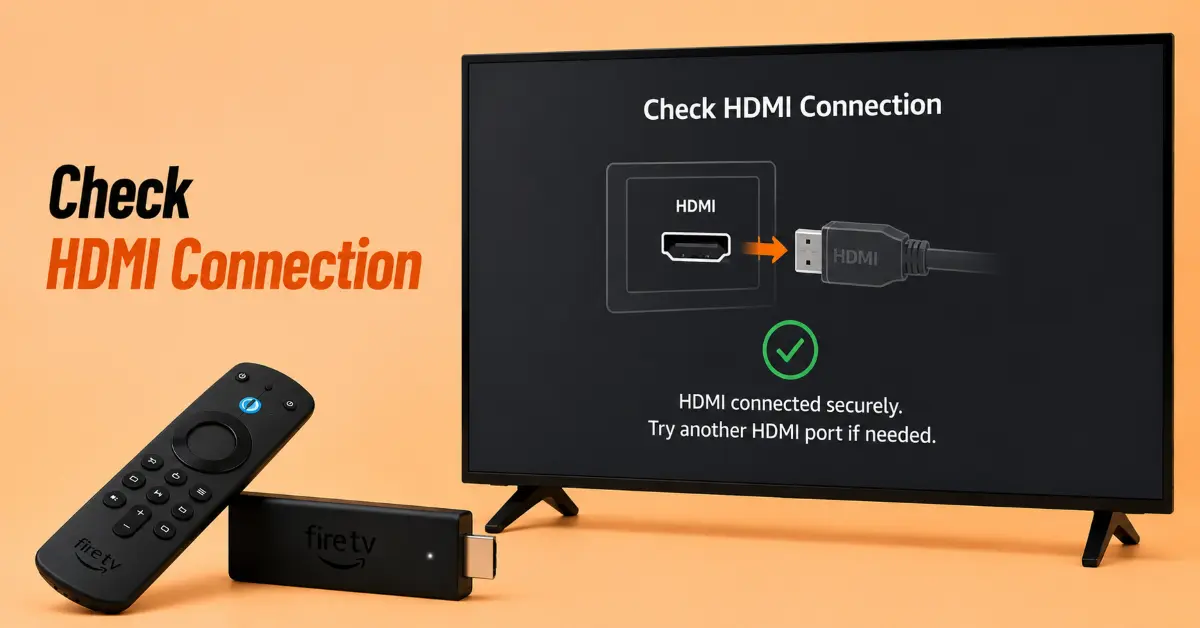
Test the HDMI Connection
-
Unplug the Firestick from the HDMI port and plug it in again
-
Use an alternate HDMI port if you have one in your TV
-
Use an HDMI extender provided with Firestick if it doesn’t fit into the HDMI port
-
Clean the HDMI port if there’s any dirt or debris present
Get NordVPN — 20% Off
Step 03
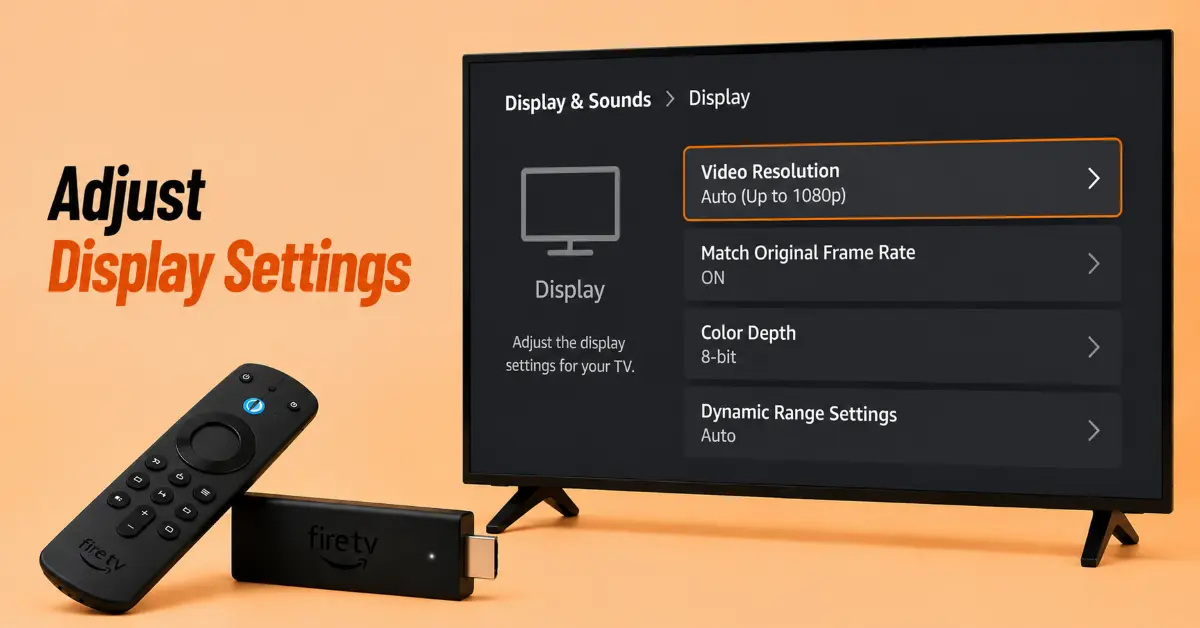
Modify Display Settings
-
Open settings from Firestick and go to Display & Sounds, then select Display
-
Set auto video resolution or select manual setting for video resolution
-
Select a compatible display mode if your TV doesn’t support others
-
Restart the Firestick after applying the new settings
Step 04
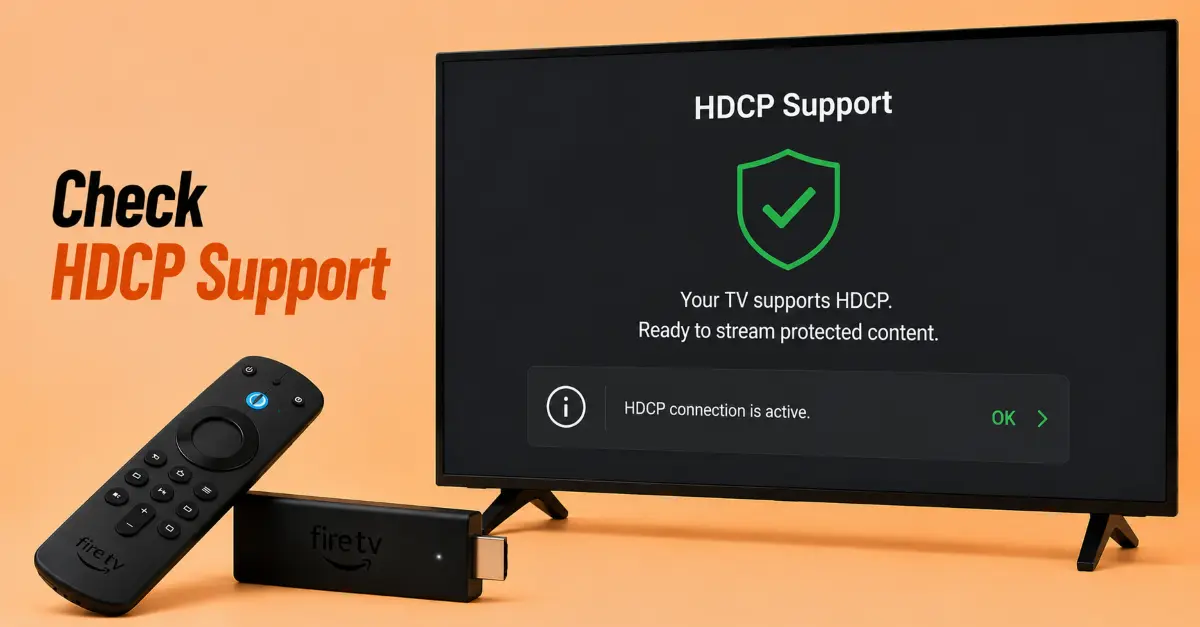
Check HDCP Compatibility
-
Plug your Firestick directly into the TV and not via a splitter or receiver
-
Temporarily remove any existing HDMI switches and other accessories
-
Make sure that your TV supports HDCP if you stream protected media
-
Try using another HDMI cable if HDCP-related issues persist
Get NordVPN — 20% Off
Step 05
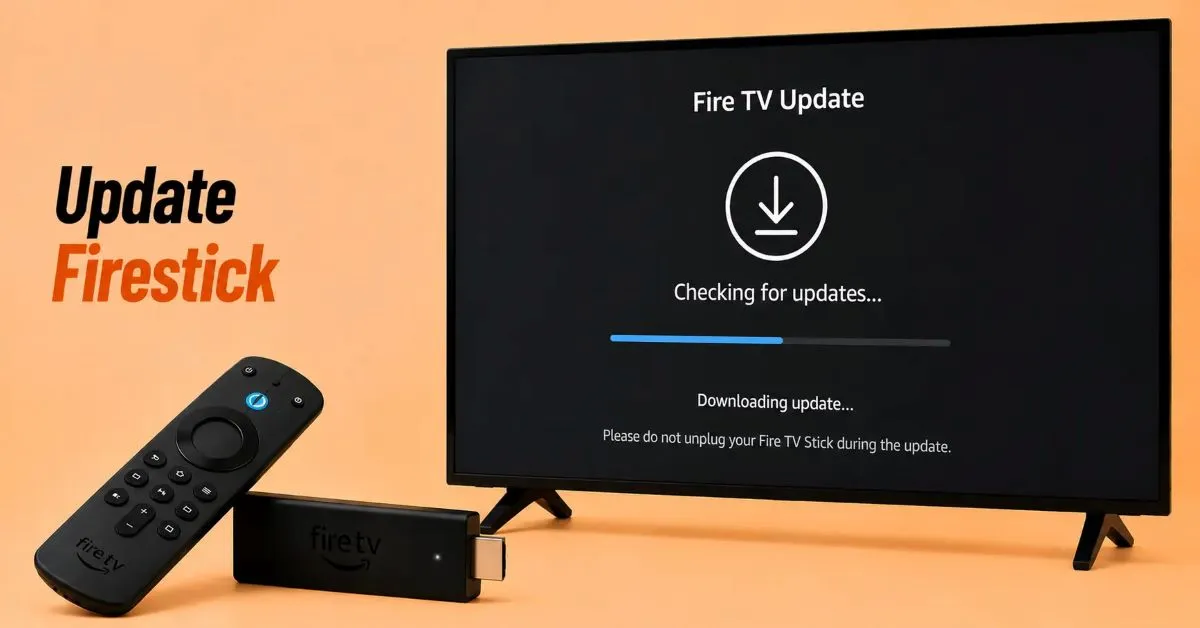
Update the Firestick Software
-
From the home screen, go to Settings, then My Fire TV, then About
-
Then select Check for Updates
-
Update all available software updates
-
Reboot the Firestick after completing the software update
Step 06
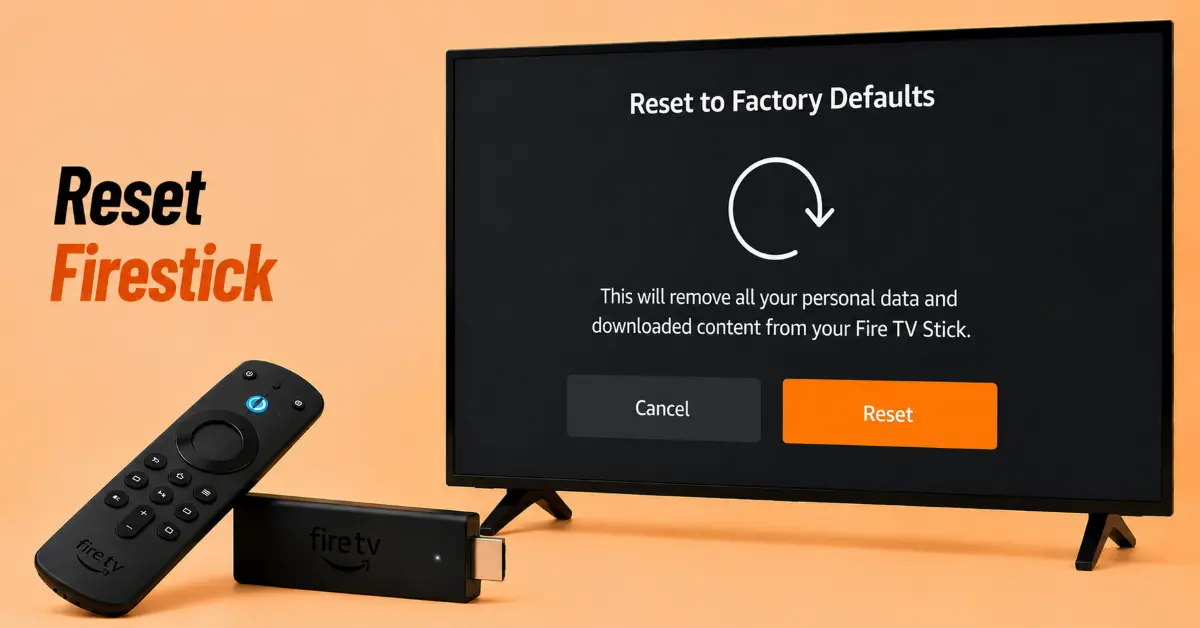
Reset the Firestick
-
Navigate to Settings, My Fire TV and then Reset to Factory Defaults
-
Proceed to reset your Firestick to its factory settings
-
Wait until the factory reset is completed
-
Reconfigure your Firestick
Quick Comparison
Side-by-side comparison of top Fire Stick VPNs
| VPN | Price | Servers | Speed | Devices | Rating | Actions |
|---|---|---|---|---|---|---|
|
NordVPN
|
$4.39/mo | 6,998+ | Blazing Fast | 8 | 4.8 | Get Deal |
 EXPRESS VPN
|
$2.79/mo | 3,000+ | Blazing Fast | 8 | 5 | Get Deal |
|
|
$1.88/mo | 3,200+ | Blazing Fast | 8 | 4.7 | Get Deal |
 Proton VPN
|
$3.99/mo | 14,999+ | Blazing Fast | 7 | 4.8 | Get Deal |
 PrivadoVPN
|
$1.99/mo | — | Blazing Fast | 5 | 4 | Get Deal |
Frequently Asked Questions
What causes a Firestick HDMI handshake issue?
It's a fact that most Firestick HDMI handshake issues arise from loose
HDMI connections, incompatible display settings, outdated software, or
HDCP communication errors
How can I perform a Fire TV HDMI handshake fix?
The best way to fix a Fire TV HDMI handshake issue is to restart your TV
and Firestick, unplug and reconnect the HDMI cable, and switch to a
different HDMI port.
What is a Firestick HDCP handshake problem?
In simple terms, a Firestick HDCP handshake problem occurs when your TV,
Firestick, or HDMI devices fail to validate the content protection, thus
blocking the video playback.
How do I fix a Firestick no signal HDMI issue?
If you get a no signal message on your Firestick, you should first check
the HDMI connection, then pick the right TV input, restart both
devices, and finally, if possible, try another HDMI port.
Can changing display settings fix HDMI handshake problems?
Yes, by tweaking your Firestick resolution to Auto or a compatible
setting, you can normally solve HDMI handshake issues with your TV
Why does my Firestick lose the HDMI connection randomly?
There can be a few reasons for this: loose connections, defective HDMI ports, old software, or last-minute handshake failures
Does updating the Firestick help with HDMI handshake issues?
Absolutely, running the most recent software update may enhance your
device's compatibility and resolve Fire TV HDMI handshake issues caused
by software bugs.