How to Fix Firestick Not Connecting to Internet: Fast Fixes
Editor's Choice
#1 Pick
Editor's Choice
 NordVPN
$4.39/month
Save 20%
Blazing Fast
6,998+
214
8
Step by Step Instructions
Step 01
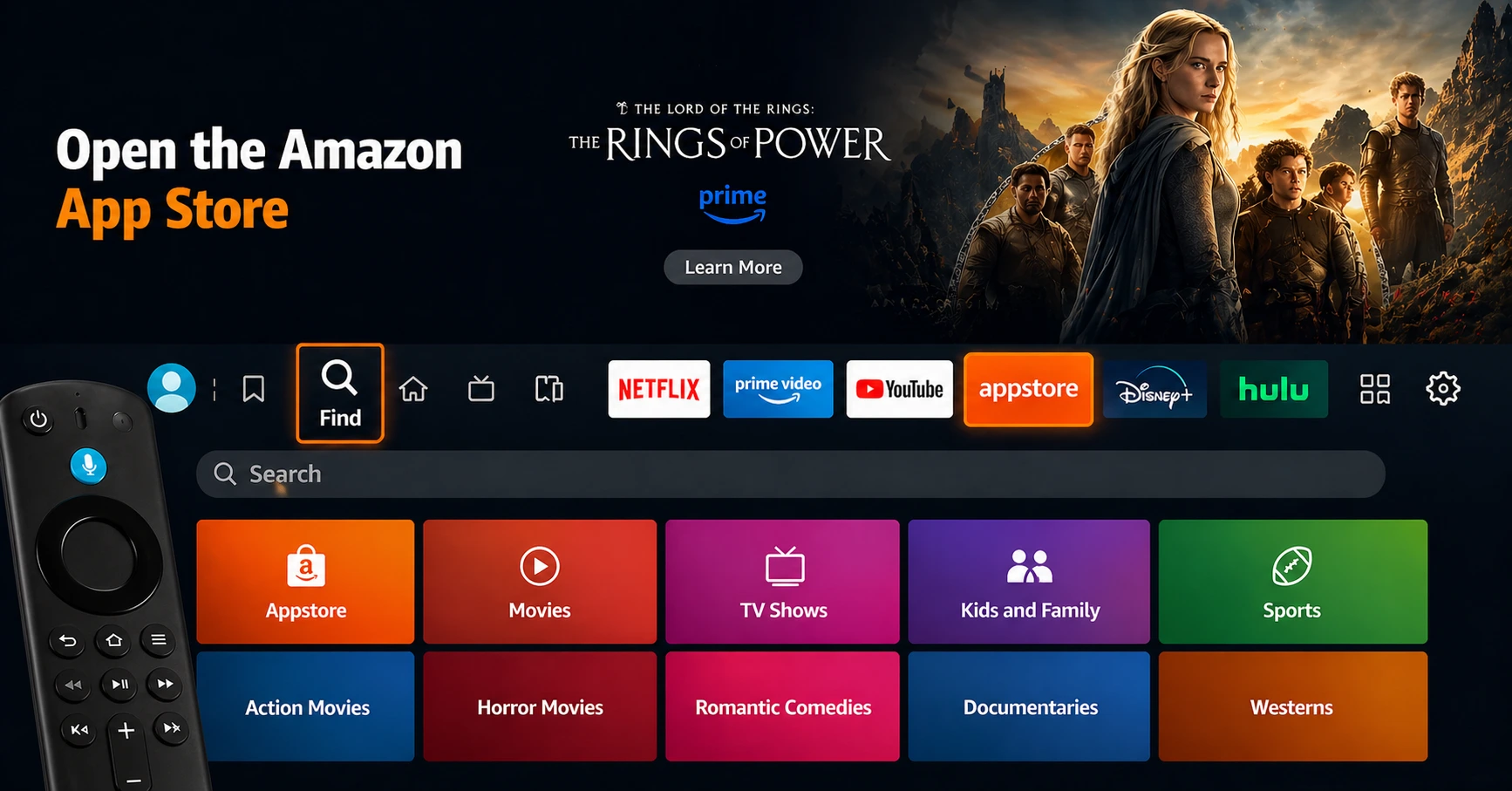
Go to Search on Fire TV
On your Fire TV home screen, select the Search (Find) option at the top.
Step 02
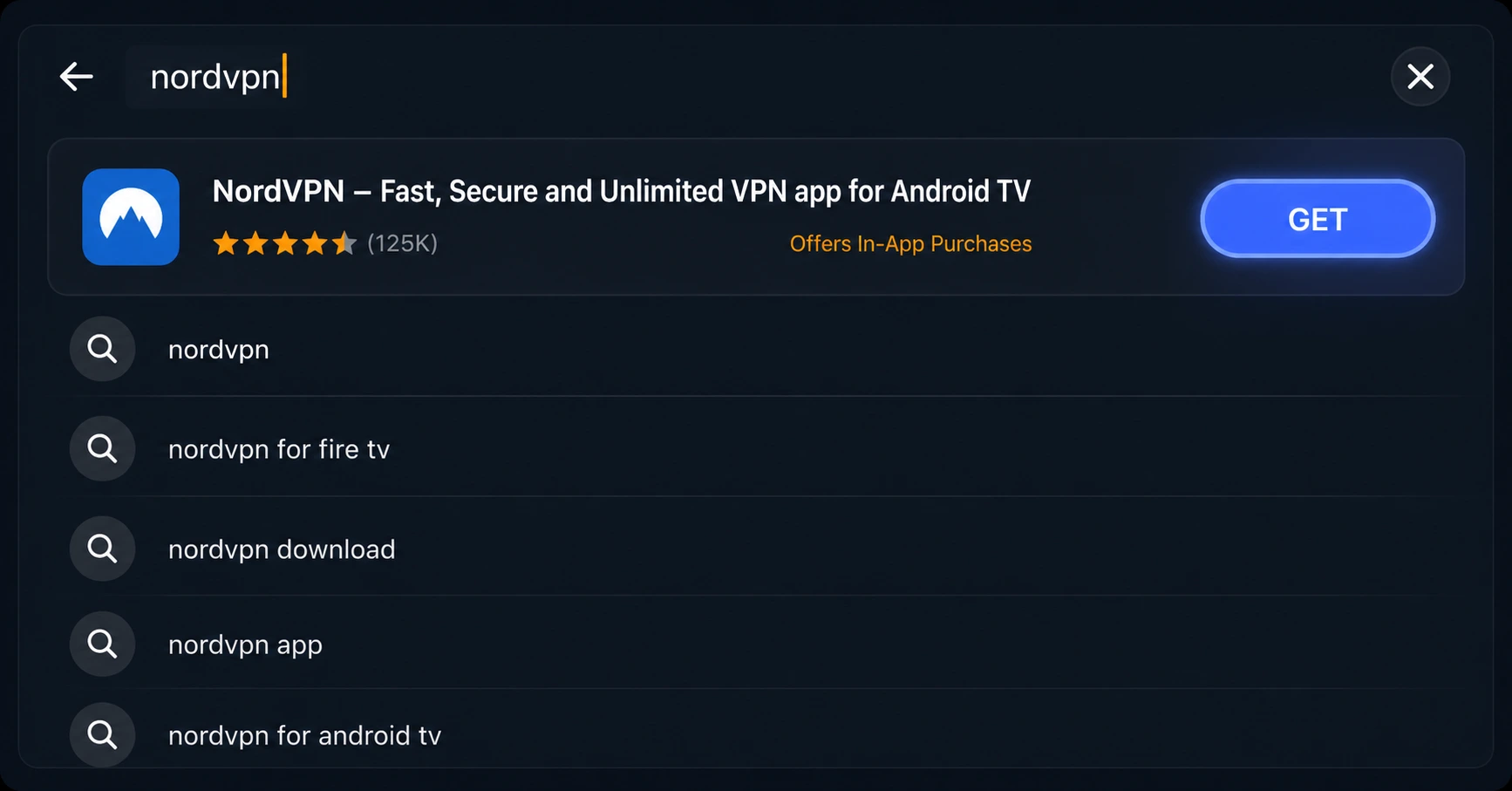
Type “NordVPN”
Use your remote to type NordVPN and choose the app when it appears in the results.
Step 03
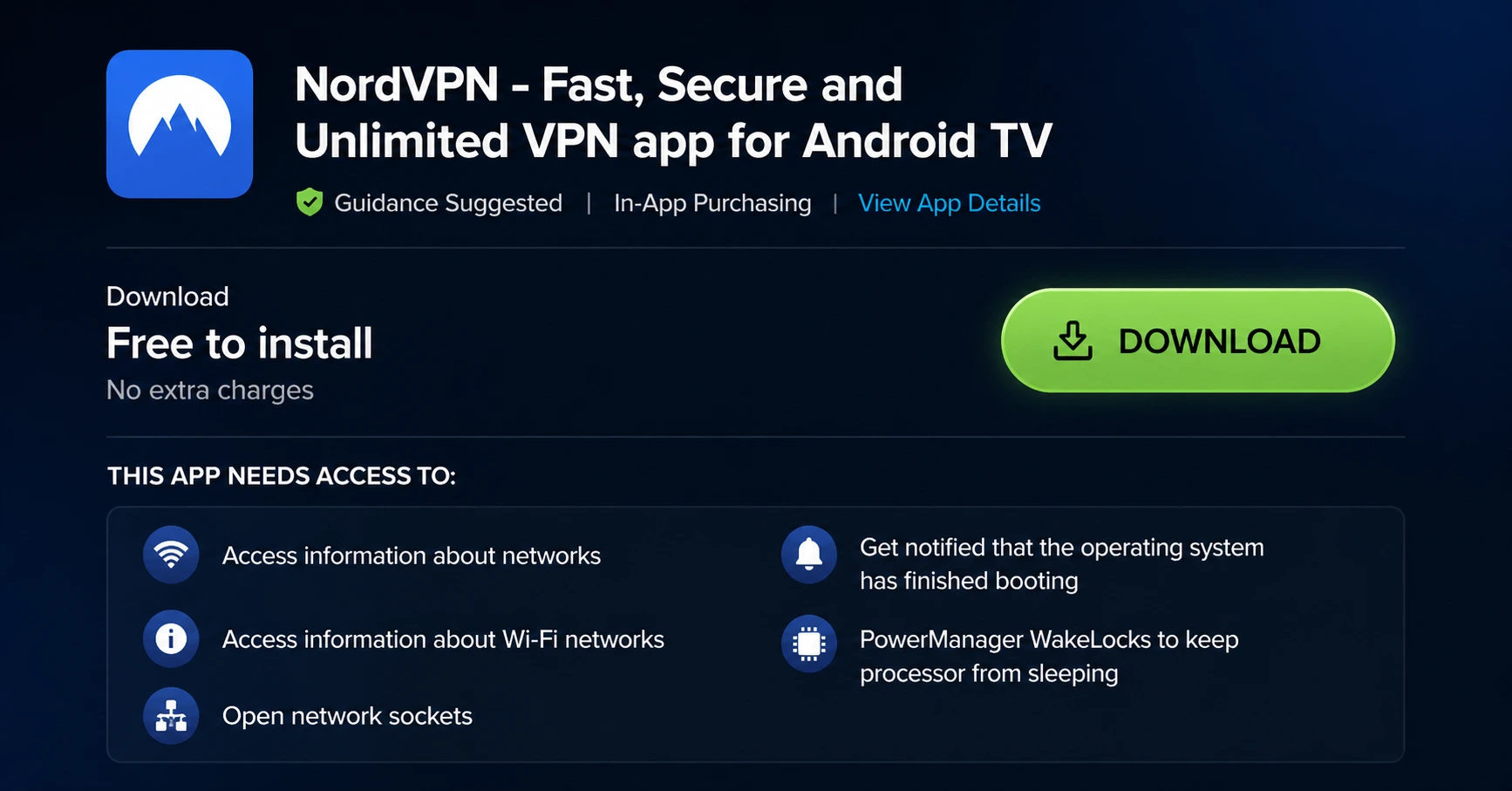
Install the App
Click on Get or Download to install NordVPN on your Fire TV.
Step 04
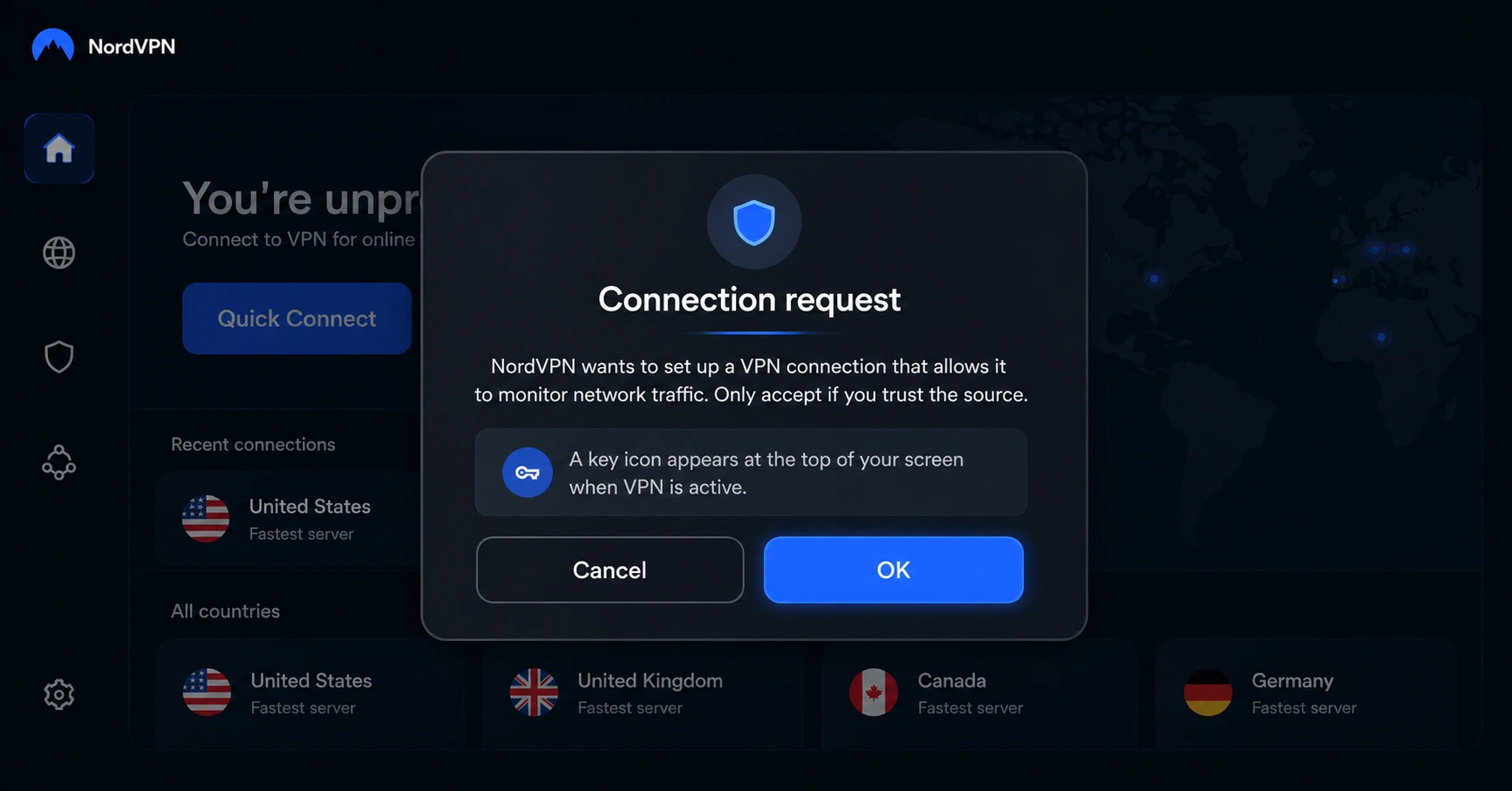
Log In & Connect
Open the app, sign in to your account, and press the connect button to start using the VPN.
How Do I Fix Firestick Not Connecting to Internet?
Step-by-step solutions to fix Firestick internet connection problems in minutes.
Step 01
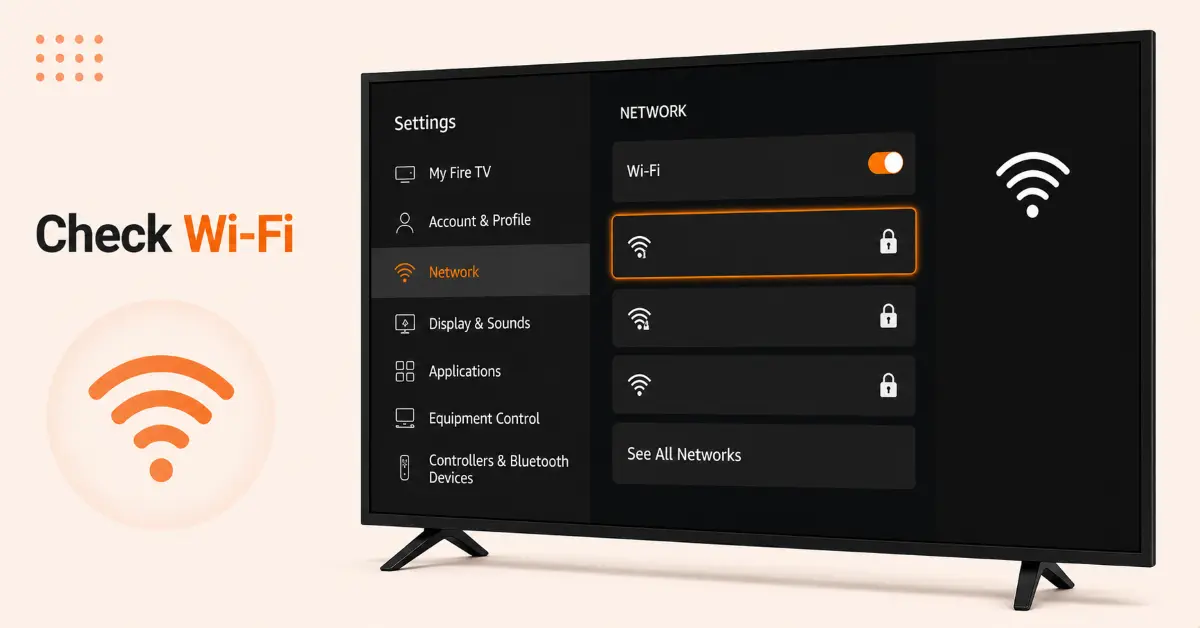
Check Your Wi-Fi Connection
-
Make sure your Wi-Fi router is powered on and working properly
-
Test the internet connection on another device, such as a smartphone or laptop
-
Move your Firestick closer to the router to improve signal strength
-
Verify that you're connecting to the correct Wi-Fi network and entering the right password
Step 02
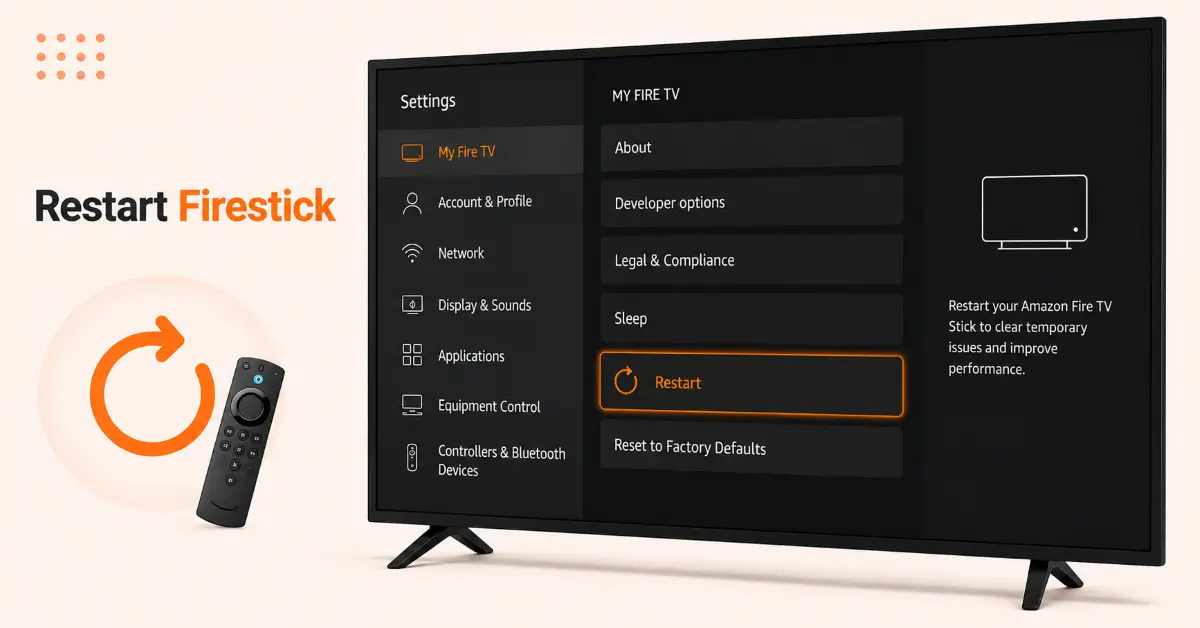
Restart Your Firestick
-
Press and hold the Select and Play/Pause buttons on your remote for about 5 seconds
-
Wait for the Firestick to restart automatically
-
Allow the device to reconnect to your Wi-Fi network
-
Check whether internet access has been restored after the reboot
Get NordVPN — 20% Off
Step 03
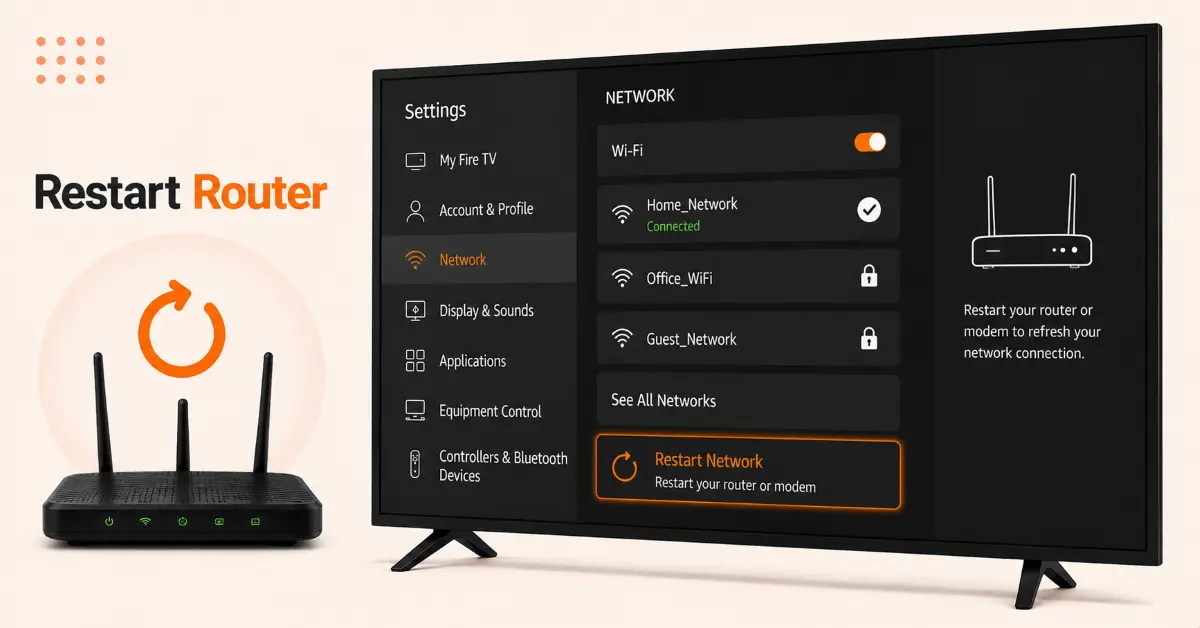
Restart Your Router and Modem
-
Unplug your router and modem from the power source
-
Wait at least 60 seconds before plugging them back in
-
Allow the devices several minutes to fully reconnect to the internet
-
Reconnect your Firestick and test the connection again
Step 04
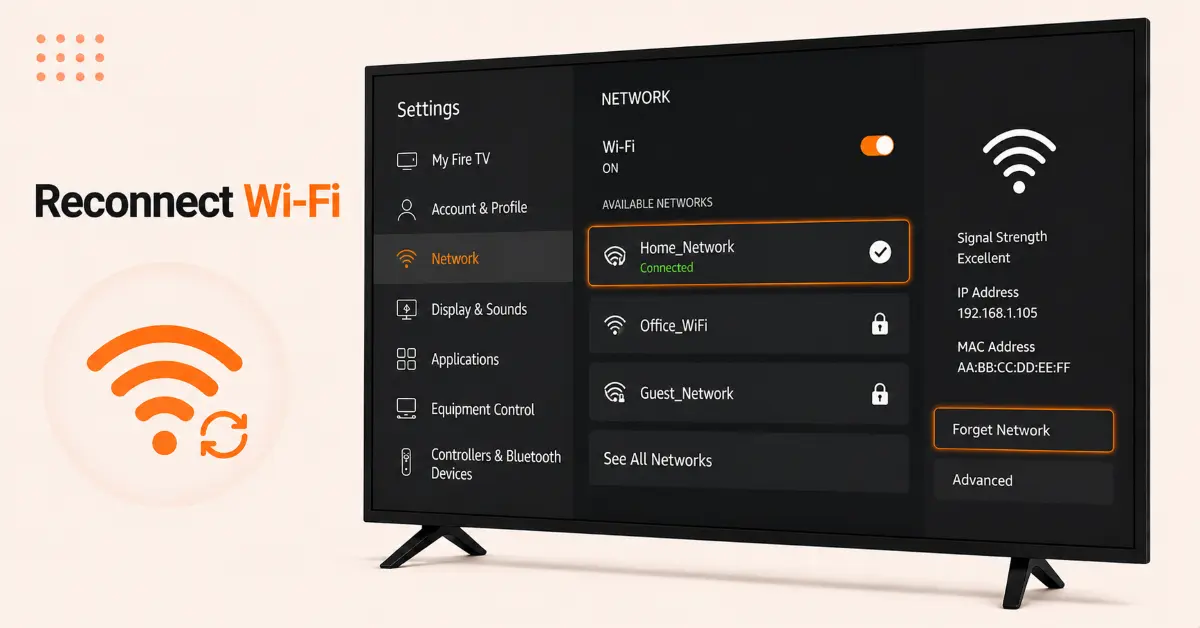
Forget and Reconnect to the Wi-Fi Network
-
Go to Settings on your Firestick home screen
-
Select Network and highlight your current Wi-Fi connection
-
Press the Menu button and choose Forget Network
-
Select the network again and enter the password to reconnect
Get NordVPN — 20% Off
Step 05
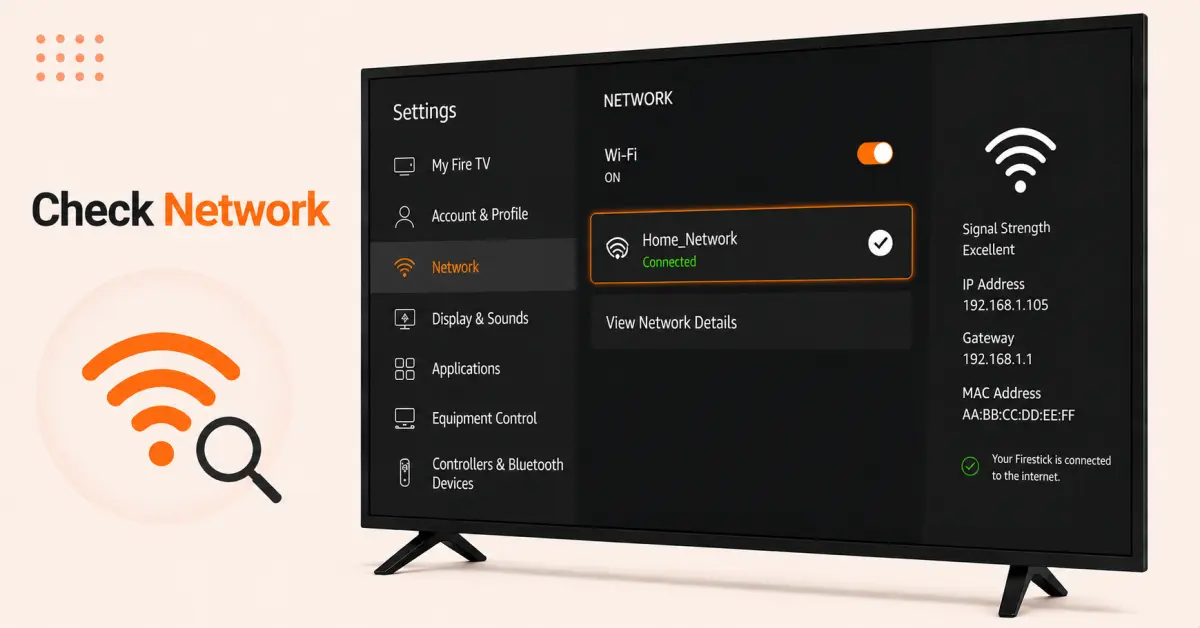
Check Firestick Network Status
-
Open Settings and select Network
-
Highlight your connected Wi-Fi network
-
Press the Play/Pause button to view network details
-
Review signal strength, IP address, and internet status for any issues
Step 06
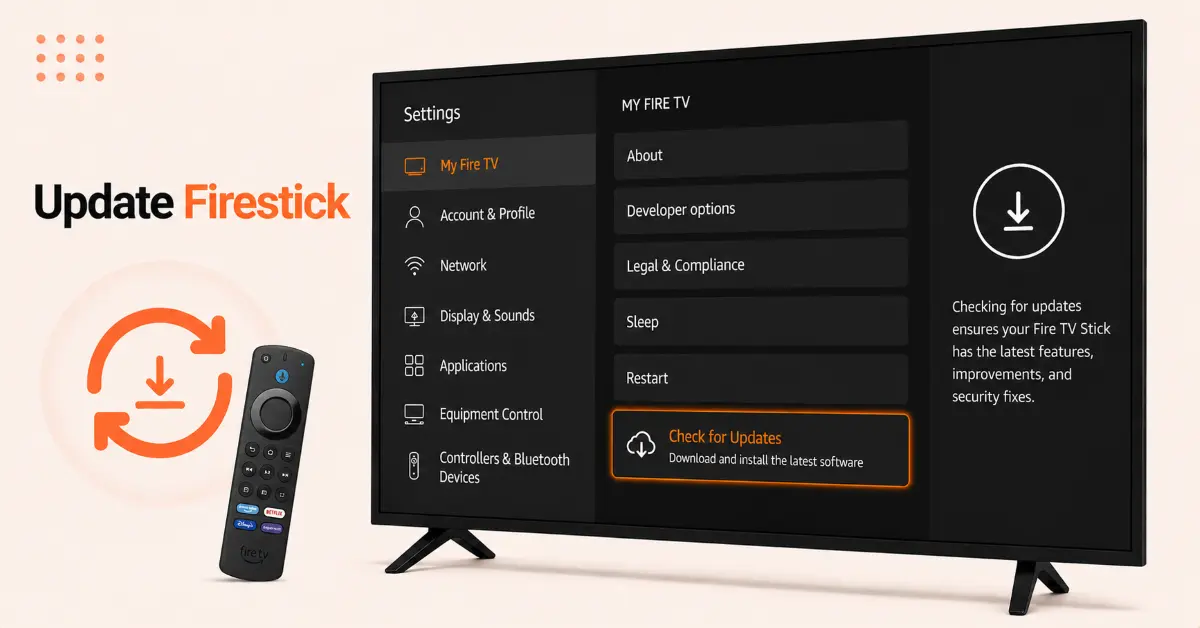
Update Your Firestick Software
-
Navigate to Settings and select My Fire TV
-
Choose About from the menu
-
Select Check for Updates
-
Install any available updates and restart the device if prompted
Get NordVPN — 20% Off
Step 07
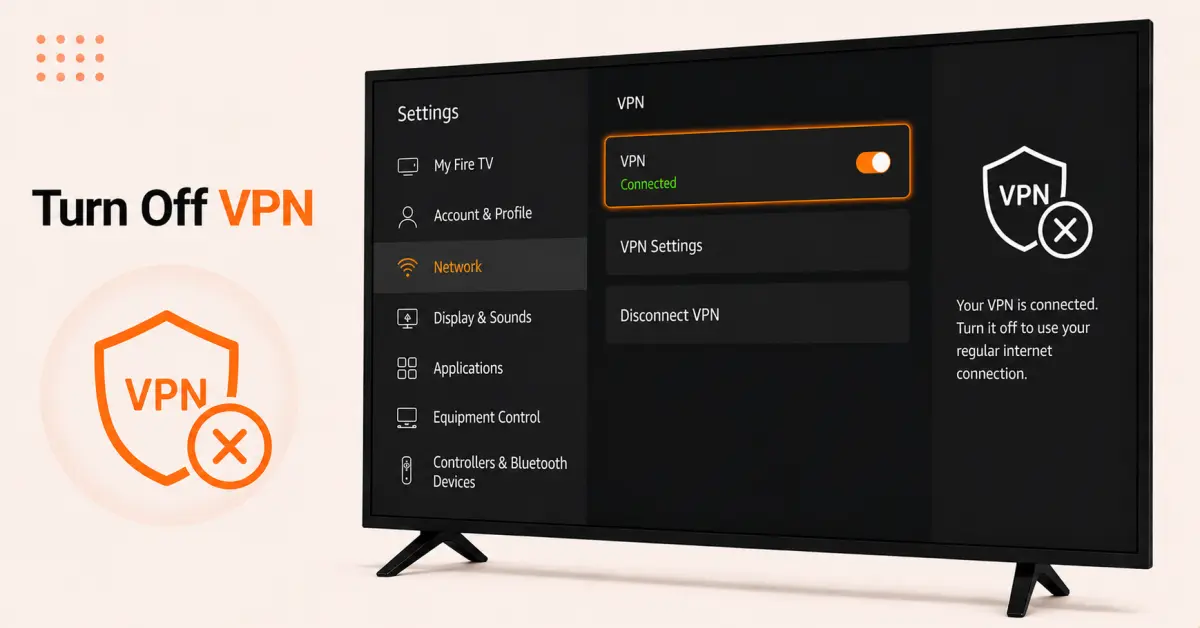
Disconnect VPN Services
-
Open the VPN application installed on your Firestick
-
Turn off the VPN connection temporarily
-
Return to the Firestick home screen
-
Test your internet connection to see if the VPN was causing the issue
Quick Comparison
Side-by-side comparison of top Fire Stick VPNs
| VPN | Price | Servers | Speed | Devices | Rating | Actions |
|---|---|---|---|---|---|---|
|
NordVPN
|
$4.39/mo | 6,998+ | Blazing Fast | 8 | 4.8 | Get Deal |
|
|
$1.88/mo | 3,200+ | Blazing Fast | 8 | 4.7 | Get Deal |
 EXPRESS VPN
|
$2.79/mo | 3,000+ | Blazing Fast | 8 | 5 | Get Deal |
 Proton VPN
|
$3.99/mo | 14,999+ | Blazing Fast | 7 | 4.8 | Get Deal |
 PrivadoVPN
|
$1.99/mo | — | Blazing Fast | 5 | 4 | Get Deal |
Frequently Asked Questions
Why is my Firestick not connecting to the internet?
Your Firestick not connecting to the internet may be because of a weak Wi-Fi connection, incorrect network credentials, router issues, outdated software, or temporary glitches.
How do I fix a Firestick with no internet connection?
To fix a Firestick with no internet connection, check your Wi-Fi network, restart, reboot your router, reconnect to the network, and check for any available updates.
What should I do if my Firestick Wi-Fi is not working?
In this case, move the device close to the router, forget and reconnect to the network, disable any active VPN connection, and ensure your router is broadcasting a stable signal.
Can a VPN cause Fire TV internet connection problems?
Yes, VPNs sometimes interfere with your internet connection. Try to temporary disable the VPN connection and check whether the Firestick reconnects successfully.
Why does my Firestick keep disconnecting from Wi-Fi?
There can be many reasons, including a weak signal, network congestion, outdated firmware, or router placement issue.
Will restarting my router fix Fire TV internet connection problems?
In many cases, restarting the router refreshes the network connection, clears temporary errors, and can restore internet access.
When should I factory reset my Firestick?
Factory reset should be your last troubleshooting step. A factory reset clears deep software and system issues, but will erase all apps and custom settings.