How to Fix Kodi Not Working on Firestick ? Troubleshooting Guide
Editor's Choice
#1 Pick
Editor's Choice
 Proton VPN
$3.99/month
Save 20%
Blazing Fast
14,999+
214
7
Step by Step Instructions
Step 01
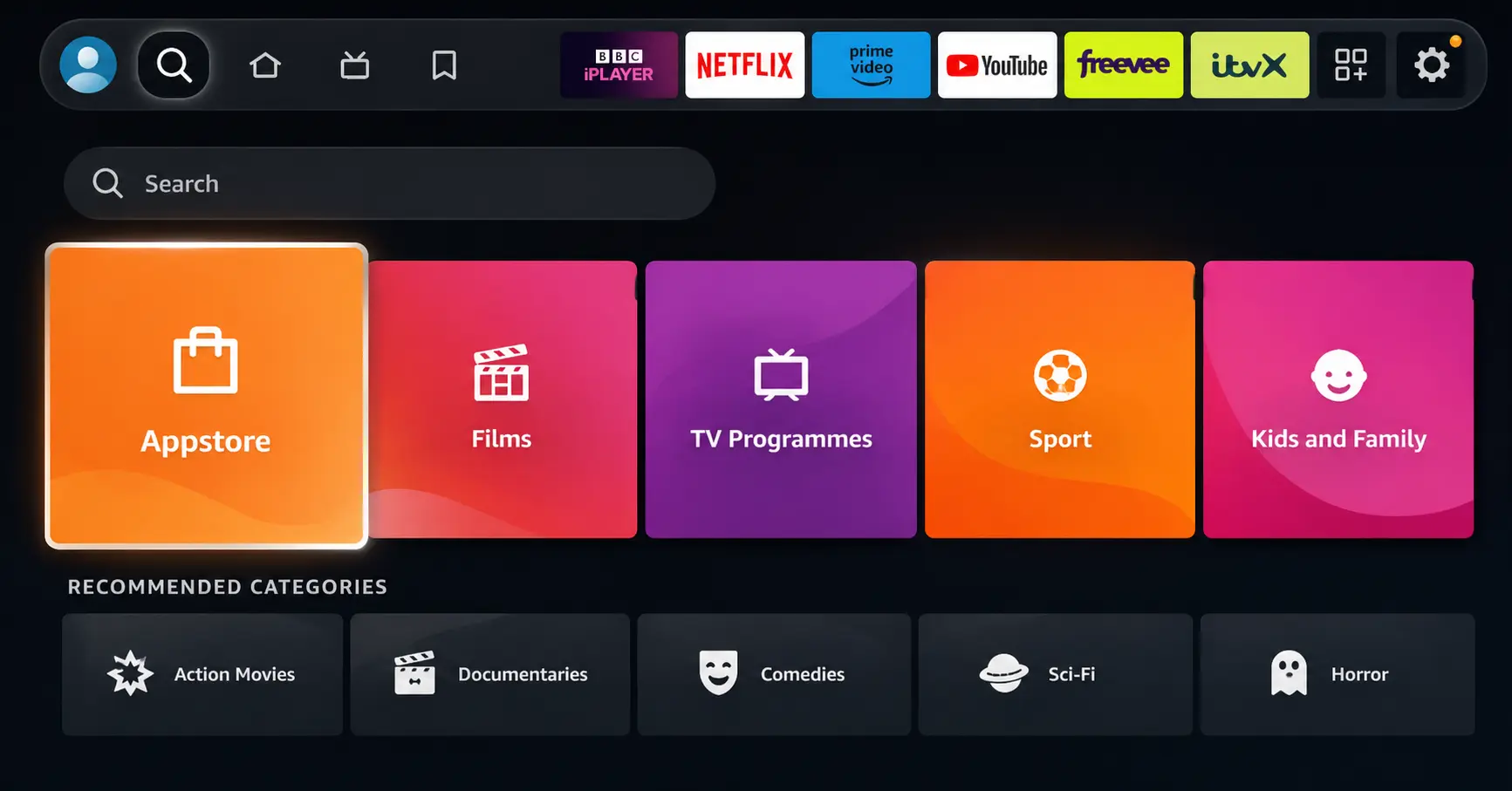
Open Search on Fire TV
Go to the Find (Search) option from your Fire TV home screen.
Step 02
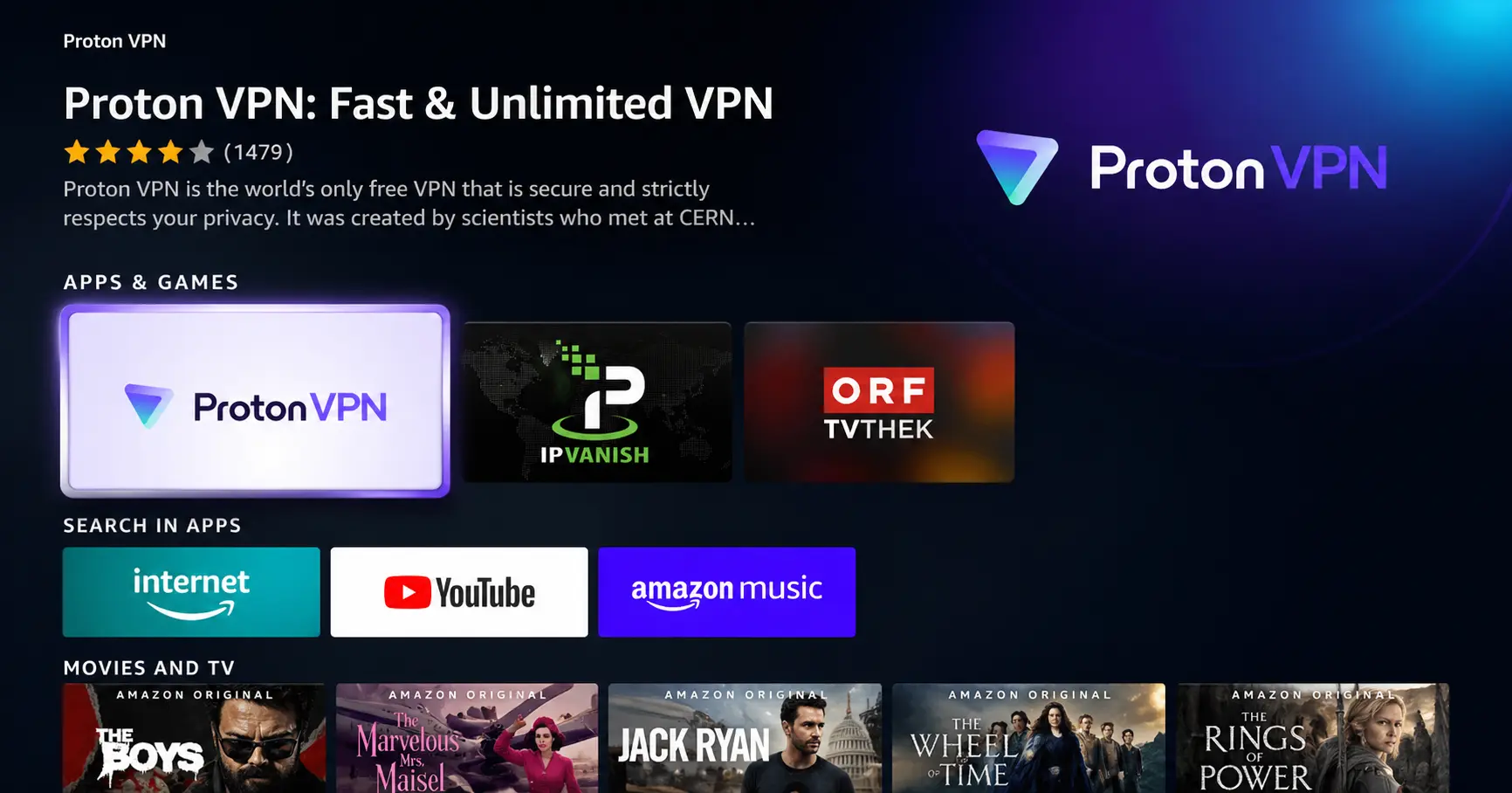
Search for ProtonVPN
Type ProtonVPN using your remote and select the app from the results.
Step 03
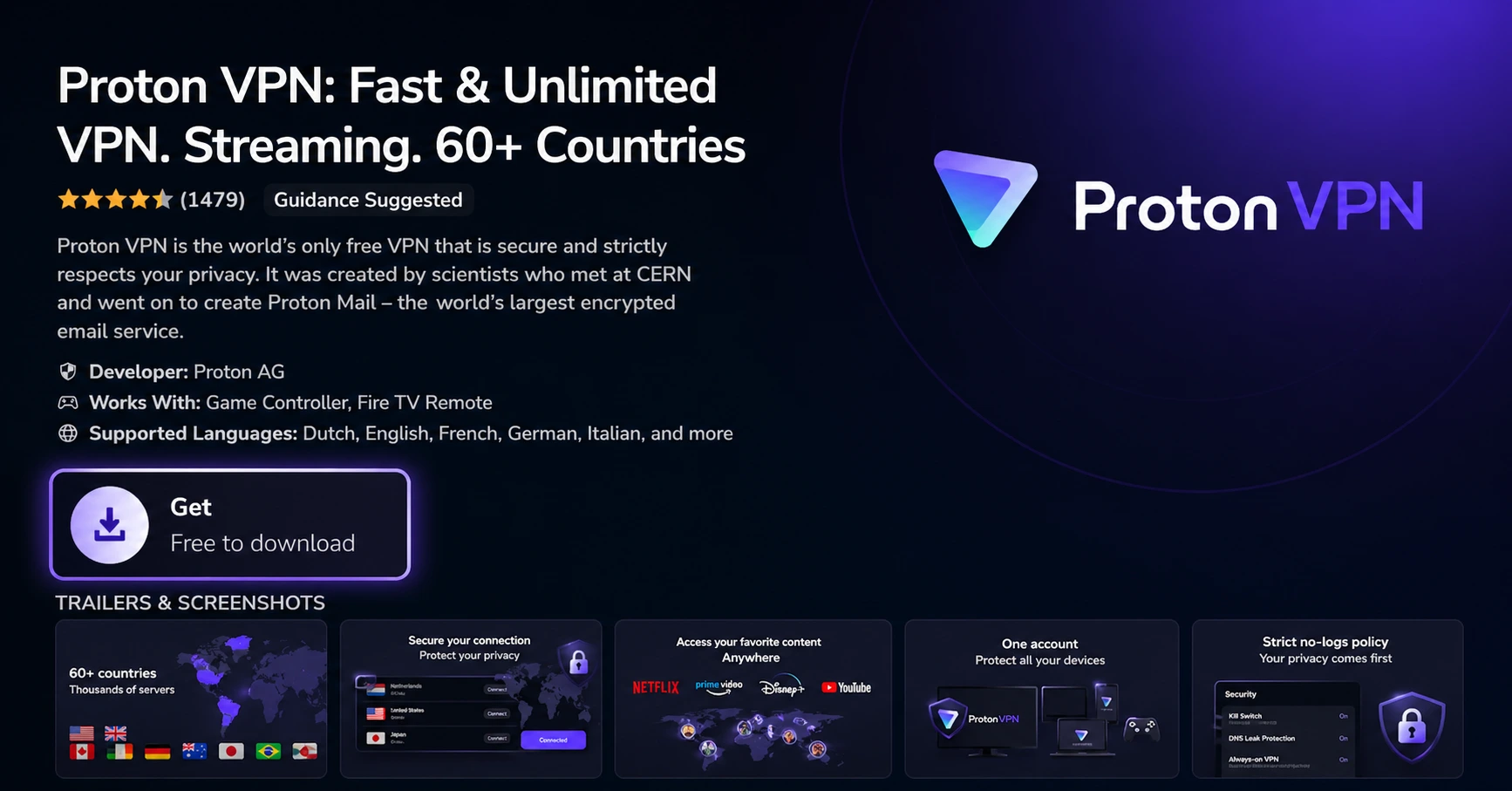
Install the App
Click on Get or Download to install ProtonVPN on your Fire TV.
Step 04
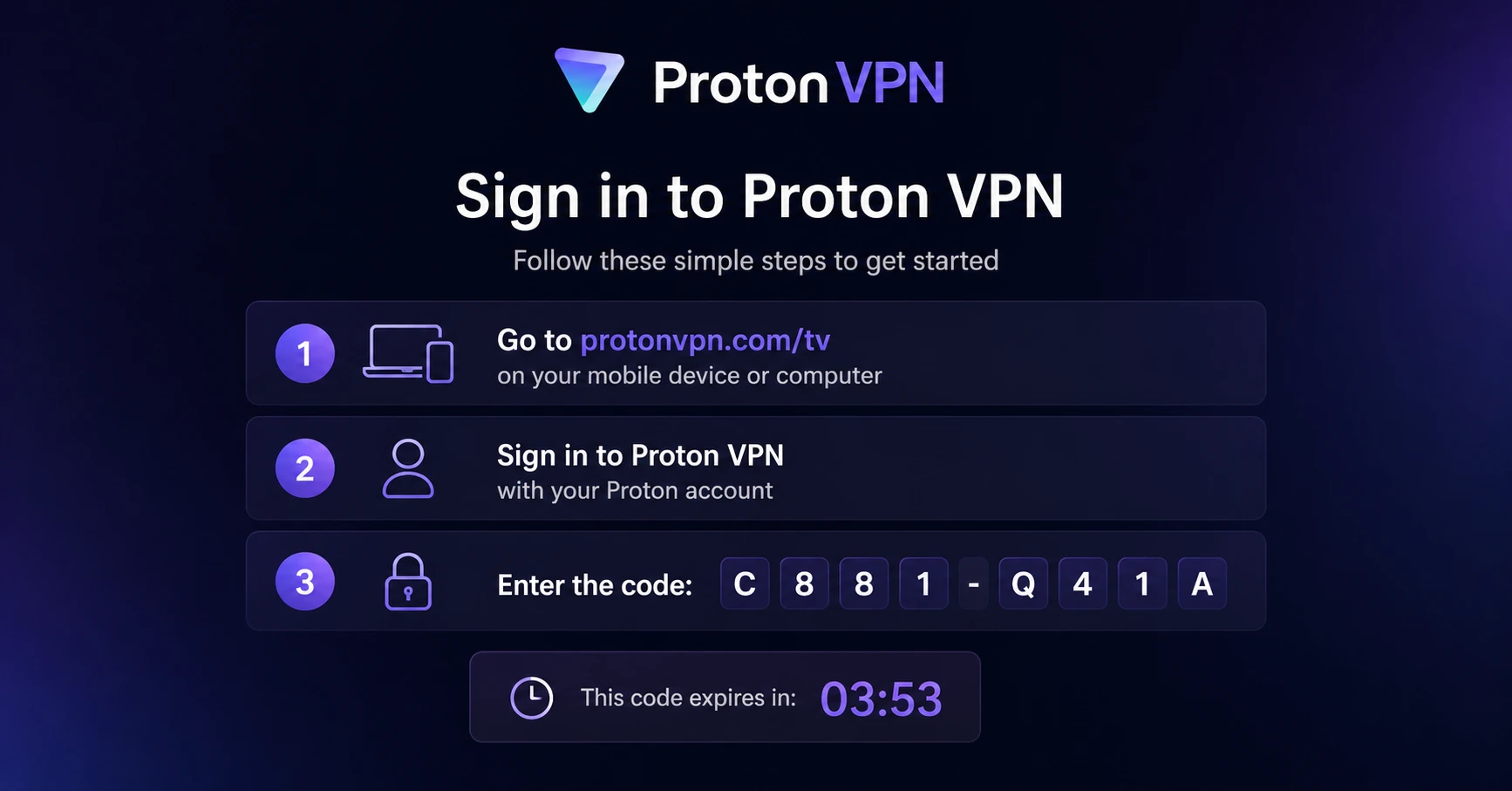
Sign In & Connect
Open the app, sign in using your Proton account (QR or code method), and connect to a server.
How to Fix Kodi Not Working on Firestick?
A simple troubleshooting guide to fix the most common Kodi issues on Firestick
Step 01
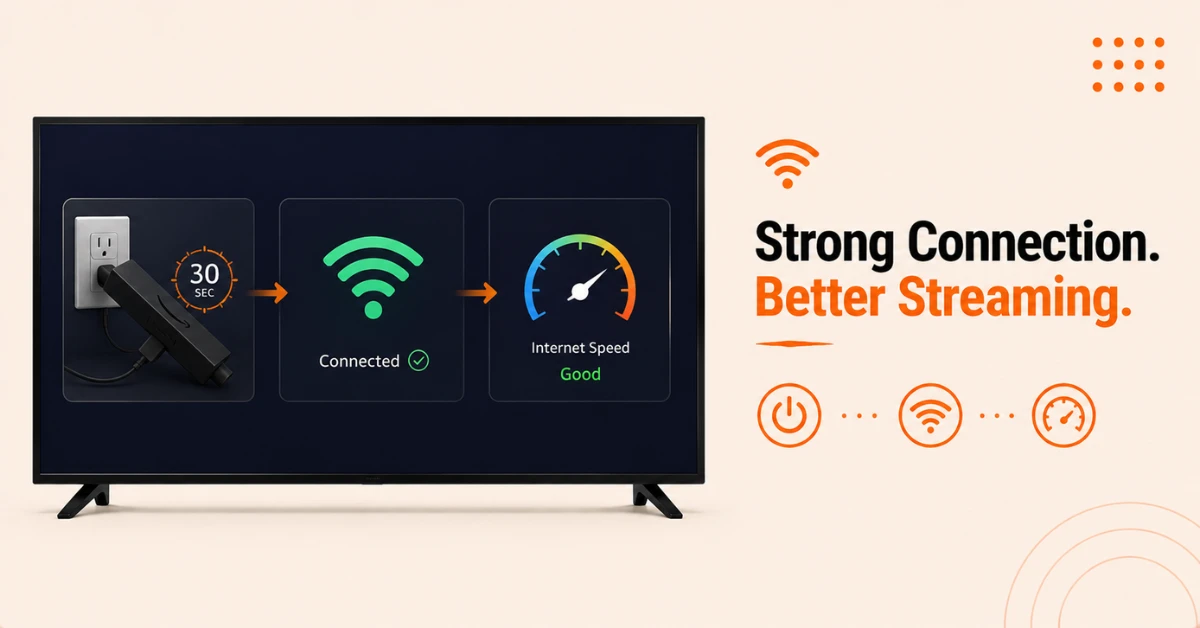
Restart Your Firestick and Check Your Internet
-
Unplug your Firestick from power, wait 30 seconds, and plug it back in
-
Go to Settings, select Network, and confirm you have a strong and stable connection
-
Open a speed test site like Speedtest.net through the Silk Browser to check your internet speed
-
A slow or unstable connection is the most common cause of buffering and streaming issues on Kodi
Step 02
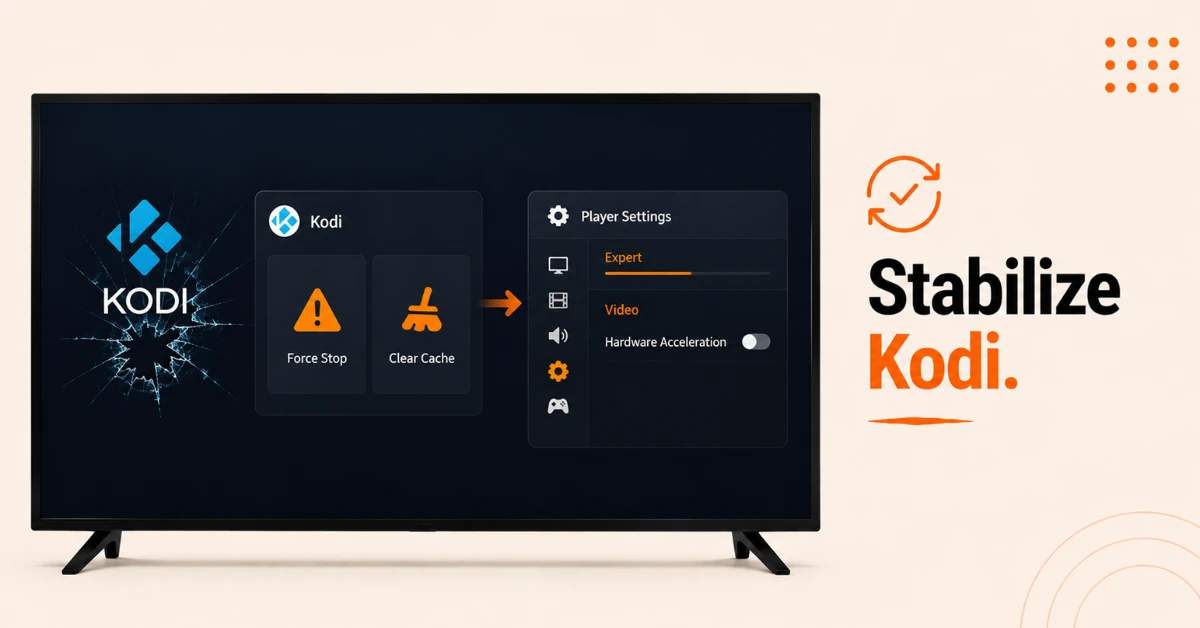
Fix Kodi Crashing or Not Opening
-
Hold the Home button on your remote and go to Settings, then Applications, then Manage Installed Applications
-
Select Kodi, click Force Stop, and then click Clear Cache
-
Relaunch Kodi and check if the issue is resolved
-
If Kodi still crashes, go to Player Settings, click the gear icon until it reads Expert, and disable Hardware Acceleration under the Video tab
Get Proton VPN — 20% Off
Step 03
Fix Buffering and Streaming Issues
-
If content keeps buffering, the issue is usually your internet speed rather than Kodi itself
-
Restart your router and reconnect your Firestick to Wi-Fi for a fresh connection
-
Go to Add-ons, select the problematic addon, scroll to Tools and select Clear Cache and Clear Providers
-
Close any background apps on your Firestick by going to Settings, then Applications, then Manage Installed Applications
Step 04
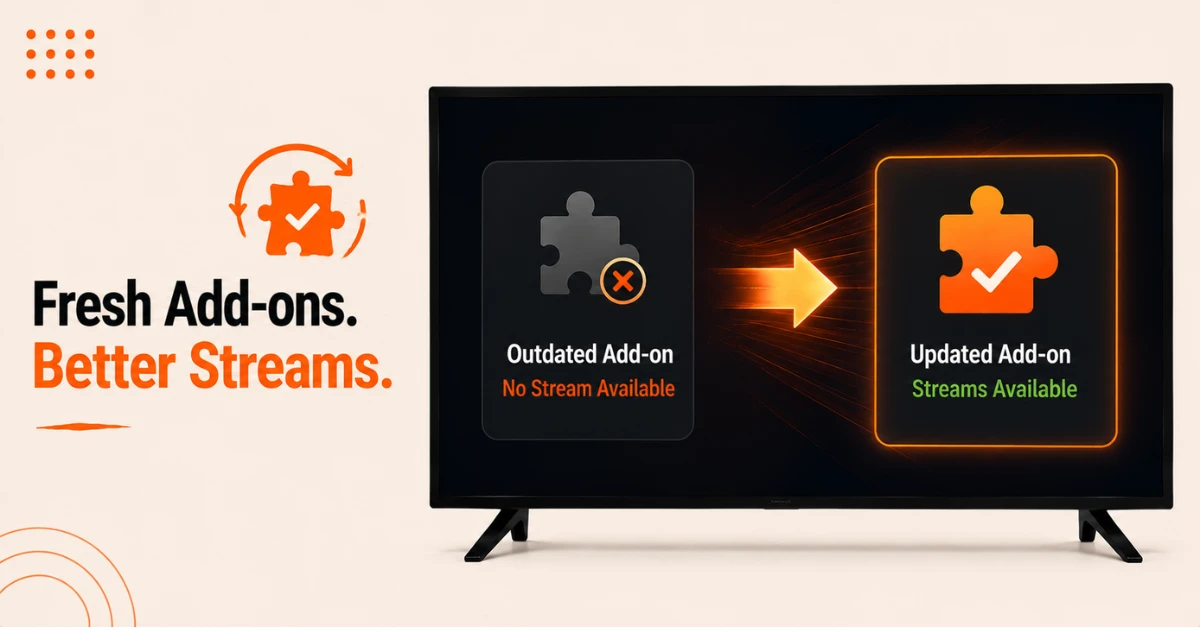
Fix Addon Errors and No Stream Available
-
If an addon shows no stream available, check that the repository URL is still active by opening it in a browser
-
Go to Add-ons, long press the addon, select Information, and click Auto Update to ensure it is on the latest version
-
Disable any repositories that are no longer active under Add-ons to prevent dependency errors
Get Proton VPN — 20% Off
Step 05
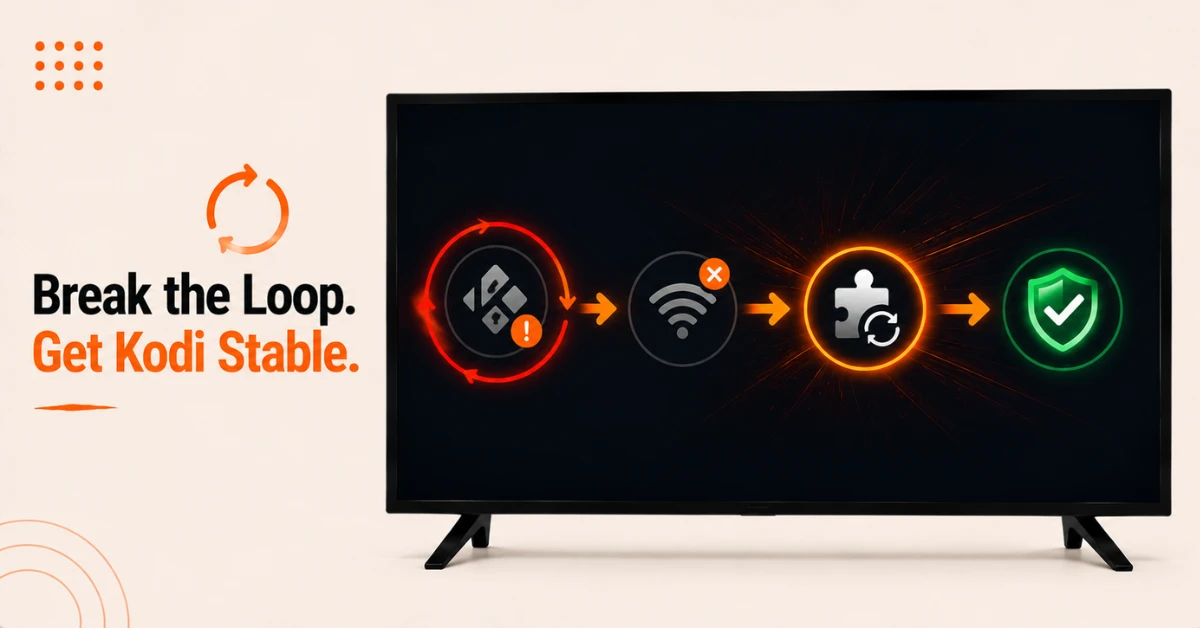
Fix Crash and Reboot Loop
-
If Kodi keeps restarting in a loop, disconnect your Firestick from the internet and open Kodi
-
If Kodi opens normally offline, the issue is with the URLResolver dependency
-
Go to Settings, then System Settings, then Add-ons, then Manage Dependencies, select URLResolver, and click Update
-
If the loop continues, uninstall addons one by one starting with the most recently installed until the issue stops
Step 06
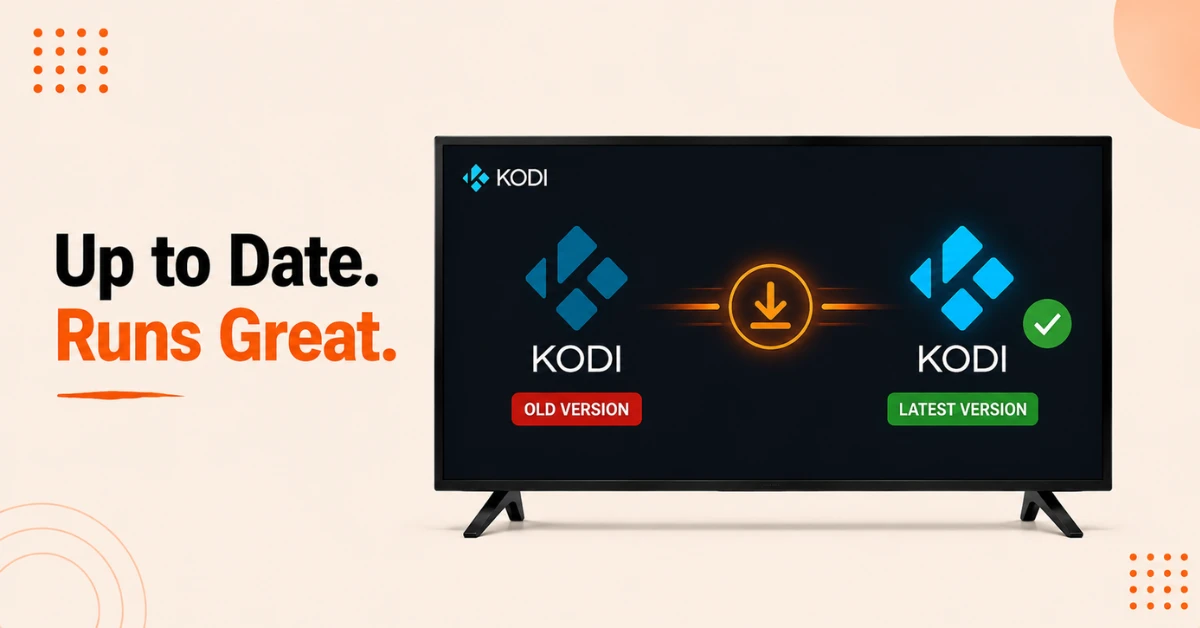
Update or Reinstall Kodi
-
Go to Settings, select My Fire TV, then About, and click Check for Updates to ensure your Fire OS is current
-
If Kodi itself needs updating, uninstall it and reinstall the latest version using the Downloader app
-
Always download from the official Kodi website to avoid corrupted or modified versions
Quick Comparison
Side-by-side comparison of top Fire Stick VPNs
| VPN | Price | Servers | Speed | Devices | Rating | Actions |
|---|---|---|---|---|---|---|
|
Proton VPN
|
$3.99/mo | 14,999+ | Blazing Fast | 7 | 4.8 | Get Deal |
 EXPRESS VPN
|
$2.79/mo | 3,000+ | Blazing Fast | 8 | 5 | Get Deal |
 NordVPN
|
$4.39/mo | 6,998+ | Blazing Fast | 8 | 4.8 | Get Deal |
|
|
$1.88/mo | 3,200+ | Blazing Fast | 8 | 4.7 | Get Deal |
 IPVanish
|
$2.49/mo | 3,100+ | Blazing Fast | 6 | 4 | Get Deal |
 PrivadoVPN
|
$1.99/mo | — | Blazing Fast | 5 | 4 | Get Deal |
Frequently Asked Questions
Why is Kodi not working on my Firestick?
Kodi not working on Firestick is usually caused by one of four things: a slow internet connection, an outdated Kodi version, a corrupted app cache, or a broken addon. Working through each of these checks in order resolves the issue in most cases.
How do I fix Kodi buffering on Firestick?
Check your internet speed at Speedtest.net and restart your router for a fresh connection. Inside Kodi, go to the problematic addon, select Tools, and clear the cache and providers to reduce buffering during playback.
Why is Kodi not loading on Fire TV?
Kodi not loading on Fire TV is usually caused by a full app cache or a hardware acceleration conflict. Clear the Kodi cache under Manage Installed Applications and disable Hardware Acceleration in Player Settings to resolve most loading issues.
Can a Kodi update fix it not working on Firestick?
Yes, running an outdated version of Kodi is a common cause of crashes and instability on Firestick. Uninstall the current version and reinstall the latest version using the Downloader app to get Kodi working again.
Why does Kodi keep freezing on Fire TV during playback?
Kodi freezing during playback on Fire TV is usually caused by insufficient cache settings or background apps consuming too much memory. Close unused apps under Manage Installed Applications and clear the Kodi cache to free up resources before playing again.
Why are my Kodi addons disappearing after a Firestick update?
A Fire OS update can sometimes reset app data which causes Kodi addons to disappear. Reinstalling the missing addons from their original repositories and ensuring Kodi itself is updated to the latest version usually resolves this issue.
Why does the Kodi app on Firestick say no stream available?
This error means Kodi cannot find a working source for the content you are trying to watch. The addon you are using may be outdated or its repository may have gone offline so check the repo URL in a browser and update or replace the addon if needed.