How to Forget a Wi-Fi Network on Firestick: Easy Wi-Fi Reset
Editor's Choice
#1 Pick
Editor's Choice
 NordVPN
$4.39/month
Save 20%
Blazing Fast
6,998+
214
8
Step by Step Instructions
Step 01

Go to Search on Fire TV
On your Fire TV home screen, select the Search (Find) option at the top.
Step 02
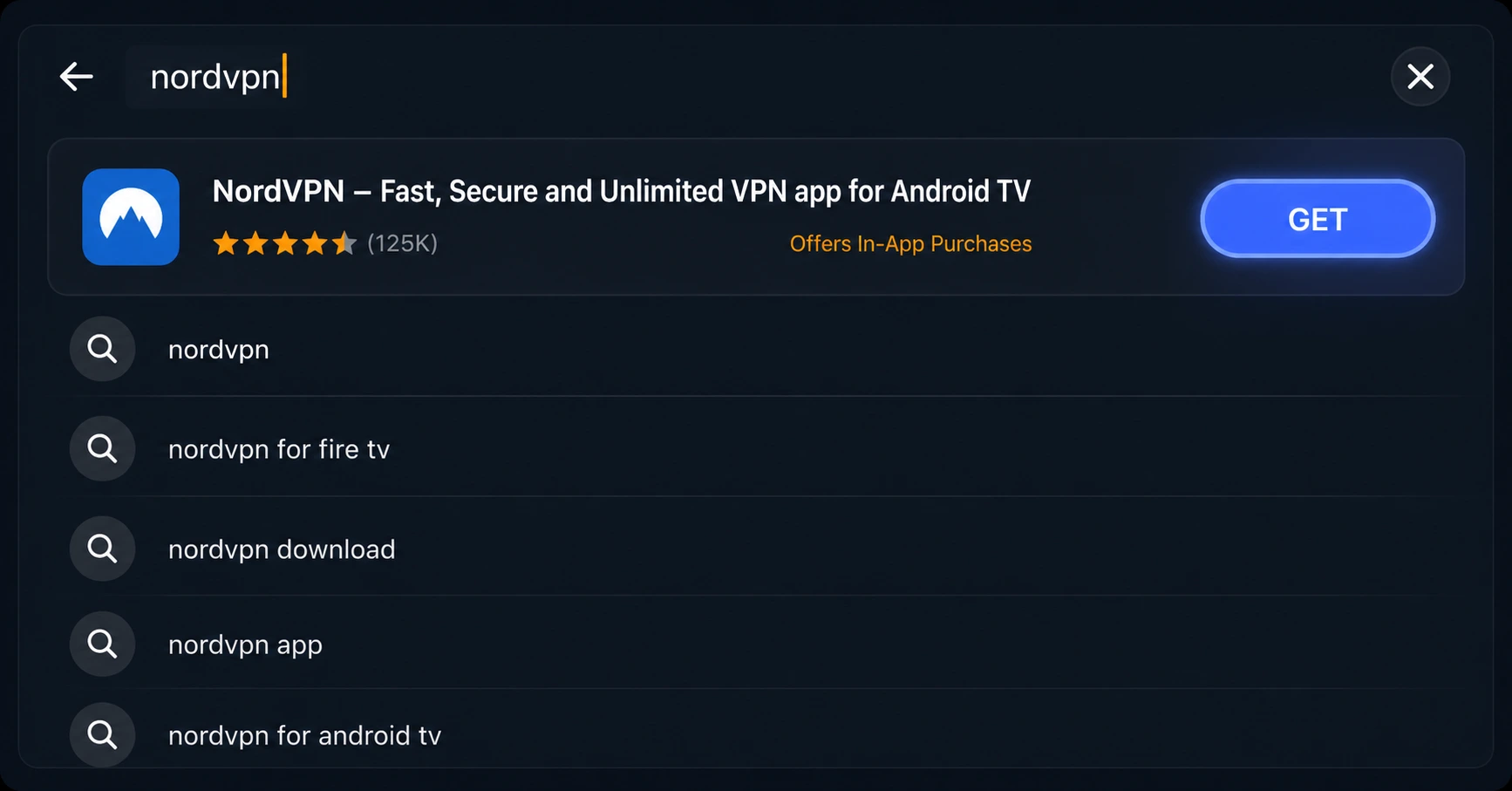
Type “NordVPN”
Use your remote to type NordVPN and choose the app when it appears in the results.
Step 03
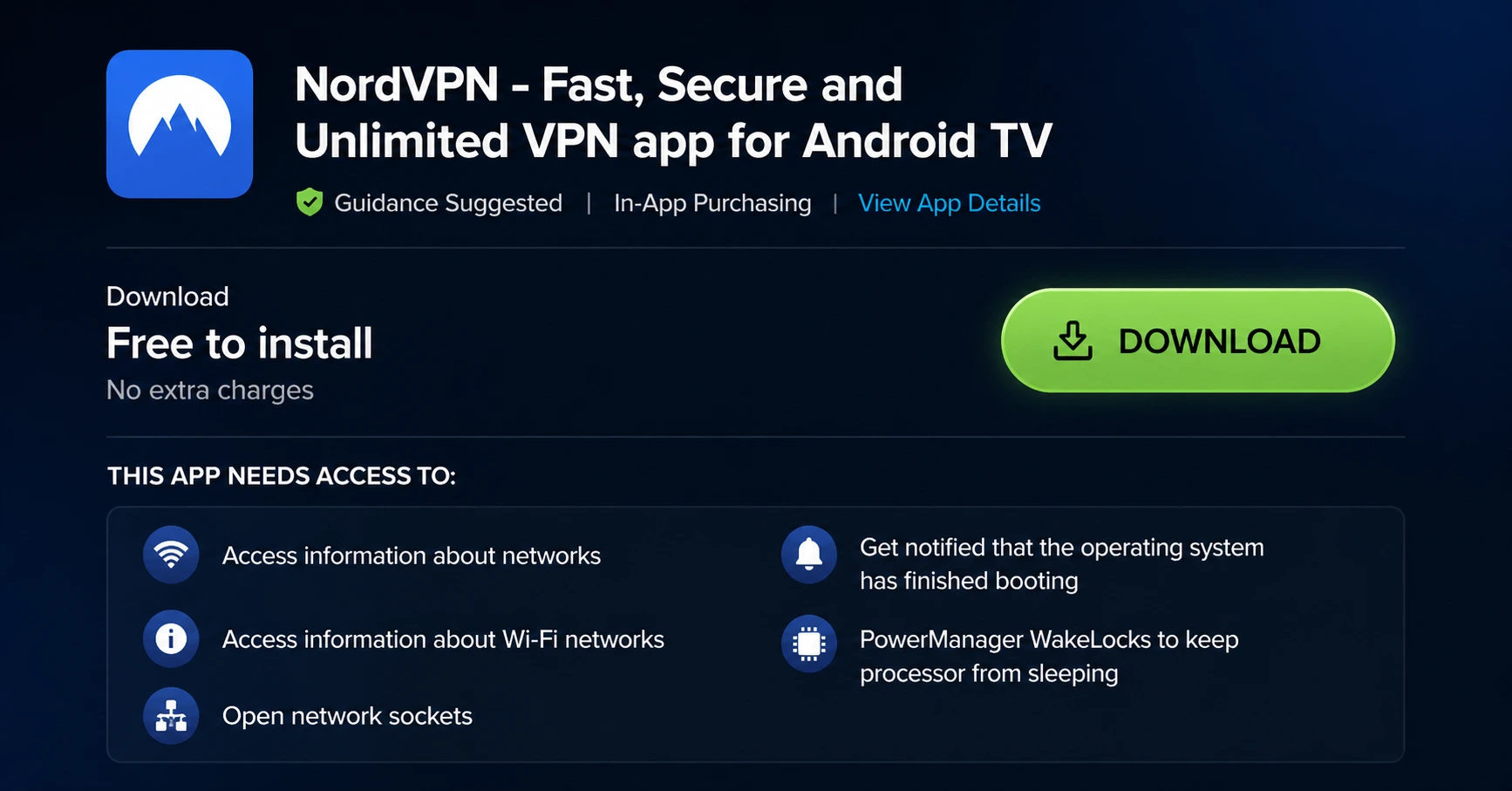
Install the App
Click on Get or Download to install NordVPN on your Fire TV.
Step 04
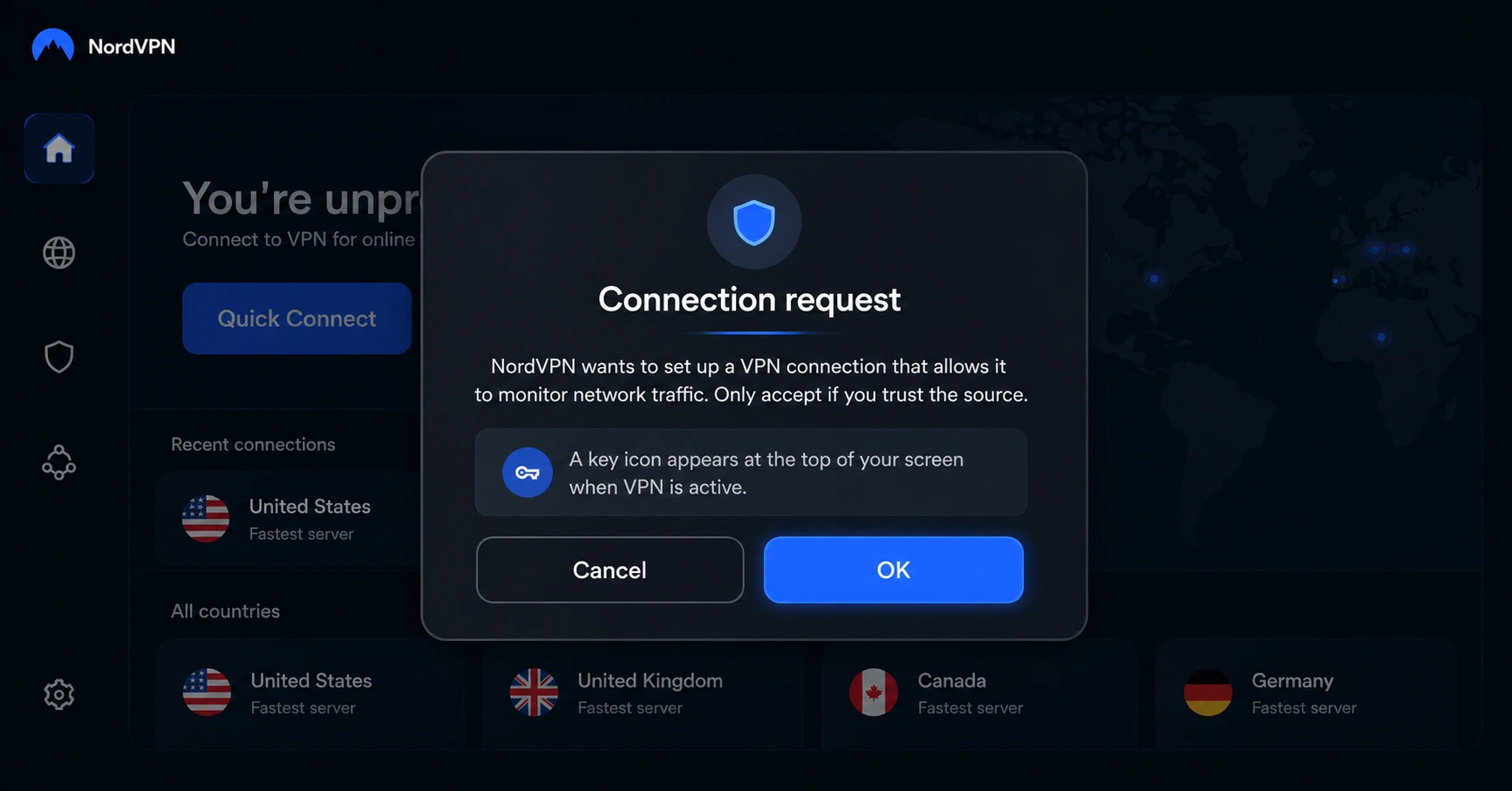
Log In & Connect
Open the app, sign in to your account, and press the connect button to start using the VPN.
How Do I Delete Saved WiFi from My Firestick?
Remove an outdated WiFi and connect to a new network in just a few simple steps.
Step 01
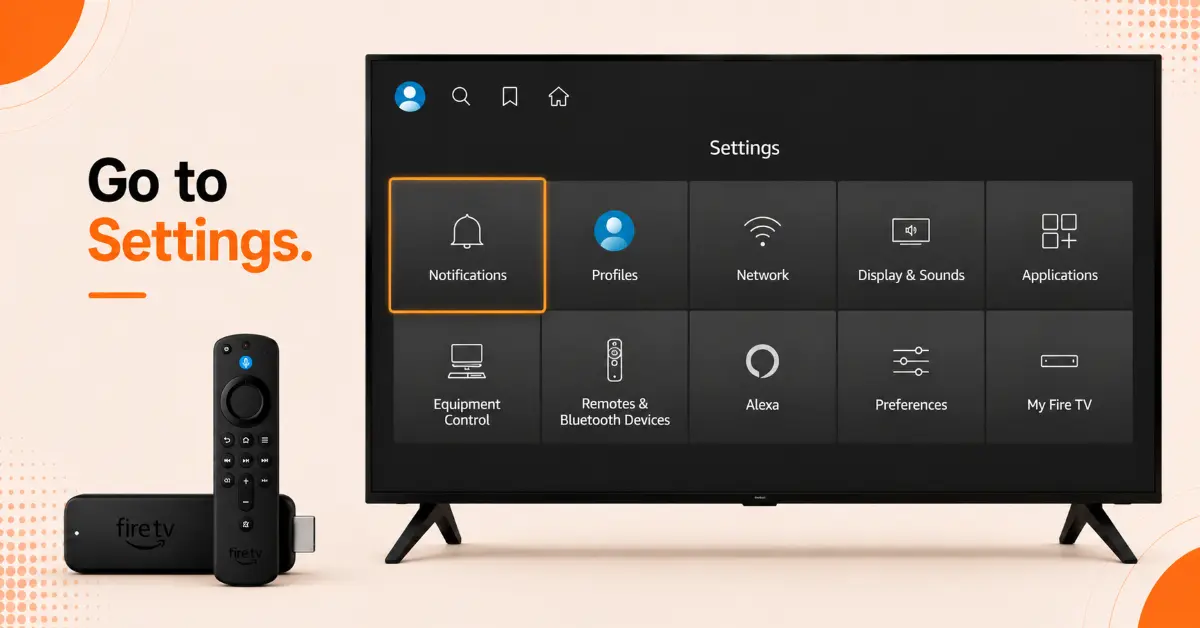
Open Firestick Settings
-
Turn on your Firestick and go to the Home screen
-
Navigate to the gear-shaped Settings icon
-
Select Settings using your Fire TV remote
-
Scroll through the available options
-
Choose Network to view your Wi-Fi settings
Step 02
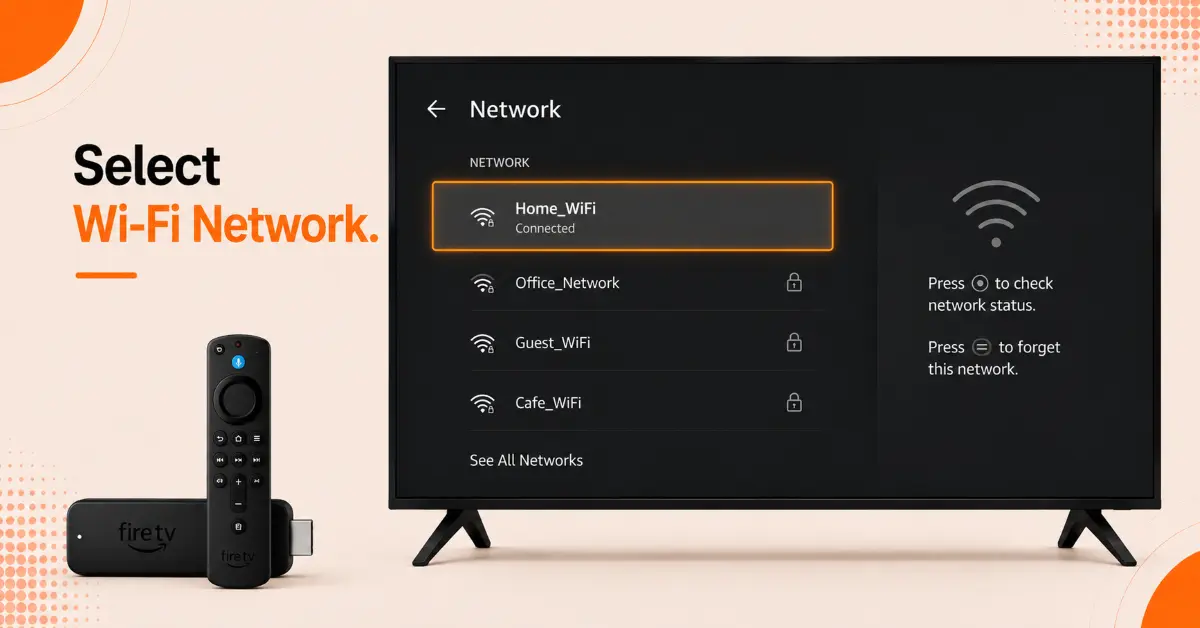
Access Saved Wi-Fi Networks
-
In the Network menu, locate your current Wi-Fi connection
-
Highlight the network name without selecting it
-
Press the Menu button (three horizontal lines) on your remote
-
Wait for additional network options to appear
-
Review the available actions for the selected network
Get NordVPN — 20% Off
Step 03
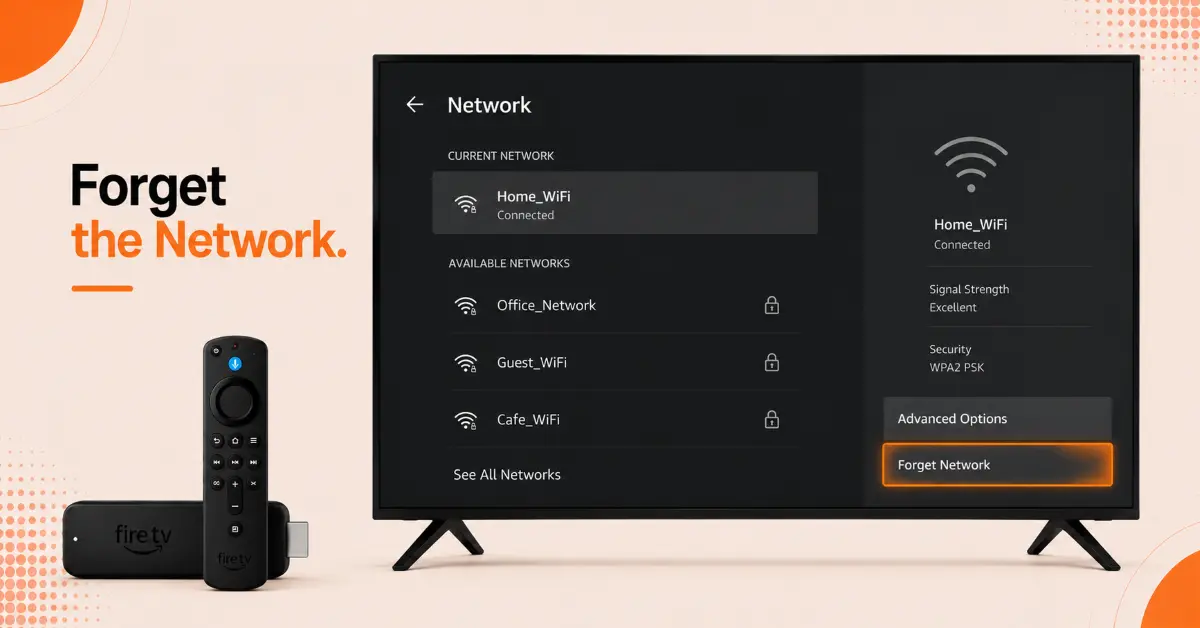
Forget the Wi-Fi Network
-
Select the Forget Network option
-
Confirm your choice if a prompt appears
-
Allow Firestick to remove the saved network details
-
Wait a few seconds for the process to complete
-
Verify that the network is no longer connected
Step 04
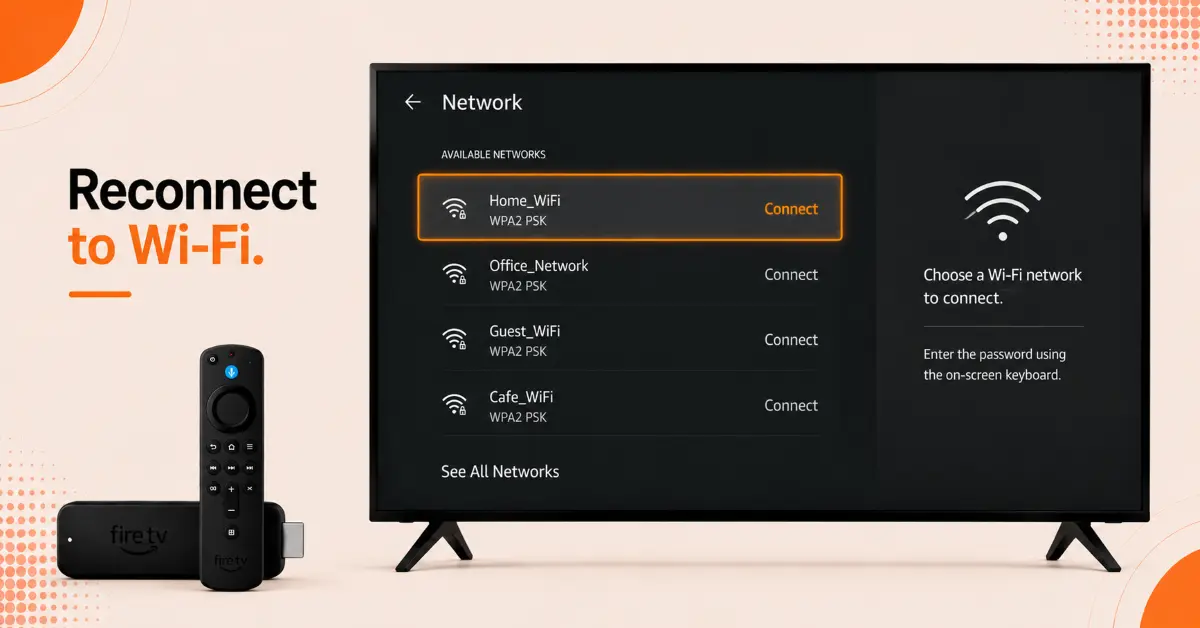
Connect to a New Wi-Fi Network
-
Stay in the Network settings menu
-
Select the new Wi-Fi network you want to use
-
Enter the network password when prompted
-
Choose Connect to establish the connection
-
Confirm that Firestick shows a successful network connection
Quick Comparison
Side-by-side comparison of top Fire Stick VPNs
| VPN | Price | Servers | Speed | Devices | Rating | Actions |
|---|---|---|---|---|---|---|
|
NordVPN
|
$4.39/mo | 6,998+ | Blazing Fast | 8 | 4.8 | Get Deal |
 EXPRESS VPN
|
$2.79/mo | 3,000+ | Blazing Fast | 8 | 5 | Get Deal |
|
|
$1.88/mo | 3,200+ | Blazing Fast | 8 | 4.7 | Get Deal |
 Proton VPN
|
$3.99/mo | 14,999+ | Blazing Fast | 7 | 4.8 | Get Deal |
 Pure VPN
|
$3.55/mo | — | Blazing Fast | 6 | 4 | Get Deal |
Frequently Asked Questions
What happens when I use the Fire TV forget network feature?
When you use the Fire TV forget feature, the device deletes all saved Wi-Fi passwords and connection details for that network.
How can I remove WiFi from Firestick without resetting the device?
You can remove WiFi from Firestick by opening the Network settings and choosing the Forget Network option. This won't affect your apps or account data.
Can I reconnect WiFi on Firestick after forgetting a network?
Yes, to reconnect WiFi on Firestick, simply select the network again from the available WiFi list and enter the password.
Why should I delete saved WiFi on Firestick?
Deleting a saved Wi-Fi network can help fix connection issues, remove outdated credentials, or allow you to switch to a different network.
Will forgetting a WiFi network on Firestick remove my streaming apps?
No, the forget WiFi network Firestick option only remove network information and does not delete apps, settings, or user profiles.
Can I remove WiFi from Firestick if I no longer know the password?
Yes, you can still remove a WiFi from firestick without knowing the password since forgetting a network only deletes the saved connections.
Does delete saved WiFi Firestick help with internet problems?
In many cases, yes. Deleting a saved network and reconnecting can resolve the authentication errors, unstable connections, and Wi-Fi glitches.