How to Install Disney+ on Firestick: Instant Guide
Editor's Choice
#1 Pick
Editor's Choice
 Surfshark
$1.88/month
Save 20%
Blazing Fast
3,200+
214
8
Step by Step Instructions
Step 01
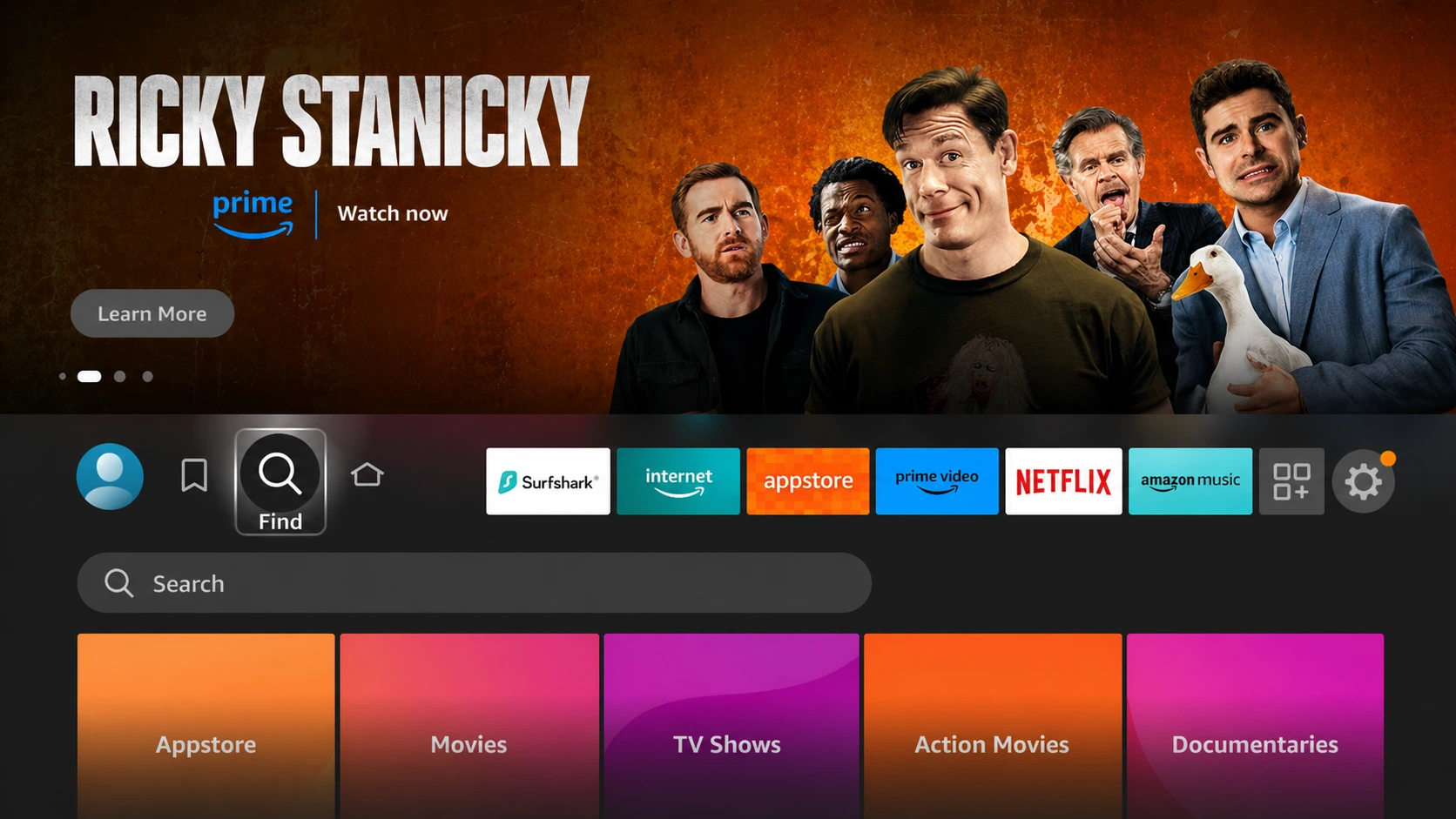
Open Search on Fire TV
From your Fire TV home screen, go to the Find (Search) option.
Step 02
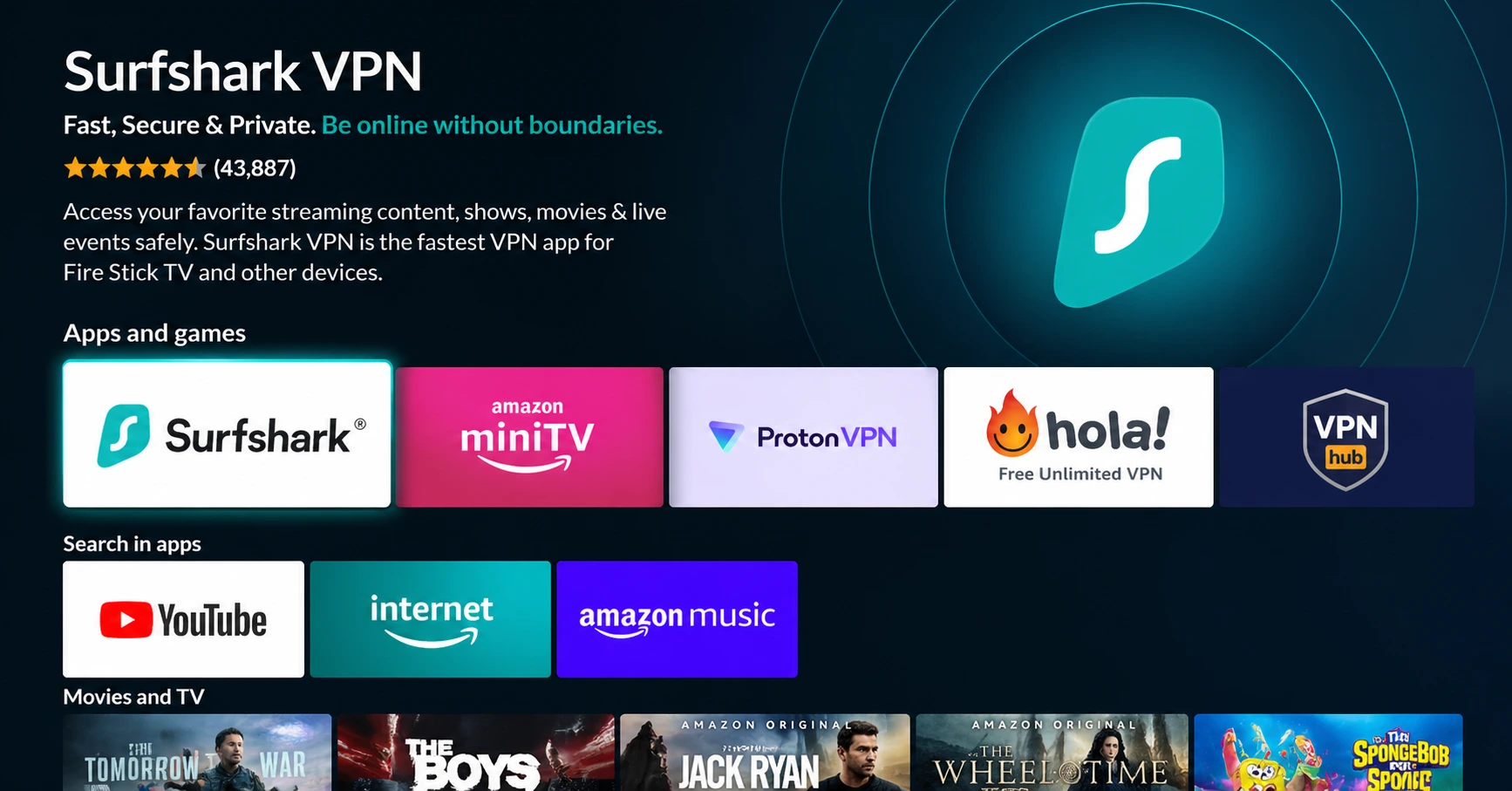
Search for Surfshark
Type Surfshark using your remote and select the app from the results.
Step 03
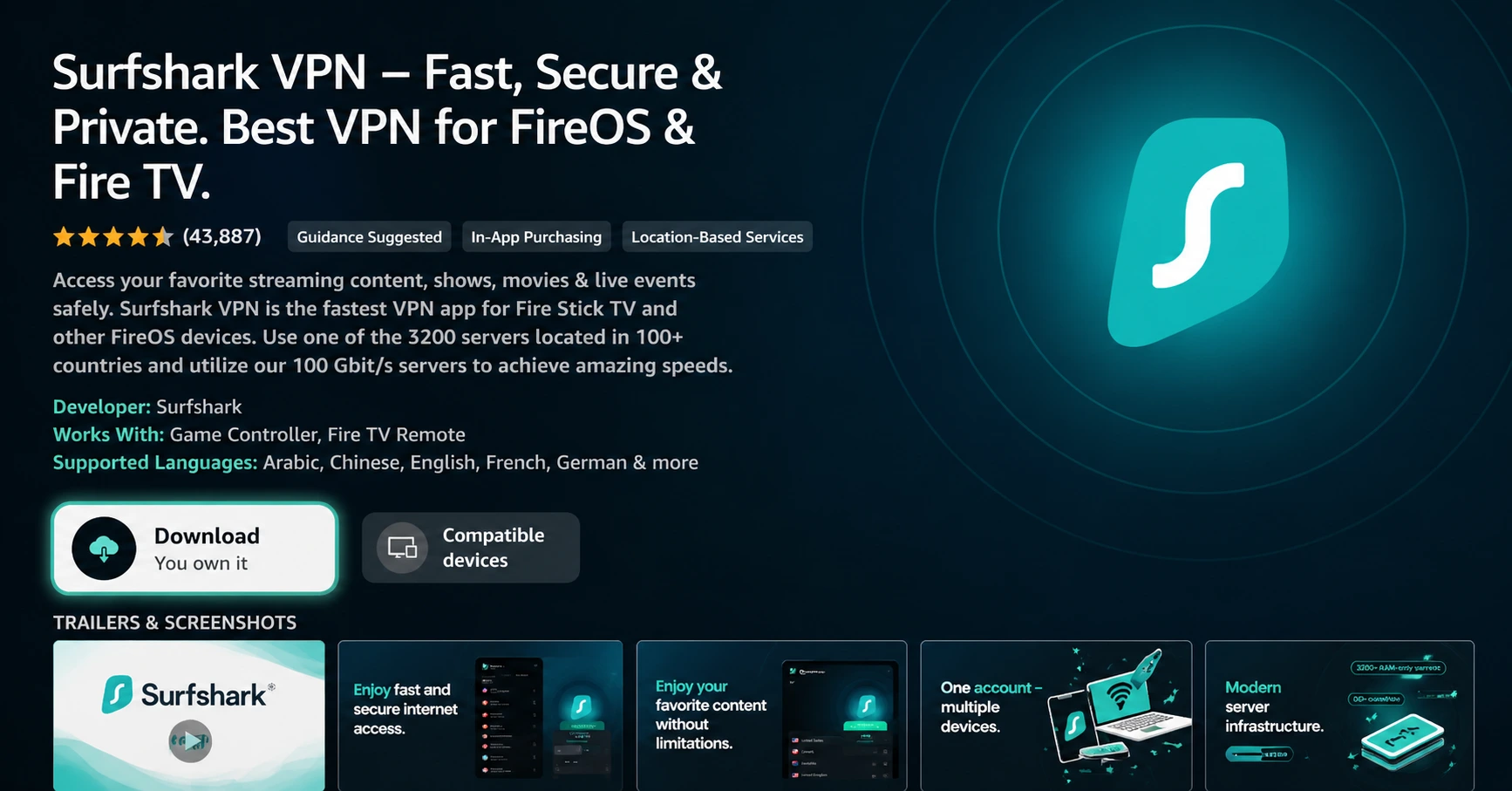
Install the App
Click on Download or Get to install Surfshark on your device.
Step 04
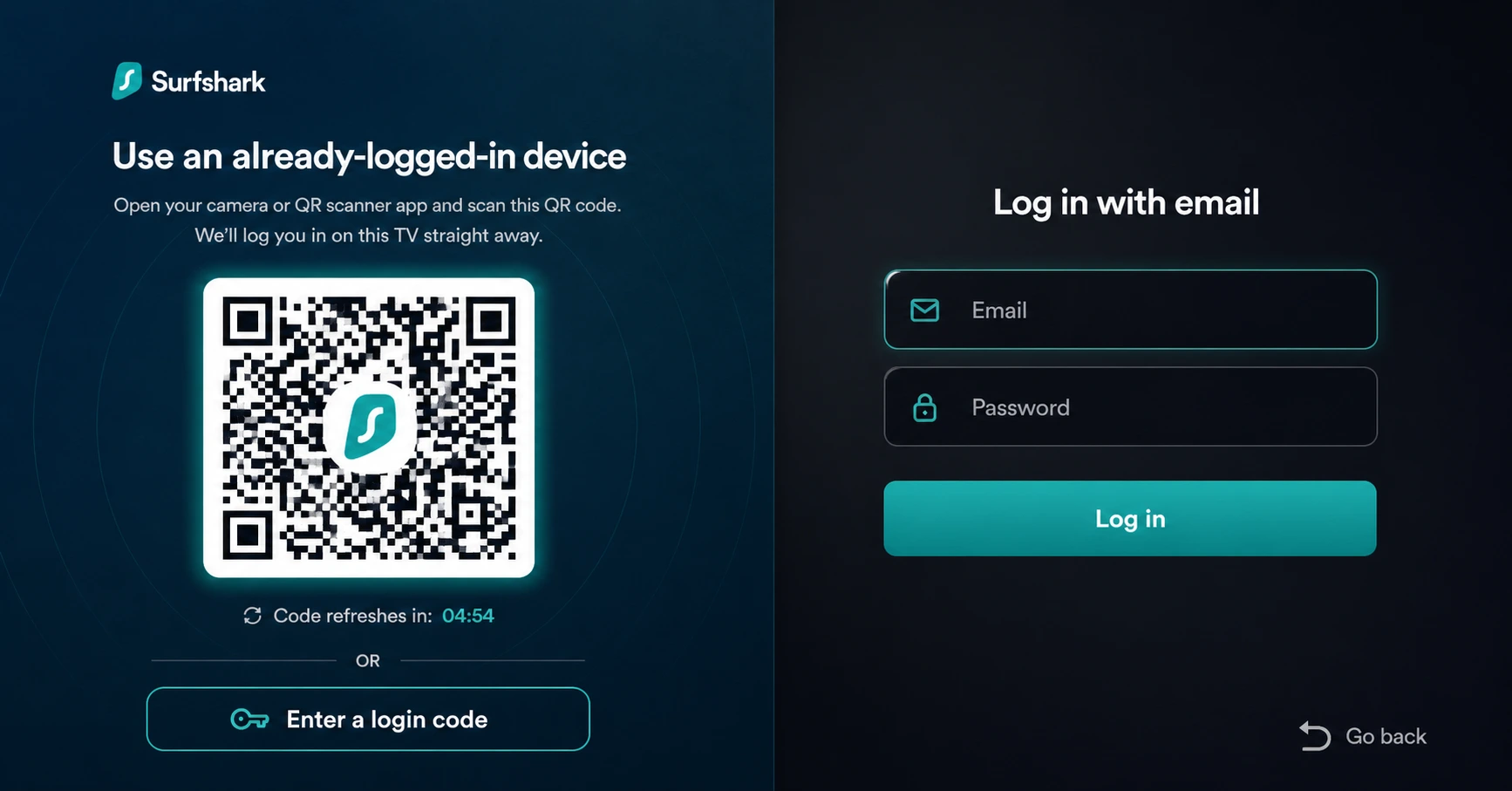
Sign In & Start VPN
Open the app, log in to your account, and connect to a server to start using the VPN.
How Do I Install Disney+ on Firestick?
Install Disney+ on Firestick in minutes & start streaming your favorite shows today.
Step 01
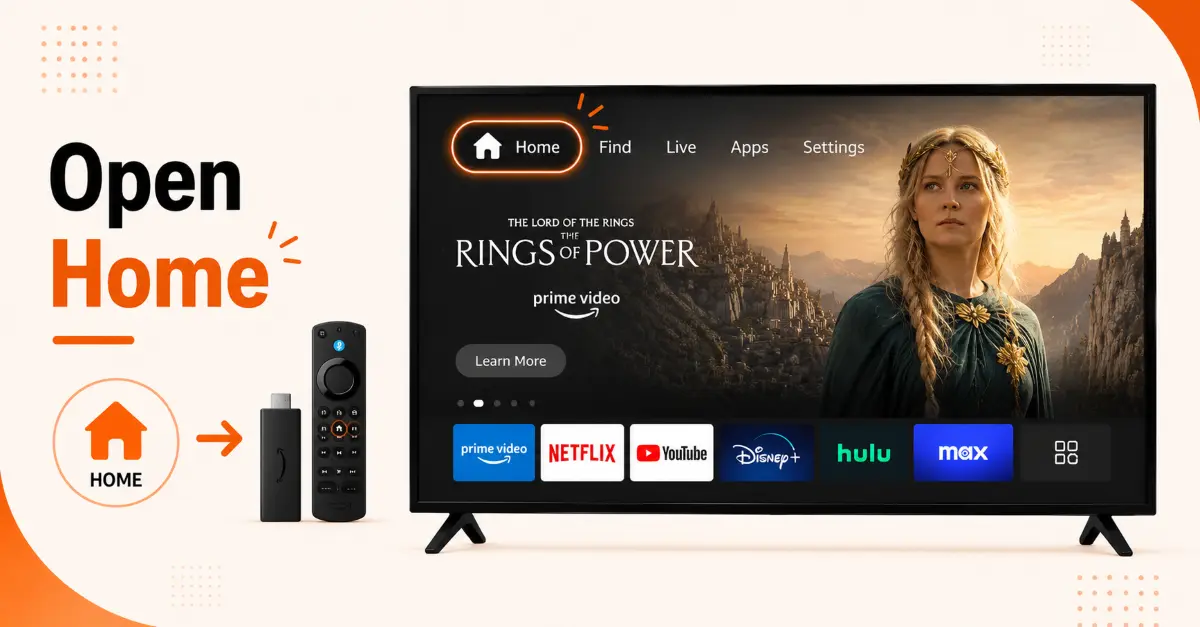
Access the Firestick Search Menu
-
Turn on your Firestick and wait for the Home screen to load
-
Make sure your Firestick is connected to a stable internet connection
-
Navigate to the top menu using your Fire TV remote
-
Select Find, then click Search
Step 02
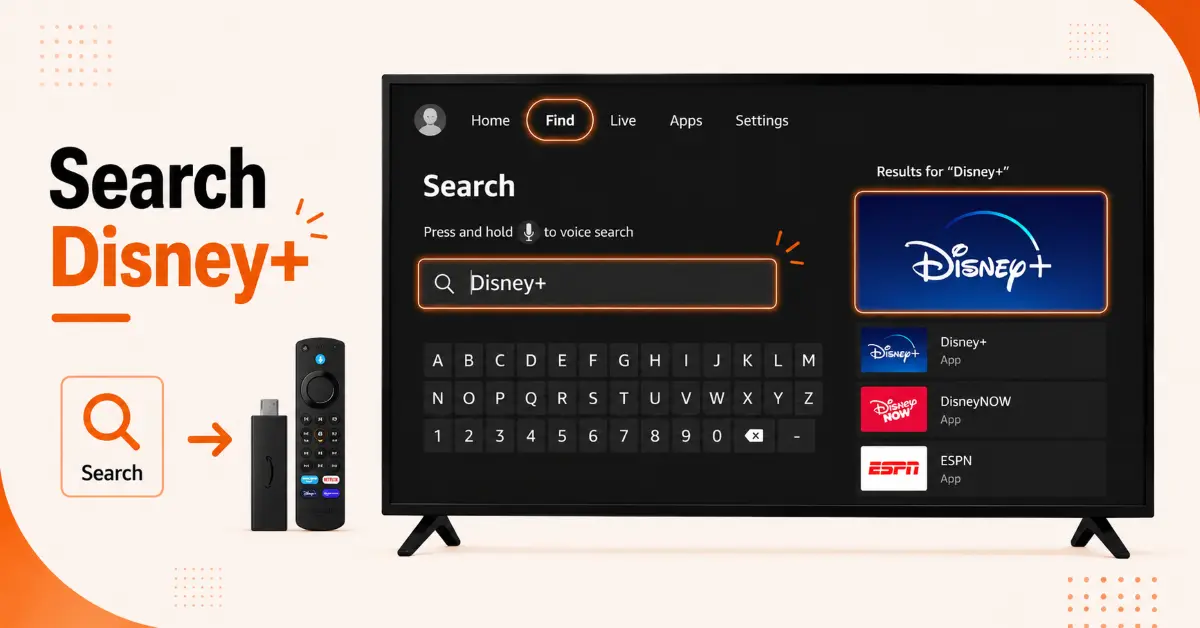
Find the Disney+ App
-
Enter Disney+ in the search bar using the remote
-
Choose Disney+ from the suggested search results
-
Open the official Disney+ app page on the Amazon App Store
-
Verify the app publisher is Disney
Get Surfshark — 20% Off
Step 03
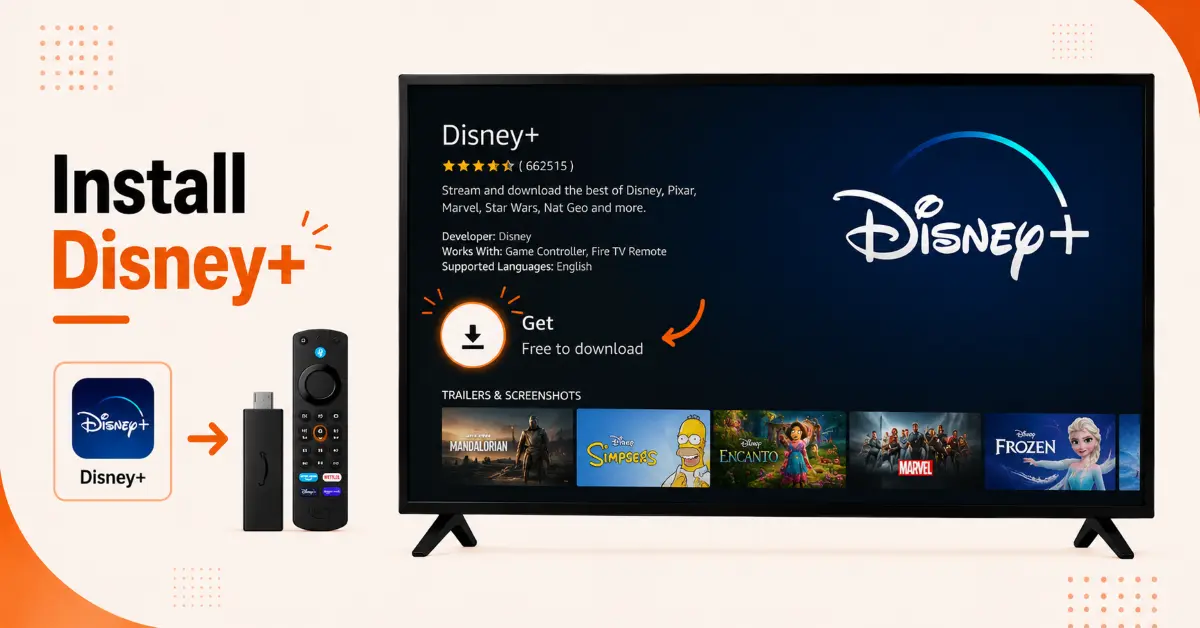
Download and Install Disney+
-
Click the Get or Download button on the app page
-
Wait while the app downloads to your Firestick
-
Allow the installation process to complete automatically
-
Select Open after the installation finishes
Step 04
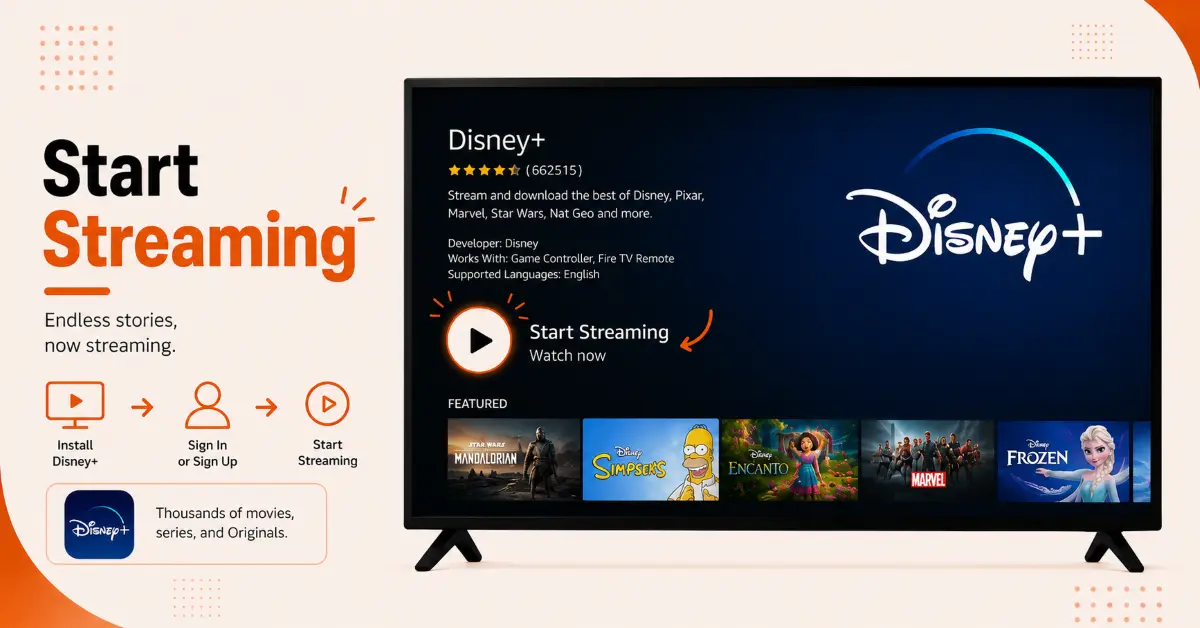
Sign In and Start Streaming
-
Launch the Disney+ app from your Apps section
-
Enter your Disney+ email address and password
-
Complete the activation process if a code appears on screen
-
Start watching movies, TV shows, and live content on Disney+
Quick Comparison
Side-by-side comparison of top Fire Stick VPNs
| VPN | Price | Servers | Speed | Devices | Rating | Actions |
|---|---|---|---|---|---|---|
|
|
$1.88/mo | 3,200+ | Blazing Fast | 8 | 4.7 | Get Deal |
 EXPRESS VPN
|
$2.79/mo | 3,000+ | Blazing Fast | 8 | 5 | Get Deal |
|
Norton VPN
|
$4.99/mo | 1,999+ | Ultra Fast | 4 | 3.8 | Get Deal |
 Pure VPN
|
$3.55/mo | — | Blazing Fast | 6 | 4 | Get Deal |
 IPVanish
|
$2.49/mo | 3,100+ | Blazing Fast | 6 | 4 | Get Deal |
Frequently Asked Questions
Can I stream Disney Plus Firestick content in 4K quality?
Yes, Firestick supports streaming content in HD and 4K on compatible devices including Fire TV Stick 4K and Fire TV Cube with a fast internet connection.
Do I need a subscription to use Disney Plus on Firestick?
Yes, you need an active subscription of Disney+ to watch movies, TV shows, Marvel content, Star war series and originals on Firestick.
Why is Disney Plus on Firestick not loading properly?
Slow internet, outdated app version, corrupted cache files, of firestick software issues are among the reasons for Firestick not loading properly.
Is Disney Plus Firestick available in every country?
Disney+ is available in most of countries, but some regions may restrict the access. Users depend on using a VPN service to access the Disney+ content in restricted regions.
Why does installing Disney+ on Fire TV Stick fail sometimes?
Installing Disney+ may fail sometimes because of low storage space, internet connection issues, or outdated Fire OS software. Try to free storage or update the device.
Can I use one Disney+ account on multiple Firestick devices?
Yes, you can enjoy streaming on multiple devices using a single account of Disney+.
Is it possible to install Disney Plus on Fire TV Stick without the Amazon App Store?
Using the APK sideloading method, it is possible to install Disney+ on Fire TV stick without the Amazon App Store.