How to Install ESPN+ on Firestick ? Simple Setup Guide
Editor's Choice
#1 Pick
Editor's Choice
 EXPRESS VPN
$2.79/month
Save 20%
Blazing Fast
3,000+
214
8
Step by Step Instructions
Step 01
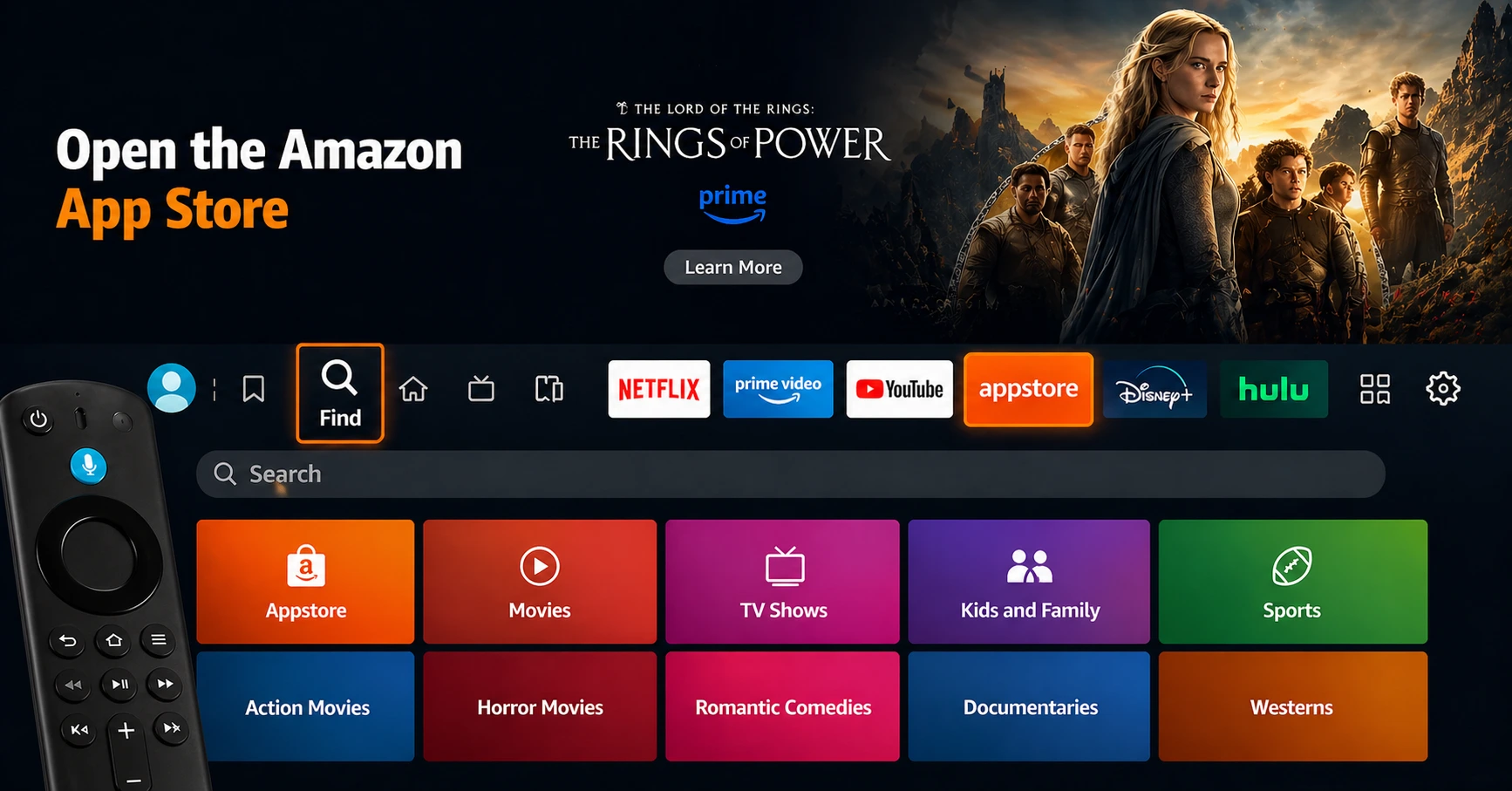
Open the Amazon App Store
From your Firestick home screen, navigate to the “Find” or search icon and open the Amazon App Store.
Step 02
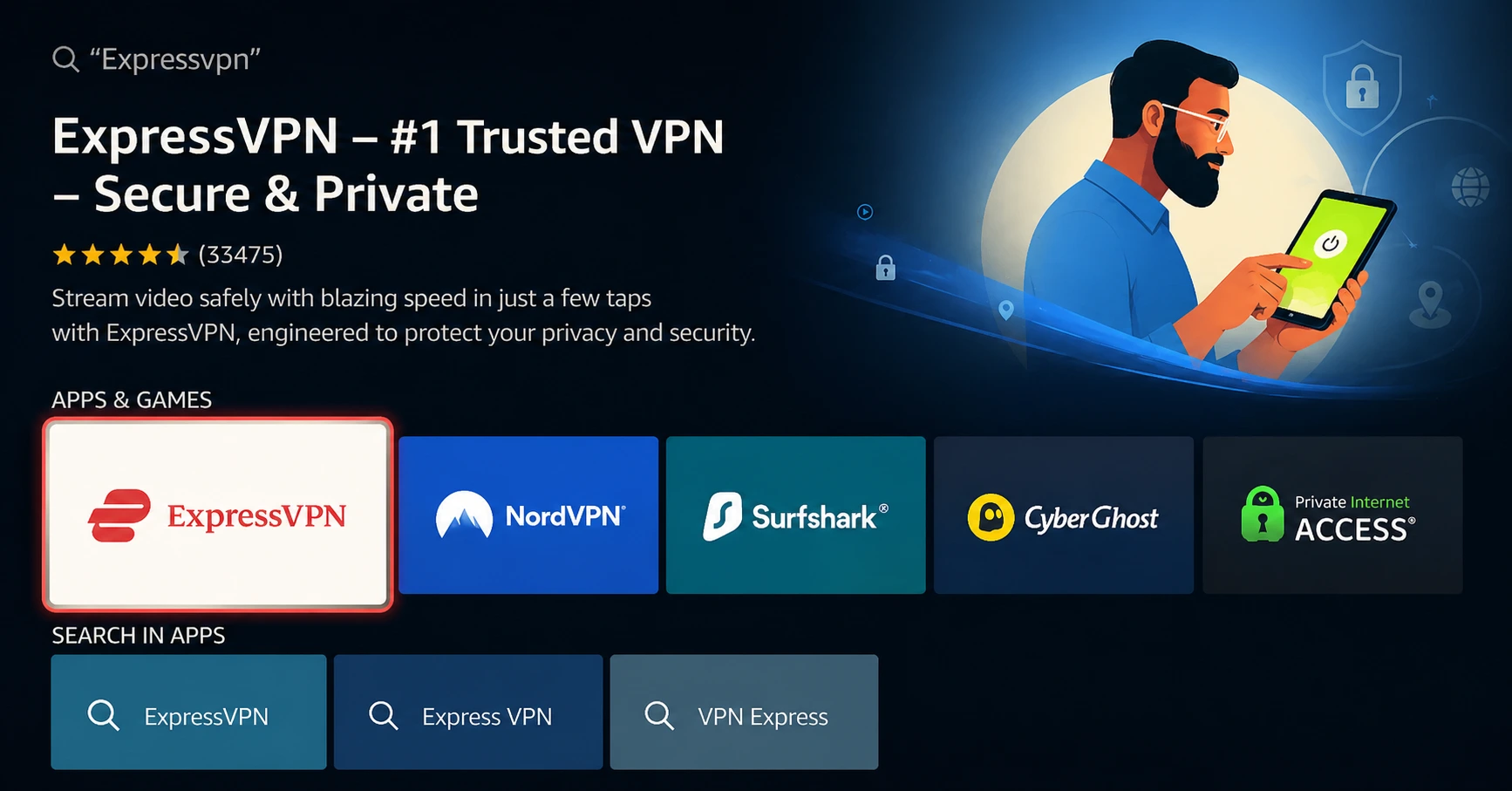
Search for ExpressVPN
Type “ExpressVPN” in the search bar using your remote. Select the official ExpressVPN app from the results.
Step 03
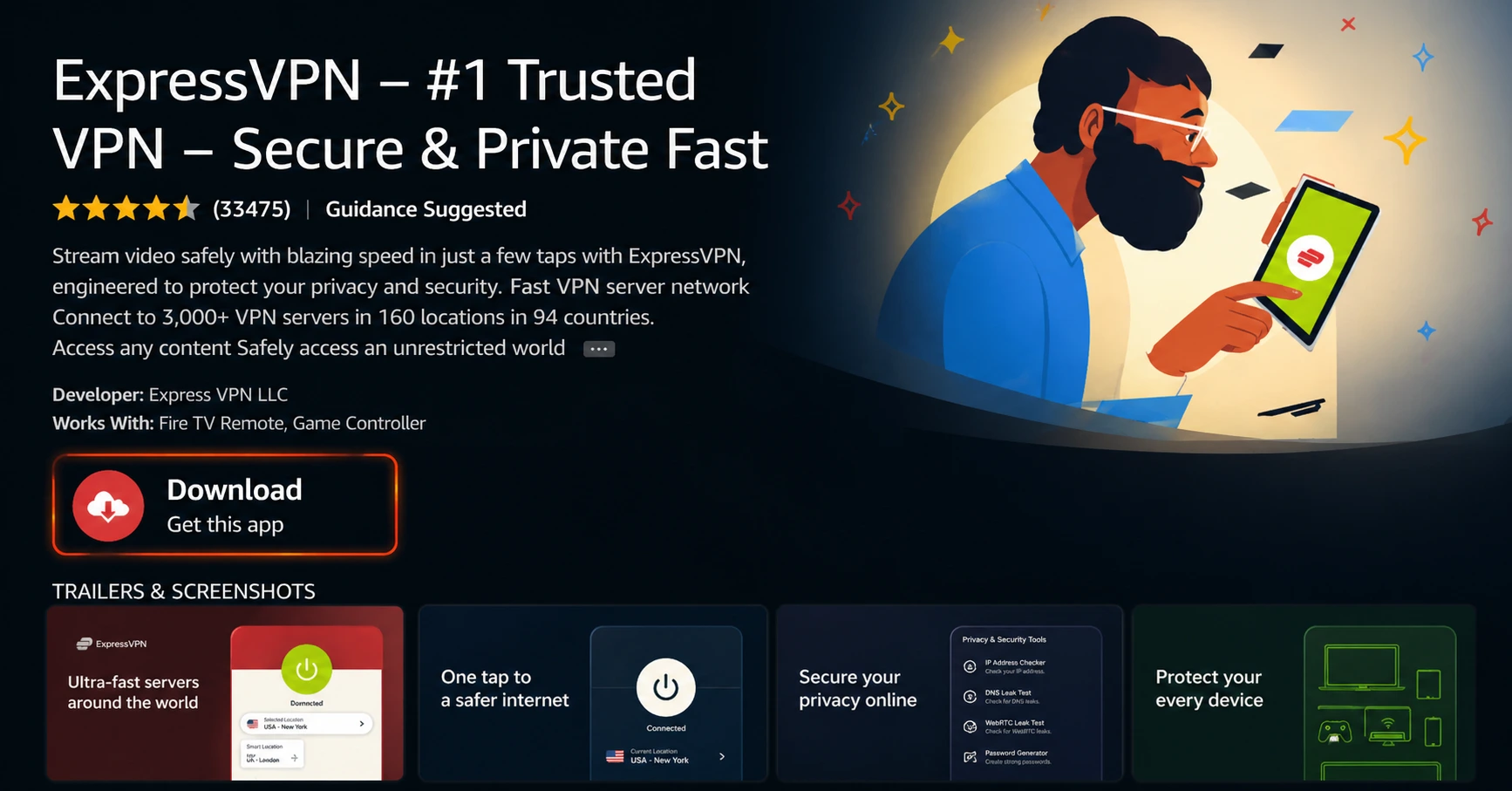
Download & Install the App
Click on the “Download” or “Get” button to install the app on your Firestick. Wait for the installation to complete.
Step 04
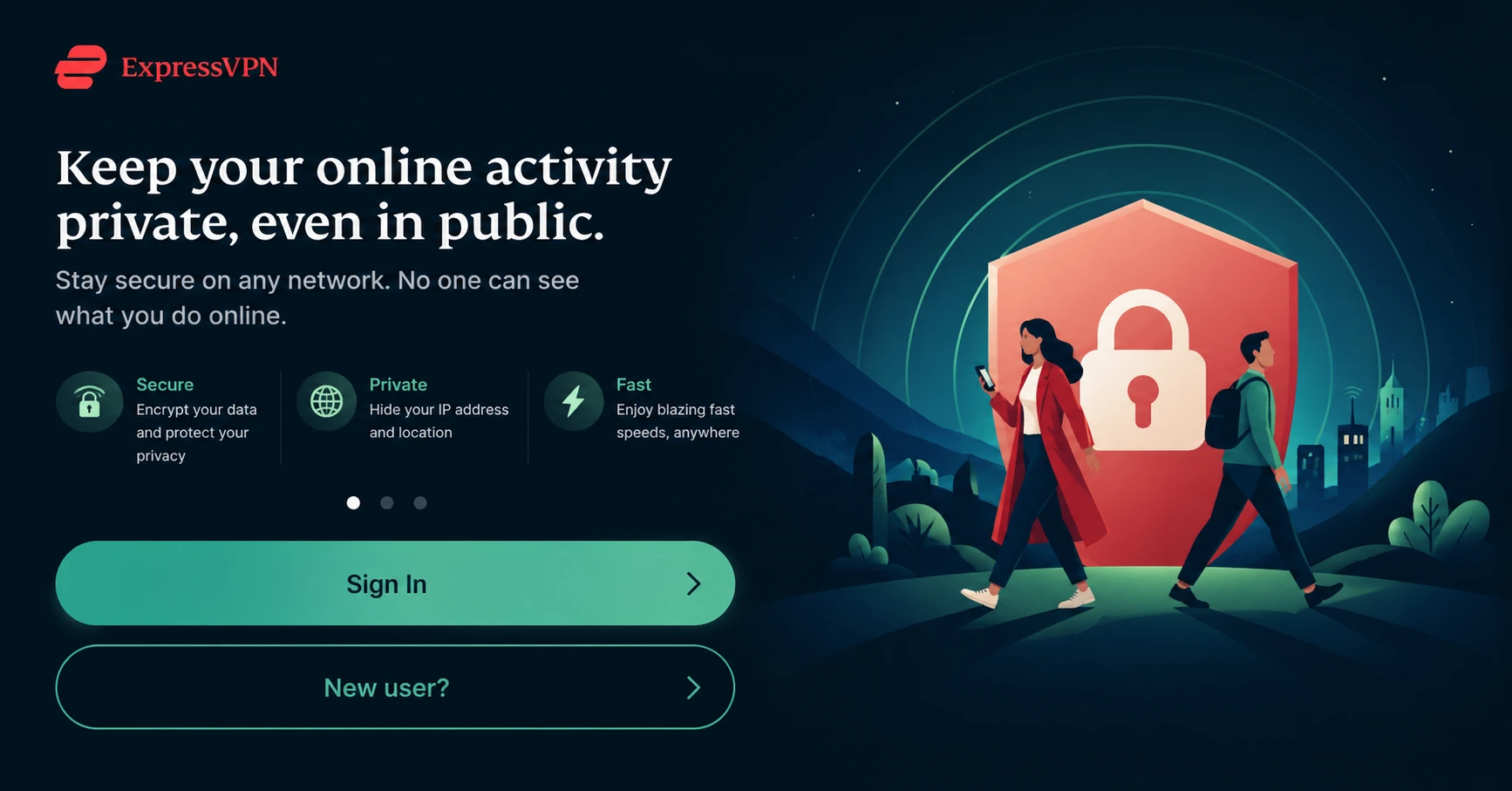
Sign In & Connect
Open the app, sign in with your ExpressVPN account, and tap the power button to connect to a server.
How to Install ESPN+ on Firestick?
A simple step-by step guide to downloading and setting up ESPN+ on your Firestick
Step 01
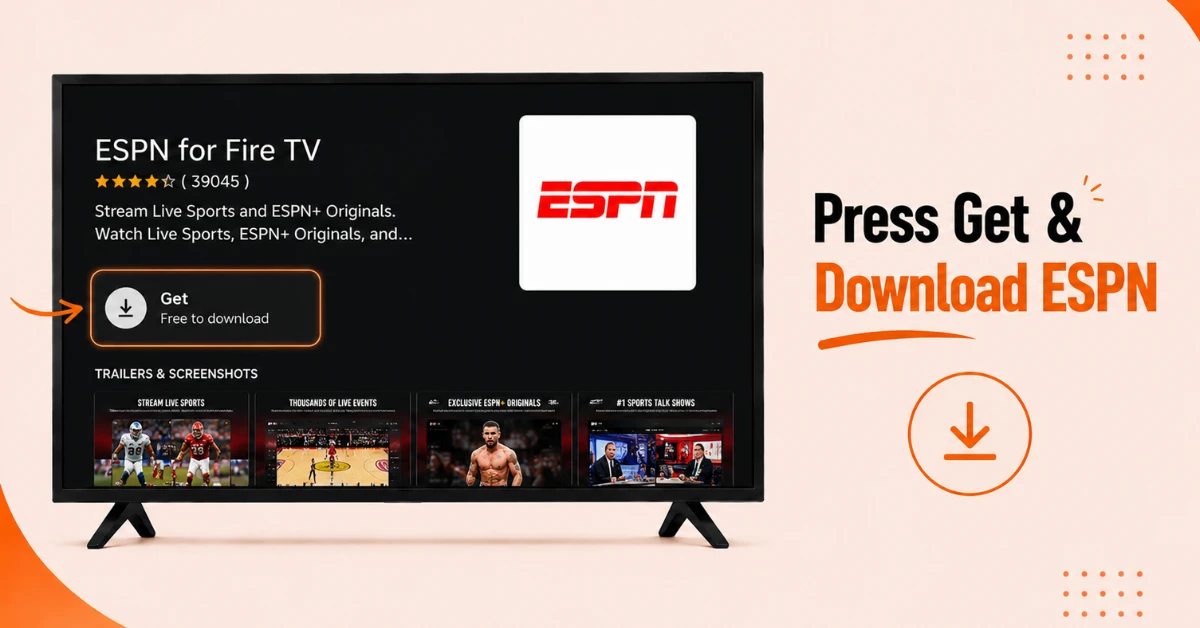
Find and Download the ESPN App
-
From the Firestick home screen, go to Find and select Search
-
Type ESPN and select ESPN for Fire TV from the list of suggestions
-
Click the ESPN for Fire TV result under Apps and Games
-
Press Get or Download to install the app on your Firestick
Step 02
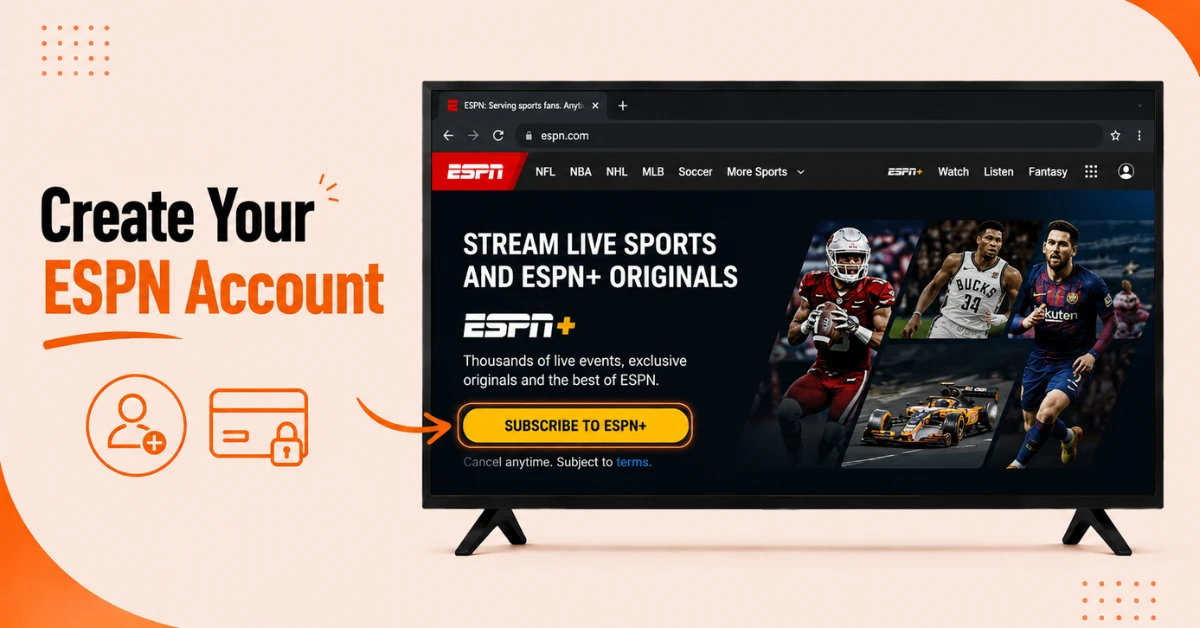
Create an ESPN Account
-
Open a browser and go to the ESPN website
-
Click Subscribe to ESPN+ and fill in your details to create an ESPN account
-
Choose your preferred plan and complete the payment process to activate your subscription
Get EXPRESS VPN — 20% Off
Step 03
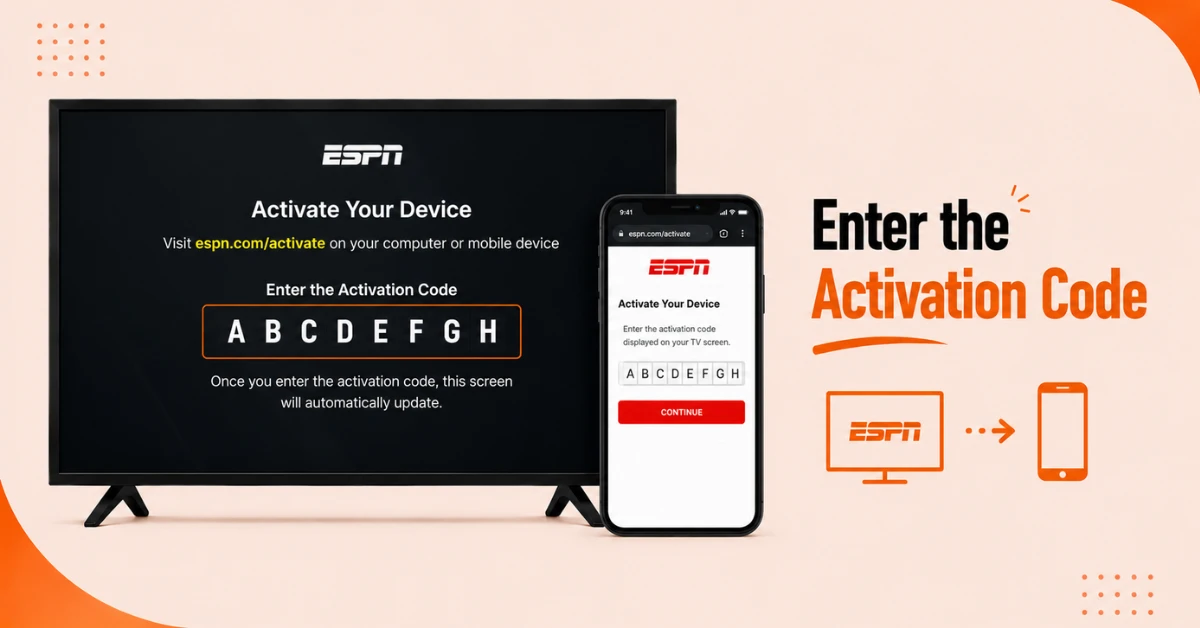
Log In to the ESPN App on Your Firestick
-
Open the ESPN app on your Firestick and go to Settings in the top right corner
-
Select Account Information, then click ESPN Account Log In
-
You will be asked to visit espn.com/activate on your phone or laptop
-
Enter the activation code shown on your Firestick screen and click Continue to complete the login
Step 04
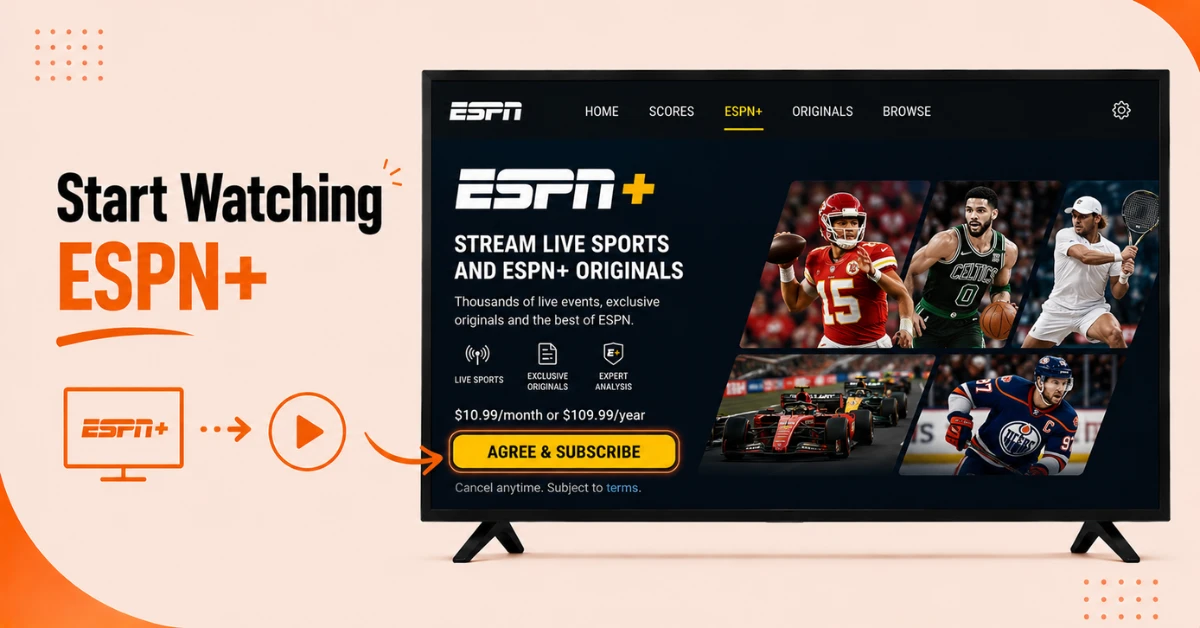
Start Watching ESPN+
-
Once logged in, go to the ESPN home screen and select the ESPN+ tab at the top
-
Select Sign Up Now if you have not subscribed yet
-
Start streaming live sports on your Firestick
Quick Comparison
Side-by-side comparison of top Fire Stick VPNs
| VPN | Price | Servers | Speed | Devices | Rating | Actions |
|---|---|---|---|---|---|---|
|
EXPRESS VPN
|
$2.79/mo | 3,000+ | Blazing Fast | 8 | 5 | Get Deal |
 NordVPN
|
$4.39/mo | 6,998+ | Blazing Fast | 8 | 4.8 | Get Deal |
 Proton VPN
|
$3.99/mo | 14,999+ | Blazing Fast | 7 | 4.8 | Get Deal |
|
|
$1.88/mo | 3,200+ | Blazing Fast | 8 | 4.7 | Get Deal |
 Pure VPN
|
$3.55/mo | — | Blazing Fast | 6 | 4 | Get Deal |
 PrivadoVPN
|
$1.99/mo | — | Blazing Fast | 5 | 4 | Get Deal |
Frequently Asked Questions
Is ESPN+ free to install on Firestick?
The ESPN app is free to download on Firestick from the Amazon App Store. However an ESPN+ subscription is required to access premium content like live sports, UFC, and NFL games.
How do I activate ESPN+ on Firestick?
Open the ESPN app on your Firestick, go to Settings, select Account Information, then ESPN Account Log In. You will be directed to visit espn.com/activate on a browser where you enter the activation code shown on your Firestick screen to complete the login.
Can I get the Disney Bundle when installing ESPN+ on Fire TV Stick?
Yes, when signing up for ESPN+ you can choose the Disney Bundle which includes ESPN+, Hulu, and Disney+ under one subscription. This option is available on the ESPN website during the sign up process and gives you access to all three services on your Fire TV Stick.
Can I install ESPN+ on any Fire TV Stick model?
Yes, ESPN+ can be installed on all major Fire TV Stick models including Fire TV Stick Lite, Fire TV Stick 4K, Fire TV Stick 4K Max, and Fire TV Cube. As long as your device can access the Amazon App Store the installation process is the same across all models.
Can I watch ESPN+ on Firestick and another device at the same time?
Yes, ESPN+ allows streaming on multiple devices simultaneously depending on your subscription plan. You can watch on your Firestick and another device at the same time without any interruption to either stream.
Does ESPN+ on Firestick support 4K streaming?
Yes, ESPN+ on Firestick supports 4K streaming for select live events. A Fire TV Stick 4K or Fire TV Stick 4K Max is recommended along with a stable internet connection of at least 25 Mbps for the best viewing experience.
What sports can I watch on ESPN+ on Firestick?
With ESPN+ on Firestick you can watch live NFL, NBA, NHL, MLB, UFC, college sports, and exclusive ESPN+ originals. The service also includes on demand replays and sports documentaries from the ESPN library.