How to Install STV Player on Firestick? Easy Setup Guide
Editor's Choice
#1 Pick
Editor's Choice
 Proton VPN
$3.99/month
Save 20%
Blazing Fast
14,999+
214
7
Step by Step Instructions
Step 01
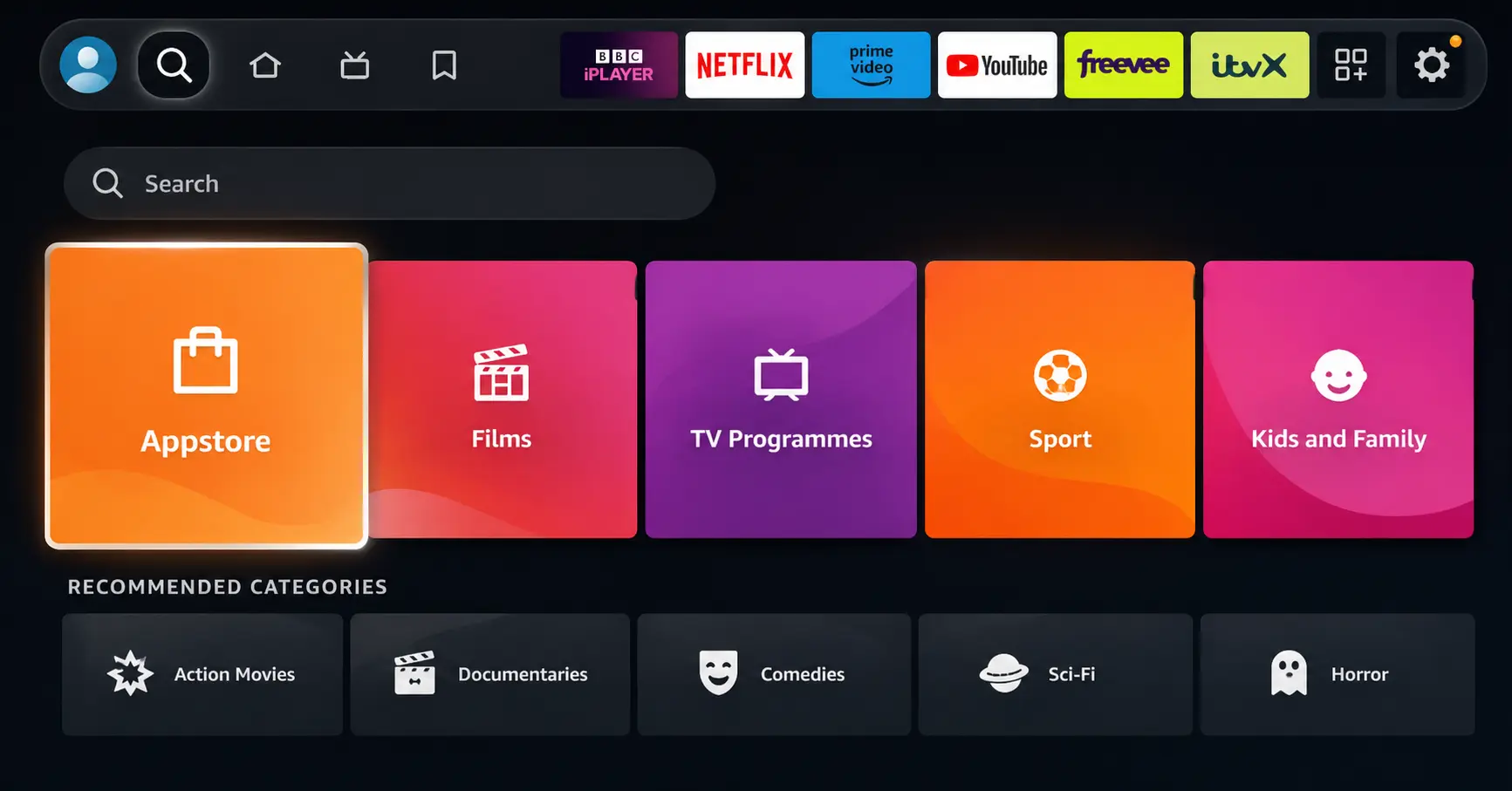
Open Search on Fire TV
Go to the Find (Search) option from your Fire TV home screen.
Step 02
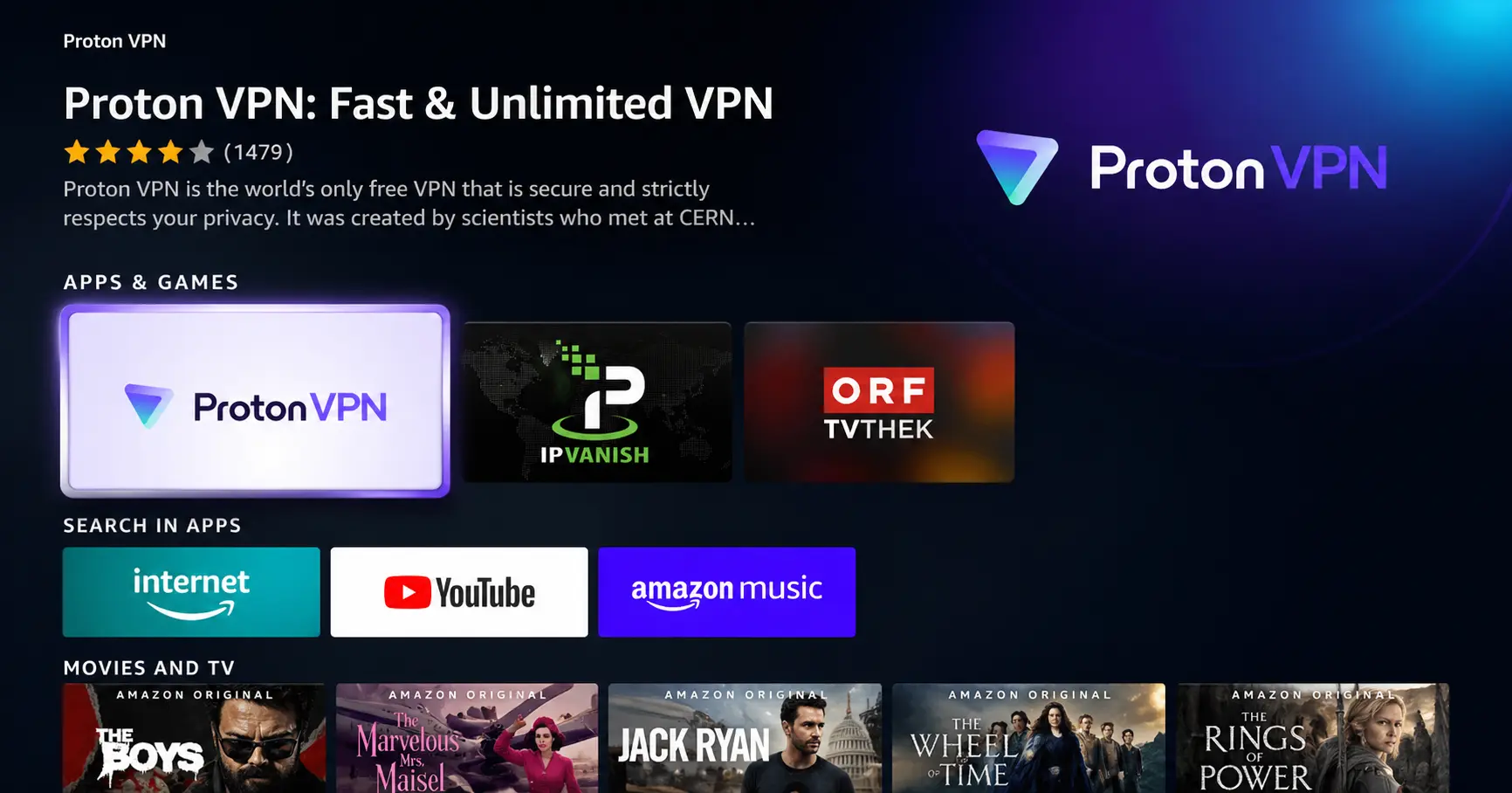
Search for ProtonVPN
Type ProtonVPN using your remote and select the app from the results.
Step 03
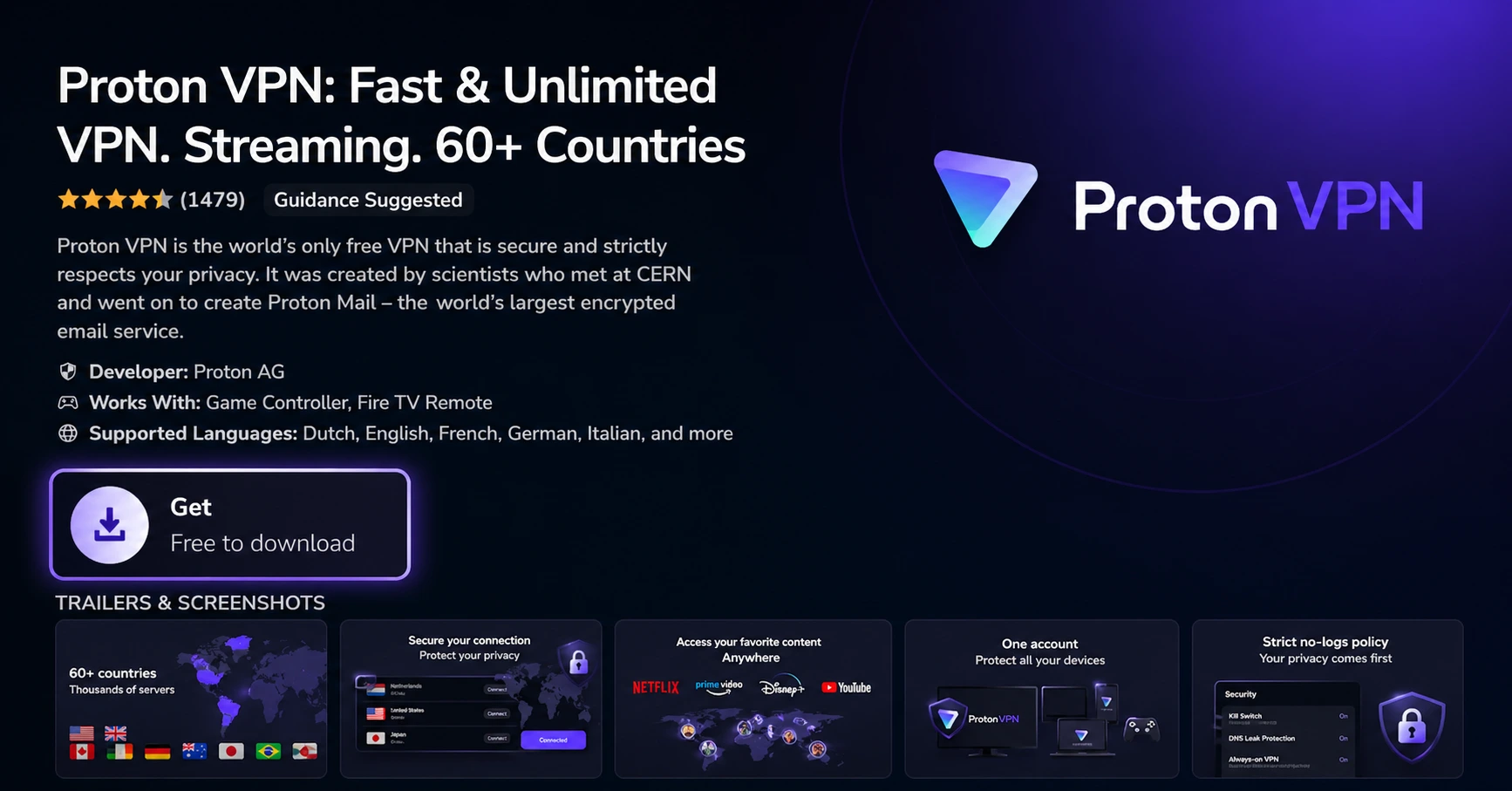
Install the App
Click on Get or Download to install ProtonVPN on your Fire TV.
Step 04
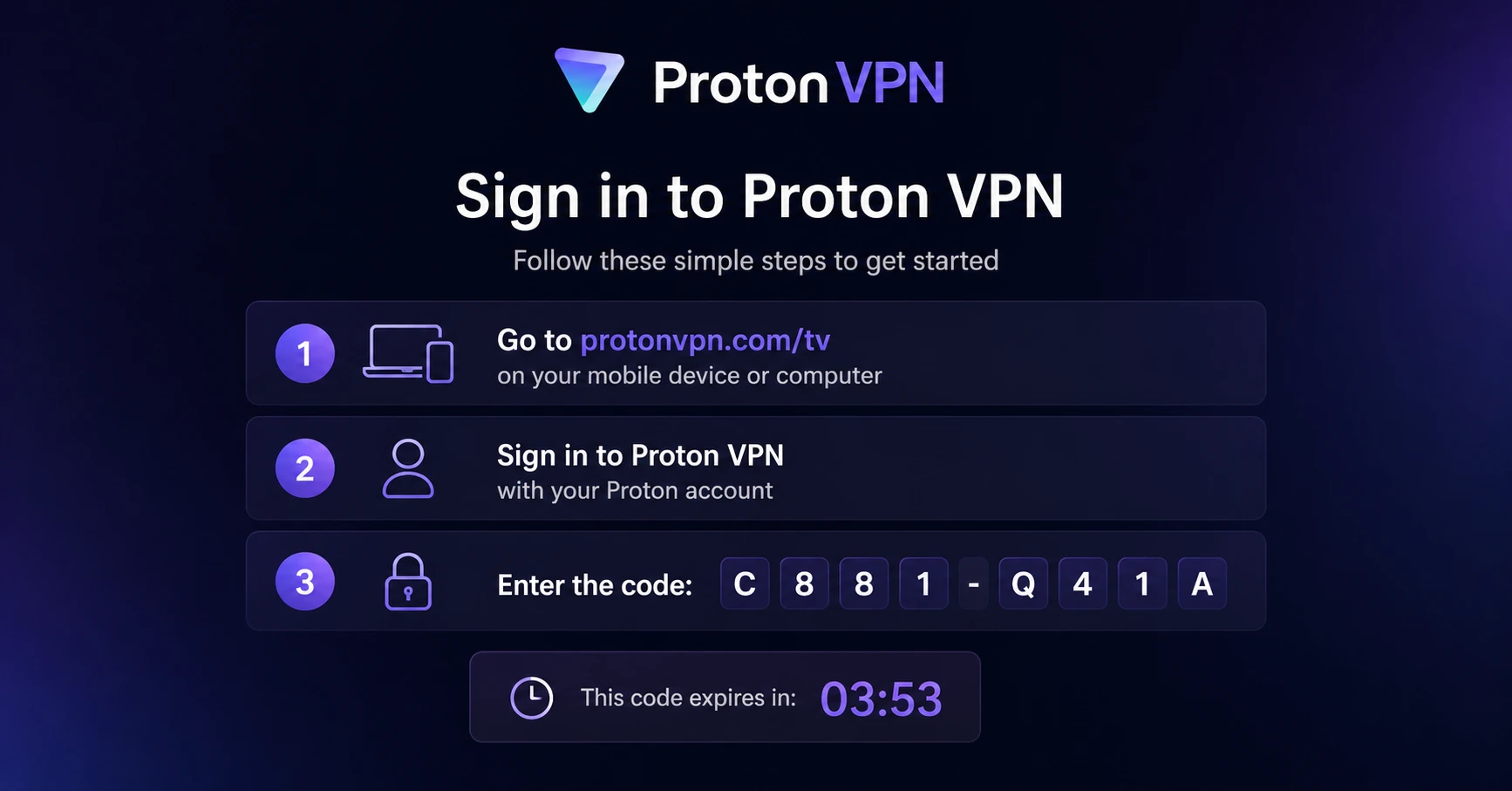
Sign In & Connect
Open the app, sign in using your Proton account (QR or code method), and connect to a server.
How to Install STV Player on Firestick?
Step by step instructions to Streaming Free Scottish and UK Television on Firestick With STV Player
Step 01
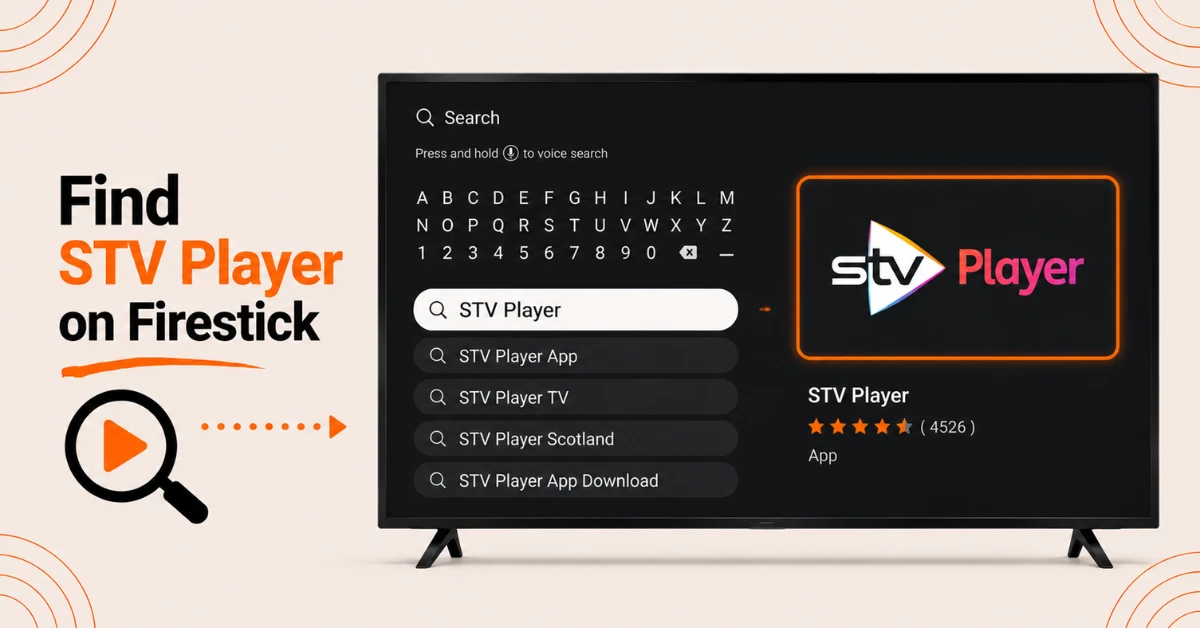
Search for STV Player on the Firestick
-
From the Firestick home screen select Find and then the Search icon
-
Enter STV Player using the on-screen keyboard and select the app from the search recommendations
-
Confirm the correct official STV Player app is selected before proceeding
Step 02
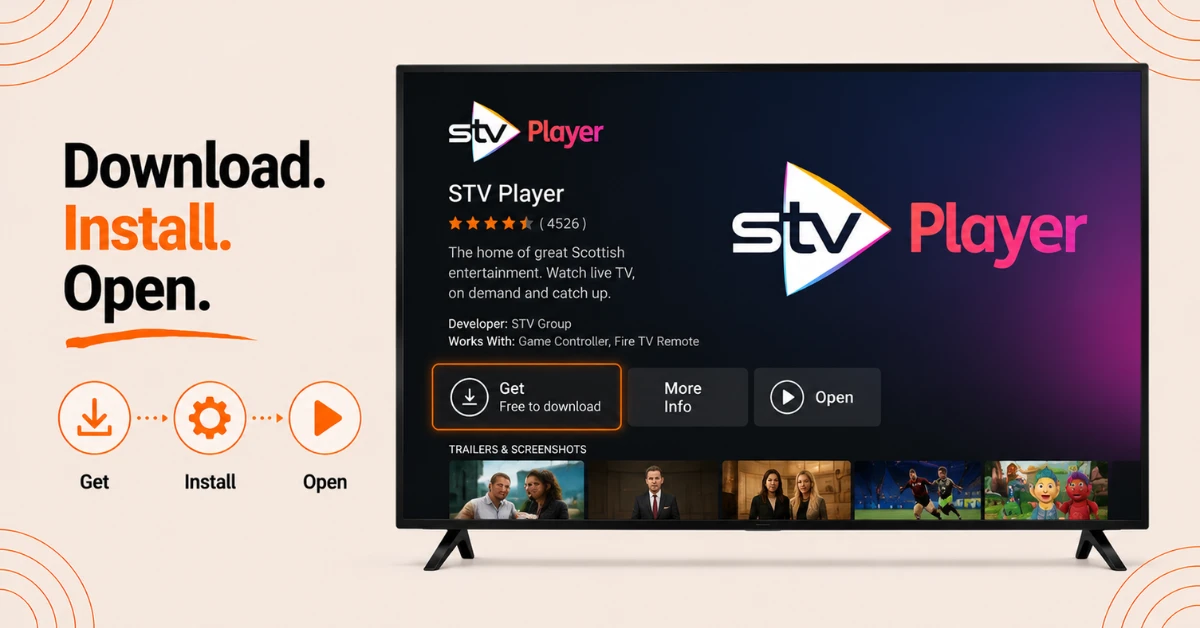
Download and Install the App
-
Tap the Get or Download button on the app description page to install the app
-
Wait for the installation to complete
-
Once installed tap the Open button to launch STV Player immediately
Get Proton VPN — 20% Off
Step 03
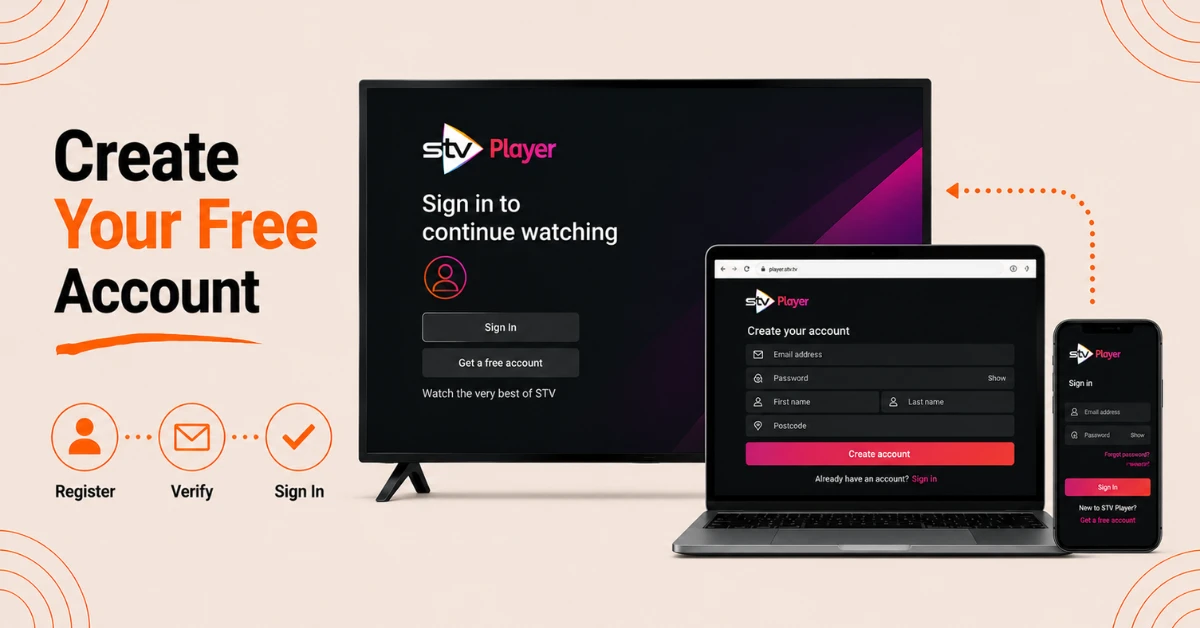
Create a Free Account
-
Visit player.stv.tv from a phone or laptop and click the Sign In or Join icon
-
Enter an email address, create a password, and provide the required personal information to complete registration
-
Return to the Firestick and sign in with the newly created credentials
Step 04
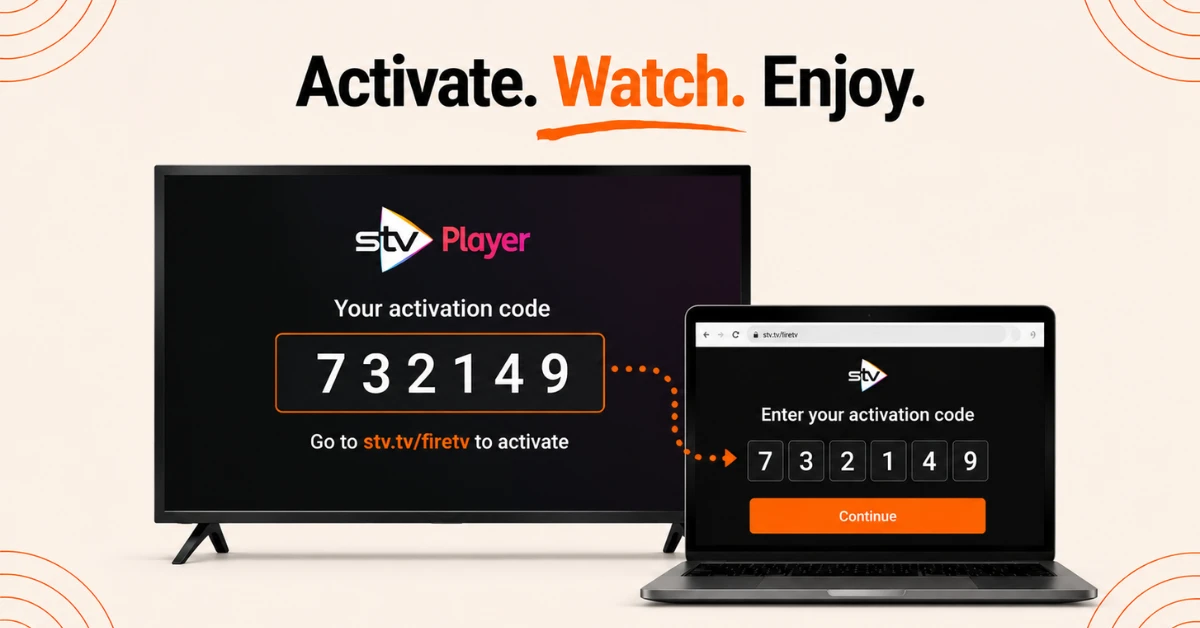
Activate and Begin Watching
-
Upon opening the app a six digit activation code will be displayed on screen along with a URL
-
Visit stv.tv/firetv on a phone or laptop, log in, enter the activation code, and tap Continue
-
Once activated browse and stream live TV, on-demand shows, and catch-up content for free
Quick Comparison
Side-by-side comparison of top Fire Stick VPNs
| VPN | Price | Servers | Speed | Devices | Rating | Actions |
|---|---|---|---|---|---|---|
|
Proton VPN
|
$3.99/mo | 14,999+ | Blazing Fast | 7 | 4.8 | Get Deal |
 NordVPN
|
$4.39/mo | 6,998+ | Blazing Fast | 8 | 4.8 | Get Deal |
 EXPRESS VPN
|
$2.79/mo | 3,000+ | Blazing Fast | 8 | 5 | Get Deal |
|
|
$1.88/mo | 3,200+ | Blazing Fast | 8 | 4.7 | Get Deal |
 IPVanish
|
$2.49/mo | 3,100+ | Blazing Fast | 6 | 4 | Get Deal |
 PrivadoVPN
|
$1.99/mo | — | Blazing Fast | 5 | 4 | Get Deal |
Frequently Asked Questions
Is STV Player on Firestick free to use?
Yes, STV Player on Firestick is completely free to use with no subscription required. A free account is needed to activate the app and access the full content library.
What shows are available on STV Player on Firestick?
STV Player carries popular titles including Coronation Street, Emmerdale, The Masked Singer, Britain's Got Talent, and I'm a Celebrity Get Me Out of Here alongside dramas, documentaries, and true crime content.
Is STV Player on Firestick available outside the United Kingdom?
STV Player is available in the UK only. Access from outside the UK is not officially supported through the standard app installation method.
Is a paid account required before installing STV Player on Firestick?
No paid account is required. A free account registered at player.stv.tv is all that is needed to install and activate STV Player on Firestick.
How do I sign out of the STV Fire TV app?
Within the STV app go to Settings then Sign Out and click the sign out button. Once back on the Fire TV homepage relaunch the STV Player app.
Can STV Player Fire TV Stick be used on more than one device with the same account?
Yes, the same STV Player account can be used across multiple devices. Each Fire TV Stick will require its own activation using the code displayed on screen when the app is first opened.
Why is the STV Fire TV app not loading content properly?
The app may not work due to slow internet, corrupted cache, or network congestion. Clearing the app cache under Settings then Applications and restarting the Firestick resolves most issues.