How to Make Firestick Interface Larger for Accessibility?
Editor's Choice
#1 Pick
Editor's Choice
 EXPRESS VPN
$2.79/month
Save 20%
Blazing Fast
3,000+
214
8
Step by Step Instructions
Step 01

Open the Amazon App Store
From your Firestick home screen, navigate to the “Find” or search icon and open the Amazon App Store.
Step 02
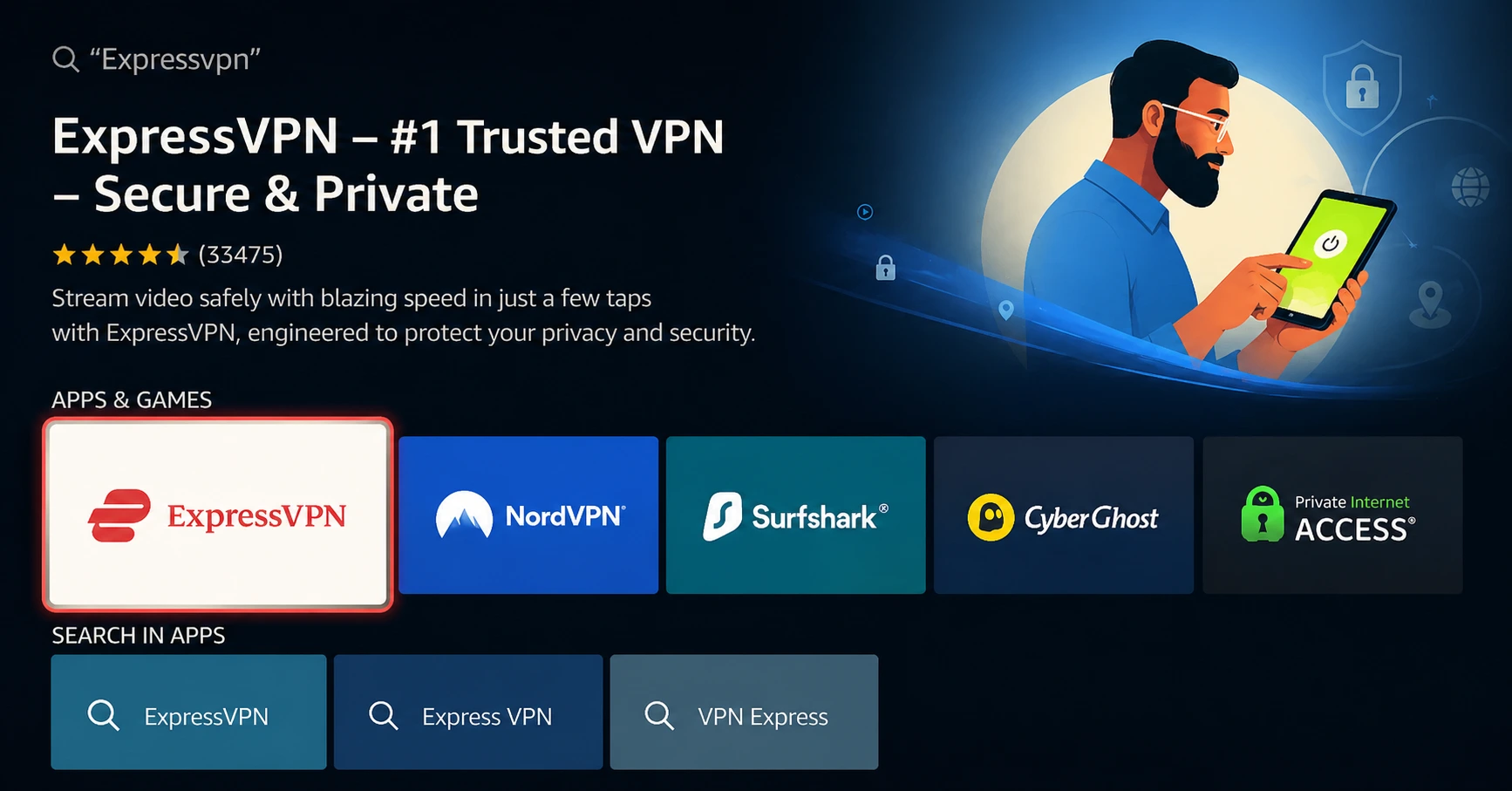
Search for ExpressVPN
Type “ExpressVPN” in the search bar using your remote. Select the official ExpressVPN app from the results.
Step 03
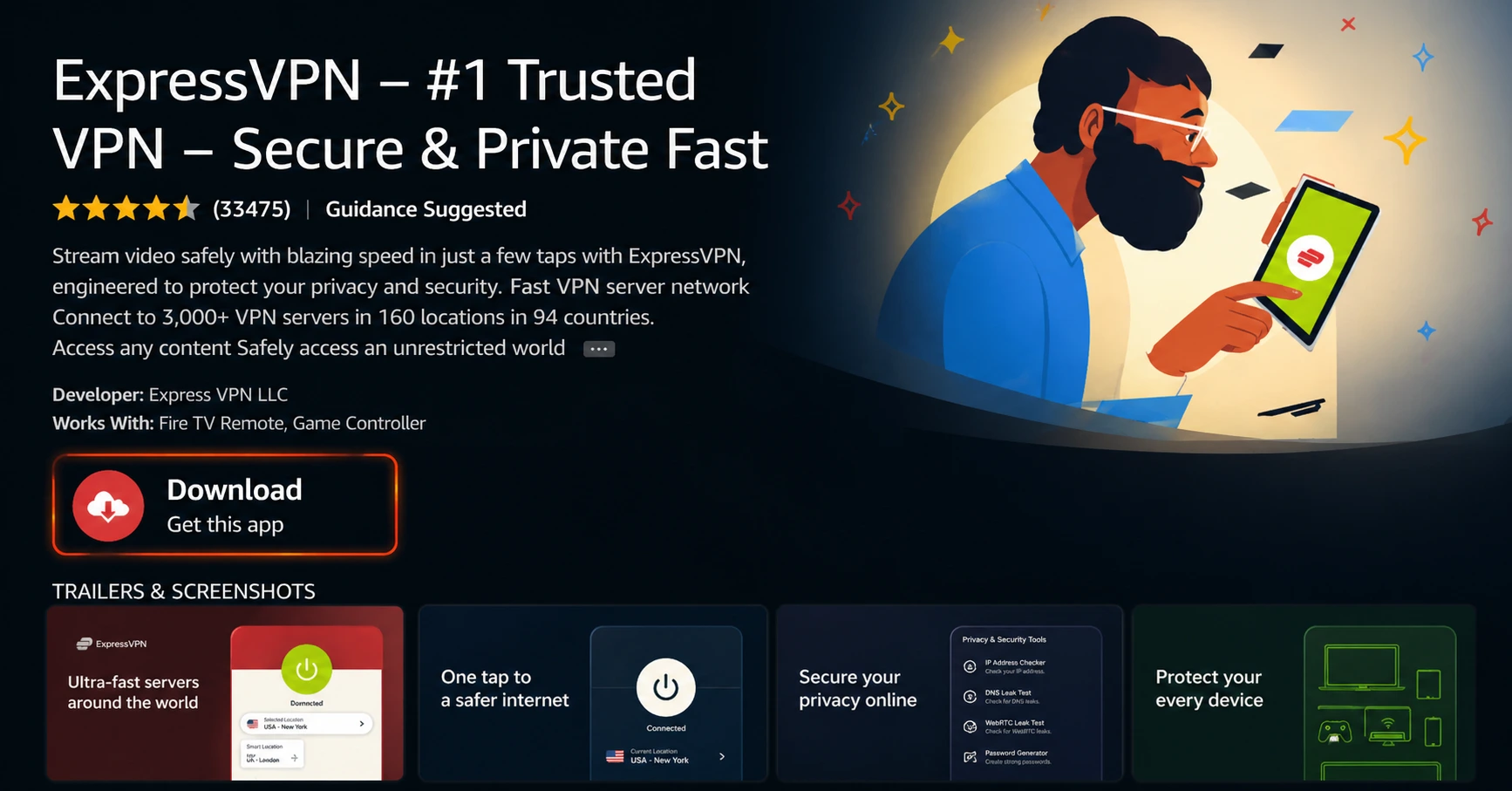
Download & Install the App
Click on the “Download” or “Get” button to install the app on your Firestick. Wait for the installation to complete.
Step 04
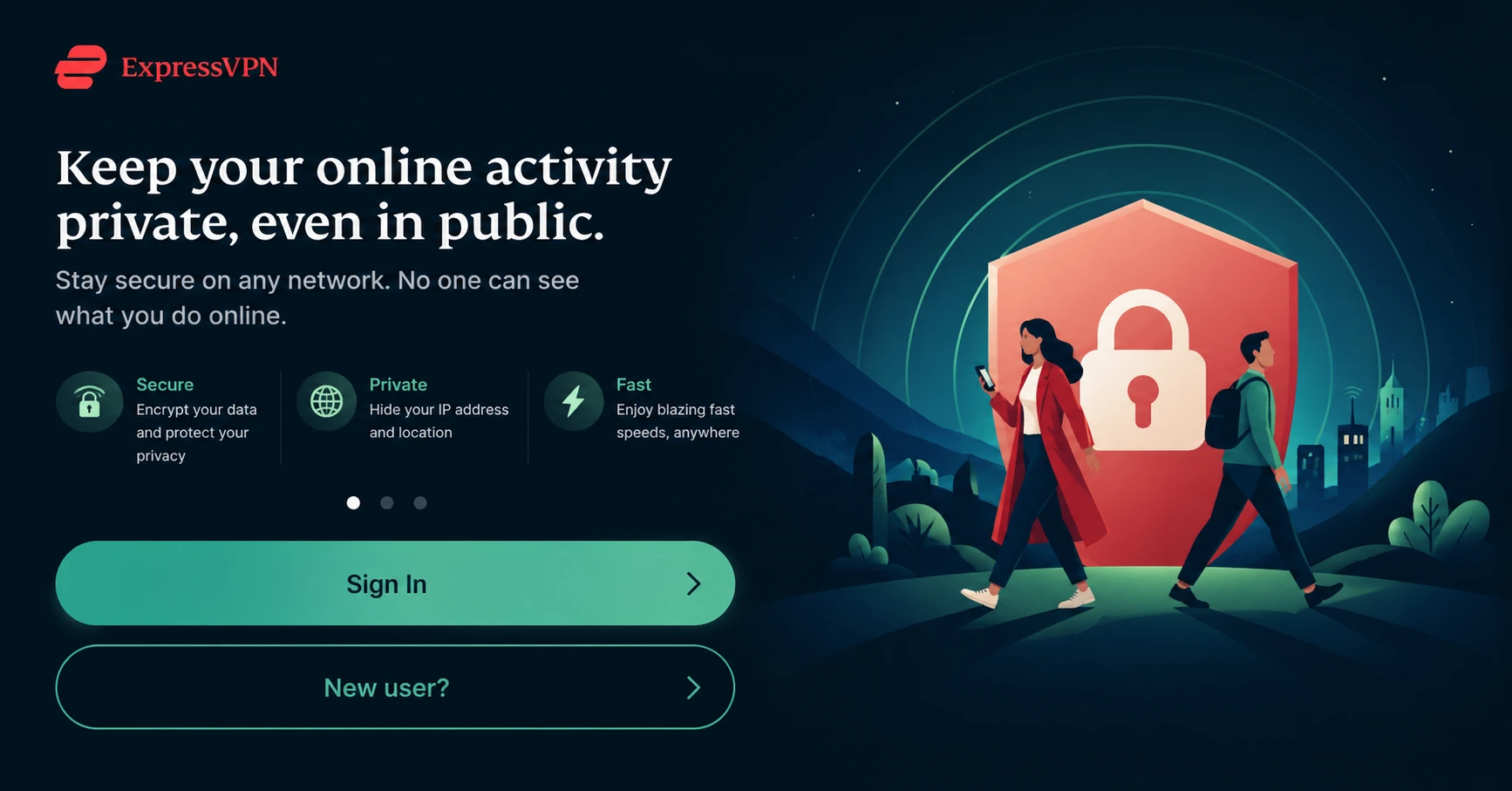
Sign In & Connect
Open the app, sign in with your ExpressVPN account, and tap the power button to connect to a server.
How to Make Firestick Interface Larger for Accessibility?
A simple guide to making text, menus and on screen elements bigger on your Firestick
Step 01
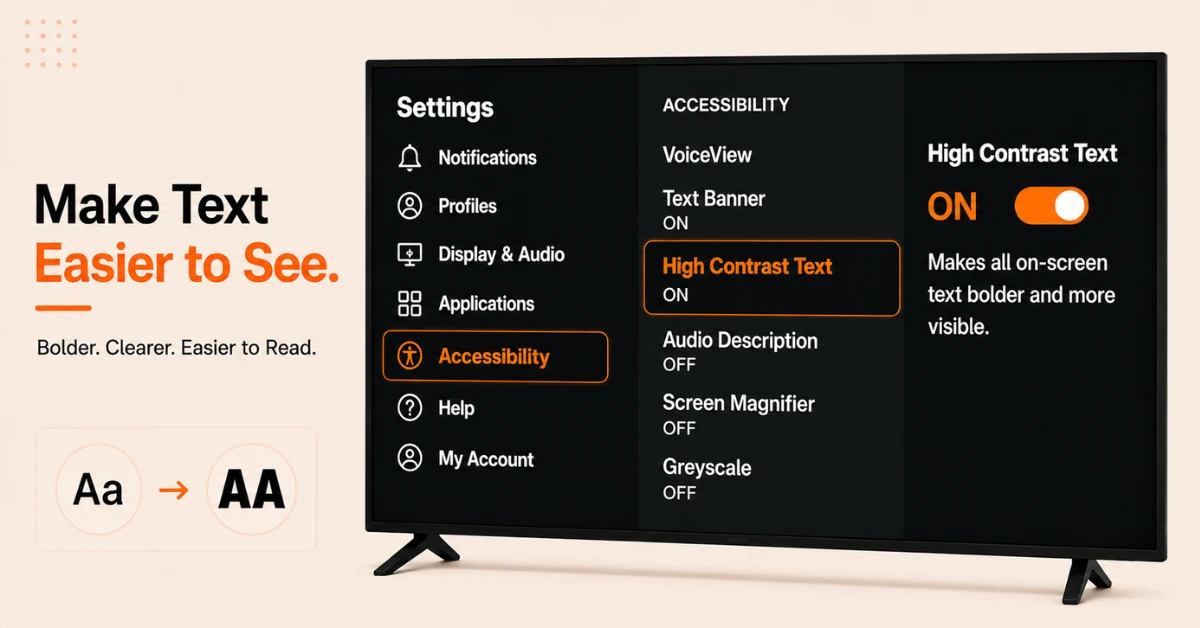
Enable High Contrast Text
-
Go to Settings from the Firestick home screen and select Accessibility
-
Select High Contrast Text and toggle it on
-
This makes all on screen text bolder and more visible especially for users with visual impairments
Step 02
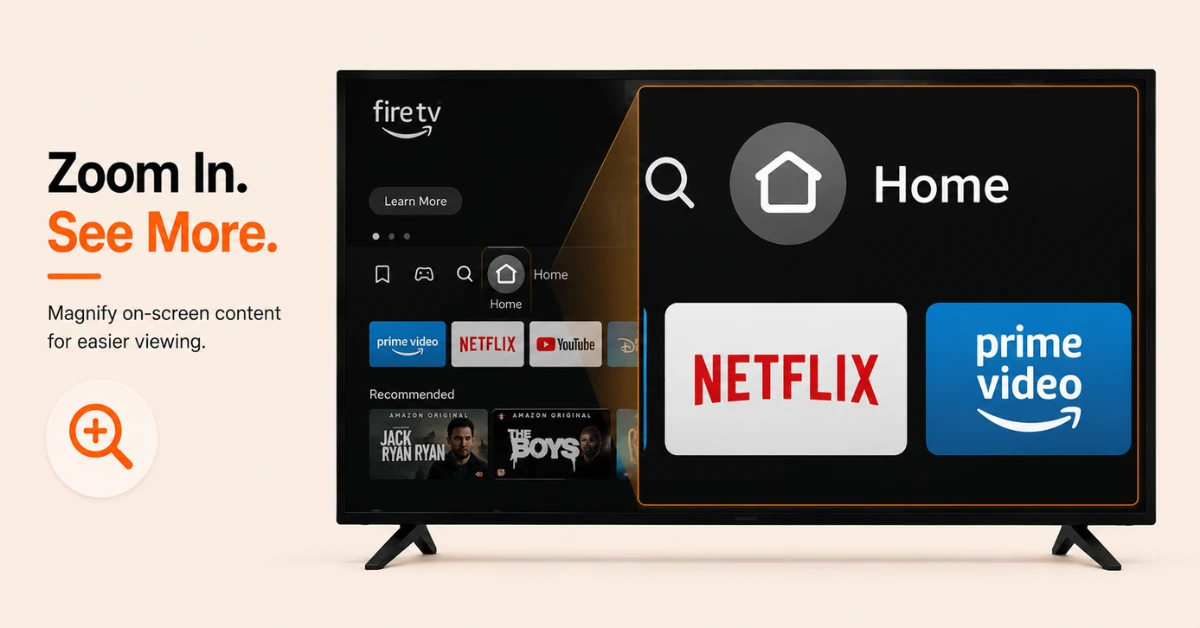
Use Screen Magnifier to Zoom In
-
Go to Settings, select Accessibility, and turn on Screen Magnifier
-
Once enabled, press and hold the Back and Fast Forward buttons on your remote to zoom in
-
Press Menu and Fast Forward to zoom in further or Menu and Rewind to zoom out
Get EXPRESS VPN — 20% Off
Step 03
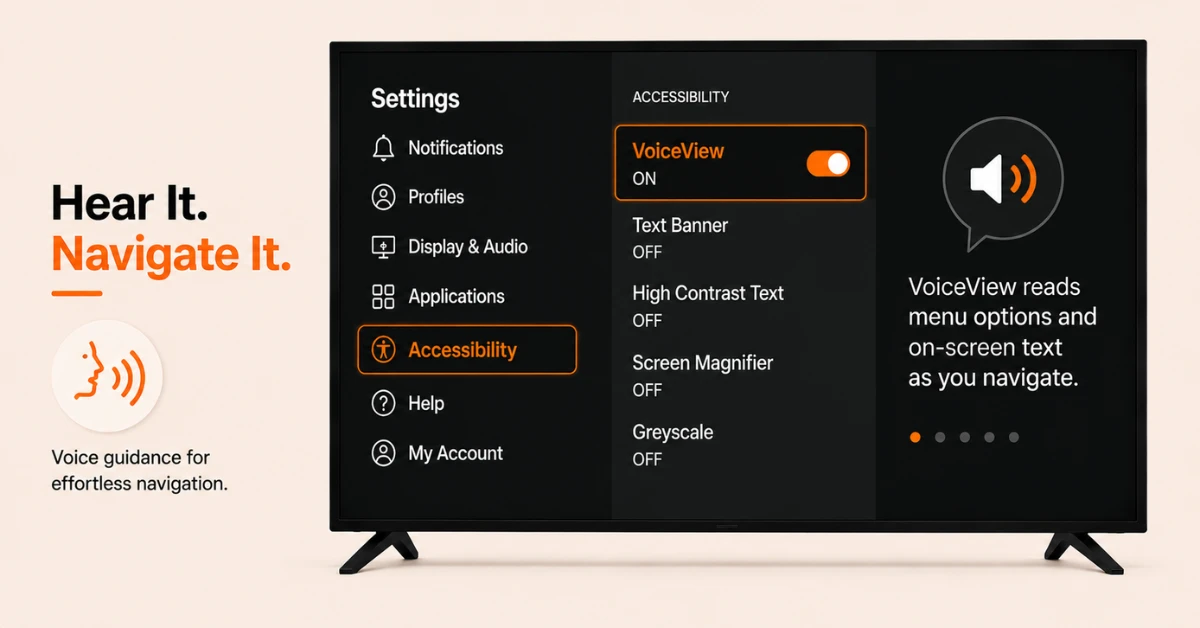
Enable VoiceView for Audio Navigation
-
Go to Settings, select Accessibility, and turn on VoiceView
-
VoiceView reads out menu options and on screen text as you navigate making the interface easier to use without relying on small text
-
Press and hold the Back button to adjust VoiceView settings at any time
Step 04
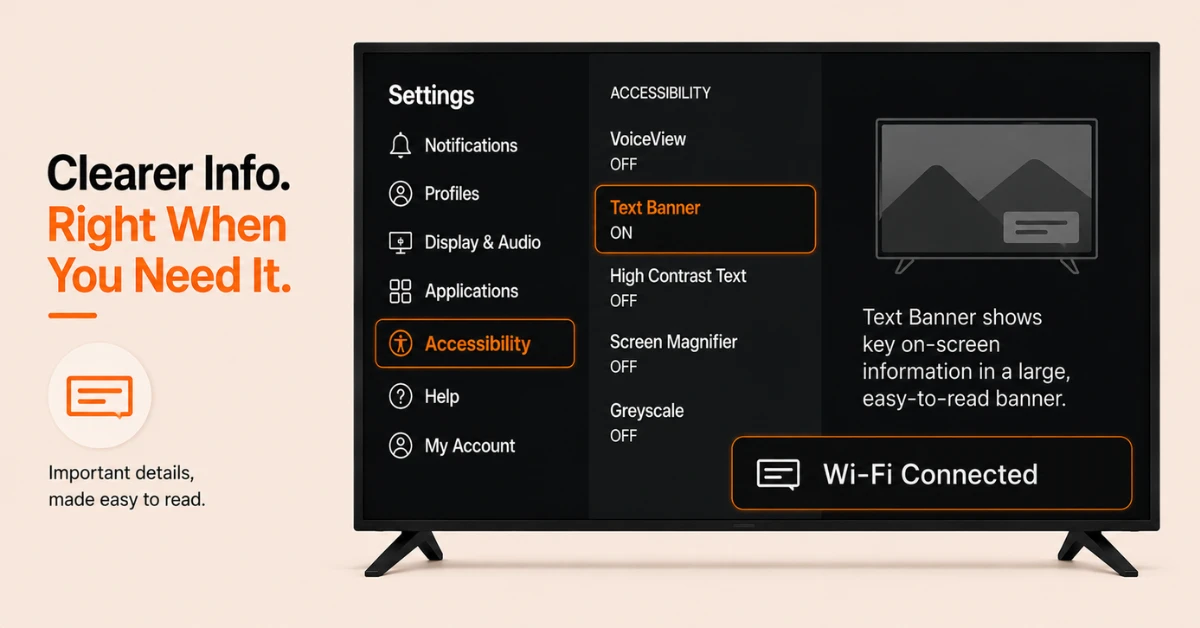
Enable Text Banner for Clearer On Screen Information
-
Go to Settings, select Accessibility, and click Text Banner
-
Toggle it on and follow the on screen tutorial to set it up
-
Text Banner displays key on screen information in a larger clear banner making it easier to read at a distance
Quick Comparison
Side-by-side comparison of top Fire Stick VPNs
| VPN | Price | Servers | Speed | Devices | Rating | Actions |
|---|---|---|---|---|---|---|
|
EXPRESS VPN
|
$2.79/mo | 3,000+ | Blazing Fast | 8 | 5 | Get Deal |
 NordVPN
|
$4.39/mo | 6,998+ | Blazing Fast | 8 | 4.8 | Get Deal |
|
|
$1.88/mo | 3,200+ | Blazing Fast | 8 | 4.7 | Get Deal |
 Proton VPN
|
$3.99/mo | 14,999+ | Blazing Fast | 7 | 4.8 | Get Deal |
 IPVanish
|
$2.49/mo | 3,100+ | Blazing Fast | 6 | 4 | Get Deal |
 Pure VPN
|
$3.55/mo | — | Blazing Fast | 6 | 4 | Get Deal |
Frequently Asked Questions
What accessibility features does Firestick have for visually impaired users?
Firestick includes Screen Magnifier for zooming in, High Contrast Text for better readability, VoiceView which reads out menu options, Text Banner for larger on screen information, and the upcoming Adaptive Display feature which increases overall interface size.
How do I make the Firestick interface larger for accessibility?
Go to Settings, select Accessibility, and enable Screen Magnifier to zoom into any part of the screen. You can also turn on High Contrast Text and Text Banner to make on screen content easier to read without zooming in.
How do I zoom in on my Firestick screen?
Enable Screen Magnifier under Settings then Accessibility. Once enabled, press and hold the Back and Fast Forward buttons on your remote to zoom in. Use Menu and Fast Forward to zoom in further or Menu and Rewind to zoom out.
Can I use voice commands to navigate Fire TV Stick without reading the interface?
Yes, Alexa voice commands on Fire TV Stick allow you to open apps, search for content, and control playback entirely by voice. This is one of the most effective accessibility tools for users who find the on screen interface difficult to read or navigate.
Can I make subtitles larger?
Yes, go to Settings, select Accessibility, then Subtitle, then Text, and choose Size to increase the subtitle text size. You can also change the colour, font, and opacity to make subtitles as readable as possible alongside your other accessibility settings.
How do I turn off Screen Magnifier on Fire Stick if it gets stuck?
Press and hold the Back and Fast Forward buttons on your Fire Stick remote for five seconds to toggle Screen Magnifier off. If the screen remains zoomed in, go to Settings then Accessibility and turn Screen Magnifier off from there.
Is there a shortcut to quickly zoom in when I want to make Firestick interface larger?
Yes, once Screen Magnifier is enabled under Accessibility, you can press and hold the Back and Fast Forward buttons on your remote at any time to zoom in instantly. This makes it easy to quickly enlarge any part of the screen without going back into settings.