How to Set Up Multiple Firesticks on One Account: Simple Setup Guide
Editor's Choice
#1 Pick
Editor's Choice
 Surfshark
$1.88/month
Save 20%
Blazing Fast
3,200+
214
8
Step by Step Instructions
Step 01
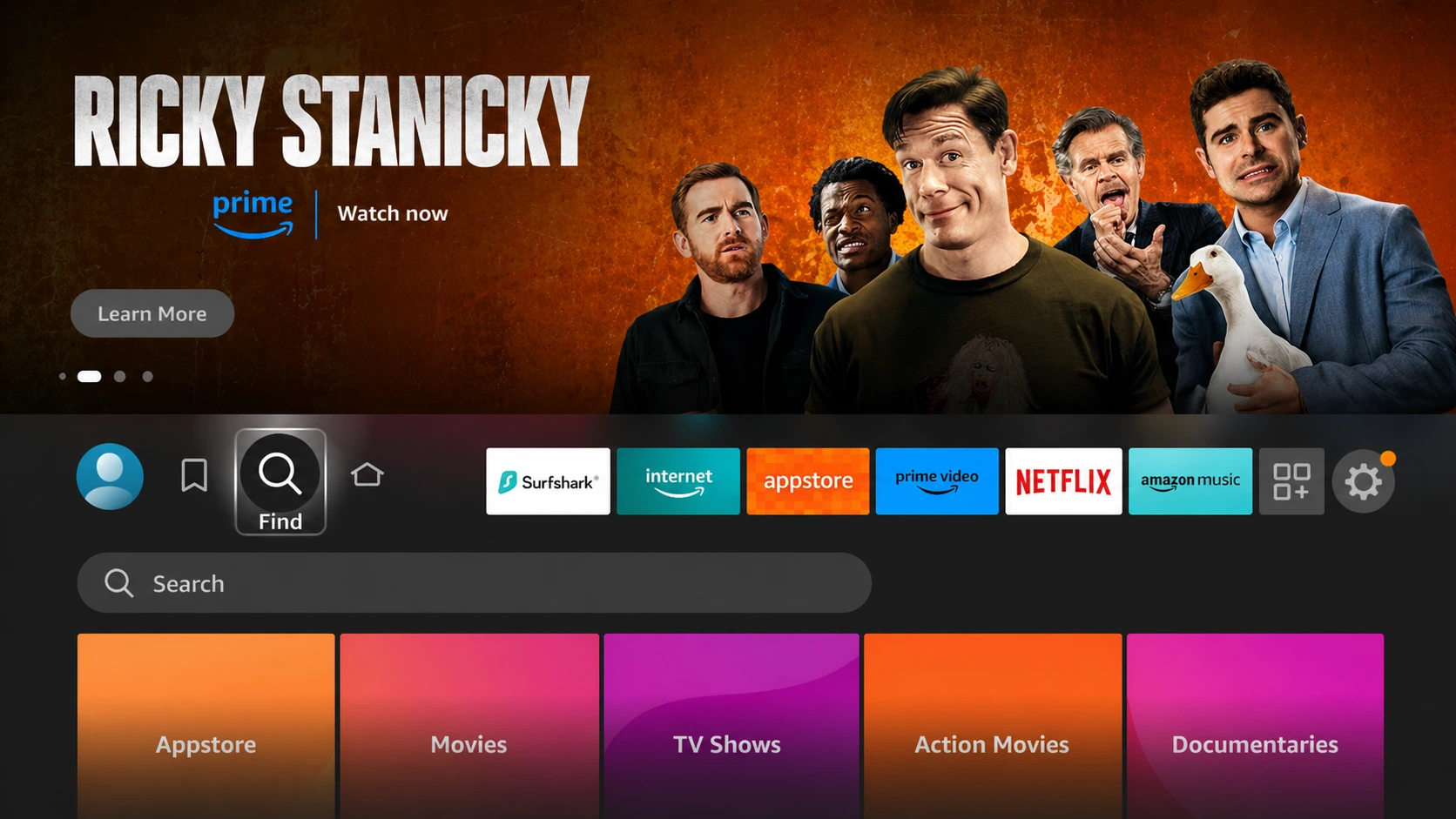
Open Search on Fire TV
From your Fire TV home screen, go to the Find (Search) option.
Step 02
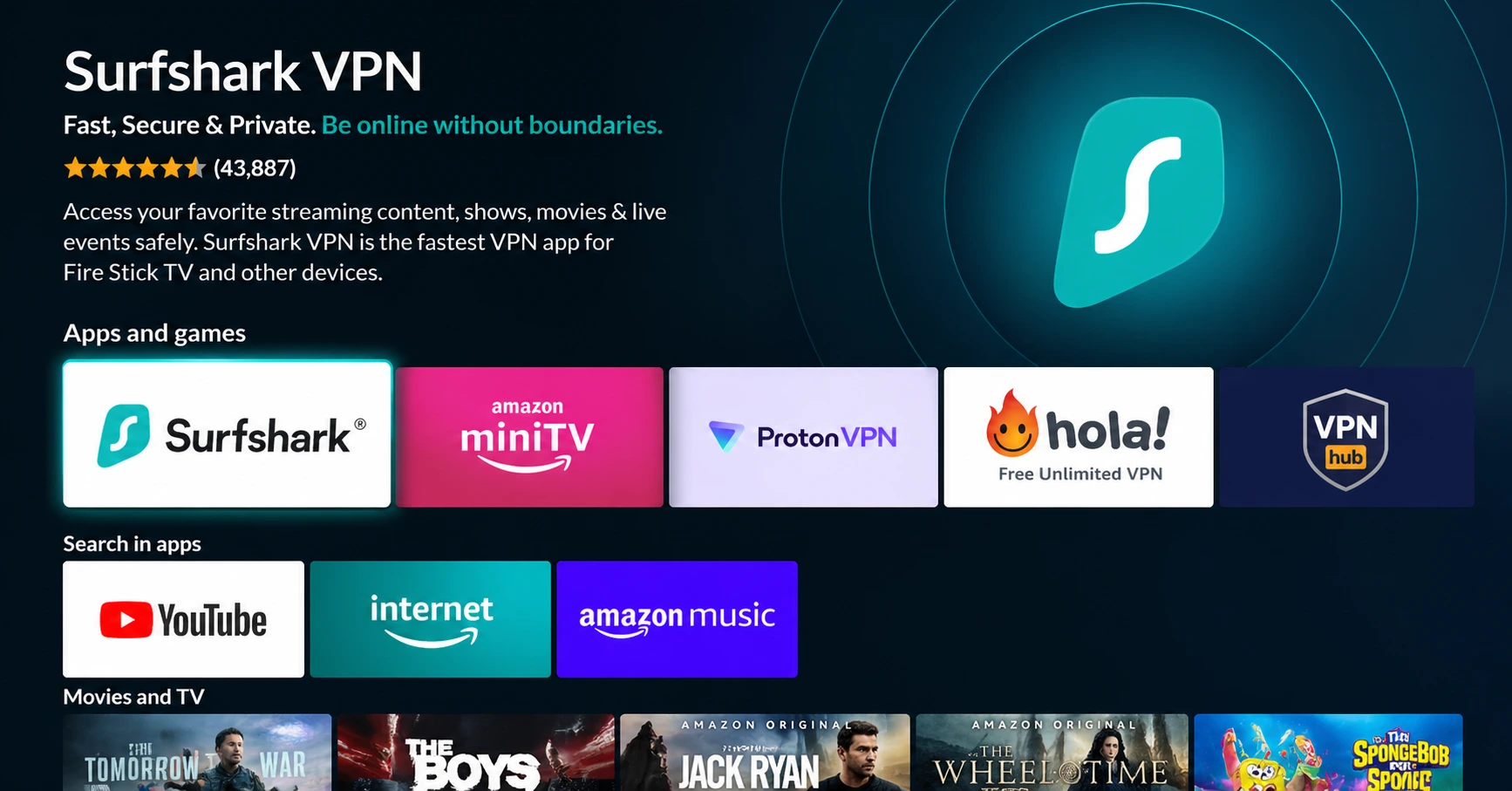
Search for Surfshark
Type Surfshark using your remote and select the app from the results.
Step 03
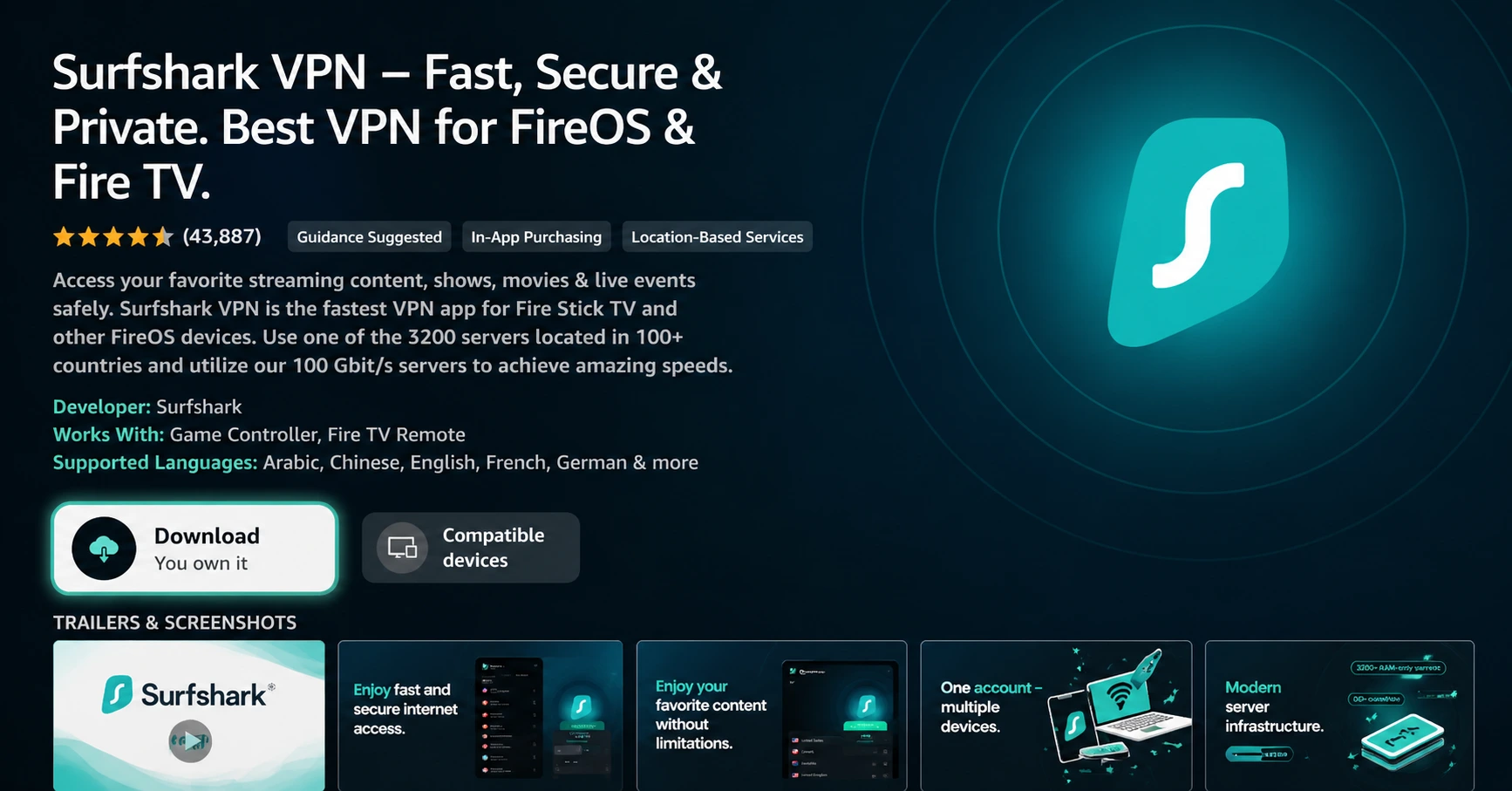
Install the App
Click on Download or Get to install Surfshark on your device.
Step 04
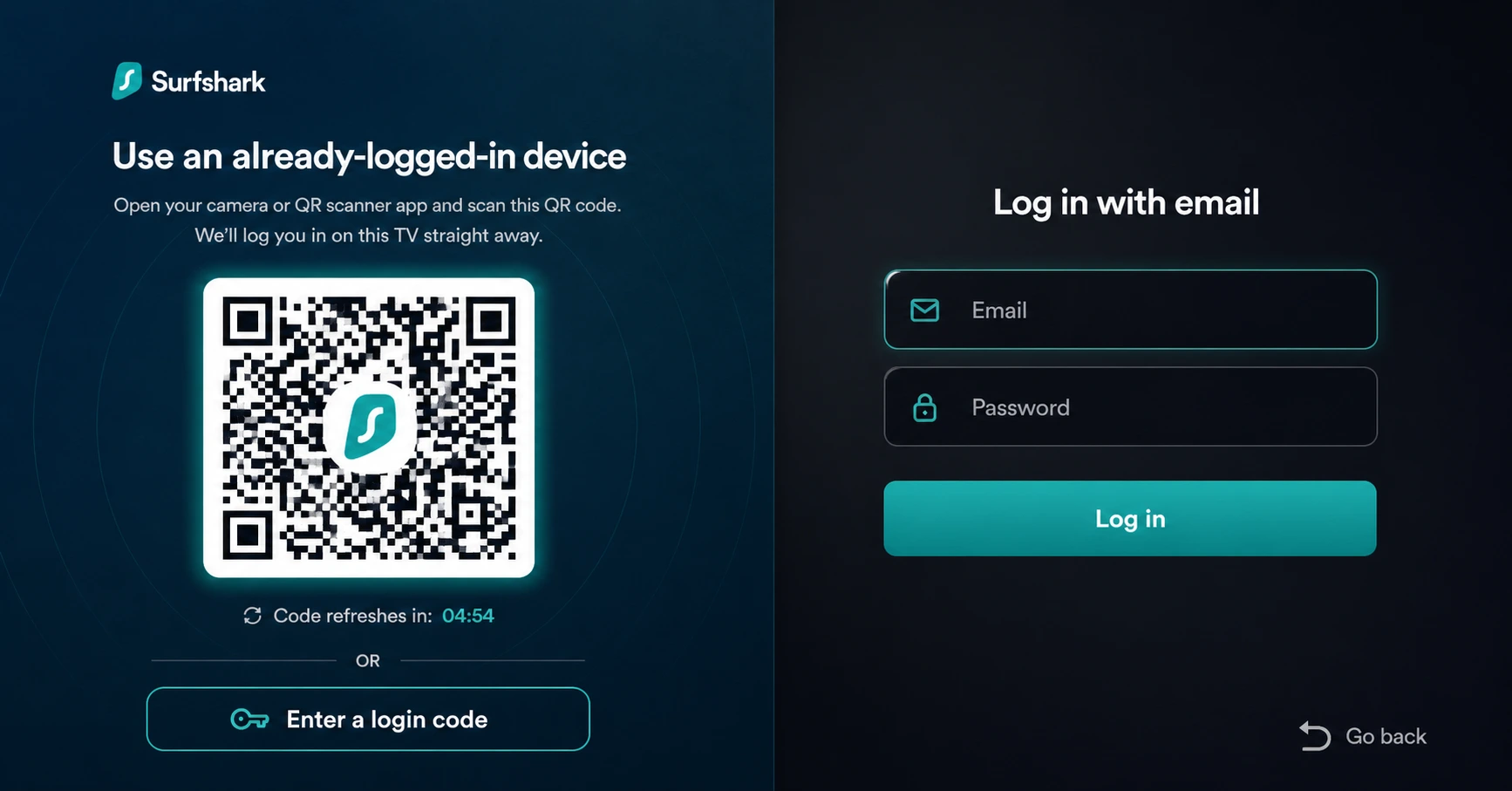
Sign In & Start VPN
Open the app, log in to your account, and connect to a server to start using the VPN.
How to Set Up Multiple Firesticks on One Account
A simple guide to managing multiple Firestick devices under one Amazon account
Step 01
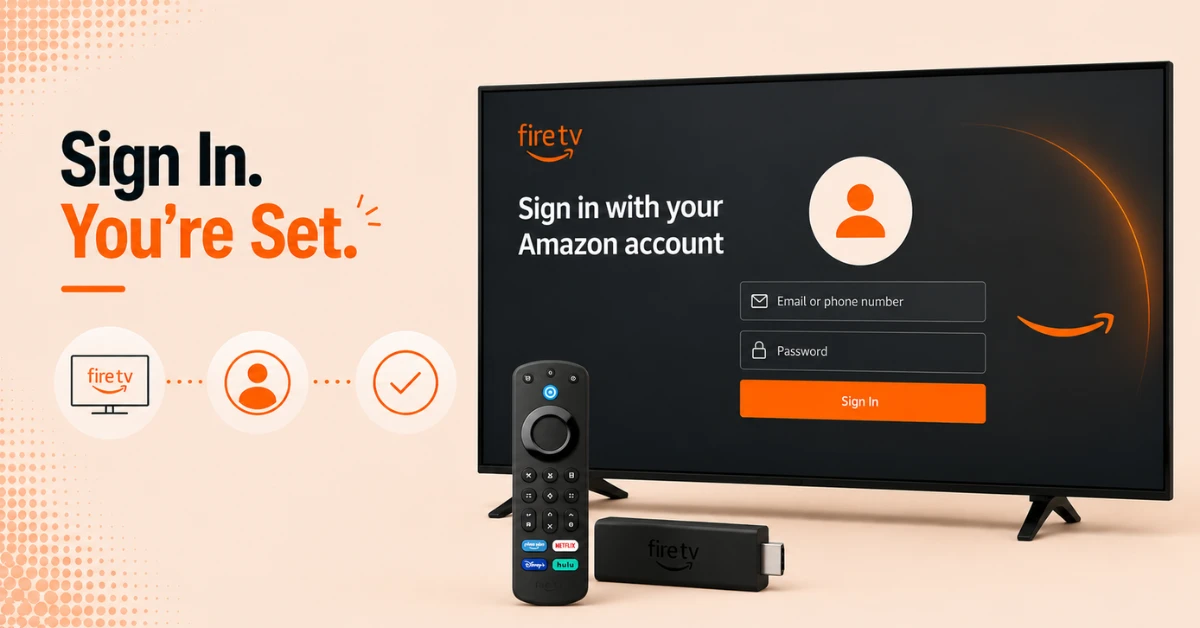
Sign In to Your Amazon Account on the First Firestick
-
Turn on your Firestick and follow the on-screen setup instructions
-
When prompted, sign in with your Amazon account email and password
-
Complete the setup and confirm the device is registered to your account
Step 02
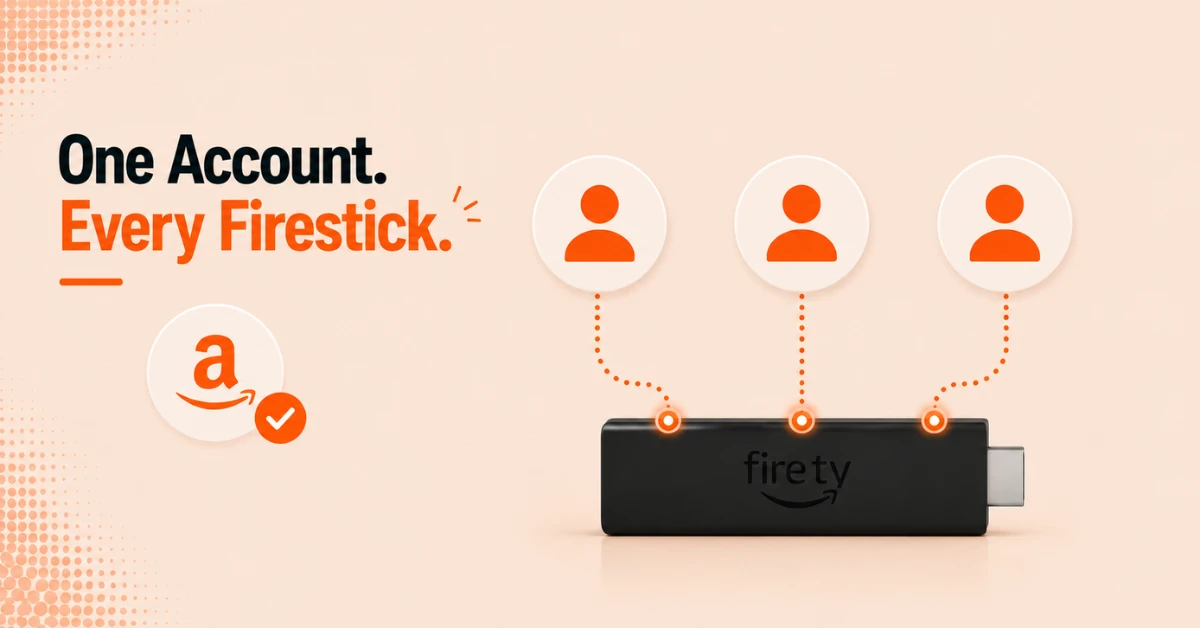
Sign In to the Same Account on Additional Firesticks
-
Repeat the setup process on each additional Firestick device
-
Use the same Amazon account credentials on every device
-
You will not be charged anything extra for signing in across multiple devices
Get Surfshark — 20% Off
Step 03
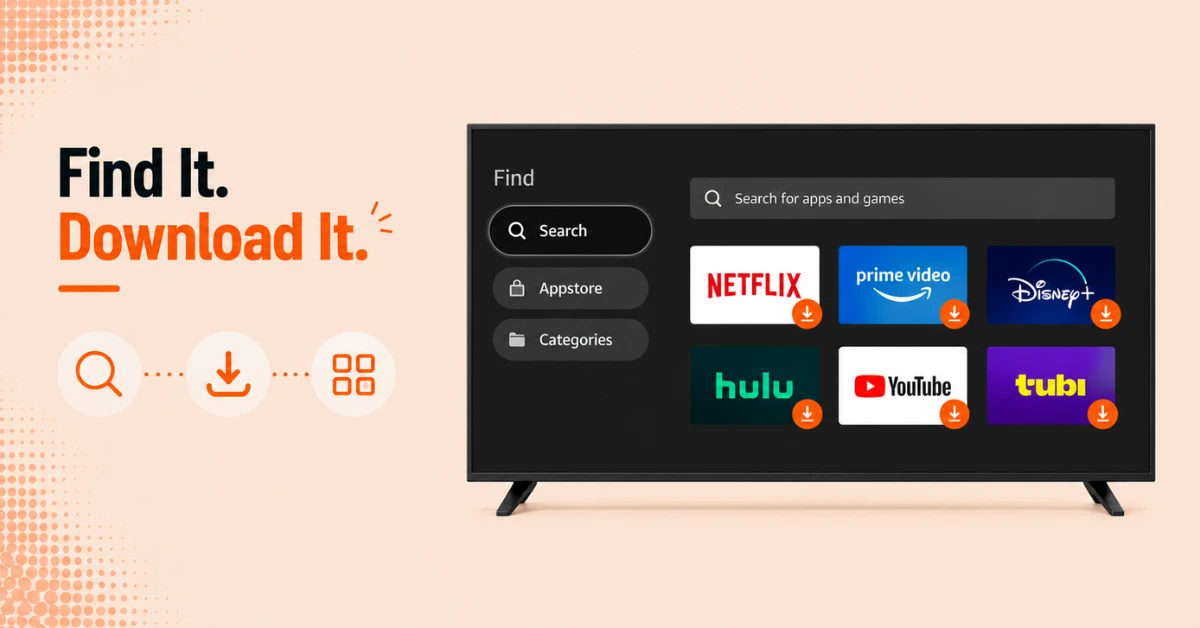
Download Your Apps on Each Device
-
Once signed in, go to Find and select Search on each Firestick
-
Search for the apps you want and download them individually on each device
-
Apps need to be downloaded separately on each Firestick even though they share the same account
Step 04
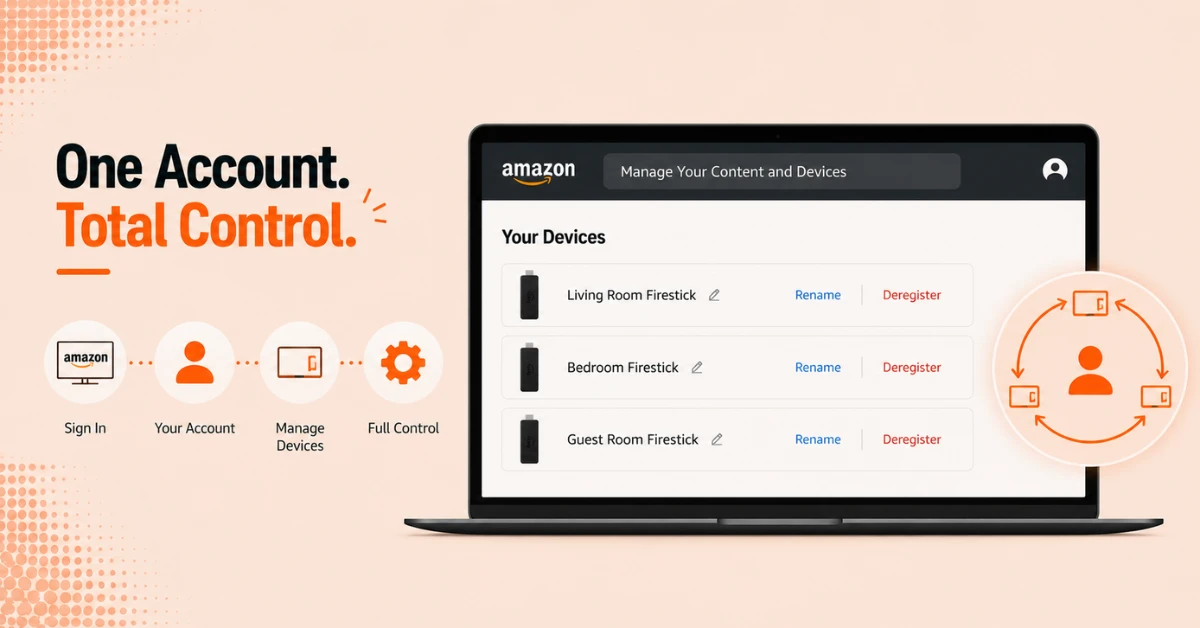
Manage Your Devices From Your Amazon Account
-
Open a browser and go to amazon.com and sign in to your account
-
Go to Manage Your Content and Devices to see all Firesticks registered under your account
-
Rename devices, deregister old ones and manage content across all your Firesticks from here
Quick Comparison
Side-by-side comparison of top Fire Stick VPNs
| VPN | Price | Servers | Speed | Devices | Rating | Actions |
|---|---|---|---|---|---|---|
|
|
$1.88/mo | 3,200+ | Blazing Fast | 8 | 4.7 | Get Deal |
 Proton VPN
|
$3.99/mo | 14,999+ | Blazing Fast | 7 | 4.8 | Get Deal |
 NordVPN
|
$4.39/mo | 6,998+ | Blazing Fast | 8 | 4.8 | Get Deal |
 EXPRESS VPN
|
$2.79/mo | 3,000+ | Blazing Fast | 8 | 5 | Get Deal |
 IPVanish
|
$2.49/mo | 3,100+ | Blazing Fast | 6 | 4 | Get Deal |
 Pure VPN
|
$3.55/mo | — | Blazing Fast | 6 | 4 | Get Deal |
Frequently Asked Questions
Is there a limit to how many Firesticks I can set up on one account?
Amazon allows you to register up to 10 devices under one Amazon account. If you need to add more devices, you will need to deregister an existing device first before registering a new one.
Do I need Amazon Prime for multiple Firesticks on one Amazon account?
No, you do not need an Amazon Prime membership to register and use multiple Firesticks on one Amazon account. Prime is only required if you want to access Prime Video and other Prime benefits across your devices.
How do I use the same Amazon account on multiple Firesticks?
During the setup of each Firestick, enter the same Amazon account email and password when prompted. Once signed in, all devices will be registered under the same account and share access to your purchased content and apps.
Will my watch history be shared across multiple Firesticks on one Amazon account?
Yes, watch history and recommendations are linked to your Amazon account by default. To keep viewing histories separate, set up individual profiles on each Firestick so each user has their own personalised experience.
Can I download the same app on multiple Firesticks using the same Amazon account?
Yes, apps purchased or downloaded on one Firestick can be downloaded again on other devices registered to the same Amazon account at no extra cost. However each app needs to be downloaded individually on each device.
Can I set parental controls on individual Fire TV Sticks when managing multiple devices?
Yes, parental controls can be set individually on each Fire TV Stick under Settings, then Preferences, then Parental Controls. This is useful when managing multiple Fire TV Sticks in a household where some devices are used by children.
How do I manage multiple Fire TV Sticks from one place?
Sign in to your Amazon account on a browser and go to Manage Your Content and Devices. From here you can see all registered Fire TV Sticks, rename devices, deregister old ones, and manage content across all your devices in one place.