How to Set Up Screen Reader on Firestick?
Editor's Choice
#1 Pick
Editor's Choice
 Surfshark
$1.88/month
Save 20%
Blazing Fast
3,200+
214
8
Step by Step Instructions
Step 01
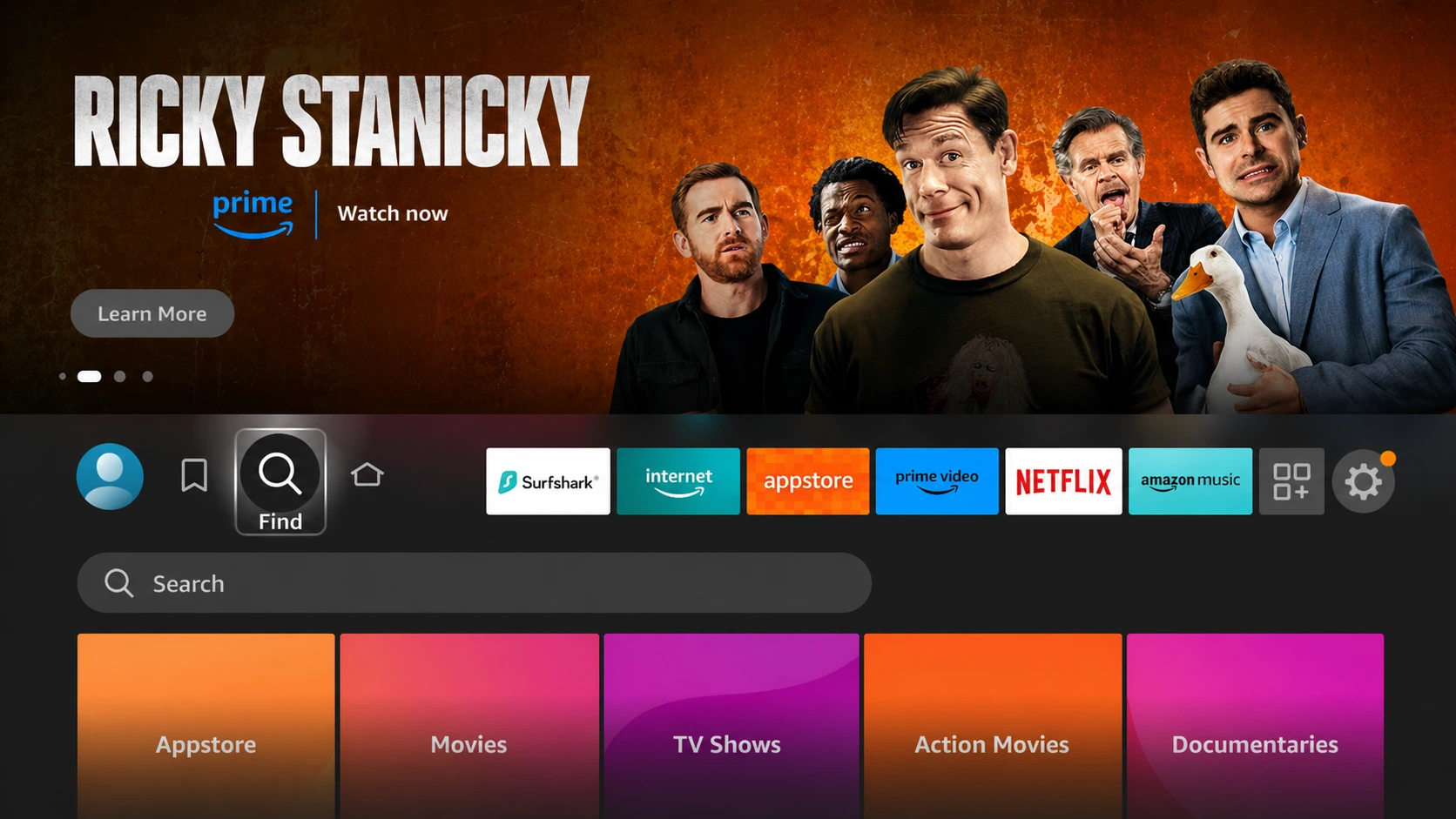
Open Search on Fire TV
From your Fire TV home screen, go to the Find (Search) option.
Step 02
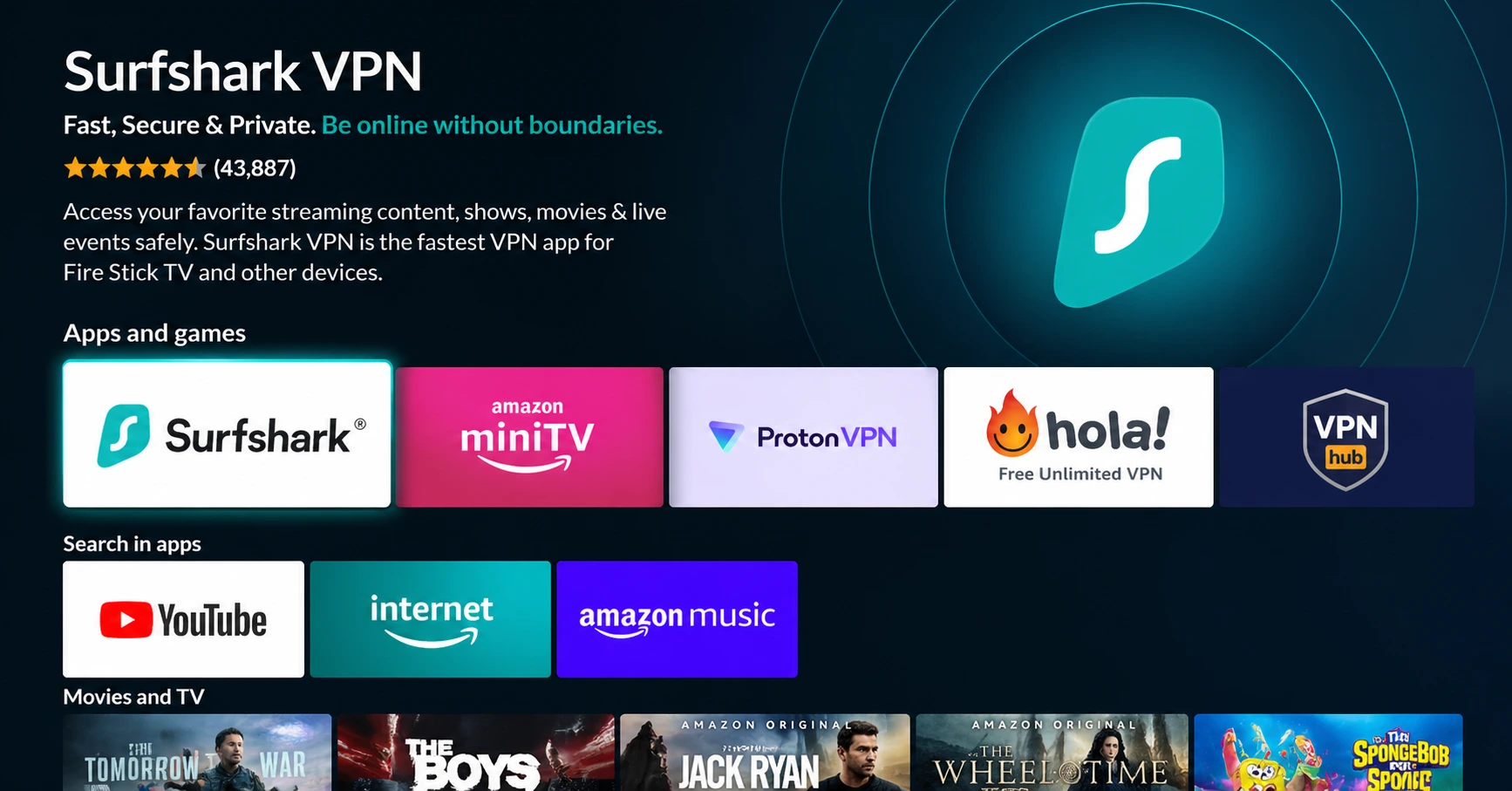
Search for Surfshark
Type Surfshark using your remote and select the app from the results.
Step 03
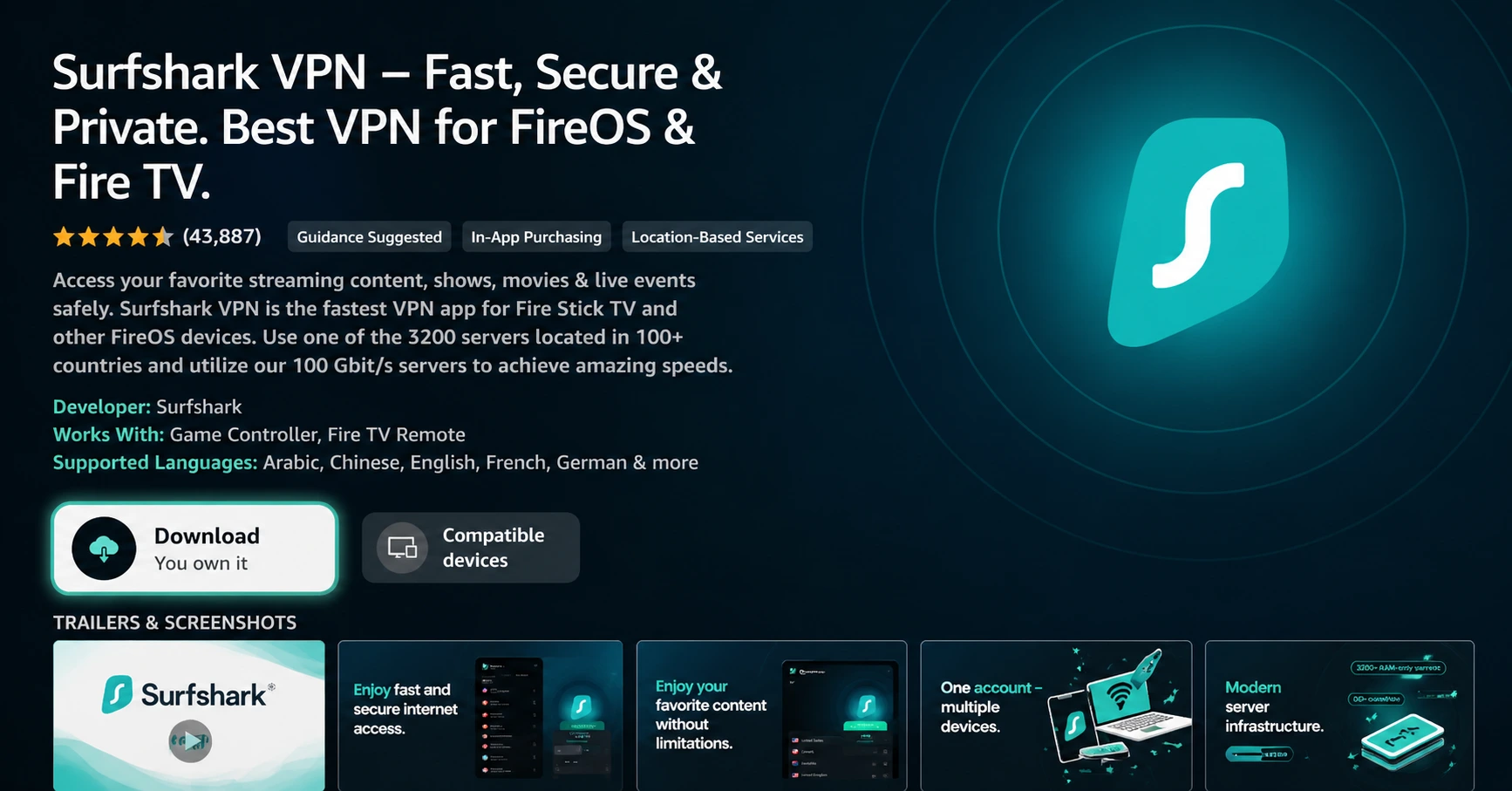
Install the App
Click on Download or Get to install Surfshark on your device.
Step 04
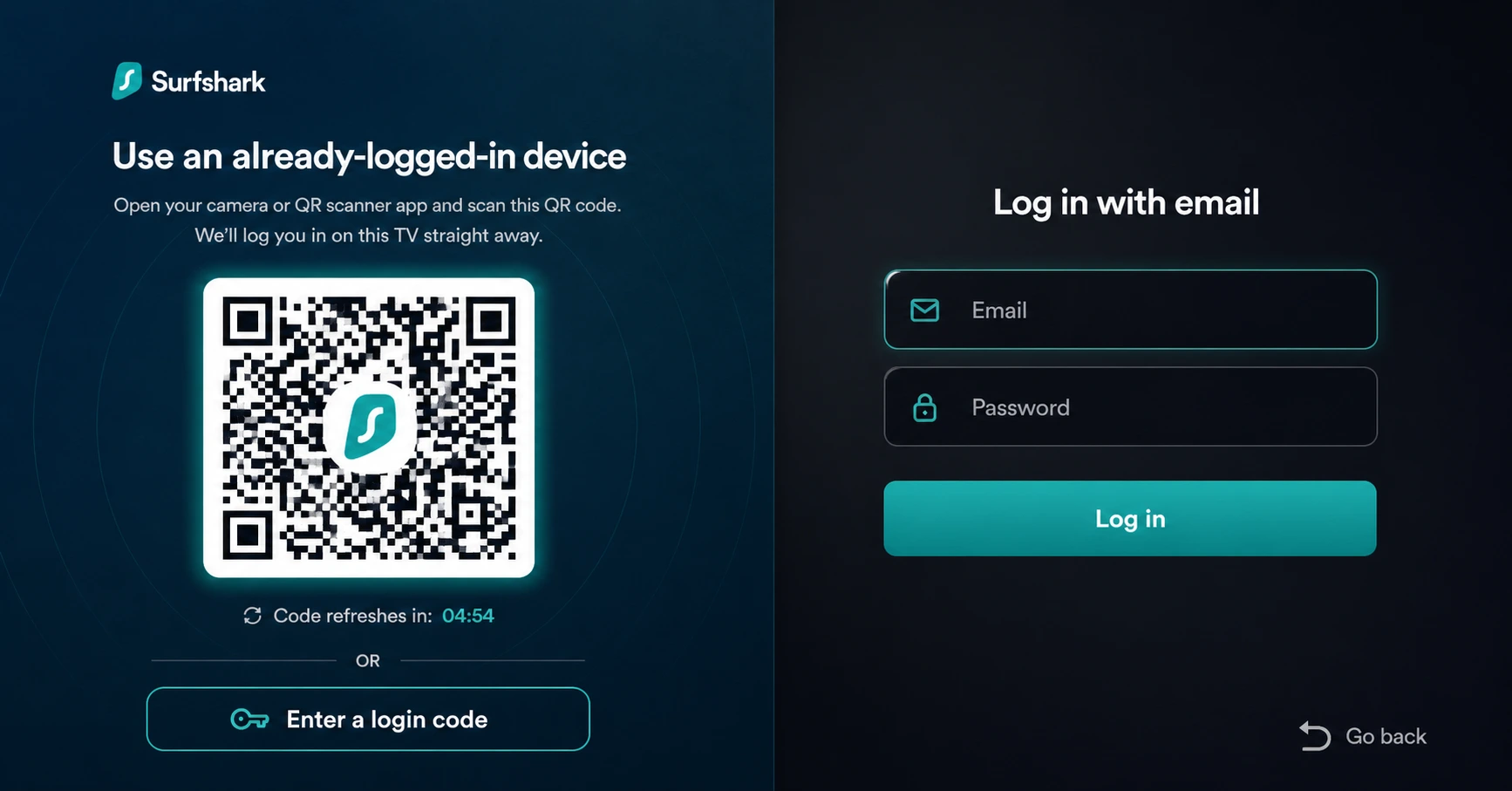
Sign In & Start VPN
Open the app, log in to your account, and connect to a server to start using the VPN.
How to Set Up Screen Reader on Firestick?
An easy step by step guide to setting up and using VoiceView screen reader on your Firestick
Step 01
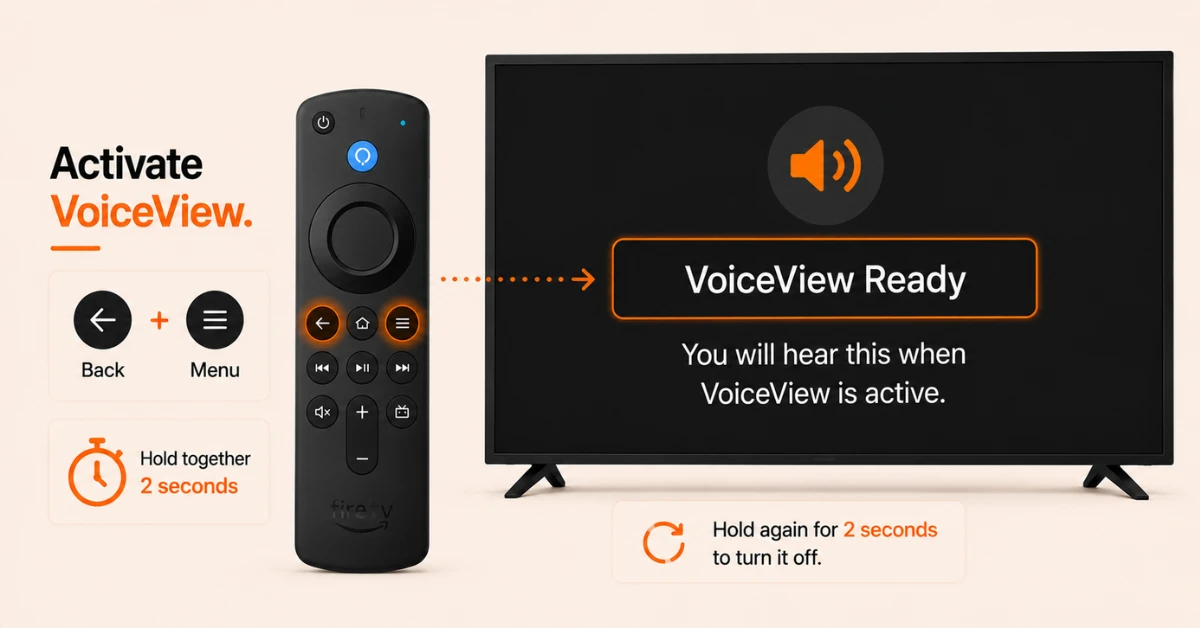
Turn On VoiceView Using Your Remote
-
Press and hold the Back and Menu buttons on your Alexa Voice Remote together for about two seconds
-
You will hear VoiceView Ready confirming the screen reader is now active
-
Press the same buttons again for two seconds to turn VoiceView off at any time
Step 02
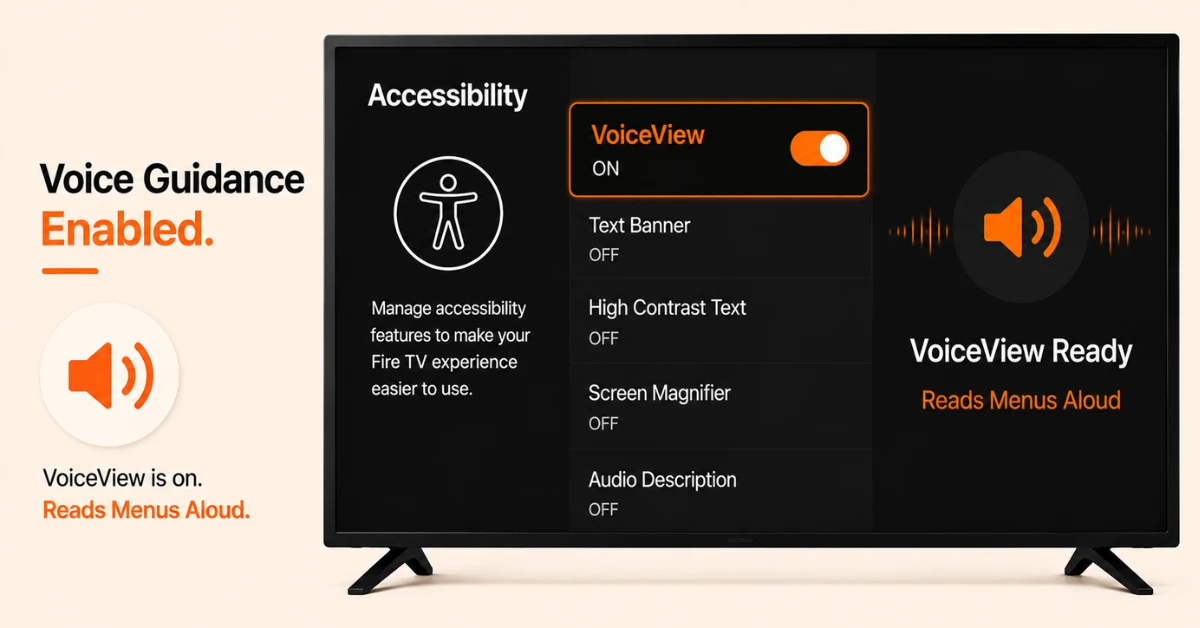
Alternatively Enable VoiceView Through Settings
-
Go to Settings from the Firestick home screen and select Accessibility
-
Select VoiceView and click it again to turn it on
-
Once enabled VoiceView will begin speaking on screen text as you navigate menus and settings
Get Surfshark — 20% Off
Step 03
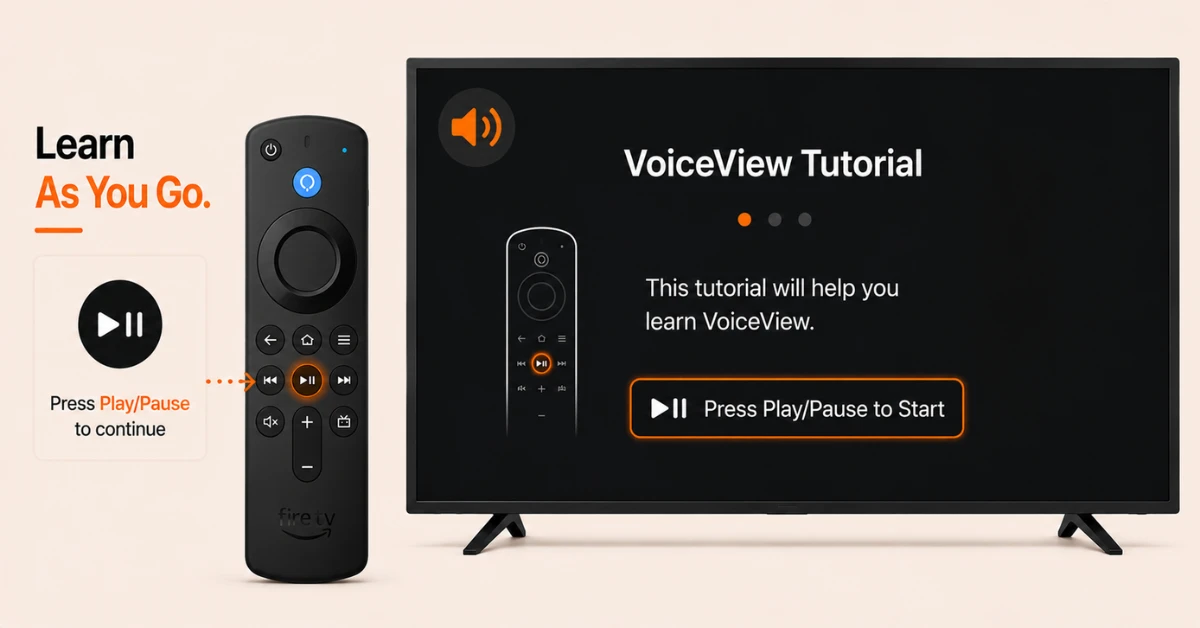
Complete the VoiceView Tutorial
-
The first time VoiceView is turned on a tutorial automatically opens
-
Press the Play Pause button on your remote to confirm you want to proceed
-
Follow the tutorial to learn how each button on your remote works with VoiceView
Step 04
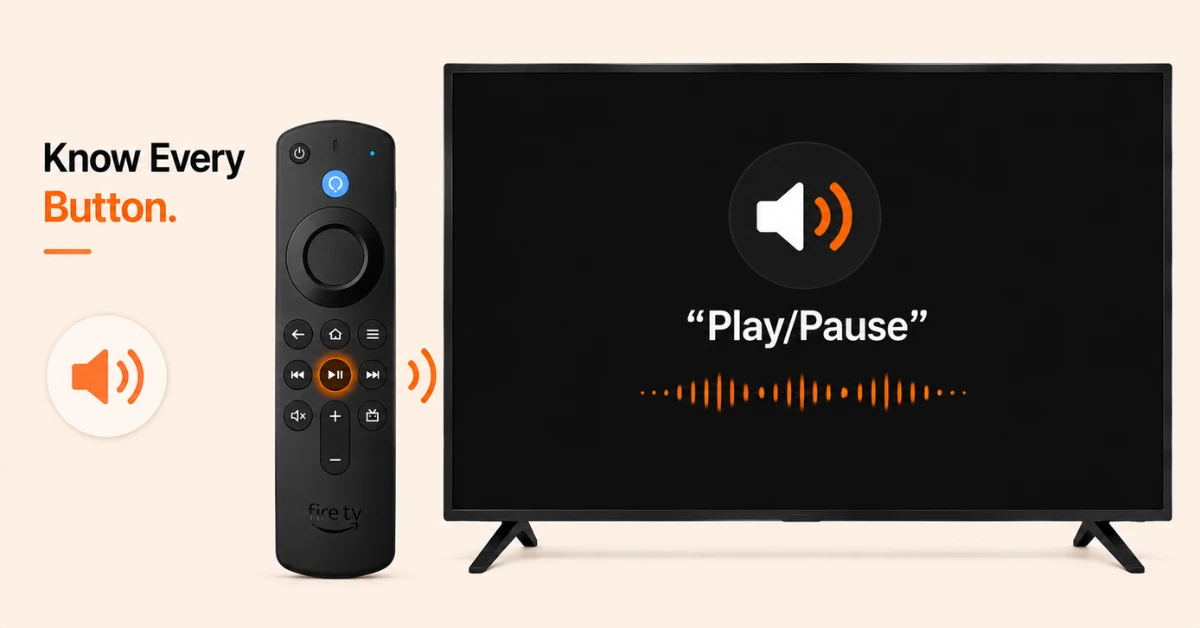
Use Explore Your Remote for Extra Help
-
Go to Settings, select Accessibility, and turn on Explore Your Remote
-
Press any button on your remote and VoiceView will speak the name of that button out loud
-
To turn Explore Your Remote off, press and hold Play Pause and then press Select at the same time
Quick Comparison
Side-by-side comparison of top Fire Stick VPNs
| VPN | Price | Servers | Speed | Devices | Rating | Actions |
|---|---|---|---|---|---|---|
|
|
$1.88/mo | 3,200+ | Blazing Fast | 8 | 4.7 | Get Deal |
 EXPRESS VPN
|
$2.79/mo | 3,000+ | Blazing Fast | 8 | 5 | Get Deal |
 NordVPN
|
$4.39/mo | 6,998+ | Blazing Fast | 8 | 4.8 | Get Deal |
 Proton VPN
|
$3.99/mo | 14,999+ | Blazing Fast | 7 | 4.8 | Get Deal |
 IPVanish
|
$2.49/mo | 3,100+ | Blazing Fast | 6 | 4 | Get Deal |
 PrivadoVPN
|
$1.99/mo | — | Blazing Fast | 5 | 4 | Get Deal |
Frequently Asked Questions
Does Fire Stick have a built in screen reader?
Yes, VoiceView is Fire Stick's built in screen reader and is available on all Fire TV devices. It reads out on screen text, menu options, and settings as you navigate making the device fully usable for visually impaired users.
How do I turn off the screen reader on Firestick?
Press and hold the Back and Menu buttons on your remote together for about two seconds to turn VoiceView off. You can also go to Settings, select Accessibility, select VoiceView, and click it again to turn it off.
Can I customise how the screen reader sounds on Fire Stick?
Yes, you can adjust VoiceView speech settings including speed and volume by going to Settings then Accessibility then VoiceView on your Fire Stick. This lets you set the reading pace that is most comfortable for you.
Does the screen reader on Fire Stick work with all apps?
VoiceView works with the Fire TV interface and Amazon affiliated apps. Support within third party apps varies depending on whether the app developer has implemented accessibility features for Fire TV.
What is Explore Your Remote on Fire TV Stick?
Explore Your Remote is a companion feature to VoiceView on Fire TV Stick that speaks the name of any button you press on your remote out loud. It is especially helpful for new VoiceView users learning the layout of their Fire TV remote.
Does setting up screen reader on Firestick require internet?
No, enabling VoiceView on Firestick does not require an internet connection. It is a built in device feature that works locally and can be turned on even before you connect your Firestick to a WiFi network.
Is the screen reader on Firestick suitable for completely blind users?
Yes, VoiceView on Firestick is specifically designed for users who are blind or have low vision. It reads out every on screen element as you navigate and includes a full tutorial and remote exploration feature to make the entire device usable without any visual reference.