How to Test If VPN Is Working on FireStick (Step-by-Step)
Editor's Choice
#1 Pick
Editor's Choice
 EXPRESS VPN
$2.79/month
Save 20%
Blazing Fast
3,000+
214
8
Step by Step Instructions
Step 01
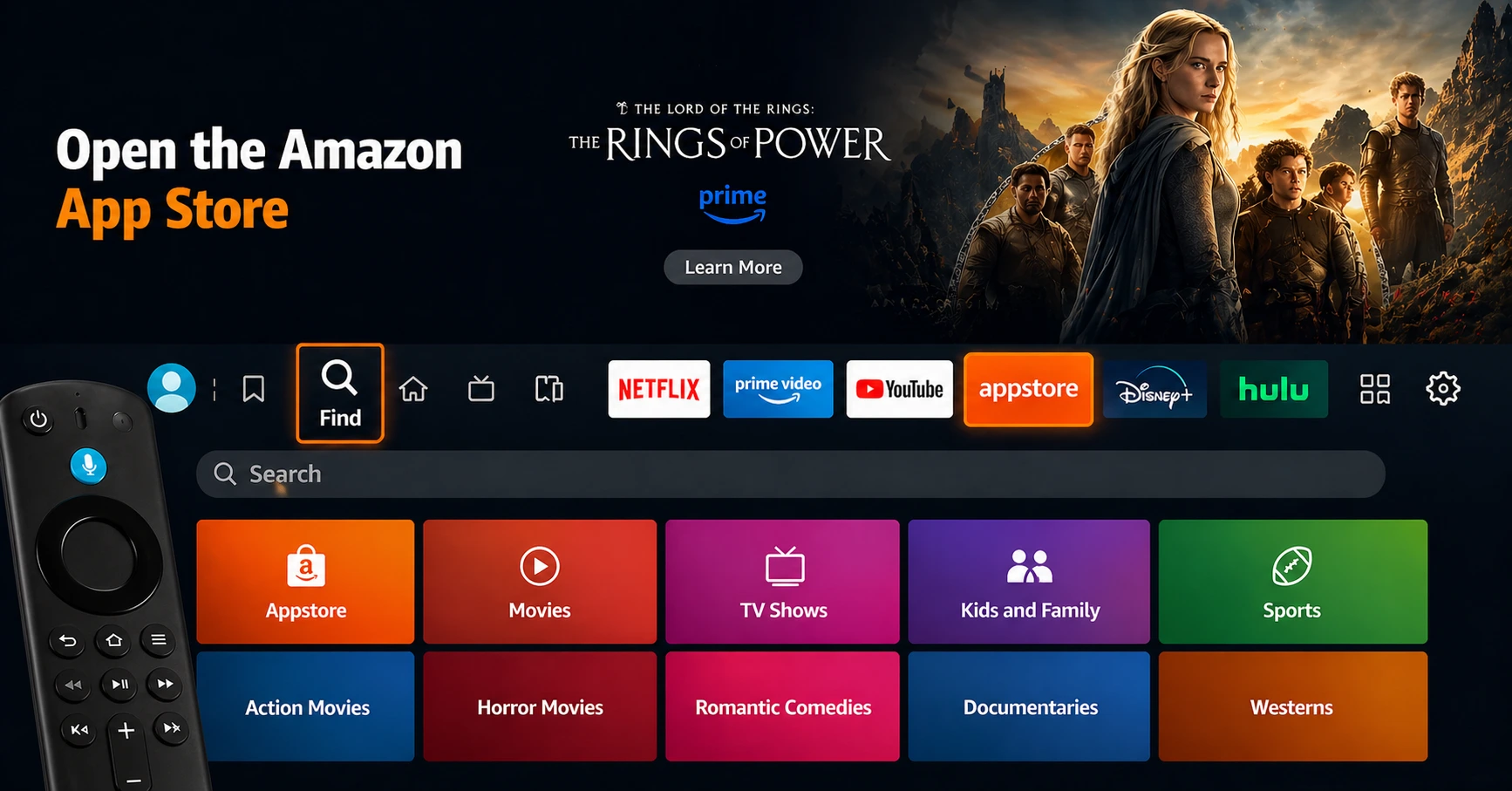
Open the Amazon App Store
From your Firestick home screen, navigate to the “Find” or search icon and open the Amazon App Store.
Step 02
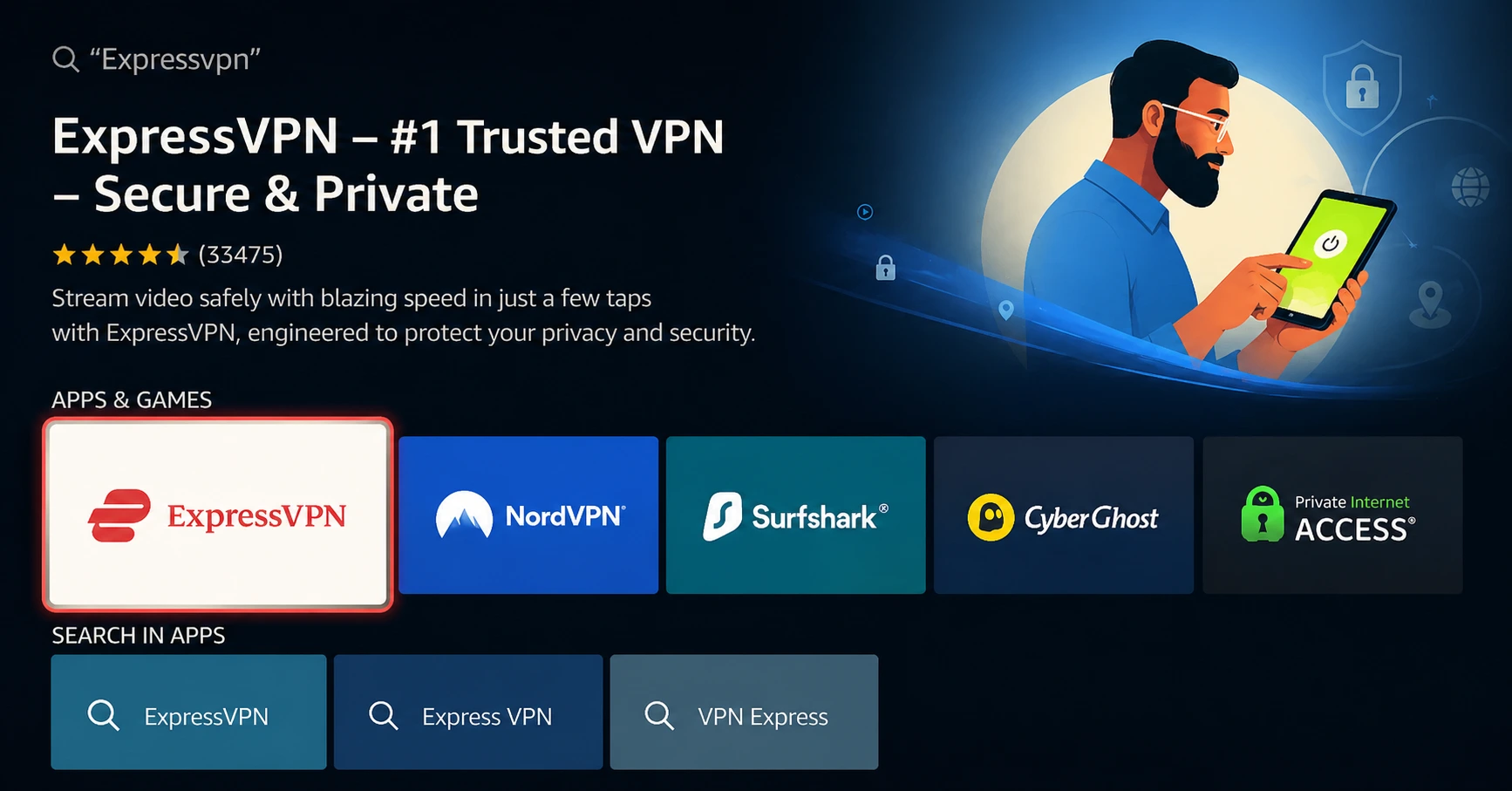
Search for ExpressVPN
Type “ExpressVPN” in the search bar using your remote. Select the official ExpressVPN app from the results.
Step 03
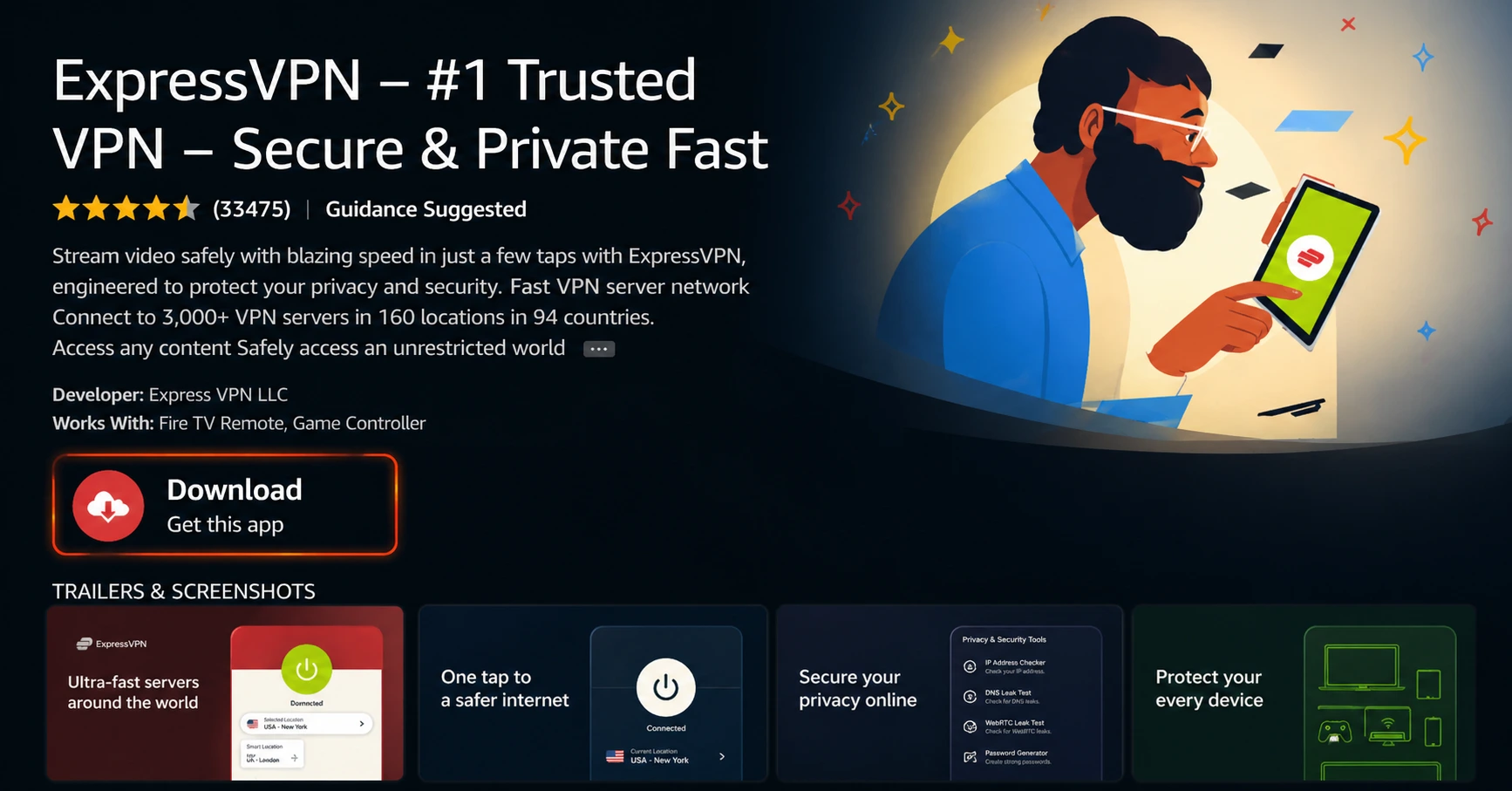
Download & Install the App
Click on the “Download” or “Get” button to install the app on your Firestick. Wait for the installation to complete.
Step 04
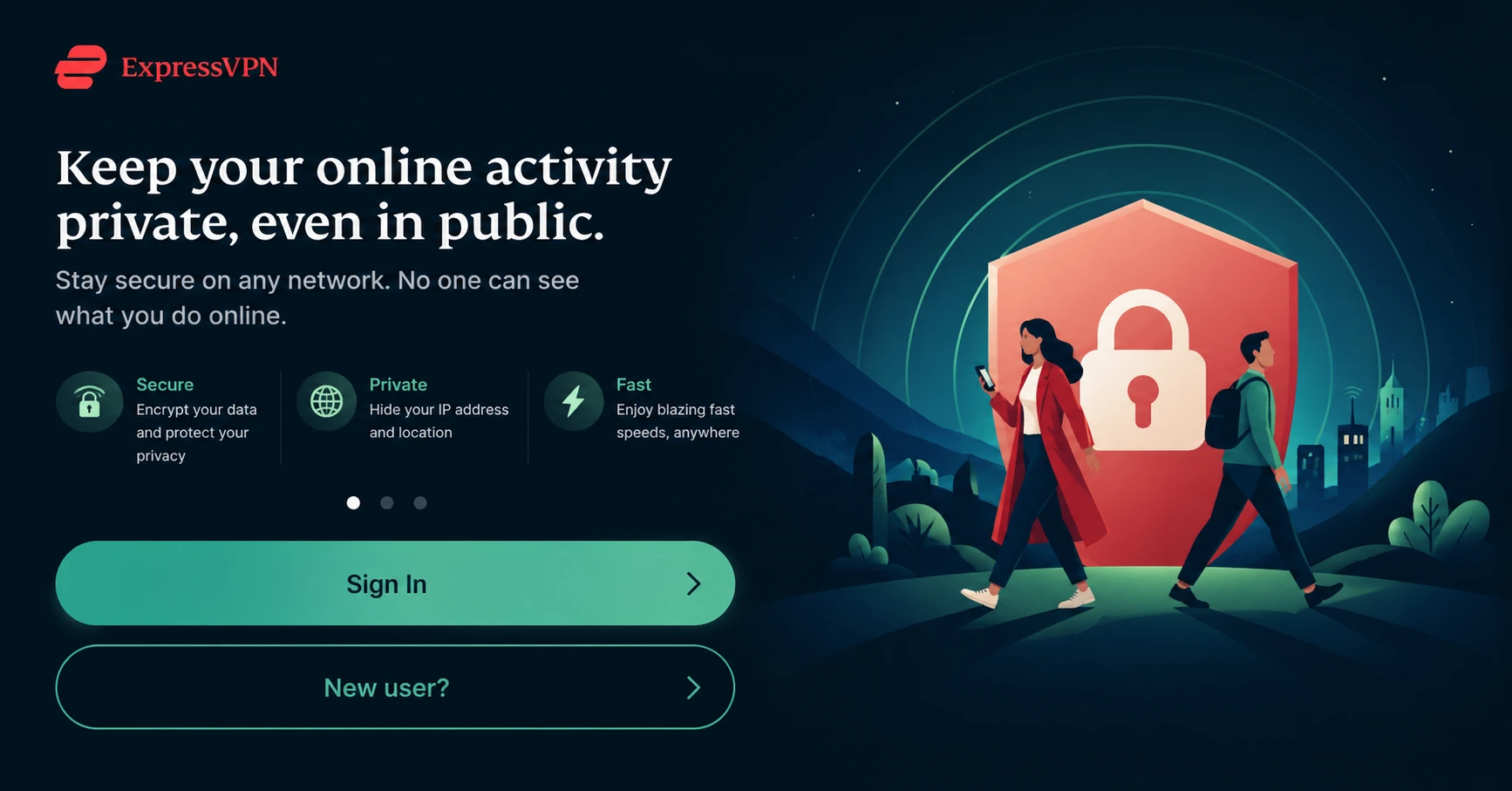
Sign In & Connect
Open the app, sign in with your ExpressVPN account, and tap the power button to connect to a server.
How to Test If VPN Is Working on FireStick? (Step-by-Step)
Step by step guide to verify your VPN is active and working on Fire TV. Takes under 5 minutes.
Step 01
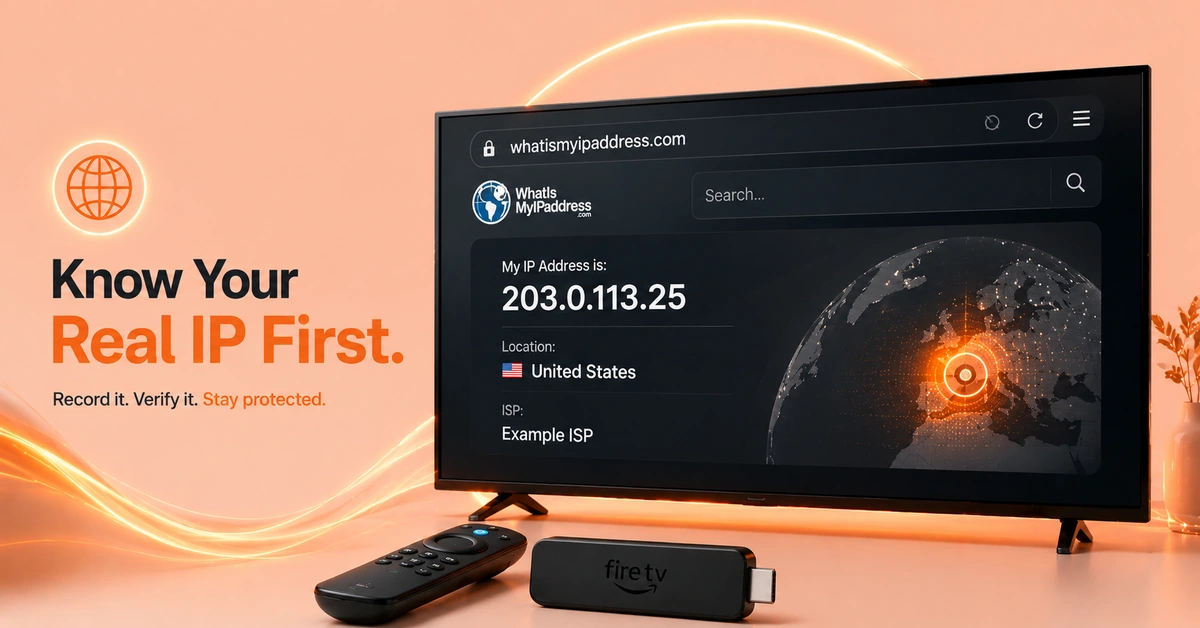
Note Your Real IP Address Before Connecting
-
Open Silk Browser on Firestick without connecting to any VPN.
-
Visit whatismyipaddress.com or ipleak.net on the browser.
-
Write down or screenshot your real IP address and country shown.
Step 02
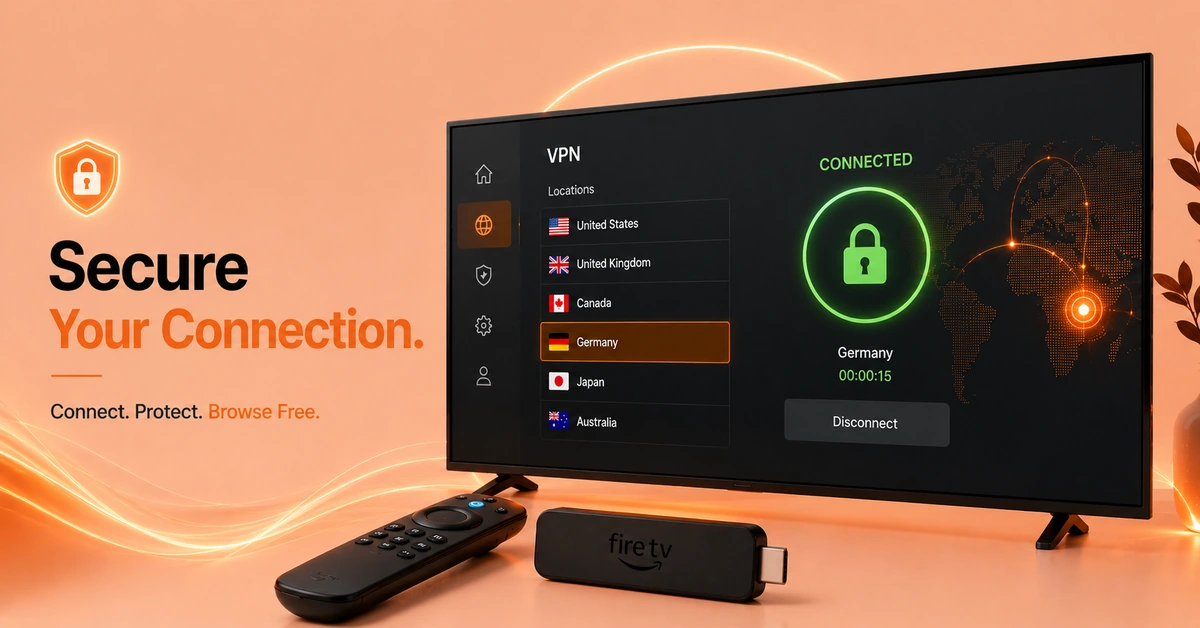
Connect Your VPN on FireStick
-
Open your VPN app from the Firestick home screen
-
Pick a server in any country different from your actual location.
-
Hit Connect and wait until the app confirms a secure connection.
Get EXPRESS VPN — 20% Off
Step 03
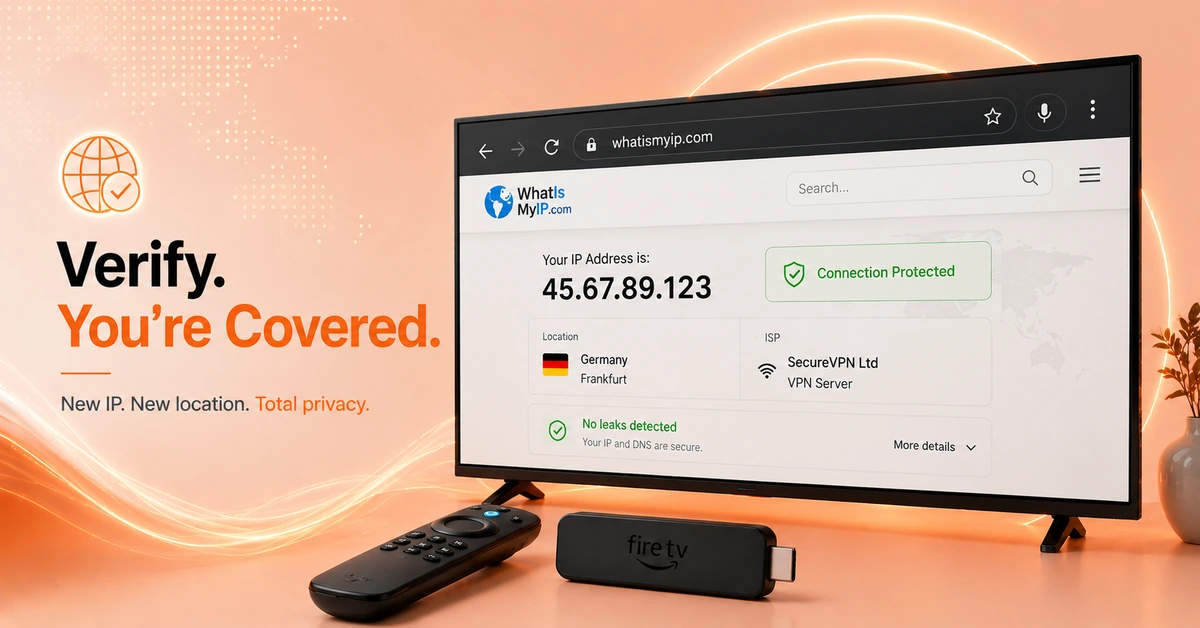
Use a Site to Run Your Firestick VPN IP Test
-
Switch back to Silk Browser after the VPN connects successfully.
-
Visit whatismyip.com or ipleak.net again to check ip address Firestick VPN.
-
Your IP address should now show the VPN server's location, not yours.
Step 04
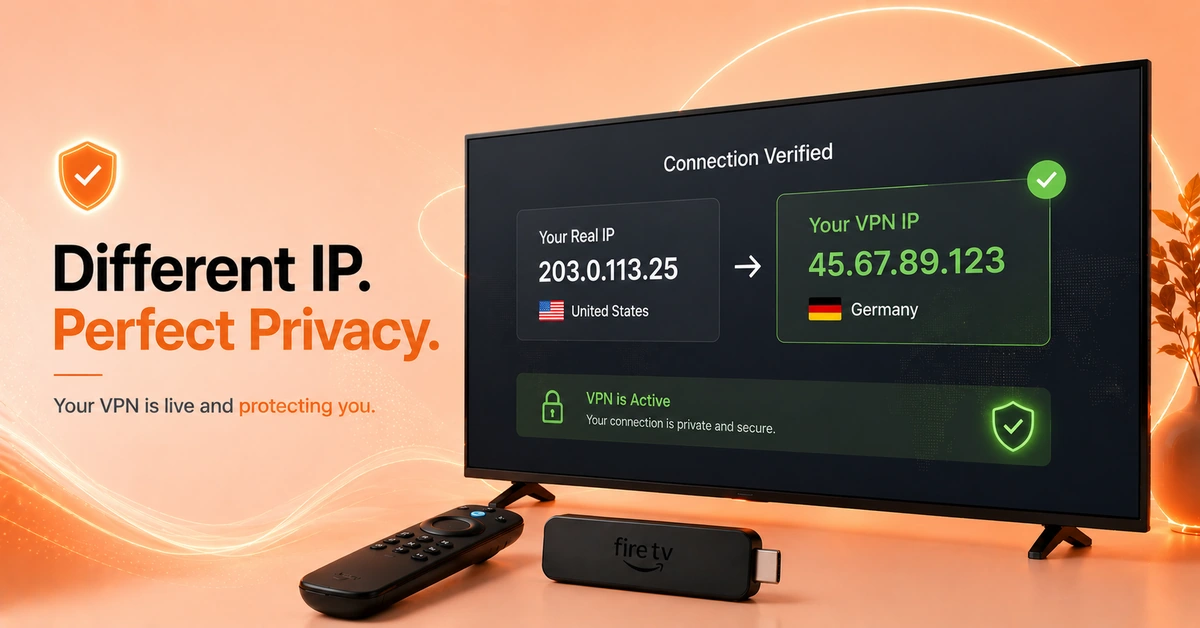
Verify VPN Connection FireStick Is Fully Active
-
Compare the new IP against the real IP you noted in Step 01.
-
If they are different, this confirms your firestick vpn status check passes.
-
Your VPN is working if the location matches the server you selected.
Quick Comparison
Side-by-side comparison of top Fire Stick VPNs
| VPN | Price | Servers | Speed | Devices | Rating | Actions |
|---|---|---|---|---|---|---|
|
EXPRESS VPN
|
$2.79/mo | 3,000+ | Blazing Fast | 8 | 5 | Get Deal |
 NordVPN
|
$4.39/mo | 6,998+ | Blazing Fast | 8 | 4.8 | Get Deal |
|
|
$1.88/mo | 3,200+ | Blazing Fast | 8 | 4.7 | Get Deal |
 PrivadoVPN
|
$1.99/mo | — | Blazing Fast | 5 | 4 | Get Deal |
 Private Internet Access
|
$11.95/mo | 35,000+ | Blazing Fast | 8 | 4 | Get Deal |
 Cyberghost vpn
|
$12.99/mo | 9,700+ | Fast | 6 | 4.2 | Get Deal |
 Proton VPN
|
$3.99/mo | 14,999+ | Blazing Fast | 7 | 4.8 | Get Deal |
 IPVanish
|
$2.49/mo | 3,100+ | Blazing Fast | 6 | 4 | Get Deal |
Frequently Asked Questions
How do I check if my VPN is working on Fire TV?
To check VPN Firestick, compare your IP address before and after connecting the VPN. Use sites like whatismyip.com or ipleak.net in the Silk Browser. If the IP and country shown match your VPN server's location rather than your real one, you are protected.
How do I test a VPN on FireStick?
To test VPN on Firestick, open the Silk Browser, visit an IP checker site without the VPN on, note your real IP, then connect the VPN and revisit the same site. If your IP has changed, the VPN is working correctly. The whole process takes under three minutes.
Is my VPN actually working on Fire TV?
To confirm is my vpn working Fire TV, run a before-and-after IP address comparison using any IP checker site in Silk Browser. Also check for DNS leaks using dnsleaktest.com to ensure no traffic escapes the tunnel. Both tests together give you a complete picture of VPN status.
How do I check my IP address on FireStick with a VPN?
To check ip address Firestick VPN, use the Silk Browser to visit any IP lookup site such as ipleak.net or ipchicken.com while connected to the VPN. The displayed IP should belong to your VPN provider's server, not your actual internet service provider.
How do I do a VPN IP test on FireStick?
For a Firestick VPN IP test, open Silk Browser, connect your VPN, then visit whatismyip.com. The site will display your current IP address and its geographic location. If it shows the VPN server's country instead of yours, the IP test passes and your VPN is active.
What does it mean if my real IP still shows with VPN on FireStick?
If your real IP shows up on a Firestick VPN IP test despite being connected, you likely have a DNS leak or a failed VPN connection. Disconnect, switch to a different server or protocol, reconnect, and retest. Enabling DNS leak protection in your VPN app settings usually resolves this.
How do I do a FireStick VPN status check?
A quick Firestick VPN status check involves opening your VPN app to confirm the connection icon is active, then switching to Silk Browser to verify your IP has changed. Some VPN apps show a status indicator directly on the home screen, making a one-glance check even faster.