How to Transfer Firestick Settings to a New Device ? A Simple Guide
Editor's Choice
#1 Pick
Editor's Choice
 NordVPN
$4.39/month
Save 20%
Blazing Fast
6,998+
214
8
Step by Step Instructions
Step 01
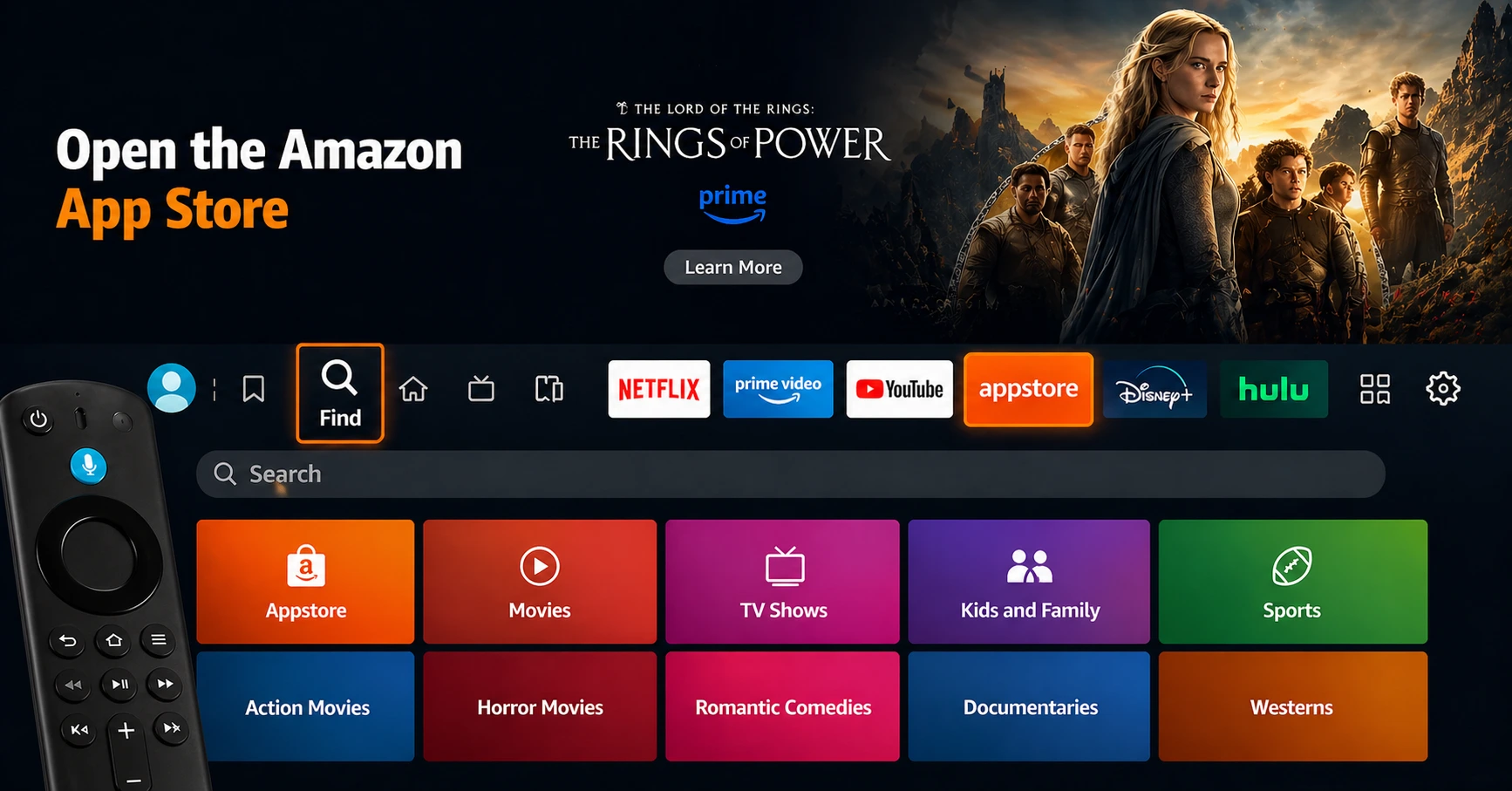
Go to Search on Fire TV
On your Fire TV home screen, select the Search (Find) option at the top.
Step 02
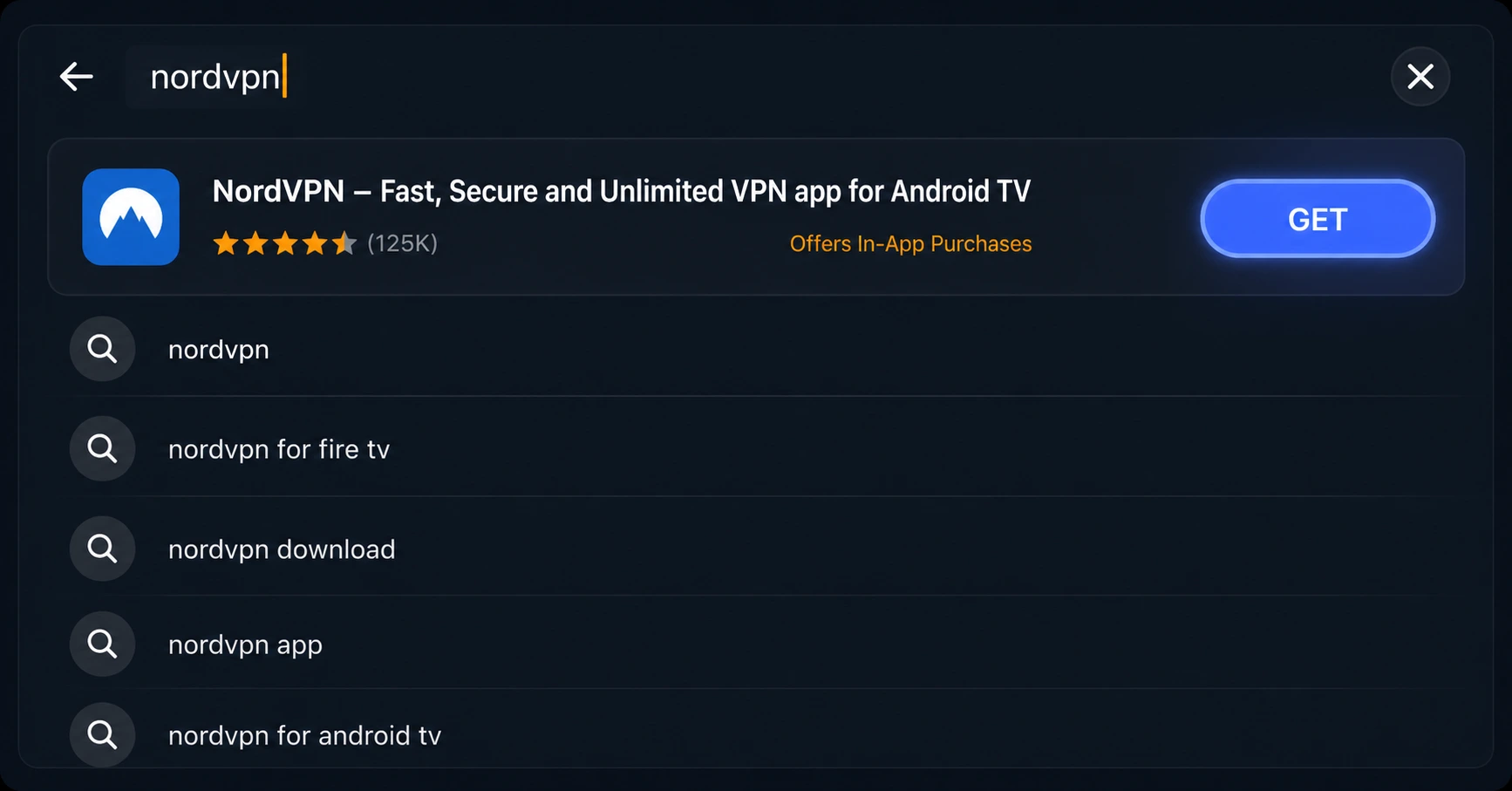
Type “NordVPN”
Use your remote to type NordVPN and choose the app when it appears in the results.
Step 03
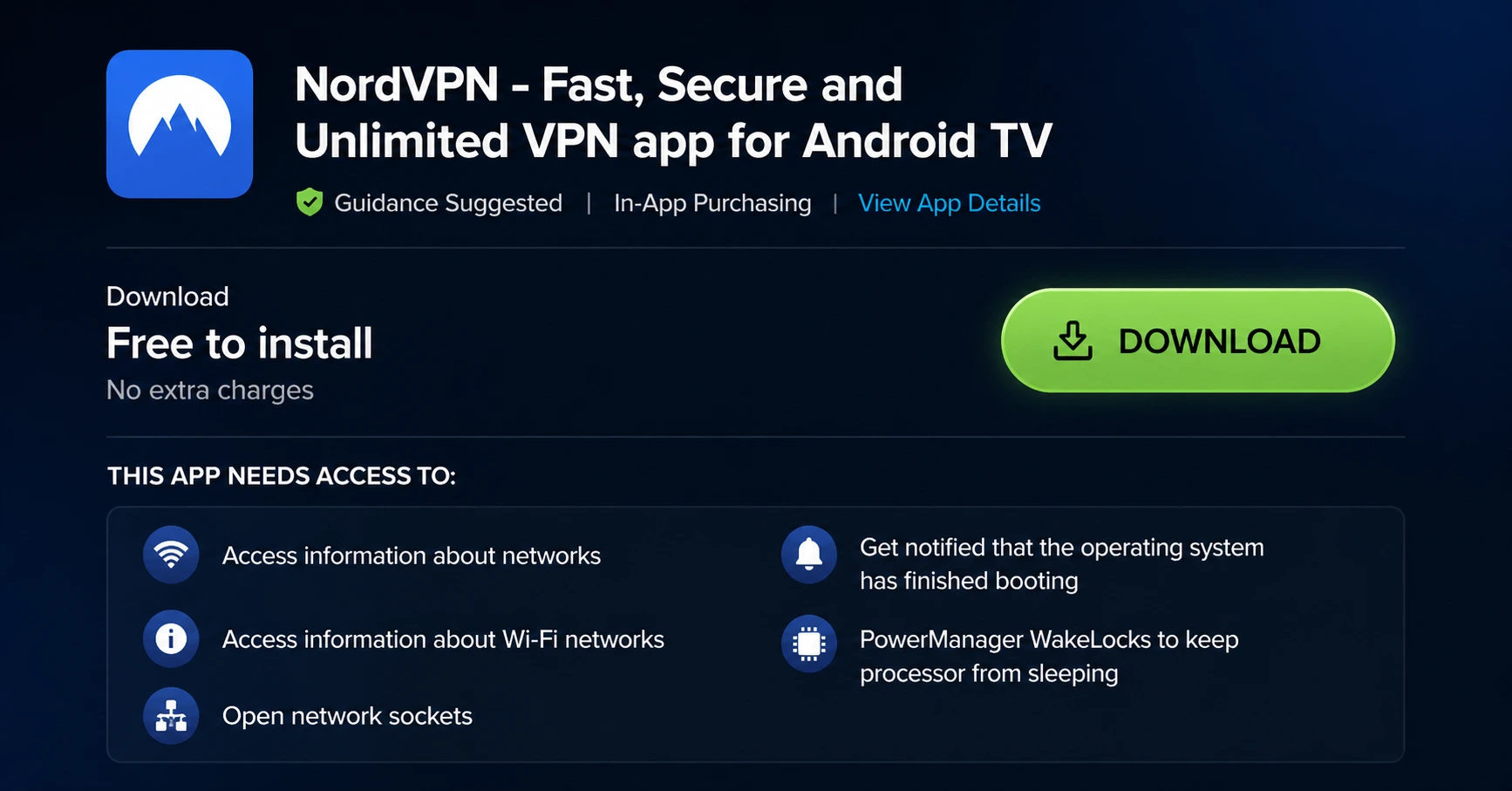
Install the App
Click on Get or Download to install NordVPN on your Fire TV.
Step 04
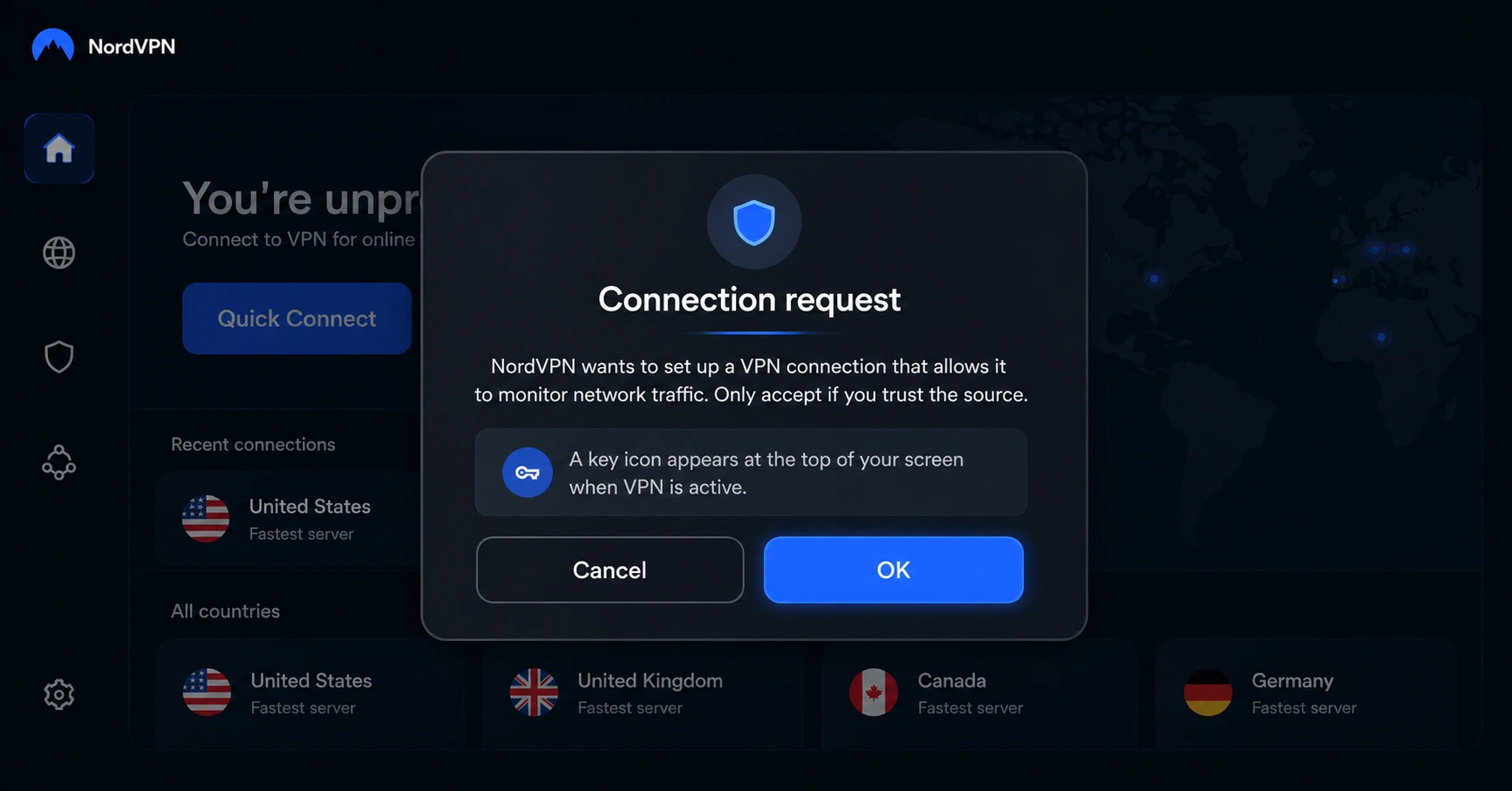
Log In & Connect
Open the app, sign in to your account, and press the connect button to start using the VPN.
How to Transfer Firestick Settings to a New Device?
Simple step by step guide to transfer settings to a new device
Step 01
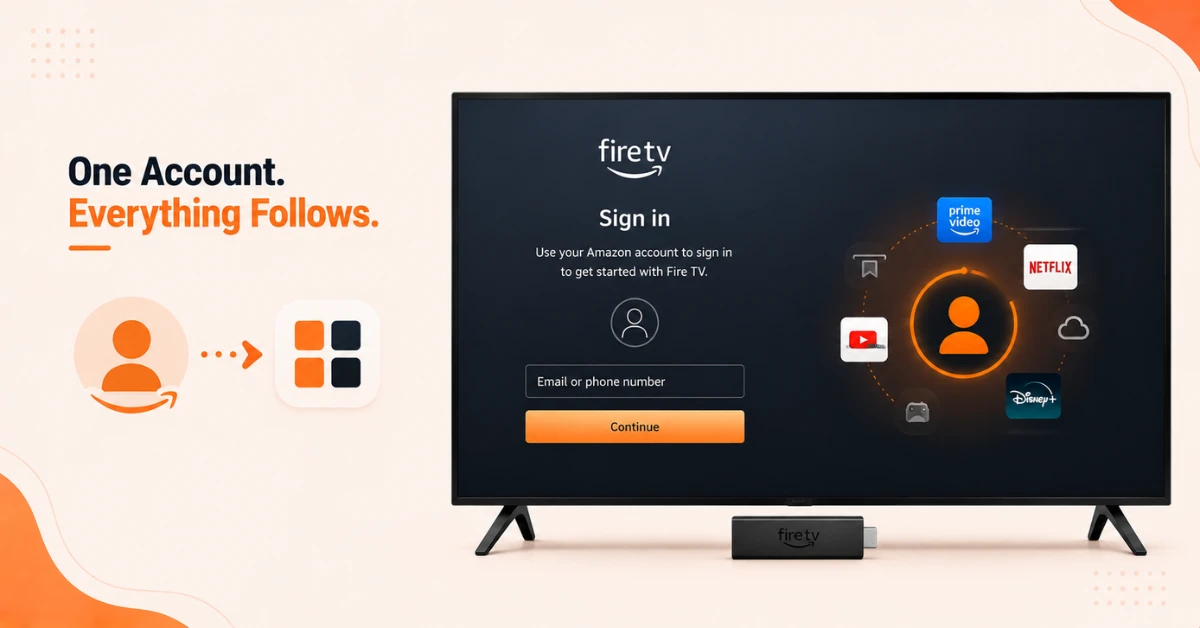
Sign In With Your Existing Amazon Account
-
Plug in your new Firestick and follow the on-screen setup instructions
-
When prompted, sign in with the same Amazon account used on your old Firestick
-
Your purchases, subscriptions and app history are all linked to this account
Step 02
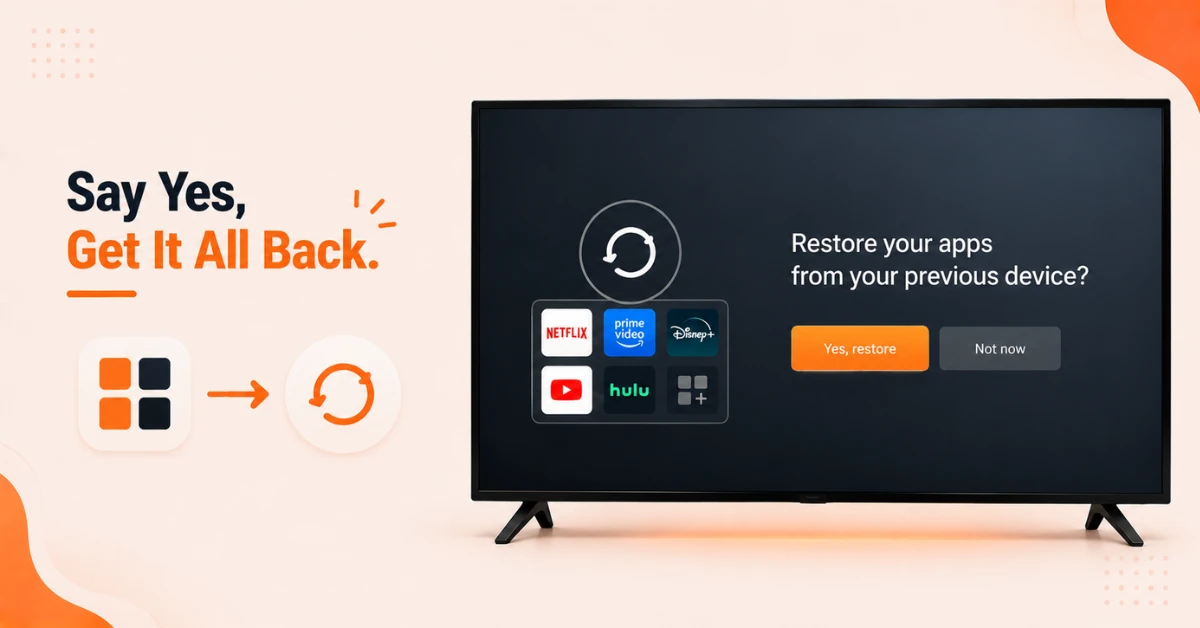
Restore Your Apps During Setup
-
During setup your Firestick will prompt you to restore apps from your previous device
-
Select Yes to restore and your previously downloaded apps will begin installing automatically
-
Note that this will not delete any apps from your old Firestick
Get NordVPN — 20% Off
Step 03
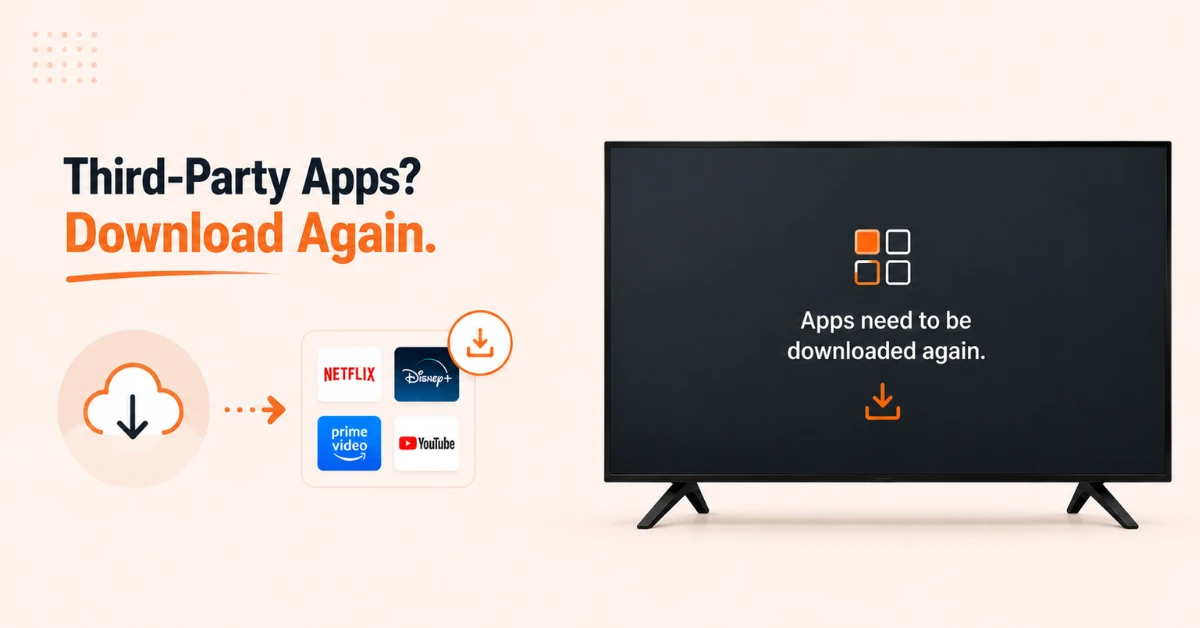
Reinstall Third Party Apps Manually
-
Third party apps like Netflix and Disney Plus will not transfer directly
-
From the home screen, go to Applications and select App Library
-
Select Not Installed to see all your previously downloaded apps
-
Select each app and click Download to reinstall them on your new device
Step 04
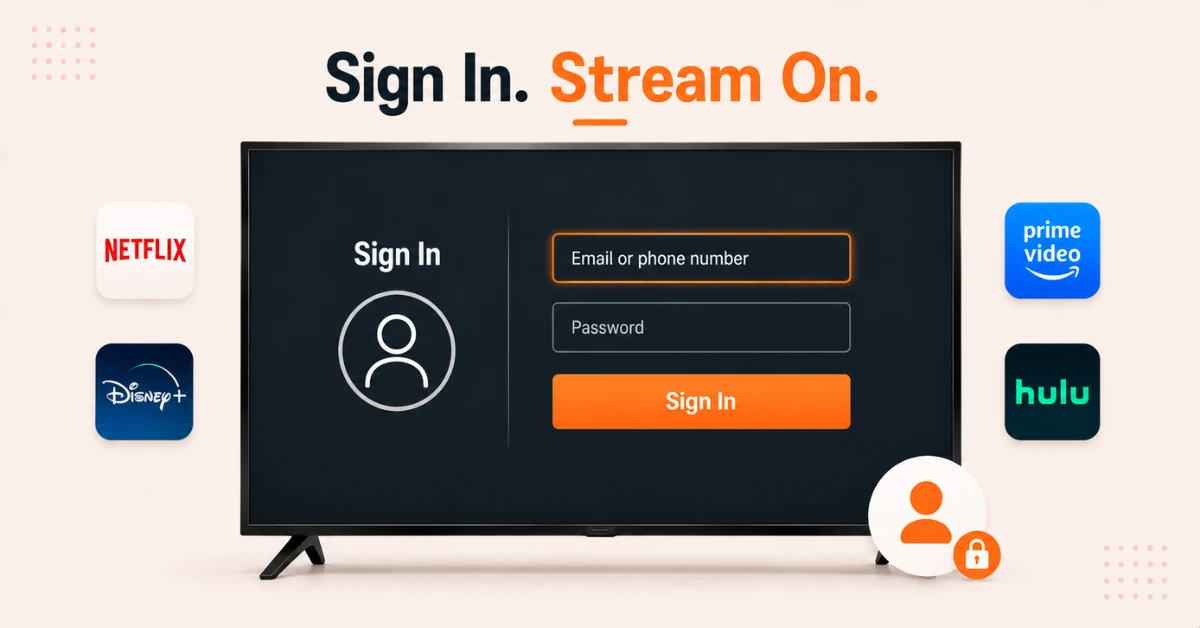
Sign In to Each App Again
-
Once reinstalled, open each app and sign in with your individual account credentials
-
App login details and passwords do not carry over to a new Firestick automatically
-
If you have local downloaded files from your old device, transfer them via external storage and connect to your new Firestick
Quick Comparison
Side-by-side comparison of top Fire Stick VPNs
| VPN | Price | Servers | Speed | Devices | Rating | Actions |
|---|---|---|---|---|---|---|
|
NordVPN
|
$4.39/mo | 6,998+ | Blazing Fast | 8 | 4.8 | Get Deal |
|
|
$1.88/mo | 3,200+ | Blazing Fast | 8 | 4.7 | Get Deal |
 Proton VPN
|
$3.99/mo | 14,999+ | Blazing Fast | 7 | 4.8 | Get Deal |
 EXPRESS VPN
|
$2.79/mo | 3,000+ | Blazing Fast | 8 | 5 | Get Deal |
 IPVanish
|
$2.49/mo | 3,100+ | Blazing Fast | 6 | 4 | Get Deal |
 Pure VPN
|
$3.55/mo | — | Blazing Fast | 6 | 4 | Get Deal |
Frequently Asked Questions
Do app login details transfer when I set up a new Firestick?
No, app login credentials do not carry over when you transfer to a new Firestick. Once your apps are reinstalled you will need to sign in to each one individually using your account details for that service.
How do I move Firestick apps to a new Firestick?
Sign in with the same Amazon account during setup and your new Firestick will prompt you to restore previously downloaded apps.
Why are some apps not moving to my new Firestick?
Third party apps like Netflix and Discovery Plus do not transfer directly between Firestick devices. You can find them in your App Library under Not Installed and download them again individually on your new Firestick.
How do I transfer local downloaded files from my old Fire TV Stick?
Local downloaded files do not transfer automatically to a new Fire TV Stick. You will need to move them to an external storage device first and then connect that storage to your new Fire TV Stick to access the files.
Will my watchlist transfer when I move Fire TV Stick data to a new device?
Yes, your Amazon watchlist and viewing history are linked to your Amazon account and will be available on your new Fire TV Stick once you sign in with the same account.
Can I set up a new Firestick with old settings without going through full setup again?
No, you need to go through the initial setup process on a new Firestick. However the process is quick and signing in with your existing Amazon account restores most of your apps and content automatically without manual reinstallation.
Will my home screen layout transfer when I set up a new Firestick with old settings?
No, the home screen layout and app arrangement do not transfer to a new Firestick. You will need to rearrange your apps and customise the home screen again on the new device after reinstalling your apps.