How to Use Amazon Luna on Firestick ?
Editor's Choice
#1 Pick
Editor's Choice
 EXPRESS VPN
$2.79/month
Save 20%
Blazing Fast
3,000+
214
8
Step by Step Instructions
Step 01
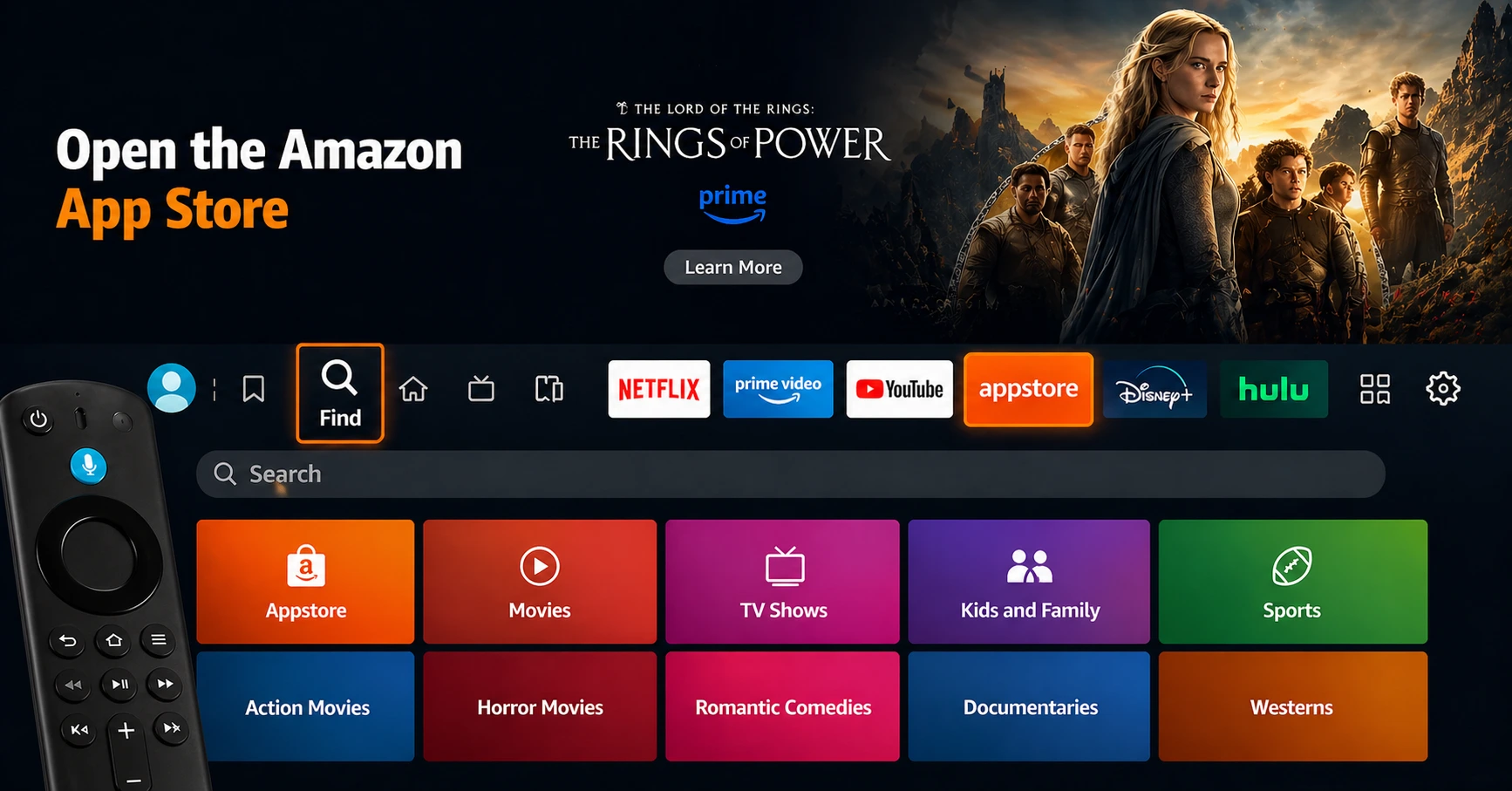
Open the Amazon App Store
From your Firestick home screen, navigate to the “Find” or search icon and open the Amazon App Store.
Step 02
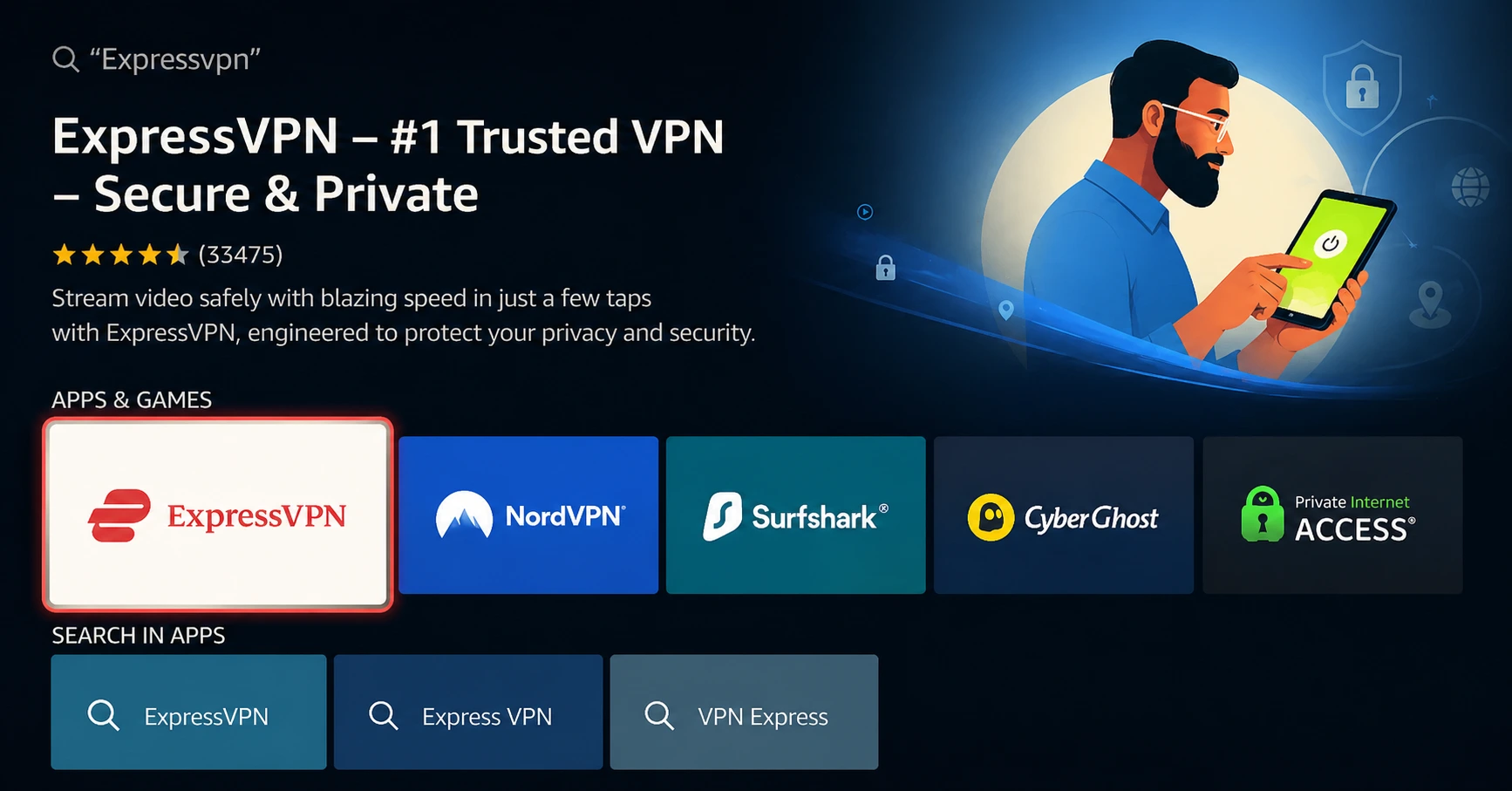
Search for ExpressVPN
Type “ExpressVPN” in the search bar using your remote. Select the official ExpressVPN app from the results.
Step 03
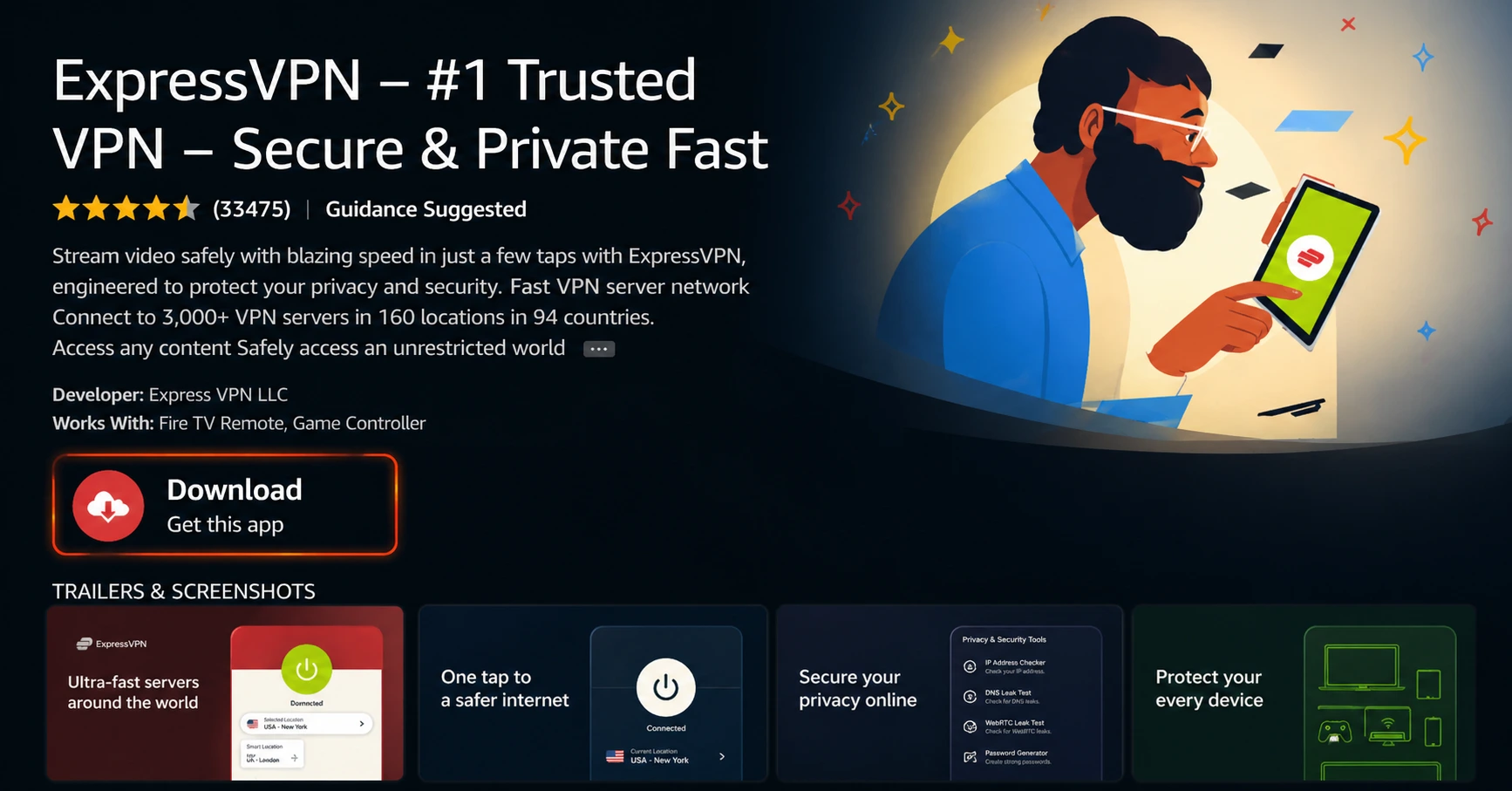
Download & Install the App
Click on the “Download” or “Get” button to install the app on your Firestick. Wait for the installation to complete.
Step 04
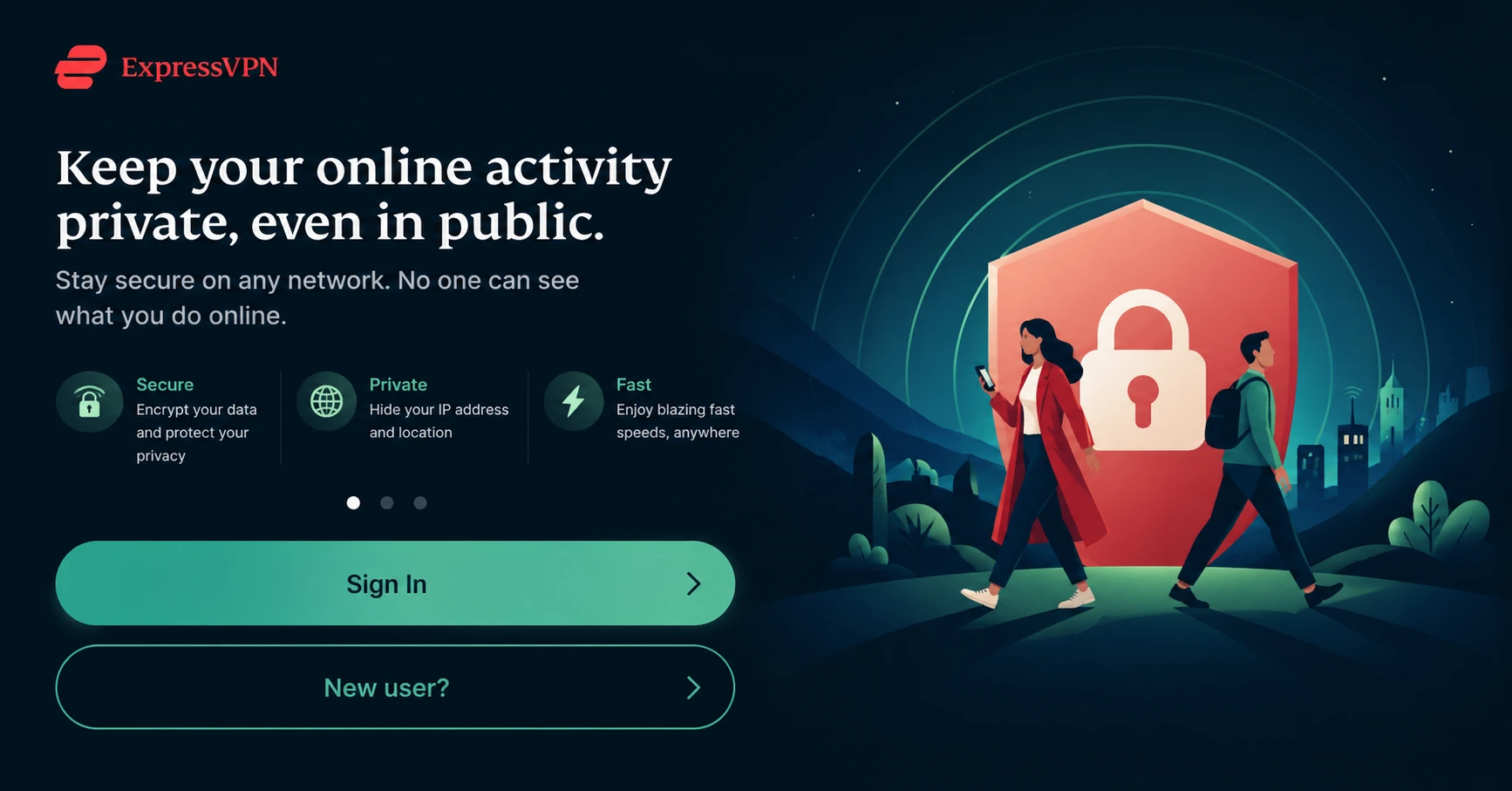
Sign In & Connect
Open the app, sign in with your ExpressVPN account, and tap the power button to connect to a server.
How to Use Amazon Luna on Firestick?
A simple guide to subscribing, installing and playing Amazon Luna on your Firestick
Step 01
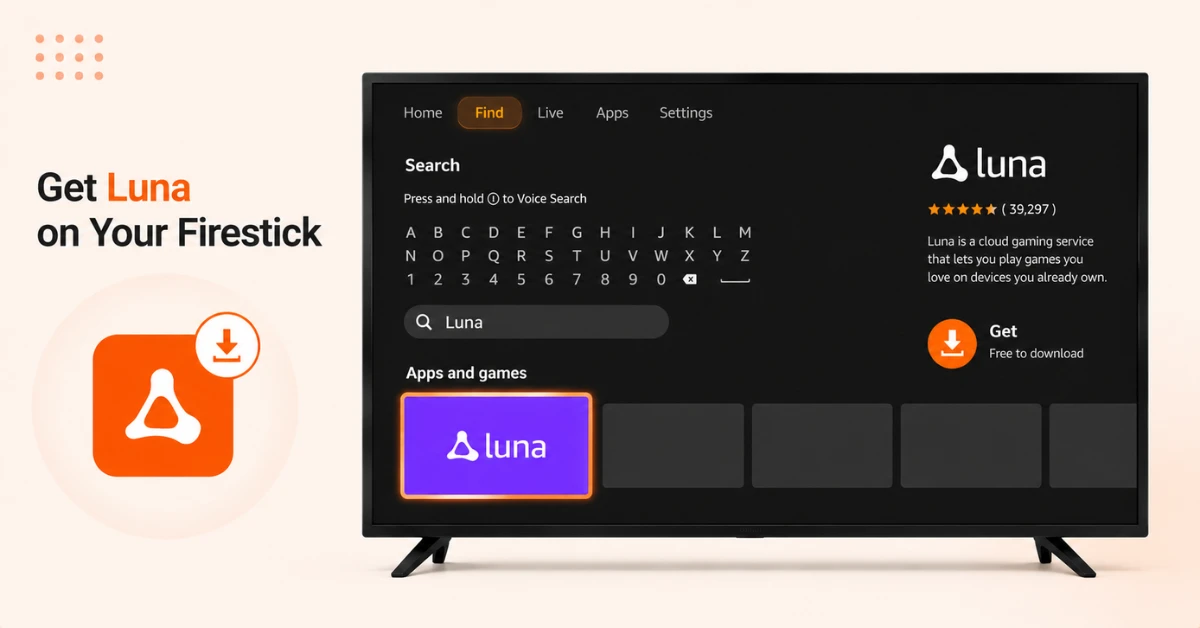
Download the Amazon Luna App
-
From the Firestick home screen, go to Find and select Search
-
Type Luna and select it from the suggestions that appear
-
Select the Luna tile under Apps and Games and click Get to install
-
Once installed, click Open to launch the app
Step 02
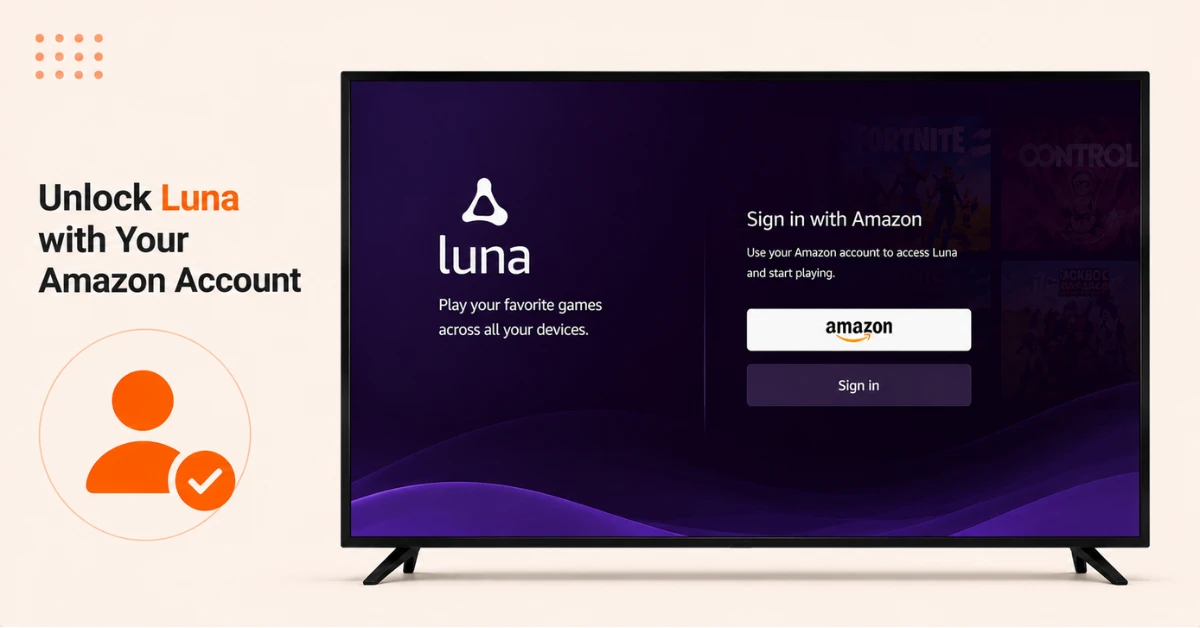
Subscribe and Sign In
-
Open a browser and go to amazon.com/luna/landing-page
-
Sign in with your Amazon account and choose a plan that suits you
-
Click Start Your 7 Day Free Trial and then click Confirm Subscription
-
Return to the Luna app on your Firestick and sign in to access your games
Get EXPRESS VPN — 20% Off
Step 03
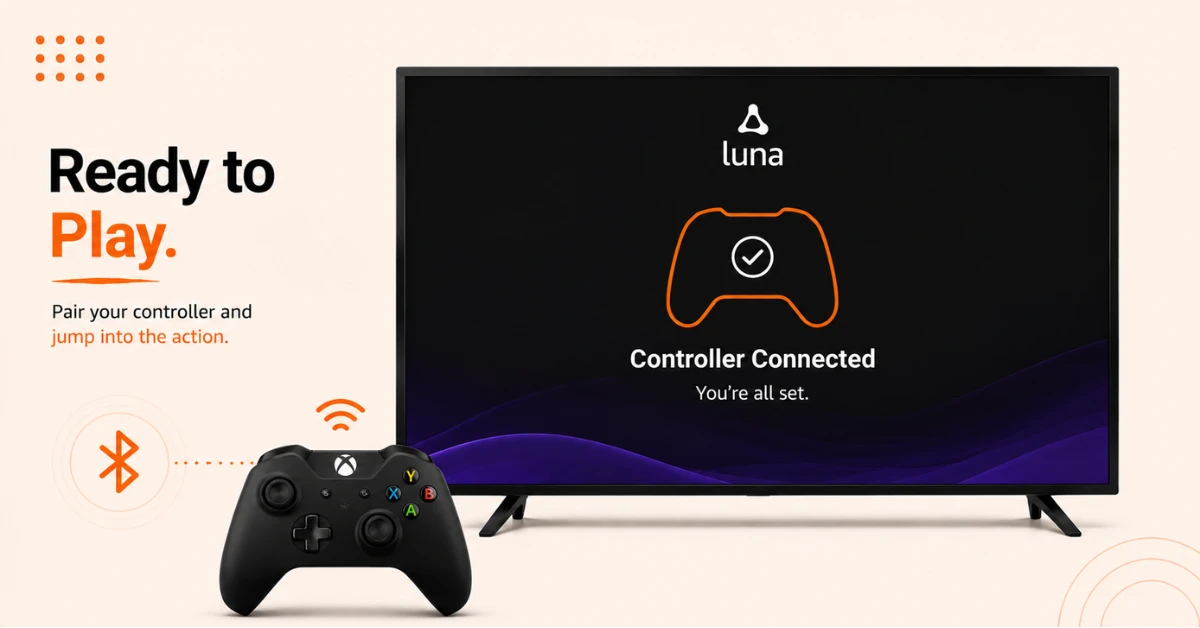
Connect a Compatible Controller
-
You can use the Luna Wireless Controller, an Xbox One Wireless Controller, or a PS4 DualShock 4
-
Go to Settings, then Remotes and Bluetooth Devices, then Game Controllers
-
Select Add New Game Controller and follow the on-screen steps to pair it
Step 04
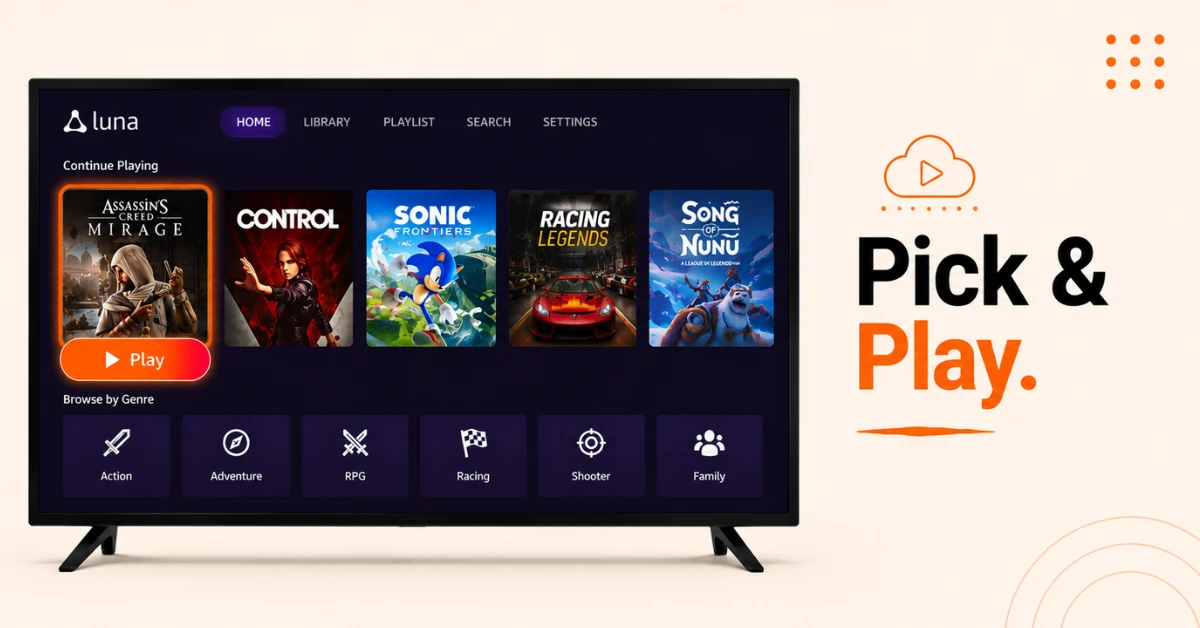
Start Playing
-
Browse the Luna library by genre or search for a specific title
-
Select any game and click Play to start streaming instantly
-
Your progress saves automatically so you can continue on any compatible device
Quick Comparison
Side-by-side comparison of top Fire Stick VPNs
| VPN | Price | Servers | Speed | Devices | Rating | Actions |
|---|---|---|---|---|---|---|
|
EXPRESS VPN
|
$2.79/mo | 3,000+ | Blazing Fast | 8 | 5 | Get Deal |
 NordVPN
|
$4.39/mo | 6,998+ | Blazing Fast | 8 | 4.8 | Get Deal |
 Proton VPN
|
$3.99/mo | 14,999+ | Blazing Fast | 7 | 4.8 | Get Deal |
|
|
$1.88/mo | 3,200+ | Blazing Fast | 8 | 4.7 | Get Deal |
 IPVanish
|
$2.49/mo | 3,100+ | Blazing Fast | 6 | 4 | Get Deal |
 Pure VPN
|
$3.55/mo | — | Blazing Fast | 6 | 4 | Get Deal |
Frequently Asked Questions
Can I try Amazon Luna on Firestick for free?
Yes, each Amazon Luna plan comes with a 7 day free trial for new subscribers. You can test the service on your Firestick during the trial period and cancel before it ends to avoid any charges.
Does Luna on Firestick save my game progress?
Yes, your game progress on Luna on Firestick is saved automatically to your Amazon account. You can stop playing on your Firestick and continue on any other compatible Luna device without losing any progress.
What games can I play on Amazon Luna on Firestick?
Amazon Luna on Firestick offers games across multiple plans. The Luna+ plan covers over a hundred games across various genres, Ubisoft+ includes popular titles like Assassin's Creed Valhalla and Far Cry 6, and the Jackbox plan features party games for all ages.
What controller do I need for Luna on Firestick?
You can use the dedicated Luna Wireless Controller, an Xbox One Wireless Controller, or a PS4 DualShock 4 with Luna on Firestick. All three connect over Bluetooth through the Controllers and Bluetooth Devices section in your Firestick settings.
Do I need to sideload Amazon Luna on Firestick?
No, Amazon Luna is available directly on the Amazon App Store so there is no need to sideload or change any developer settings on your Firestick. The installation process is the same as downloading any other app.
Do I need a powerful internet connection for cloud gaming on Firestick?
A stable connection of at least 10 Mbps is recommended for standard cloud gaming on Firestick. For higher quality streaming at 1080p or above, 35 Mbps or more will give you a smoother and more responsive experience.
What cloud gaming services are available on Firestick?
Firestick supports multiple cloud gaming services including Amazon Luna, Xbox Cloud Gaming via the Xbox app, and GeForce Now which can be sideloaded using the Downloader app. Each service offers a different game library and subscription model.