How to Use Watchlist on Firestick?
Editor's Choice
#1 Pick
Editor's Choice
 Proton VPN
$3.99/month
Save 20%
Blazing Fast
14,999+
214
7
Step by Step Instructions
Step 01
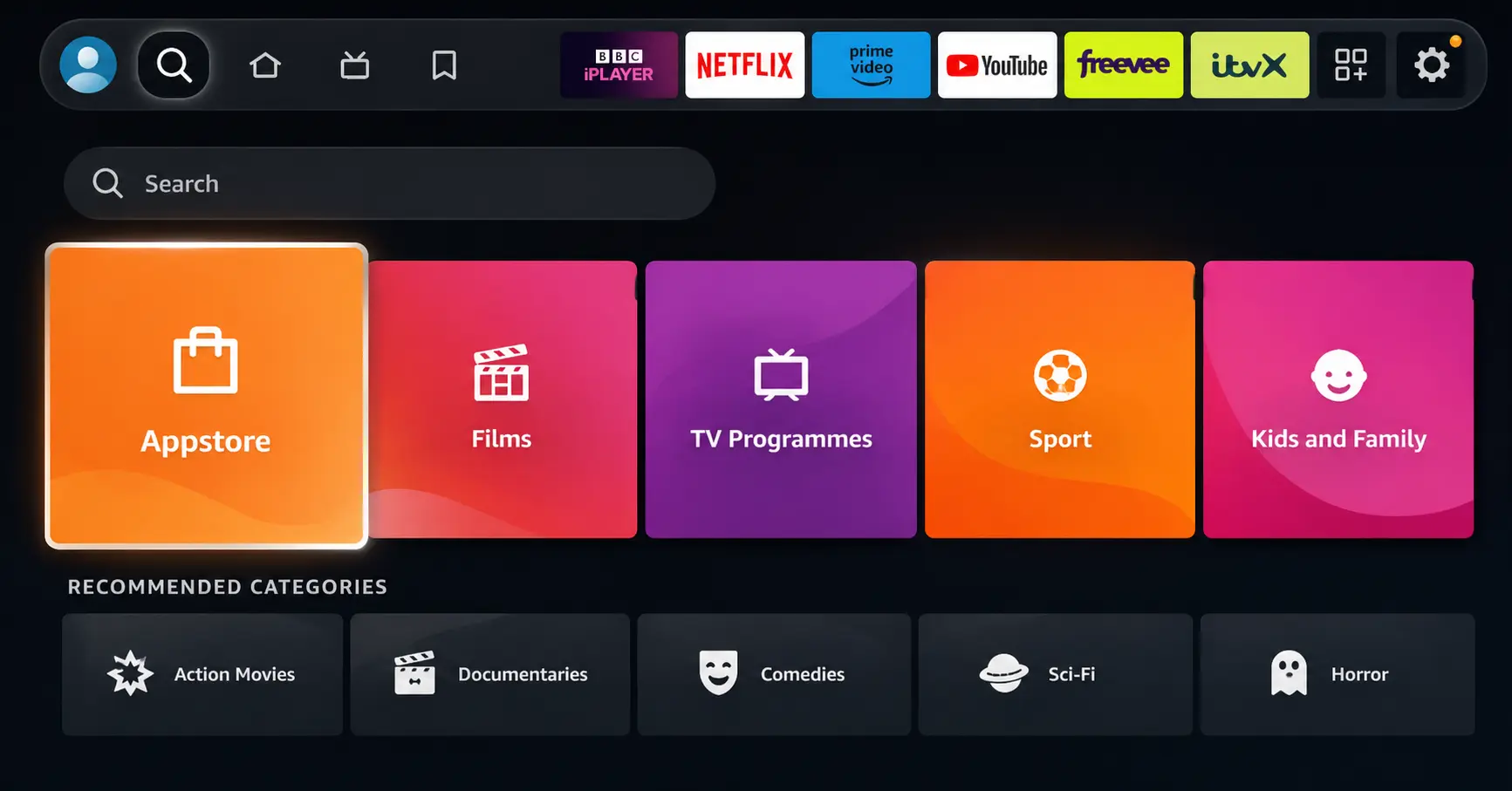
Open Search on Fire TV
Go to the Find (Search) option from your Fire TV home screen.
Step 02
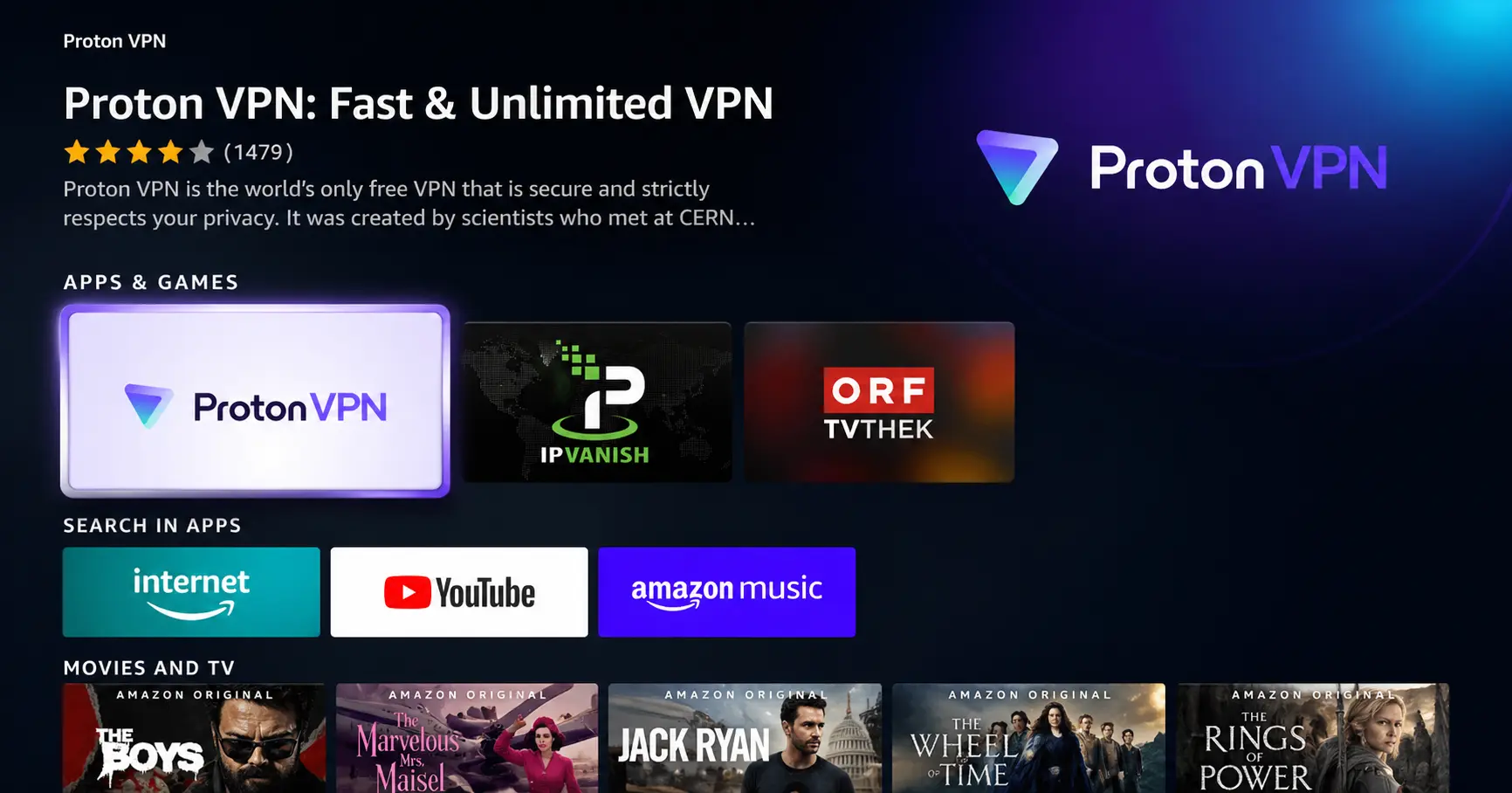
Search for ProtonVPN
Type ProtonVPN using your remote and select the app from the results.
Step 03
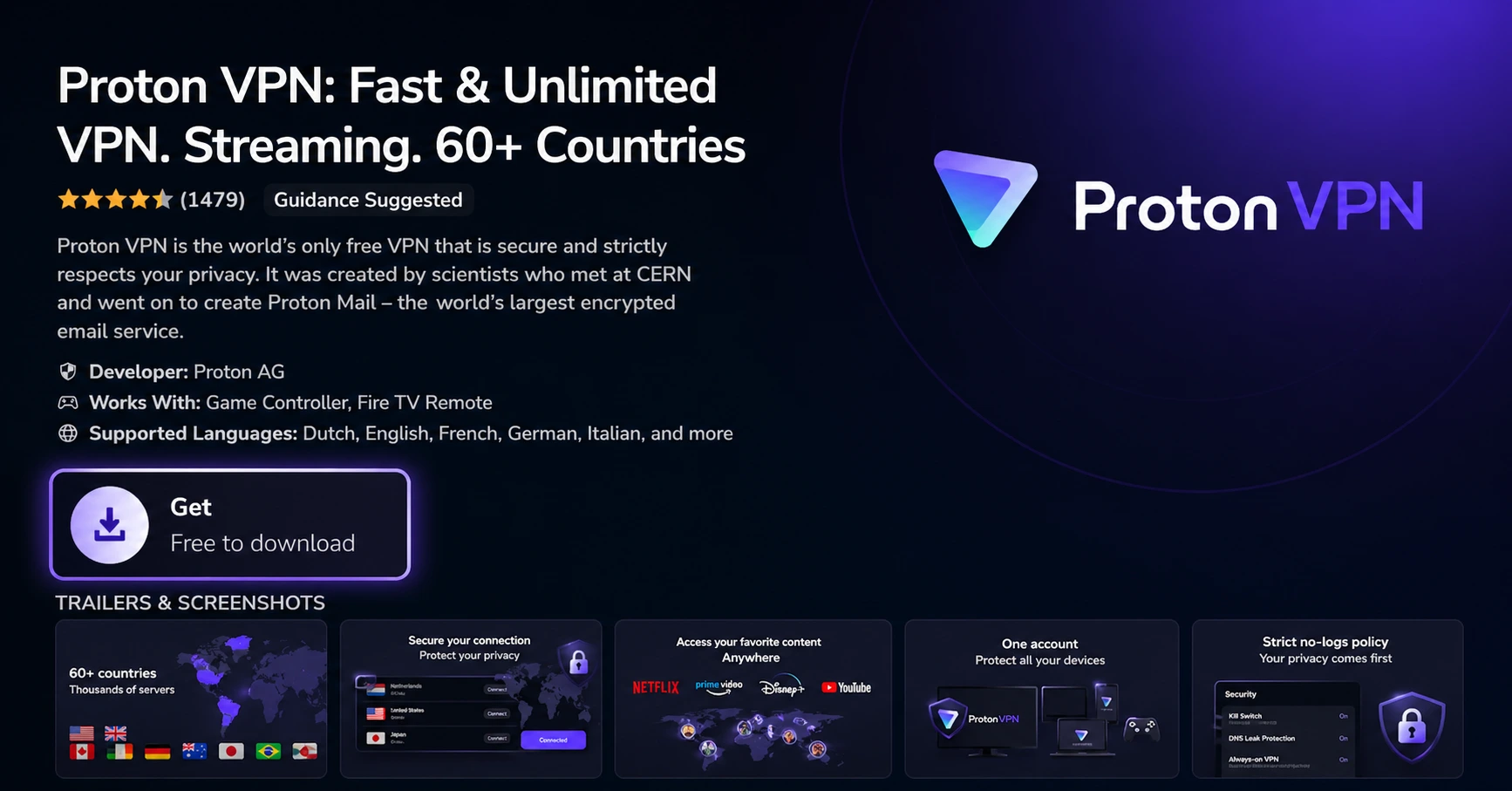
Install the App
Click on Get or Download to install ProtonVPN on your Fire TV.
Step 04
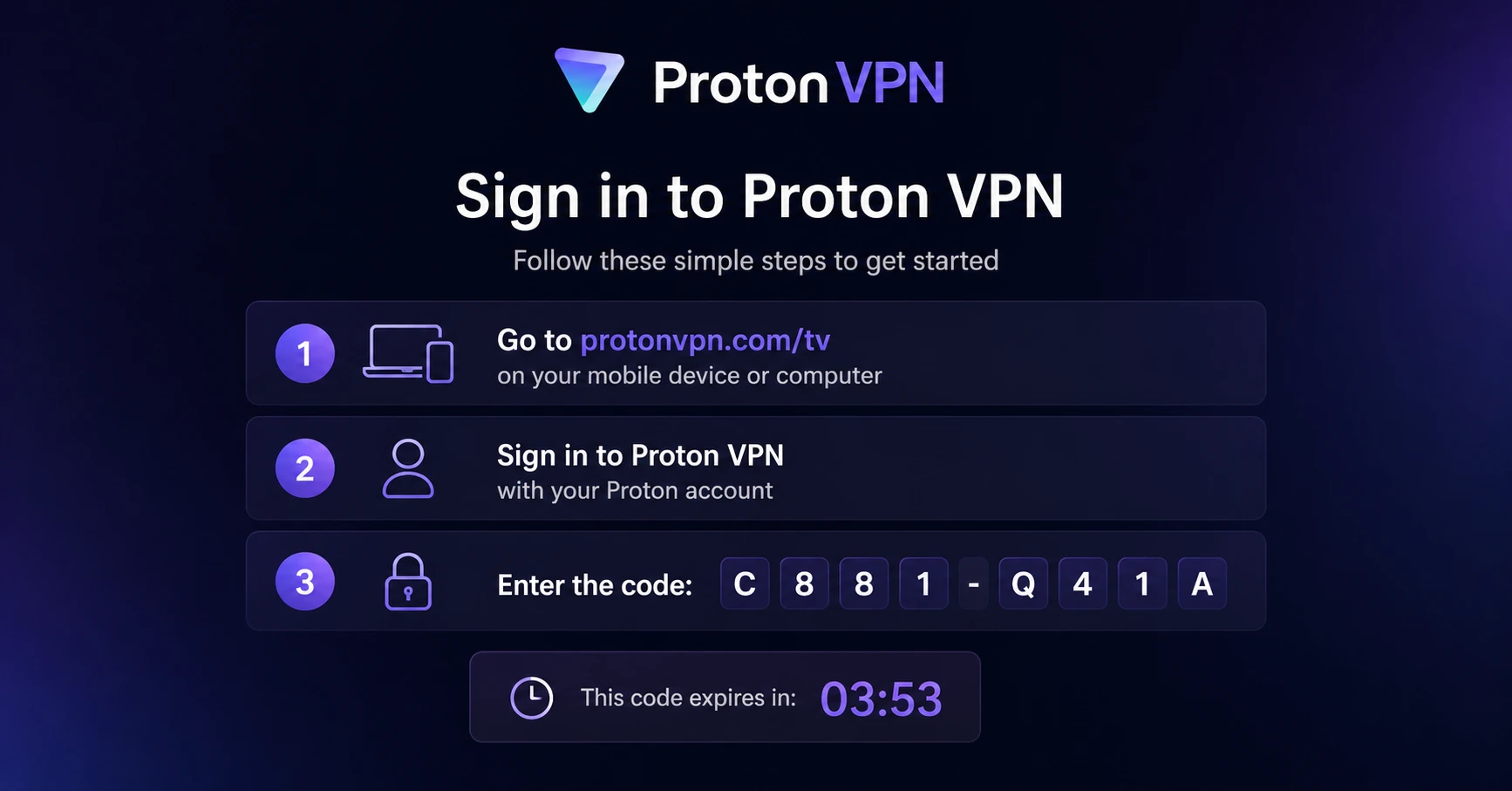
Sign In & Connect
Open the app, sign in using your Proton account (QR or code method), and connect to a server.
How to Use Watchlist on Firestick?
A simple user guide to saving, finding, and managing your watchlist on Firestick
Step 01
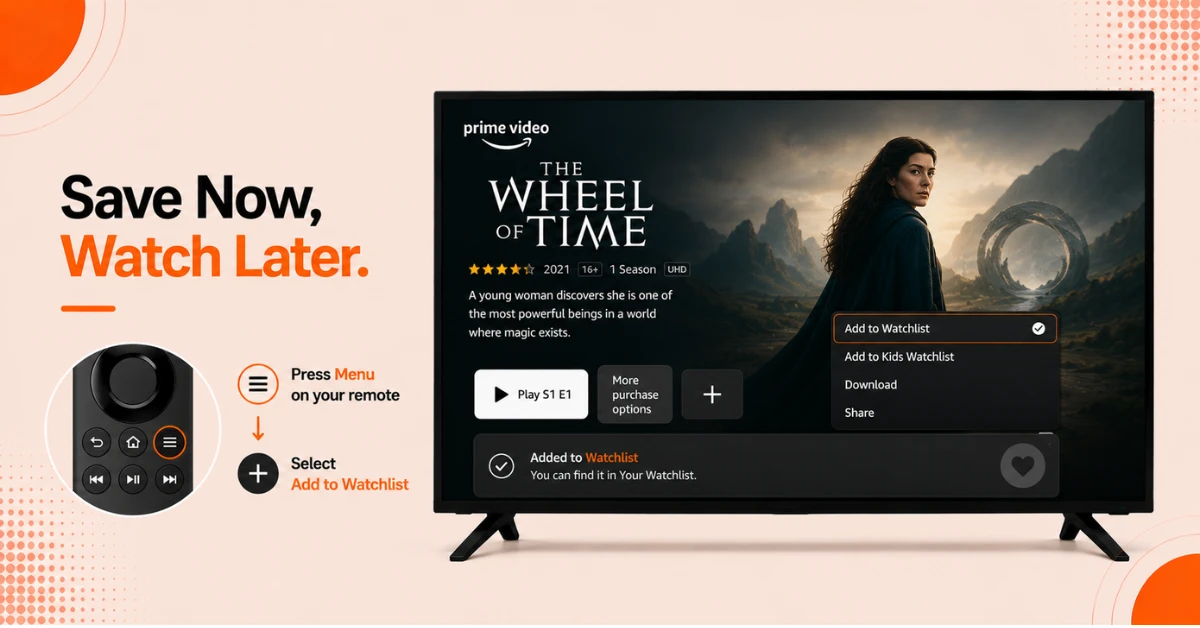
Add a Title to Your Watchlist
-
Browse Prime Video on your Firestick and highlight any movie or show you want to save
-
Press the Menu button on your remote and select Add to Watchlist
-
You can also add titles directly from search results the same way
Step 02
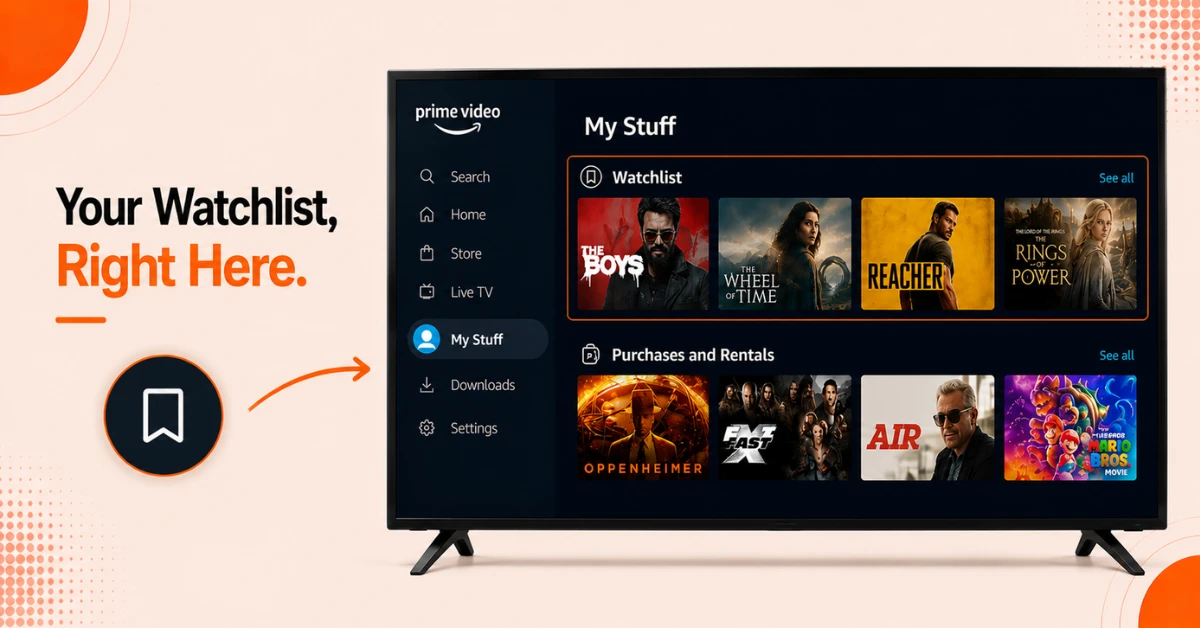
Find Your Watchlist on Firestick
-
From the Firestick home screen, open the Prime Video app
-
Open the side menu and select My Stuff
-
Your Watchlist appears at the top of the My Stuff section alongside your purchases and rentals
Get Proton VPN — 20% Off
Step 03
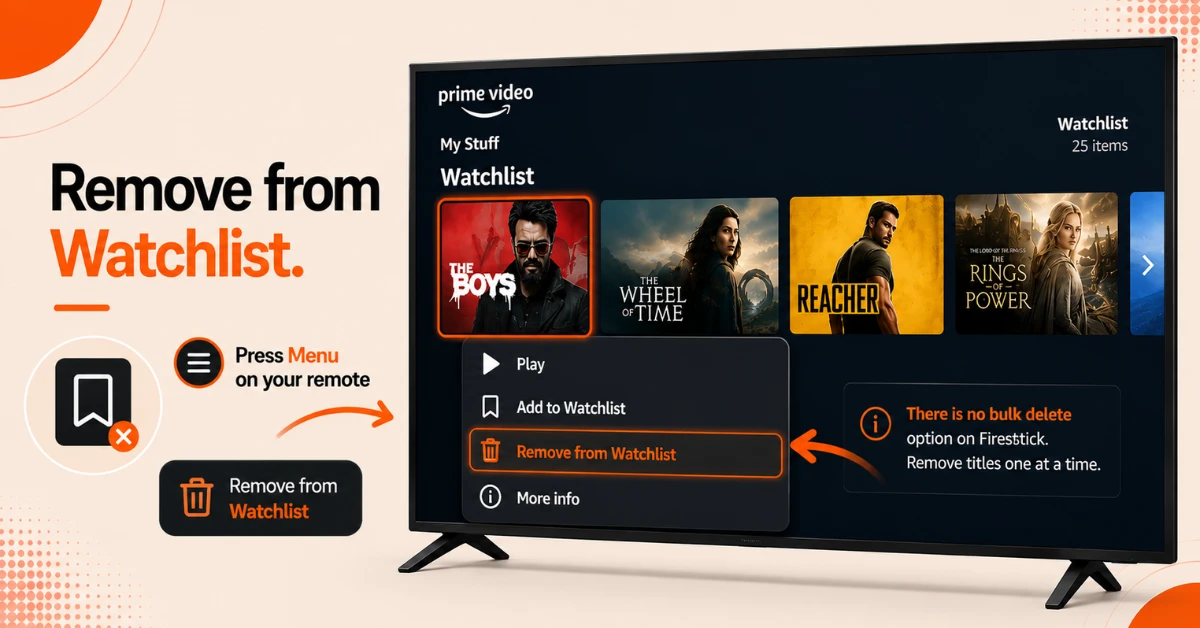
Remove Titles From Your Watchlist
-
Highlight any title in your Watchlist and press the Menu button on your remote
-
Select Remove from Watchlist to delete it from your list
-
There is no bulk delete option so titles need to be removed one at a time on Firestick
Step 04
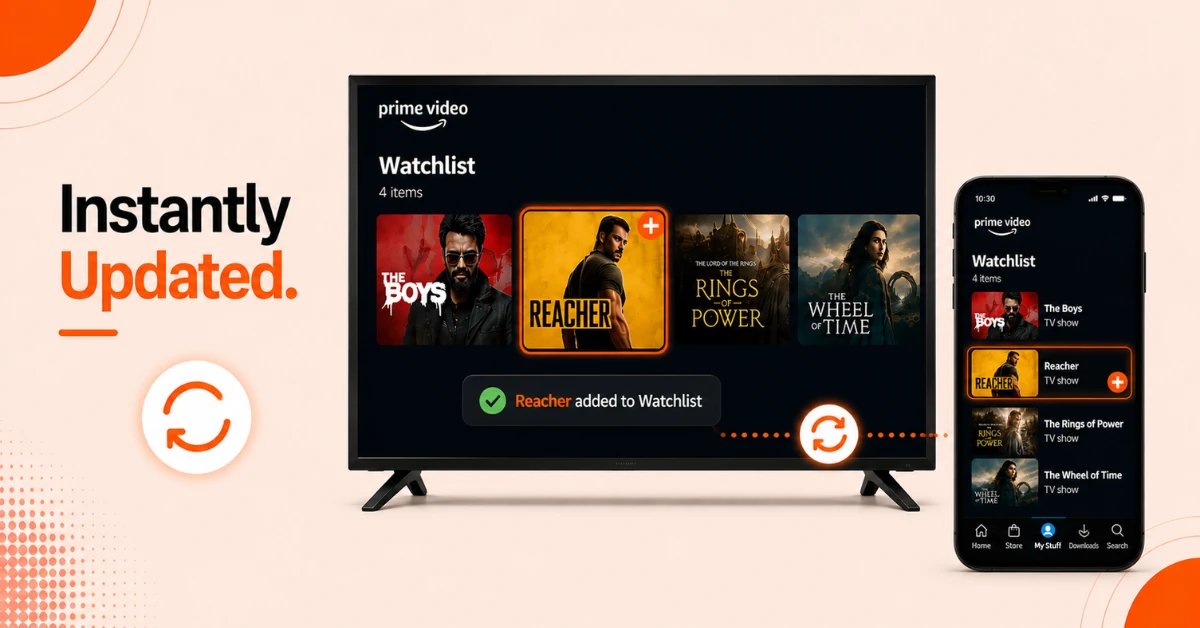
Your Watchlist Syncs Across All Devices
-
Any title you add or remove on your Firestick will automatically sync to your phone, tablet, and browser
-
All changes are tied to your Amazon account so switching devices will not affect your saved list
-
If your Watchlist does not update immediately, sign out and back in to force a refresh
Quick Comparison
Side-by-side comparison of top Fire Stick VPNs
| VPN | Price | Servers | Speed | Devices | Rating | Actions |
|---|---|---|---|---|---|---|
|
Proton VPN
|
$3.99/mo | 14,999+ | Blazing Fast | 7 | 4.8 | Get Deal |
 NordVPN
|
$4.39/mo | 6,998+ | Blazing Fast | 8 | 4.8 | Get Deal |
 EXPRESS VPN
|
$2.79/mo | 3,000+ | Blazing Fast | 8 | 5 | Get Deal |
|
|
$1.88/mo | 3,200+ | Blazing Fast | 8 | 4.7 | Get Deal |
 IPVanish
|
$2.49/mo | 3,100+ | Blazing Fast | 6 | 4 | Get Deal |
 PrivadoVPN
|
$1.99/mo | — | Blazing Fast | 5 | 4 | Get Deal |
Frequently Asked Questions
Where is the watchlist on Firestick?
The Firestick watchlist is found inside the Prime Video app under My Stuff. Open the side menu, select My Stuff, and your watchlist appears at the top of the page alongside your purchases and rentals.
Does the Firestick watchlist sync across devices?
Yes, the Firestick watchlist syncs automatically across all devices linked to your Amazon account. Add a title on your Firestick and it will appear on your phone, tablet, and browser within a short time.
How do I add a title to my Fire TV watchlist?
Highlight any movie or show on Prime Video and press the Menu button on your Fire TV remote. Select Add to Watchlist and the title will be saved to your list under My Stuff instantly.
How do I add movies to my watchlist on Firestick?
Browse Prime Video on your Firestick, highlight the movie you want to save, press the Menu button on your remote, and select Add to Watchlist. You can also add movies directly from search results the same way.
Why is my Firestick watchlist empty after adding titles?
If your watchlist appears empty after adding titles, the app may need a refresh. Sign out of Prime Video and sign back in to force a sync and your saved titles should appear.
How many titles can I save to my watchlist on Fire TV?
There is no official limit to how many titles you can save to your watchlist on Fire TV. You can add as many movies and shows as you like and they will all appear under My Stuff in the Prime Video app.
Does My Stuff on Firestick show content from other streaming apps?
My Stuff on Firestick only shows content from Prime Video including your watchlist, purchases, and rentals. Content saved within third party apps like Netflix or Apple TV Plus appears in those apps own separate saved or watchlist sections.